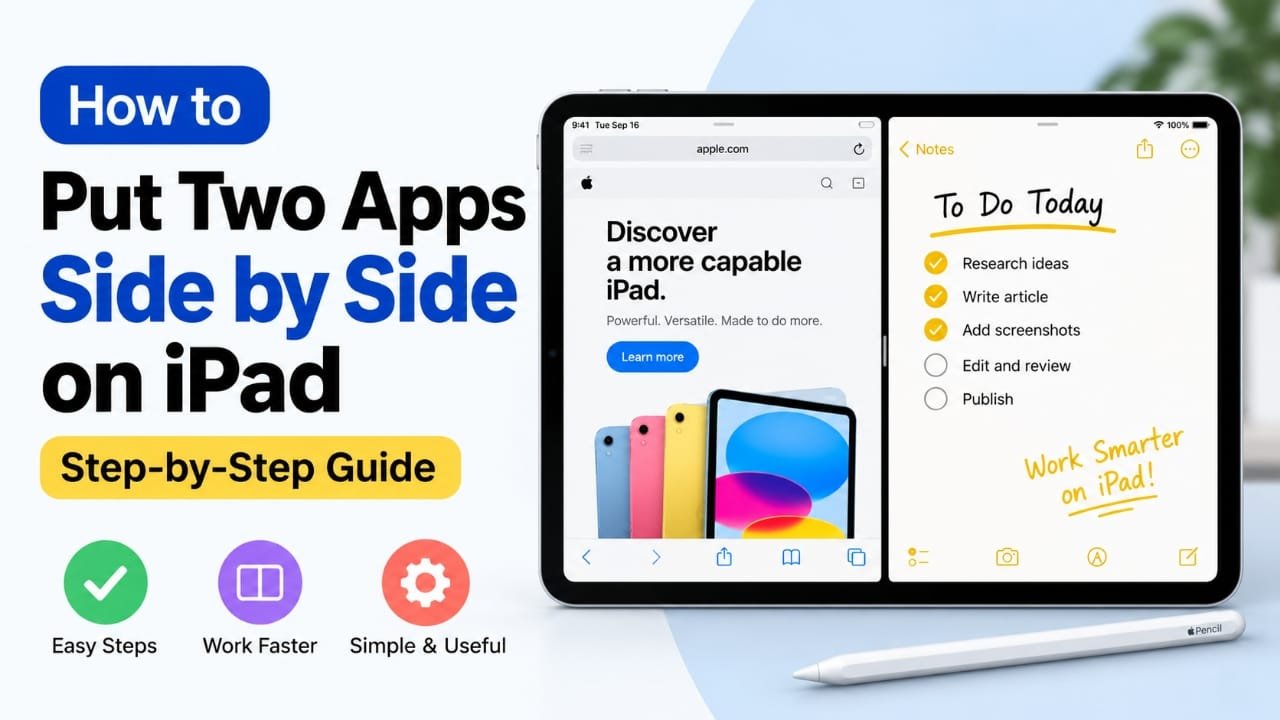
Need to use two apps at the same time on your iPad? You can place them side by side with iPadOS using Split View. This is useful when you want to read something in Safari while taking notes, compare information, move files between apps, or keep a conversation open while working.
The basic process is simple: open one app, bring up the Dock, drag another compatible app to the left or right edge, and release it when the screen splits.
Also read: How to Stop App Tracking on iPhone 16: Privacy Tips
How to Put Two Apps Side by Side on iPad
The easiest method is to use Split View.
1. Open the first app
Start by opening the app you want to use on one side of the screen.
For example, you could open Safari if you want to browse the web while taking notes.
2. Open the Dock
While the first app is open, swipe up slightly from the bottom edge of the screen and pause.
The Dock should appear without closing the app.
If you’re using an iPad with a mouse or trackpad, you can also move the pointer toward the bottom of the display to bring up the Dock.
3. Drag the second app from the Dock
Find the second app you want to use.
Touch and hold its icon, then drag it upward from the Dock. Keep holding the icon as you move it toward either side of the screen.
4. Move it to the left or right edge
Drag the second app toward the left or right edge of the iPad’s display.
When the Split View layout appears, release the app.
Your iPad should now display both apps side by side.
5. Resize the apps
A divider will appear between the two apps.
Drag the divider left or right to change how much screen space each app gets.
For example, you can give a document more room while keeping a smaller portion of the screen available for Safari.
6. Work with both apps
You can now use either app by tapping inside it.
Depending on the apps, you can also use iPadOS drag-and-drop to move items such as:
- Text
- Photos
- Files
- Links
- Other supported content
This can be particularly useful for research, studying, writing, and file management.
How to Close Split View on iPad
When you’re finished using both apps, you can return to a single-app view.
Drag the divider completely toward the left or right edge of the screen. One app will then take over the display.
You can also switch to another app and set up multitasking again when needed.
What If Split View Doesn’t Work?
If the second app keeps opening in full screen, there are several possible reasons.
The app may not support Split View
Not every iPad app supports every multitasking mode. Some apps may only work in full-screen mode.
Try testing the feature with commonly supported apps such as Safari or Notes. If Split View works with another app, the original app may be the limitation.
Your iPadOS version may be different
The multitasking interface has changed across iPadOS versions. If you’re following instructions from an older tutorial, some buttons or gestures may not look exactly the same.
Check Settings > General > Software Update to see whether an iPadOS update is available.
Check multitasking settings
Depending on your iPadOS version, multitasking-related settings can be found under different sections, including Settings > Multitasking & Gestures.
If the available options on your iPad don’t match these instructions, check the settings shown on your particular iPadOS version.
Can You Use Stage Manager Instead?
Some supported iPads offer Stage Manager, which provides another way to work with multiple apps and windows.
Instead of using the traditional side-by-side layout, Stage Manager lets you arrange supported app windows on the screen and switch between groups of apps.
If Stage Manager is available on your iPad, it can be useful when you need more flexible window arrangements.
What Is Slide Over?
Slide Over is another multitasking option where a second app appears as a smaller floating window over the current app.
This can be useful when you only need to check something briefly, such as a message or note, without giving the second app half of the screen.
The exact multitasking options available depend on your iPad model and iPadOS version.
Tips for Using Two Apps on iPad
A few simple habits can make Split View easier to use:
- Use landscape orientation: The extra horizontal space can make two apps more comfortable to use.
- Keep frequently used apps in the Dock: This makes them quicker to drag into Split View.
- Try drag and drop: It can save time when moving supported text, photos, or files between apps.
- Test another app: If one app refuses to enter Split View, try Safari or Notes to determine whether the problem is app-specific.
- Adjust the divider: You don’t always need both apps to have equal space.
- Keep iPadOS updated: Updates can include improvements and bug fixes that affect system features.
Frequently Asked Questions
Can any two apps be used side by side on an iPad?
No. App support can vary. Some apps may not support Split View and may only open in full-screen mode or another available multitasking mode.
How do I make one app bigger in Split View?
Drag the divider between the two apps toward the other side. This gives the first app more screen space while reducing the space available to the second app.
Can I switch one of the apps without closing Split View?
Yes. You can use the Dock and drag another compatible app into the multitasking area to replace an existing app.
Does Split View work in portrait mode?
The available layout can depend on the iPad model and iPadOS version. Even when a side-by-side layout is available, landscape orientation generally provides more horizontal room for two apps.
Why does my second app open full screen?
The app may not support Split View, or the app may not have been dropped in the correct position. Try dragging it toward the left or right edge until the multitasking layout appears before releasing it.
Does using two apps use more battery?
Running multiple active apps can increase resource and power usage compared with using a single app. The effect varies depending on the iPad, apps, and what they’re doing.
Also read: How to Factory Reset iPhone 16: Step-by-Step Guide
Conclusion
Putting two apps side by side on an iPad is mainly a matter of opening the first app, bringing up the Dock, and dragging a compatible second app to the left or right edge of the screen.
Once Split View is active, you can resize the apps and, where supported, drag content between them. If the feature doesn’t work with a particular app, try another app or check which multitasking features your iPadOS version provides.

Abhi Rajput, founder of Earnabhi.com, is a tech lover with 6+ years of experience in SEO, digital tools, and smartphone troubleshooting. He writes simple, clear, and useful guides to help people solve real tech problems.