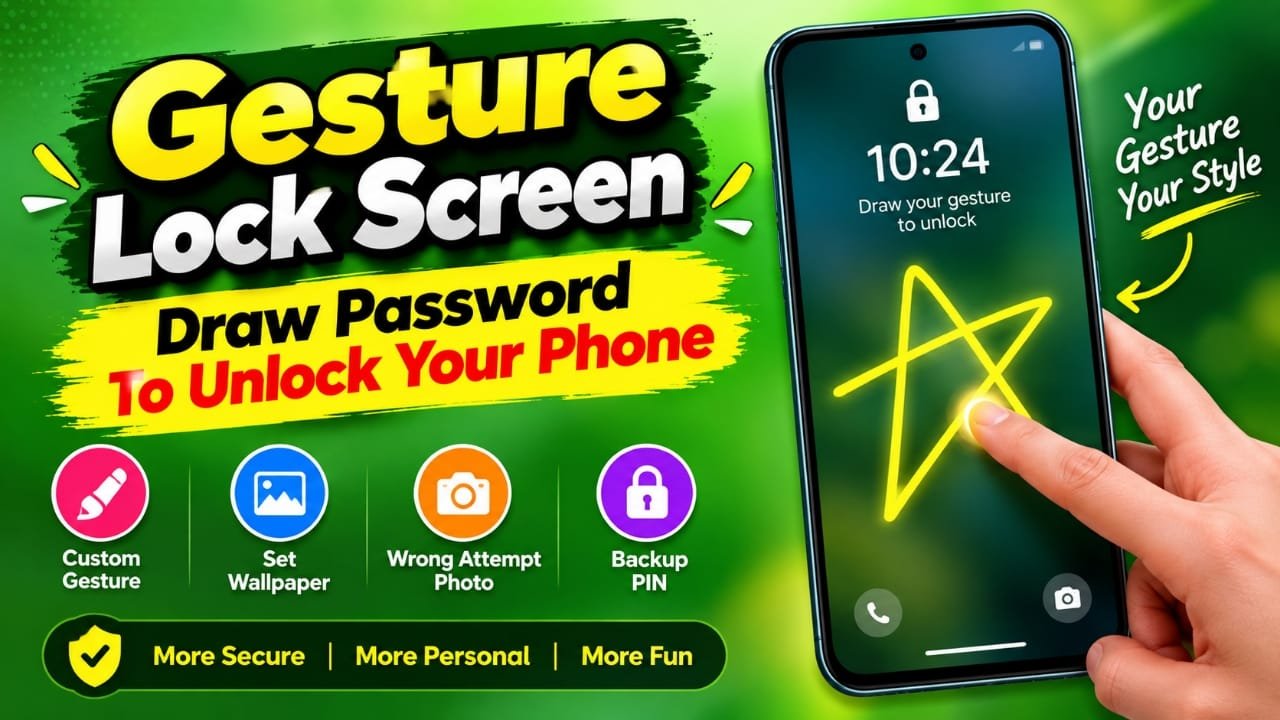
A PIN, pattern, fingerprint, or face unlock is enough for most smartphone users, but some people may want something more personal and different. If you are looking for an Android lock screen that lets you unlock your phone by drawing a custom shape, letter, number, or name, Gesture Lock Screen is designed around that idea.
Instead of entering a traditional password, the app allows you to create a gesture and use that gesture as the unlock method. You can also customize the lock screen background and set a backup PIN so you have another way to access the device if you forget your gesture.
Here’s how Gesture Lock Screen works, what features it offers, and what to know before using it.
Also read: Shimeji App: Add Animated Emoji Characters to Your Mobile Screen
What Is Gesture Lock Screen?
Gesture Lock Screen is an Android lock-screen app that uses a custom drawing gesture as an unlock method.
During setup, you create a gesture directly on the screen. This could be a simple shape, letter, number, star, or another drawing that you can remember. When the lock screen appears, you reproduce the same gesture to unlock the phone.
The app also provides customization options, including a background image and a backup PIN.
The exact behavior and permissions can depend on the Android version and the app’s current implementation, so users should review the permissions requested during setup before enabling the lock screen.
Key Features of Gesture Lock Screen
1. Create Your Own Gesture Password
The main feature is the ability to create a personalized drawing password.
You can choose a gesture that is easy for you to remember. For example, you might use a letter, number, simple shape, or another custom drawing supported by the app.
This gives the lock screen a different feel compared with a standard PIN or pattern.
2. Simple Interface
Gesture Lock Screen is designed around a straightforward lock-screen interface. The basic idea is simple: create a gesture during setup and draw it again when you want to unlock the phone.
Users who are already familiar with Android lock screens should find the concept relatively easy to understand.
3. Custom Lock Screen Background
The lock screen can be personalized with a background image according to the options available in the app.
You can choose an image that matches your preference instead of relying on a plain or default lock-screen appearance.
4. Backup PIN
A backup PIN can be useful if you forget the gesture you created.
Instead of depending entirely on the drawing password, you can configure a PIN as an alternative unlock method if the app supports it on your device.
It is a good idea to choose a PIN that you can remember without making it obvious to other people.
5. Wrong-Attempt Photo Feature
The source information for the app describes a feature intended to capture a photo after an incorrect unlock attempt.
If this feature is available in the version you install, it may help you identify someone who attempted to access the lock screen. However, camera access may require additional permission, and the feature’s behavior can vary by Android version and app version.
Only enable camera-related permissions if you are comfortable granting them.
6. Personalized Unlock Experience
The biggest difference from a conventional PIN or pattern is customization. You decide what gesture you want to use rather than relying on a fixed numeric password.
This can make the lock screen feel more personal, especially for users who want an alternative to the standard Android unlocking methods.
Why Use a Gesture-Based Lock Screen?
A gesture lock can appeal to users for a few different reasons.
Personalization: You can create a gesture that has meaning to you or is easy to remember.
Different unlocking method: Instead of typing numbers or following a conventional pattern, you draw your chosen gesture.
Custom appearance: The ability to change the lock screen background can give the interface a more personalized look.
Backup access: A backup PIN can provide another way to unlock the device if you forget your gesture, where supported.
However, a custom gesture should not automatically be considered more secure than the built-in security features on your Android phone. The actual security depends on how the app implements the lock screen and the permissions and system access it requires.
How to Set Up Gesture Lock Screen on Android
If the app is available for your device, the basic setup process is as follows:
Step 1: Install the App
Install Gesture Lock Screen from the Google Play Store using the app’s available store listing.
Step 2: Open Gesture Lock Screen
After installation, launch the app and follow the setup instructions shown on your screen.
Step 3: Create a Gesture
Choose the drawing you want to use as your unlock gesture.
Try to create something that you can reproduce consistently. Avoid choosing a gesture that you are likely to forget after a few days.
Step 4: Configure Required Permissions
The app may request certain permissions depending on the features you want to use.
Read each permission request before allowing it. You do not need to grant a permission simply because an app asks for it; consider whether the requested access is necessary for the feature you want.
Step 5: Set a Backup PIN
If the app provides a backup PIN option, configure it during setup.
This can be particularly useful if you forget the gesture or have difficulty reproducing it correctly.
Step 6: Choose a Background
Select a suitable image for the lock screen if the customization option is available.
Step 7: Test the Lock Screen
Before relying on the gesture lock, test both the gesture and backup PIN several times.
Make sure you know how to access the backup method and that the lock screen behaves as expected on your phone.
Things to Check Before Using the App
Third-party lock-screen apps work differently from Android’s built-in security features. Before using one as your primary lock screen, consider the following:
- Check the permissions requested by the app.
- Make sure you remember the backup PIN.
- Test the unlock method before leaving your phone unattended.
- Keep Android and your phone’s security updates current.
- Avoid assuming that a third-party lock screen provides stronger protection than your phone’s built-in security.
- If the app stops working after an Android update, use your device’s standard security options to regain access where possible.
- Review the app’s current Google Play Store listing for its latest features and requirements.
Gesture Lock Screen vs Traditional Phone Locks
Gesture Lock Screen takes a different approach from the standard security options found on most Android phones.
| Lock Method | How You Unlock | Customization |
|---|---|---|
| PIN | Enter numbers | Low |
| Pattern | Connect dots in a pattern | Medium |
| Fingerprint | Scan your fingerprint | Low |
| Face Unlock | Scan your face | Low |
| Gesture Lock Screen | Draw a custom gesture | Higher |
The main advantage of a gesture-based app is customization. However, built-in Android security methods are integrated directly into the operating system, while a third-party lock-screen app depends on its own implementation and compatibility with your device.
Is Gesture Lock Screen Worth Trying?
Gesture Lock Screen may be interesting if your main goal is to experiment with a different style of phone unlocking and customize the appearance of your lock screen.
The custom gesture system is the app’s main attraction, while options such as a personalized background, backup PIN, and wrong-attempt photo feature can add additional functionality where supported.
For sensitive information, however, it is better to treat the app as a customization option rather than assuming that it provides stronger security than your phone’s built-in lock-screen system.
Frequently Asked Questions
What is Gesture Lock Screen?
Gesture Lock Screen is an Android lock-screen app that allows users to create a custom drawing gesture and use it as an unlock method.
Can I use my name as a gesture?
The provided app information describes support for custom drawings such as letters and names. The exact gesture options may depend on the current version of the app.
Does Gesture Lock Screen have a backup PIN?
The provided information says that the app includes a backup PIN option. Availability and behavior should be checked in the version currently installed on your phone.
Can I change the lock screen background?
Yes, the provided app information describes an option to use a personal photo or another preferred image as the lock-screen background.
Can the app take a photo after a wrong attempt?
The source information describes a wrong-attempt photo feature. If available in the current version, it may require camera permission. Check the app’s permissions and settings before enabling it.
Is a gesture lock more secure than a PIN?
Not necessarily. A third-party gesture lock should not automatically be considered more secure than Android’s built-in security options. Security depends on the app’s implementation, your device, and how the lock system works.
Official Play Store Link
Also read: Nocebo Launcher: A Unique Customizable Android Launcher
Final Thoughts
Gesture Lock Screen offers a different way to customize how an Android phone is unlocked. Instead of relying only on a conventional PIN or pattern, you can create a drawing-based gesture and personalize the lock screen with your own background.
If you decide to try it, set up the backup PIN, review the permissions carefully, and test the lock before relying on it. For stronger device protection, also consider the security features built into your Android phone.
The app’s features and compatibility can change over time, so check its current Google Play Store listing before installation.

Abhi Rajput, founder of Earnabhi.com, is a tech lover with 6+ years of experience in SEO, digital tools, and smartphone troubleshooting. He writes simple, clear, and useful guides to help people solve real tech problems.