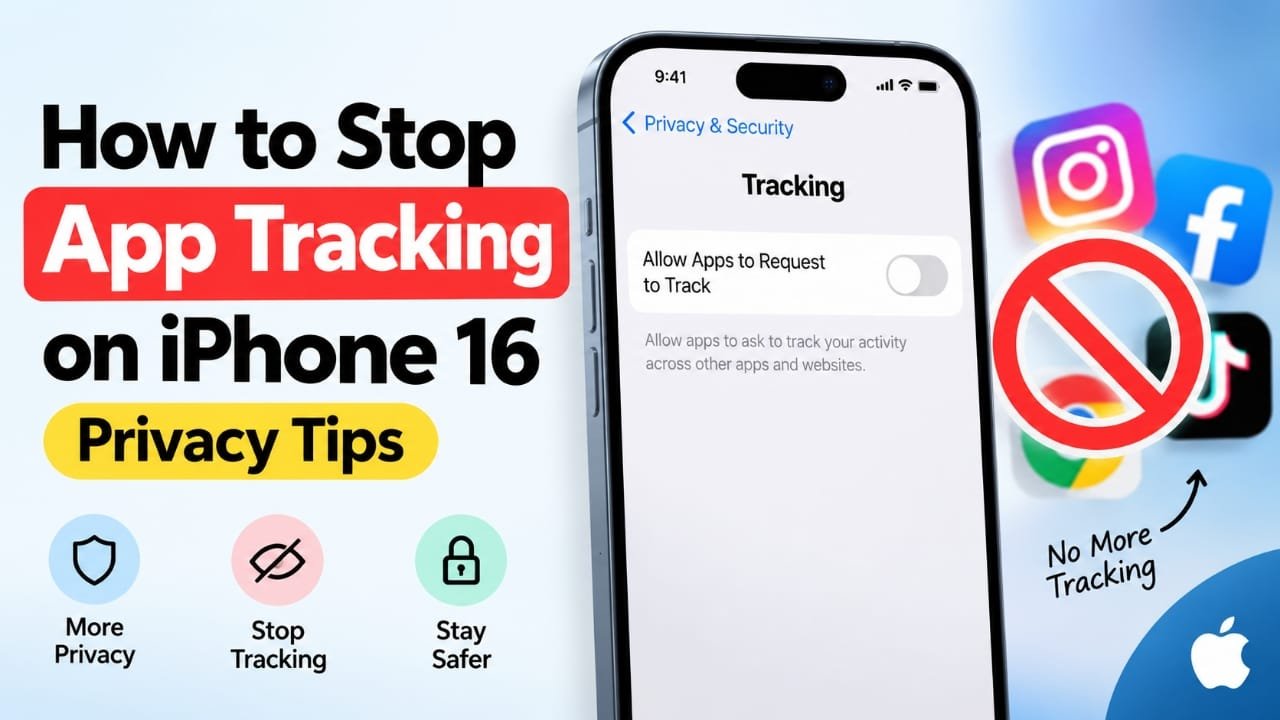
If ads seem to follow you from one app to another, your iPhone has a privacy setting that can help limit that behavior.
Apple lets you control whether apps can ask for permission to track your activity across other apps and websites. On the iPhone 16, you can find this control directly in the Privacy & Security settings, and changing it takes only a few taps.
In this guide, you’ll learn how to stop app tracking on iPhone 16, how to handle a missing or disabled Tracking option, and which additional privacy settings are worth checking.
Also read: How to Change Apple Watch Activity Ring Goals by Day
How to Stop App Tracking on iPhone 16
The quickest way to prevent apps from requesting cross-app tracking permission is to disable Allow Apps to Request to Track.
Step 1: Open Settings
Start by opening the Settings app on your iPhone 16.
You can find it on your Home Screen or in the App Library.
Step 2: Open Privacy & Security
Scroll through the Settings menu and tap Privacy & Security.
This section contains controls for information such as your location, contacts, photos, microphone, camera, and app tracking.
Step 3: Select Tracking
Tap Tracking.
Here, your iPhone shows the controls that determine whether apps can request permission to track your activity across other companies’ apps and websites.
Step 4: Disable Allow Apps to Request to Track
Find Allow Apps to Request to Track and switch it off.
Once disabled, apps cannot display Apple’s tracking-permission request asking you to allow cross-app and cross-website tracking.
This is the main setting you need if your goal is to reduce advertising-related tracking on your iPhone.
What Happens When You Turn Off App Tracking?
Turning off this setting does not mean that every form of data collection stops.
Apps can still collect information necessary for their own operation and may have separate analytics, advertising, or personalization systems.
The important difference is that you are preventing apps from using Apple’s tracking permission mechanism to request authorization for tracking you across other companies’ apps and websites.
You may therefore still see advertisements, but disabling tracking does not automatically delete ads from your apps.
Check Which Apps Have Requested Tracking Permission
The Tracking section can also show apps that have requested permission.
If you have previously allowed an app to track your activity, review the available controls and change permissions that you no longer want to grant.
This is particularly useful if you have been using your iPhone for a long time and have installed many apps.
Turn Off Tracking in Individual Apps
Apple’s system-level tracking control isn’t the only privacy setting worth checking.
Some apps provide their own options for:
- Personalized advertising
- Data sharing
- Analytics
- Activity-based recommendations
- Advertising preferences
- Marketing communications
Open the privacy or account settings inside apps you use frequently and look for these controls.
Changing an app’s own advertising or privacy settings can provide additional control beyond Apple’s tracking permission.
How to Stop Personalized Ads on iPhone
Stopping app tracking and stopping personalized advertisements are two different things.
If your goal is to reduce personalized advertising from Apple, check:
Settings > Privacy & Security > Apple Advertising
If the relevant personalized advertising option is available on your iPhone, you can disable it there.
Keep in mind that turning off personalized advertising doesn’t necessarily mean you will see fewer advertisements. It changes how advertisements can be personalized rather than removing advertising altogether.
How to Stop Location Tracking on iPhone 16
App tracking and location access are separate privacy controls.
If you also want to review which apps can access your location, go to:
Settings > Privacy & Security > Location Services
You’ll see a list of apps that have requested location access. Select an app to review or change its permission.
Be careful when changing location access for apps that genuinely need your location to work properly, such as navigation or location-based services.
What to Do If the Tracking Option Is Missing
If you can’t find Tracking under Privacy & Security, first make sure your iPhone is running a current version of iOS.
Go to:
Settings > General > Software Update
If an update is available, install it and then check the Privacy & Security section again.
You should also check whether restrictions or device management settings are affecting privacy controls.
Why Is Allow Apps to Request to Track Grayed Out?
If the tracking switch cannot be changed, a restriction or device-management policy may be responsible.
Check:
Settings > Screen Time
Look for restrictions that could prevent changes to privacy settings.
You can also check:
Settings > General > VPN & Device Management
If the iPhone is managed by an employer, school, or another organization, an administrator may have applied policies that prevent you from changing certain settings.
In that situation, the device administrator may need to change the policy.
Does Turning Off Tracking Remove Personalized Ads?
No.
Disabling Apple’s app tracking permission does not guarantee that every advertisement will become generic.
An app may use information you provide directly, such as your searches, preferences, purchases, or activity within that service, to personalize content or advertisements.
For stronger privacy, review both Apple’s settings and the privacy controls offered by individual apps.
Does Turning Off App Tracking Delete Anything?
No.
Changing the tracking setting does not remove your applications or delete your accounts.
It also does not erase your:
- Photos
- Messages
- Purchases
- Contacts
- App data
- Apple Account
It simply changes the permissions available for app tracking.
Can Apps Still Collect Data After Tracking Is Disabled?
Yes.
Turning off app tracking isn’t the same as preventing all data collection.
An app can still process information needed to provide its service and may collect information according to its own privacy policy.
The setting primarily addresses Apple’s permission framework for tracking activity across apps and websites owned by other companies.
How to Turn App Tracking Back On
If you change your mind later, you can return to:
Settings > Privacy & Security > Tracking
Then turn Allow Apps to Request to Track back on.
Apps can subsequently request tracking permission, and you can decide whether to allow or deny those requests.
Extra Privacy Tips for iPhone 16
If privacy is important to you, don’t stop with the Tracking setting.
Review app permissions regularly
Go through the Privacy & Security section occasionally and check which apps can access your location, camera, microphone, photos, contacts, and other information.
Remove access that an app no longer needs.
Be selective with location access
Not every app needs continuous access to your location.
Where appropriate, choose a more limited location permission instead of allowing access all the time.
Check privacy settings after installing new apps
New applications can request access to different types of information.
Don’t automatically approve every permission request. Consider whether the app actually needs that access.
Review advertising settings inside frequently used apps
Social media, shopping, entertainment, and other apps may have their own advertising and personalization controls.
Check these settings if you want to reduce the amount of personalized content you receive.
Keep iOS updated
Software updates can include security and privacy improvements in addition to new features and bug fixes.
App Tracking vs Location Tracking: What’s the Difference?
These two settings are easy to confuse, but they control different things.
App tracking deals primarily with tracking activity across apps and websites for purposes such as advertising and measurement.
Location tracking controls whether an app can access your device’s location.
Turning off app tracking does not automatically turn off location access.
If you want to control both, review each setting separately.
Troubleshooting App Tracking on iPhone 16
If the setting isn’t behaving as expected, try these steps:
- Restart your iPhone.
- Check for an available iOS update.
- Return to Settings > Privacy & Security > Tracking.
- Check Screen Time restrictions.
- Check whether the iPhone has a management profile.
- Review the privacy settings inside the affected app.
- If necessary, contact the administrator if the iPhone is managed by an organization.
If advertisements remain personalized after you change the setting, remember that advertising personalization can come from information collected directly by an individual service.
Frequently Asked Questions
Does turning off app tracking stop all tracking?
No. It limits tracking covered by Apple’s app-tracking permission system, but it does not prevent every type of data collection performed by apps.
Will I stop seeing ads?
No. You can still see advertisements after disabling app tracking. The change is about limiting certain forms of tracking and personalization, not removing ads.
Do I need to disable tracking for every app?
Turning off Allow Apps to Request to Track prevents apps from asking for this permission. You can also review individual app permissions where applicable.
Does app tracking affect my location?
No. Location Services has separate controls. Review Settings > Privacy & Security > Location Services if you want to manage location access.
Can I enable tracking again later?
Yes. Go back to Settings > Privacy & Security > Tracking and enable Allow Apps to Request to Track.
Why can’t I change the tracking setting?
Restrictions such as Screen Time controls or a management profile from a school or workplace can affect whether the setting is available.
Also read: How to Connect Apple Watch to iPhone: Step-by-Step Pairing Guide
Final Thoughts
You don’t need a third-party privacy app to get more control over app tracking on an iPhone 16.
Start with Settings > Privacy & Security > Tracking and turn off Allow Apps to Request to Track. Then take a few extra minutes to review location permissions, app-specific privacy controls, and advertising settings.
These changes won’t make your iPhone completely free from data collection or advertisements, but they can give you considerably more control over which permissions apps receive and how your activity can be used for cross-app tracking.
If you want, I can also make this more SEO-focused for Google Discover, including an SEO title, meta description, slug, FAQ schema-ready questions, and a stronger introduction.

Abhi Rajput, founder of Earnabhi.com, is a tech lover with 6+ years of experience in SEO, digital tools, and smartphone troubleshooting. He writes simple, clear, and useful guides to help people solve real tech problems.