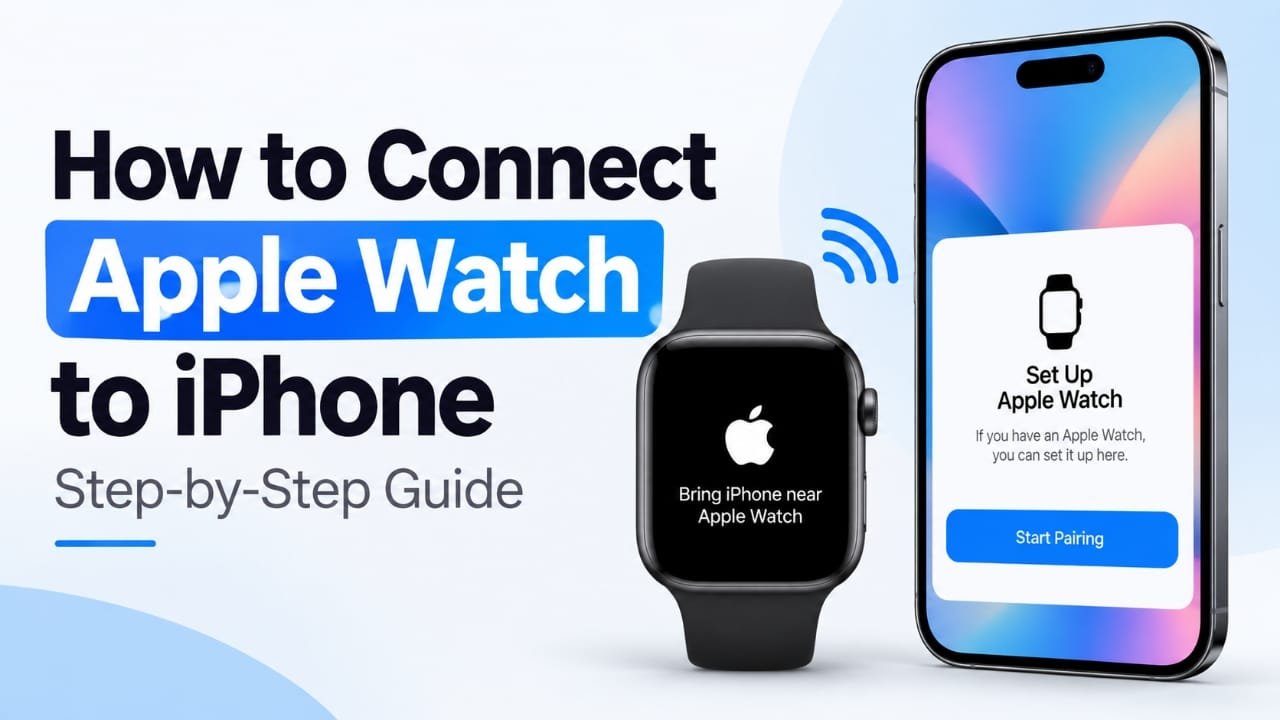
Connecting an Apple Watch to an iPhone is usually a straightforward process, but the first setup can be confusing if the pairing screen does not appear or the watch was previously connected to another iPhone.
The standard setup is handled through the Apple Watch app on the iPhone. You bring the two devices close together, start pairing, scan the animation shown on the watch, and then follow the setup instructions.
This guide explains how to connect an Apple Watch to an iPhone, including manual pairing, restoring a previous watch backup, Family Setup, and solutions for common pairing problems.
Also read: How to Use Double Tap on Apple Watch: Step-by-Step Guide
Before You Connect Your Apple Watch
A little preparation can prevent most setup problems.
Before starting, make sure:
- Your iPhone is turned on and unlocked.
- Your Apple Watch has enough battery and is powered on.
- Bluetooth is enabled on the iPhone.
- Wi-Fi is enabled on the iPhone.
- The Apple Watch and iPhone are close to each other.
- The iPhone and Apple Watch support the software versions required for pairing.
- If the watch was previously used with another iPhone, it has been properly unpaired or erased as needed.
If the Apple Watch is new or has been reset, you should normally see a setup or pairing screen on the watch.
How to Connect Apple Watch to iPhone
1. Turn on both devices
Turn on your iPhone and Apple Watch and place them close together.
If the Apple Watch has just been reset, wait for its setup screen to appear. Unlock your iPhone so you can access the Watch app.
2. Turn on Bluetooth and Wi-Fi
On your iPhone, open Settings and check that Bluetooth and Wi-Fi are turned on.
Bluetooth helps establish the connection between the two devices, while Wi-Fi can be used during setup and for communication and syncing.
You can also check these connections from Control Center.
3. Open the Watch app
Find and open the Watch app on your iPhone.
If the iPhone detects an Apple Watch nearby, it may display a prompt asking you to begin pairing. If you do not see the prompt, look for the option to start pairing from the Watch app.
4. Start the pairing process
Tap Start Pairing and follow the instructions shown on your iPhone.
Depending on the setup, you may be asked whether the watch is being configured for you or for a family member.
For your own Apple Watch, continue with the personal setup option.
5. Scan the Apple Watch animation
Your iPhone will display a camera view for pairing.
Hold the iPhone over the Apple Watch and position the animated pattern shown on the watch inside the frame on your iPhone.
Keep both devices steady until the animation is recognized.
Once the scan succeeds, the iPhone should confirm that the Apple Watch has been paired.
6. Use manual pairing if the scan does not work
If your iPhone cannot recognize the animation, you can usually choose Pair Apple Watch Manually from the pairing screen.
The iPhone will then provide instructions for entering the pairing information displayed on the Apple Watch.
This is useful when the camera-based pairing process repeatedly fails.
7. Choose your Apple Watch setup options
After pairing, the iPhone will guide you through the remaining setup.
Depending on your configuration, you may be asked about settings and features such as:
- Passcode
- Location-related settings
- Siri
- Apple Pay
- App installation
- Notifications
- Other watch preferences
Take your time with these options. You can change many settings later through the Watch app.
8. Restore a backup or set up the watch as new
If you previously used an Apple Watch, you may have the option to restore it from a backup.
Restoring can bring back supported settings and data from your previous setup.
If this is your first Apple Watch, choose the option to set it up as new.
9. Keep the devices close while syncing
After setup begins, keep the iPhone and Apple Watch near each other.
The watch may need to sync apps, settings, and other information. A restore or software update can make this process take longer.
Avoid interrupting the setup unless the process has clearly stopped responding.
How to Pair Apple Watch Manually
If automatic pairing does not work, manual pairing is another option.
- Open the Watch app on your iPhone.
- Start the Apple Watch pairing process.
- Choose Pair Apple Watch Manually when the option appears.
- Follow the instructions on the iPhone.
- Enter the pairing code displayed on the Apple Watch.
- Continue with the remaining setup steps.
If the code is rejected, restart the pairing process and try again.
How to Connect an Apple Watch That Was Paired With Another iPhone
An Apple Watch generally needs to be unpaired from its previous iPhone before it can be configured with another one.
If you still have the old iPhone:
- Open the Watch app on the old iPhone.
- Tap All Watches.
- Select the information button next to the watch.
- Choose Unpair Apple Watch.
- Follow the instructions to complete the unpairing process.
- Start the pairing process with your new iPhone.
If the old iPhone is unavailable, the process can be different because the watch may need to be erased before it can be set up again.
If Activation Lock is involved, you may also need the Apple Account credentials associated with the watch.
How to Set Up Apple Watch for a Family Member
Apple provides Family Setup for compatible Apple Watch configurations.
During pairing, choose the option to set up the watch for a family member rather than for yourself.
The available features and requirements can differ from a normal personal Apple Watch setup, so follow the instructions displayed on the iPhone during configuration.
What to Do If Apple Watch Won’t Connect to iPhone
If your Apple Watch is not pairing, try these fixes in order.
Restart both devices
A restart can resolve a temporary connection problem.
Restart the iPhone and Apple Watch, wait for both to start completely, and then try pairing again.
Check Bluetooth and Wi-Fi
Make sure Bluetooth and Wi-Fi are enabled on the iPhone.
If Bluetooth appears to be stuck, turning it off and back on can sometimes refresh the connection.
Keep the devices close
Place the Apple Watch close to the iPhone during the pairing process.
Do not move the devices unnecessarily while the pairing animation is being scanned.
Check for software updates
Pairing problems can occur when the iPhone and watch software are not compatible with each other.
Make sure the iPhone is running an iOS version supported by the Apple Watch and check for available Apple Watch software updates when prompted.
Make sure the watch is not already paired
If the iPhone says the Apple Watch is already paired, the watch may still be associated with another iPhone.
In that situation, you may need to unpair it from the previous iPhone or erase the watch before starting a new setup.
Try manual pairing
If the animated pairing process repeatedly fails, use the manual pairing option instead.
This bypasses the camera-based scanning step.
Give syncing more time
If pairing has succeeded but the watch appears stuck while syncing, keep both devices nearby and connected to power.
Restores, app installations, and updates can take longer than the initial pairing step.
Common Apple Watch Pairing Problems
| Problem | What to try |
|---|---|
| iPhone doesn’t detect the watch | Restart both devices and check Bluetooth |
| Pairing animation won’t scan | Move the devices closer or use manual pairing |
| Watch is already paired | Unpair or erase it before setting it up with another iPhone |
| Pairing code fails | Cancel pairing and start the process again |
| Syncing takes a long time | Keep both devices nearby and connected to power |
| Software update won’t complete | Check Wi-Fi, battery level, and software compatibility |
| Setup keeps freezing | Restart both devices and retry the setup |
Does Connecting Apple Watch Erase the Watch?
The normal pairing process does not automatically mean that your watch will be erased.
However, unpairing or erasing an Apple Watch is a different process and can remove information from the watch as part of resetting it.
If you are moving from an old iPhone to a new iPhone, check whether a backup is available before erasing or resetting the watch.
How Long Does Apple Watch Pairing Take?
The initial pairing itself can be quick, but the complete setup may take longer.
The total time depends on factors such as:
- Whether you are restoring a backup
- Whether the watch needs a software update
- How many apps and settings need to sync
- Your Wi-Fi connection
- The amount of data being transferred
A fresh setup will generally involve less data transfer than restoring an existing Apple Watch configuration.
Tips for a Smoother Apple Watch Setup
For fewer problems during setup:
- Charge the iPhone and Apple Watch before beginning.
- Keep both devices close together.
- Make sure Bluetooth and Wi-Fi are enabled.
- Do not interrupt the watch while it is updating.
- If restoring a backup, allow extra time for synchronization.
- Use manual pairing if the camera scan repeatedly fails.
- If the watch belongs to another iPhone, resolve the previous pairing before starting a new setup.
Frequently Asked Questions
Can I connect an Apple Watch to an iPhone without the Watch app?
The Watch app is the standard way to pair and manage an Apple Watch with an iPhone. For normal setup, you should use the Watch app.
Can I pair an Apple Watch with a different iPhone?
Yes, but a watch already paired with another iPhone generally needs to be unpaired or otherwise reset before it can be configured with a different iPhone.
Why isn’t my iPhone detecting my Apple Watch?
Check that the watch is powered on, Bluetooth and Wi-Fi are enabled, and both devices are close together. Restarting both devices can also help.
What should I do if the Apple Watch pairing animation won’t scan?
Try moving the iPhone closer to the watch and keeping both screens clearly visible. If scanning still fails, choose the manual pairing option.
Can I restore my old Apple Watch settings?
If a suitable backup is available, the setup process may give you the option to restore the watch from that backup.
Do I need Wi-Fi to pair an Apple Watch?
Bluetooth is important for the initial connection, while Wi-Fi can be used during setup, syncing, updates, and other communication. Keeping the iPhone connected to a stable Wi-Fi network is recommended during setup.
What if my Apple Watch is stuck during setup?
Keep the devices close together and give the process some time, particularly if an update or backup restoration is running. If it remains unresponsive, restart both devices and try the setup again.
Also read: How to Change Apple Watch Activity Ring Goals by Day
Conclusion
Connecting an Apple Watch to an iPhone normally takes only a few setup steps. Turn on both devices, check Bluetooth and Wi-Fi, open the Watch app, start pairing, and scan the animation displayed on the watch.
If automatic pairing fails, manual pairing is available. And if the watch was previously connected to another iPhone, you may need to unpair or erase it before starting again.
Once setup and syncing are complete, you can manage the Apple Watch from the Watch app and adjust its settings as needed.

Abhi Rajput, founder of Earnabhi.com, is a tech lover with 6+ years of experience in SEO, digital tools, and smartphone troubleshooting. He writes simple, clear, and useful guides to help people solve real tech problems.