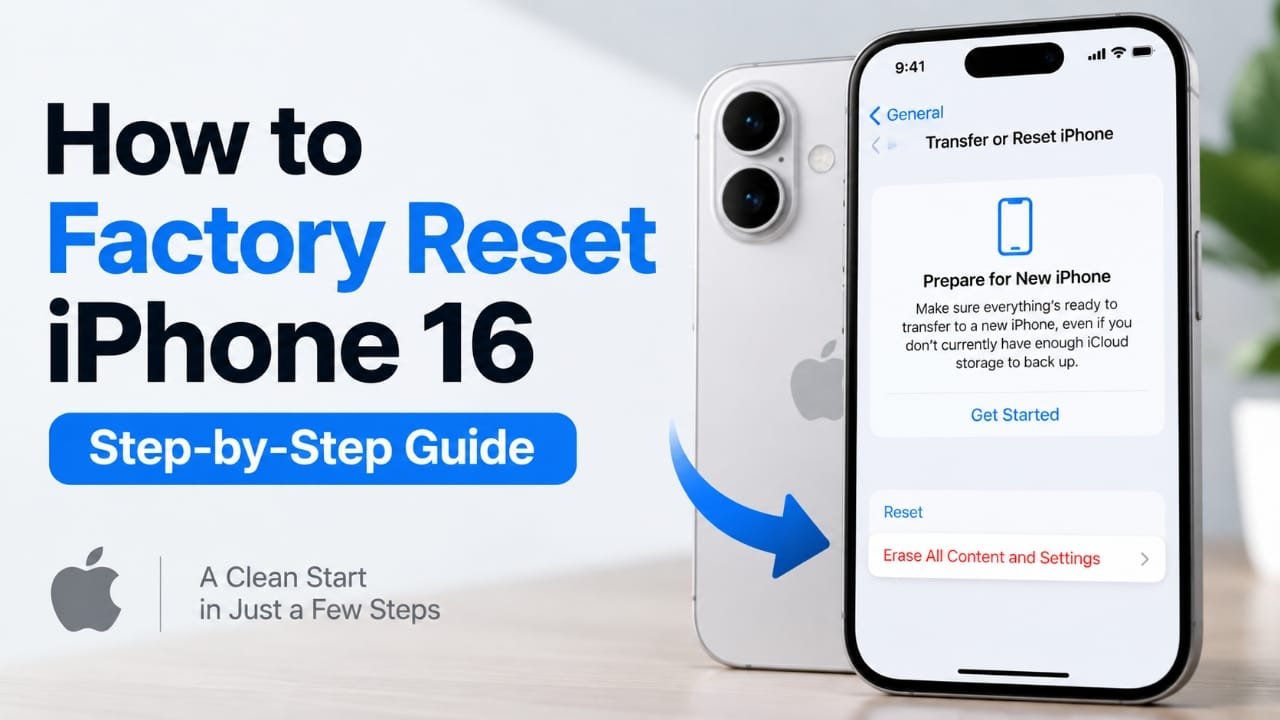
If you want to sell your iPhone 16, give it to someone else, troubleshoot a serious software problem, or simply start over, a factory reset can erase the device and return it to its initial setup state.
The process is straightforward, but there are a few things you should do before tapping the erase option. A factory reset removes data stored on the iPhone, so an up-to-date backup is important if you want to keep your photos, messages, apps, and other information.
This guide explains how to factory reset an iPhone 16, what happens during the process, and what to do if you cannot access Settings.
Also read: How to Connect Apple Watch to iPhone: Step-by-Step Pairing Guide
What Happens When You Factory Reset an iPhone 16?
A factory reset, using Erase All Content and Settings, removes the information and settings stored on the iPhone.
This can include:
- Photos and videos stored locally
- Messages
- Installed apps and their local data
- Personal settings
- Apple Account information on the device
- Saved Wi-Fi and other system settings
After the erase is finished, the iPhone starts at the Hello setup screen.
If you have important information on the phone, make a backup before starting. Data that has not been backed up or synced elsewhere may not be recoverable after the erase.
What to Do Before Factory Resetting Your iPhone 16
Before you erase the phone, take a few minutes to prepare it.
1. Back up your data
You can back up your iPhone to iCloud or to a computer.
To check your iCloud backup settings:
Settings > [your name] > iCloud > iCloud Backup
Check when the most recent successful backup was completed. If necessary, start a new backup before continuing.
If you are moving to another iPhone, you can also use Apple’s transfer options during the setup process.
2. Make sure you know your Apple Account password
Depending on your settings, the iPhone may ask for your Apple Account password during the erase process. This is particularly important when Find My is enabled.
Keep the password available before you begin.
3. Charge the iPhone
Make sure the iPhone has enough battery power. If possible, keep it connected to a charger while performing the reset.
4. If you’re selling the phone, check your Apple Watch
If an Apple Watch is paired with the iPhone and you’re handing the phone to another person, make sure you’ve completed any necessary unpairing and transfer steps.
How to Factory Reset iPhone 16 From Settings
For a normally working iPhone 16 that you can unlock, this is the simplest method.
Step 1: Open Settings
Open the Settings app on your iPhone 16.
Step 2: Open General
Scroll down and tap General.
Step 3: Select Transfer or Reset iPhone
Scroll to the bottom of the General settings page and tap Transfer or Reset iPhone.
You’ll see options for preparing the device for a transfer and for resetting or erasing it.
Step 4: Tap Erase All Content and Settings
Select Erase All Content and Settings.
The iPhone will explain what will be removed from the device. Read the information shown on the screen before continuing.
Step 5: Follow the on-screen instructions
Tap Continue when prompted.
You may be asked to enter your iPhone passcode and, depending on your account and security settings, your Apple Account password.
Follow the instructions displayed by the iPhone.
Step 6: Confirm the erase
Confirm that you want to erase the iPhone.
The device will begin removing your data and settings. It may restart during the process.
Step 7: Wait for the Hello screen
Leave the iPhone alone while the process completes.
When the reset is finished, the device should start at the Hello screen. At this point, it is ready to be set up again.
How to Factory Reset iPhone 16 Without a Passcode
If you’ve forgotten the iPhone passcode or the device is disabled, you cannot normally use the Settings method.
In this situation, you can use recovery mode with a computer to erase and restore the iPhone.
You’ll need a Mac or a Windows PC and a suitable cable.
The exact recovery process can vary depending on the computer and software being used, so follow Apple’s current recovery instructions for your device rather than using an outdated procedure.
Keep in mind that restoring an iPhone through recovery mode erases the device. You’ll need a backup if you want to recover your previous data.
How to Erase an iPhone 16 Remotely
If you no longer have physical access to the iPhone, you may be able to erase it remotely through Find My.
This can be useful if the phone has been lost or if you need to erase a device that is no longer in your possession.
Remote erasing requires the device to meet Apple’s requirements for Find My and remote erase. If the iPhone is offline, the erase request may be completed when the device reconnects.
If you’re selling or giving away the phone, make sure the device is also properly removed from your Apple Account when appropriate so the next owner can activate it.
Should You Reset or Completely Erase the iPhone?
A factory reset isn’t always necessary.
If you’re trying to solve a specific problem, you can use the Reset menu instead of choosing Erase All Content and Settings.
Go to:
Settings > General > Transfer or Reset iPhone > Reset
Depending on the problem, available reset options can include:
- Reset All Settings
- Reset Network Settings
- Reset Keyboard Dictionary
- Reset Home Screen Layout
- Reset Location & Privacy
These options are different from a factory reset because they don’t perform the same complete erase of your personal content.
For example, if you’re troubleshooting a Wi-Fi problem, resetting network settings may be more appropriate than wiping the entire iPhone.
What About the eSIM When Resetting an iPhone 16?
If your iPhone uses an eSIM, pay attention to the option shown during the erase process.
Depending on what you’re doing with the phone, you may be given a choice about whether to keep or erase the cellular plan.
If you’re giving the iPhone to another person, you generally need to make sure your cellular plan isn’t left associated with the device. If you’re moving your number to another iPhone, follow your carrier’s instructions and the options shown during the transfer.
Don’t erase an eSIM simply because you’re troubleshooting unless you actually intend to remove the cellular plan.
How to Factory Reset an iPhone 16 Before Selling It
If you’re selling or giving away your iPhone, don’t just delete your photos and apps one by one.
A better process is:
- Back up your iPhone.
- Make sure you have access to your Apple Account credentials.
- Complete any data transfer to your new device.
- Unpair an Apple Watch if applicable.
- Go to Settings > General > Transfer or Reset iPhone.
- Tap Erase All Content and Settings.
- Review the cellular/eSIM options carefully.
- Confirm the erase.
- Wait until the iPhone reaches the Hello screen.
The Hello screen indicates that the previous setup has been erased and the phone is ready for a new setup.
Common Problems During an iPhone 16 Reset
Erase All Content and Settings isn’t available
If the erase option is restricted or you cannot proceed, check whether Screen Time restrictions are preventing changes. You may need the appropriate Screen Time passcode.
The iPhone asks for an Apple Account password
This can happen when Apple’s security features require account verification. Make sure you’re using the credentials for the Apple Account associated with the device and Find My.
The iPhone is disabled
If you cannot unlock the iPhone because of a forgotten passcode or because it is disabled, use the computer-based recovery method rather than trying to erase it through Settings.
The reset appears to be taking a long time
Keep the iPhone connected to power and allow the process to finish. Avoid repeatedly interrupting or restarting the device while it is being erased.
The iPhone won’t start normally afterward
If the device becomes stuck during the process, a force restart may help. If the problem continues, recovery mode with a computer may be necessary.
Factory Reset vs Reset All Settings
These two options are easy to confuse.
| Option | What it does |
|---|---|
| Erase All Content and Settings | Erases the iPhone and personal data, returning it to the setup state |
| Reset All Settings | Resets system settings without performing the same complete data erase |
| Reset Network Settings | Removes saved network-related settings and information |
| Reset Location & Privacy | Resets location and privacy-related permissions |
If you’re selling the iPhone, use Erase All Content and Settings rather than one of the smaller reset options.
If you’re only trying to fix a settings-related problem, a specific reset may be enough.
Frequently Asked Questions
Does a factory reset delete everything on an iPhone 16?
Erase All Content and Settings removes personal data and settings stored on the iPhone. Anything that wasn’t backed up or synced elsewhere may be lost.
Do I need my Apple Account password to reset an iPhone 16?
You may be asked for your Apple Account password during the erase process, particularly when Find My and related security features are enabled.
Can I factory reset an iPhone 16 without the passcode?
You can’t normally perform the reset through Settings without being able to authenticate. If you’ve forgotten the passcode, a computer and recovery mode can be used to erase and restore the device.
How long does an iPhone 16 factory reset take?
The process generally doesn’t take very long, but the exact time can vary. Leave the iPhone connected to power and wait for the Hello screen rather than interrupting the process.
Can I recover my data after a factory reset?
You can restore your information from an available iCloud or computer backup during the iPhone setup process. A backup is therefore important before you erase the device.
Should I erase the eSIM before selling my iPhone 16?
If you’re transferring or selling the phone, pay attention to the eSIM option during the erase process. Follow your carrier’s instructions if you’re moving your cellular plan to another device.
Also read: How to Stop App Tracking on iPhone 16: Privacy Tips
Final Thoughts
Factory resetting an iPhone 16 is usually a simple process: back up your important information, open Settings > General > Transfer or Reset iPhone, choose Erase All Content and Settings, and follow the on-screen instructions.
If you can’t access Settings because you’ve forgotten the passcode or the iPhone is disabled, recovery mode provides another way to erase and restore the device.
The most important step is to back up your data before starting. Once the erase is complete, the iPhone will return to the Hello setup screen and can be configured as a new device or restored from a backup.

Abhi Rajput, founder of Earnabhi.com, is a tech lover with 6+ years of experience in SEO, digital tools, and smartphone troubleshooting. He writes simple, clear, and useful guides to help people solve real tech problems.