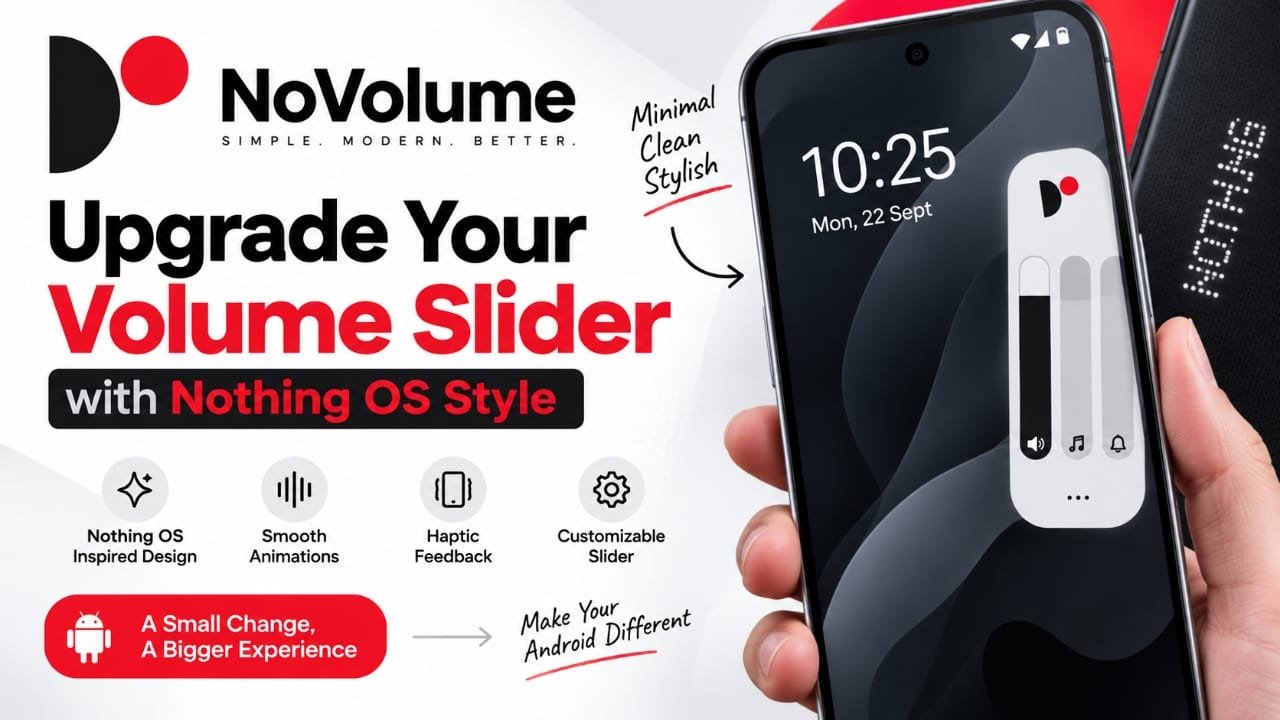
If you are bored with your phone’s standard volume panel and want something more modern, NoVolume is an Android customization app worth checking out. It replaces the usual volume interface with a cleaner, minimal design inspired by the visual style associated with Nothing OS.
Instead of changing how your phone controls sound, the app focuses mainly on how the volume controls look and behave on screen. It also offers customization options so you can adjust the appearance to better match your preferences.
Also read: Mico 4K Live Wallpaper Maker: Customize Your Android Lock Screen and Wallpaper
What Is NoVolume?
NoVolume is an Android app designed to provide a custom alternative to the phone’s default volume slider.
Its interface takes inspiration from the minimalist design language of Nothing OS, giving the volume panel a more distinctive appearance. Depending on the available options on your device and app version, users can customize aspects such as the slider’s appearance, size, position, and other visual settings.
The app is mainly aimed at people who enjoy Android customization and want small parts of their phone’s interface to look different.
Why Use NoVolume?
The default volume panel varies between Android phones and manufacturers. Some users may prefer a simpler or more visually distinctive design.
NoVolume focuses on that specific part of the interface rather than trying to completely change the phone’s operating system.
Some of the main reasons to try it include:
- Nothing OS-inspired visual design
- Custom volume control interface
- Animation effects
- Haptic feedback options
- Customization of the volume slider
- Lightweight approach to phone customization
The exact options available can depend on the app version and Android device.
NoVolume Features
1. Nothing OS-Inspired Design
The most noticeable part of NoVolume is its visual style. The app uses a clean and minimal interface inspired by Nothing’s design language.
This can be particularly appealing if you like the look of Nothing OS but use an Android phone from another manufacturer.
It is important to understand that NoVolume does not turn your phone into a Nothing Phone or install Nothing OS. It only changes the appearance and interaction of the volume control.
2. Smooth Volume Animations
NoVolume can make volume adjustments feel more visually polished by using animated elements when the volume level changes.
For users who care about small interface details, these animations can make the volume panel feel more integrated with a customized Android setup.
3. Haptic Feedback
The app can also provide haptic feedback when interacting with the volume control.
Haptic feedback means a small vibration that gives you physical feedback when performing an action. The experience can vary depending on the phone’s hardware and Android settings.
4. Customization Options
One of the useful aspects of a custom volume panel is the ability to change its appearance.
Depending on the available settings, you may be able to adjust elements such as:
- Slider appearance
- Size
- Position
- Color or visual styling
- Other interface preferences
This gives users more control than the standard volume interface on many Android phones.
5. Focused Customization
NoVolume doesn’t attempt to replace your entire Android interface. Instead, it focuses on one frequently used system element: the volume control.
That makes it an interesting option for users who want a small visual change without installing a completely different launcher or theme.
How to Set Up NoVolume on Android
The setup process may vary slightly depending on your phone, Android version, and the permissions requested by the current version of NoVolume.
A typical setup looks like this:
Step 1: Install NoVolume
Install the app from its Google Play Store listing.
Step 2: Open the App
Launch NoVolume after installation and follow the setup instructions shown inside the app.
Step 3: Allow Required Permissions
A custom volume interface may require special Android permissions, such as Accessibility access, to interact with or display over parts of the system interface.
Only grant permissions that you understand and that are actually requested by the app for its functionality.
Step 4: Configure the Volume Panel
Once the required setup is complete, explore the available customization options.
You can adjust the appearance and positioning of the volume interface according to the settings provided by your version of the app.
Step 5: Test the Volume Buttons
Press your phone’s volume buttons and check whether the NoVolume interface appears correctly.
If the original volume panel still appears, check the app’s instructions and your phone’s system settings. Some Android manufacturers restrict or handle system-level interface customization differently.
NoVolume User Experience
The main appeal of NoVolume is not a new audio feature. It is the visual experience.
Instead of relying entirely on the manufacturer’s standard volume panel, you get a more customized interface with a minimal design.
The experience can be especially interesting if you have already customized other parts of your Android phone, such as the launcher, icons, widgets, or wallpapers.
However, the experience can vary between devices because Android manufacturers use different system interfaces and restrictions.
Performance and Battery Considerations
Because NoVolume modifies or displays a system-level interface, its behavior can depend on the Android version and device manufacturer.
The provided information describes the app as lightweight, but claims about exact RAM usage, battery consumption, or performance should not be treated as universal figures unless they are backed by device-specific testing.
If you notice unusual battery usage, background activity, or other problems after enabling the app, check Android’s battery settings and the app’s permissions.
Privacy and Permissions
Before using any customization app, it is a good idea to review the permissions it requests.
NoVolume may require special Android access to provide its custom volume interface. Accessibility access, in particular, is a powerful Android permission and should not be granted blindly to any application.
The safest approach is to:
- Install the app from a trusted source.
- Review the permissions requested during setup.
- Read the app’s current Google Play information and privacy details.
- Avoid granting permissions that are unrelated to the app’s purpose.
- Revoke access if you stop using the app.
Privacy information and permissions can change as an app is updated, so check the current Play Store listing before installation.
Pros and Cons of NoVolume
| Pros | Cons |
|---|---|
| Minimal, Nothing OS-inspired design | Compatibility can vary by device |
| Custom volume interface | May require special Android permissions |
| Animation and haptic feedback options | Some customization options may depend on the app version |
| Useful for Android customization | It does not replace the entire phone interface |
| Easy way to change the volume panel’s appearance | System-level restrictions may affect how it works |
Who Should Try NoVolume?
NoVolume makes the most sense for Android users who enjoy customizing the appearance of their phones.
It may be worth trying if you:
- Like Nothing OS’s design language
- Want a different volume panel
- Enjoy customizing Android
- Prefer minimal interfaces
- Want to change small parts of the phone’s UI without changing the entire launcher
On the other hand, if you are happy with your phone’s existing volume controls, NoVolume may not offer much practical benefit.
Things to Check Before Installing
Before setting up NoVolume, keep a few things in mind.
Check Android compatibility: System-interface customization can behave differently across Android versions and manufacturers.
Review permissions: Pay attention to special permissions requested during setup.
Check free and paid features: Availability of particular customization options can depend on the current version of the app.
Keep expectations realistic: NoVolume changes the volume interface; it does not install Nothing OS or reproduce the complete Nothing Phone experience.
Frequently Asked Questions
What is NoVolume?
NoVolume is an Android customization app that provides an alternative volume control interface with a design inspired by Nothing OS.
Does NoVolume install Nothing OS?
No. NoVolume only focuses on the volume interface. It does not install Nothing OS or convert an Android phone into a Nothing Phone.
Does NoVolume work on every Android phone?
Not necessarily. Compatibility can vary depending on the phone manufacturer, Android version, system restrictions, and the app’s current version.
Does NoVolume require Accessibility permission?
The setup may request Accessibility access or other special Android permissions to provide its custom interface. Check the permissions shown by the current app version before enabling them.
Is NoVolume free?
The available features can depend on the current app version, and some options may not be available for free. Check the current Google Play listing for the latest details.
Where can I get NoVolume?
The app is available through its Google Play Store listing:
NoVolume on Google Play
Also read: Licowa AI Photo Editor: Free Photo Editing, Live Wallpaper & Collage Maker for Android
Final Thoughts
NoVolume is aimed at Android users who want more control over the look of their phone’s volume interface. Its Nothing OS-inspired design, customization options, animations, and haptic feedback make it more interesting than simply using the standard volume panel.
The biggest reason to try it is visual customization rather than additional audio functionality. Just keep in mind that compatibility and available features can vary between devices, and special permissions should always be reviewed before enabling them.
If you enjoy customizing Android and like the minimalist Nothing-style aesthetic, NoVolume is an app you can explore.

Abhi Rajput, founder of Earnabhi.com, is a tech lover with 6+ years of experience in SEO, digital tools, and smartphone troubleshooting. He writes simple, clear, and useful guides to help people solve real tech problems.