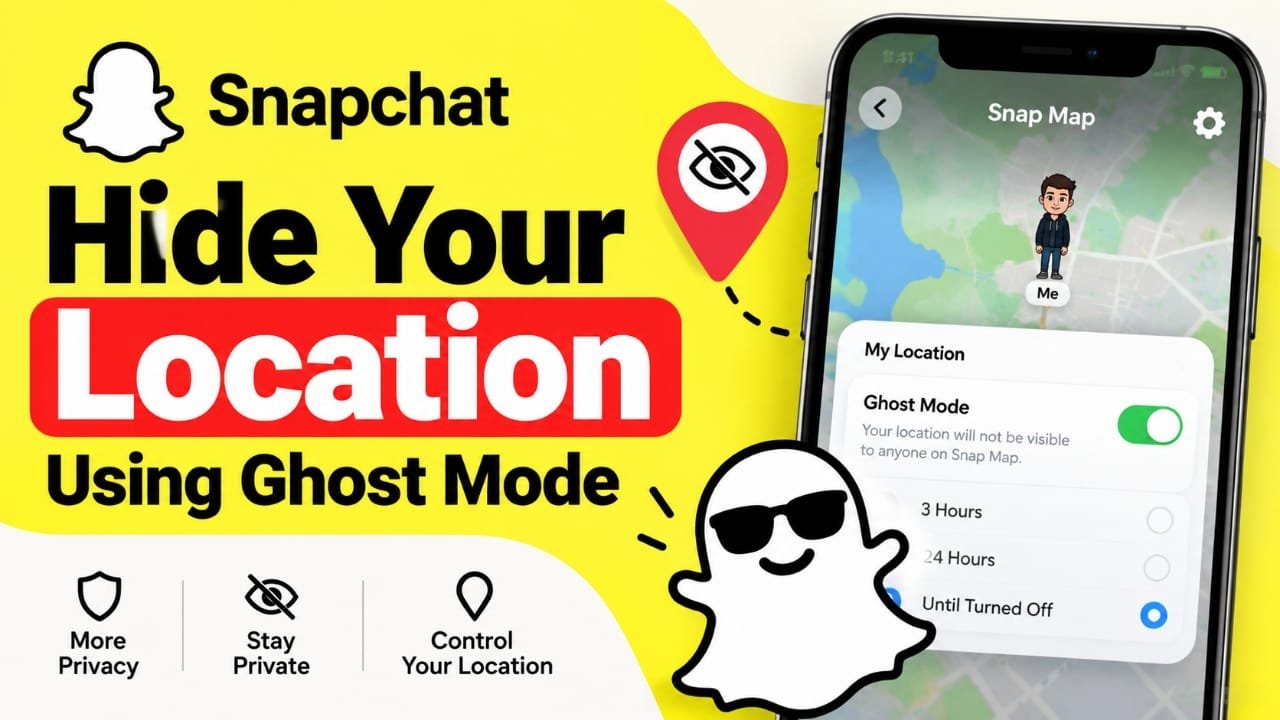
Snapchat’s Snap Map can show your location to other people, which may not be something you want to share all the time. If you prefer to keep your whereabouts private, Snapchat has a built-in Ghost Mode that lets you hide your location from other users.
You can also control which friends can see your location or completely block Snapchat from accessing your phone’s location.
Here’s how to hide your location on Snapchat using Ghost Mode on Android and iPhone.
Also read: How to Add Music to Snapchat: Songs, Custom Sounds, and More
What Is Snapchat Snap Map?
Snap Map is a Snapchat feature that lets users see locations on a map. When location sharing is enabled, your Bitmoji can appear on the map based on your location information.
The map can also show other content, such as public Stories and activity associated with different places.
You don’t have to share your location with everyone. Snapchat provides privacy controls that let you hide your location or limit who can access it.
What Does Ghost Mode Do on Snapchat?
Ghost Mode is Snapchat’s location privacy setting. When you enable it, your location is hidden from other Snapchat users on Snap Map.
With Ghost Mode enabled:
- Your location is hidden from friends on Snap Map.
- Other users cannot see your location through the map.
- You can continue using Snapchat normally.
- You can choose how long Ghost Mode remains enabled.
Depending on the available Snapchat settings, you can keep Ghost Mode active for a limited period or leave it on until you manually turn it off.
How to Turn On Ghost Mode on Snapchat
The quickest way to hide your Snapchat location is through Snap Map.
1. Open Snapchat
Launch the Snapchat app on your Android phone or iPhone and go to the camera screen.
2. Open Snap Map
Use two fingers to pinch inward on the camera screen. This should open Snap Map.
3. Open Snap Map Settings
Once the map appears, look for the Settings icon and tap it.
4. Turn On Ghost Mode
Find Ghost Mode and switch it on.
5. Choose How Long to Hide Your Location
Snapchat may give you different duration options, such as:
- 3 Hours
- 24 Hours
- Until Turned Off
Choose the option that matches how long you want your location to remain hidden.
After Ghost Mode is enabled, your location will no longer be visible to other Snapchat users through Snap Map.
How to Share Your Snapchat Location With Selected Friends
You don’t necessarily have to hide your location from everyone. If you want to share it with a small group of people, Snapchat provides additional controls.
To change who can see your location:
- Open Snap Map.
- Tap the Settings icon.
- Find the option for Who Can See My Location.
- Choose the appropriate privacy setting.
Depending on the options available on your version of Snapchat, you may see choices such as:
- My Friends – Share your location with your Snapchat friends.
- My Friends, Except… – Hide your location from specific friends.
- Only These Friends – Share your location with selected friends.
This can be useful if you want to keep your location private from most people while still sharing it with a few trusted contacts.
How to Stop Snapchat From Accessing Your Location
Ghost Mode controls how your location is shared through Snap Map. You can also change your phone’s location permission for Snapchat.
This is a separate privacy control because it determines whether the app can access your device’s location.
On Android
The exact menu names can vary depending on your phone and Android version, but the process is generally:
- Open Settings.
- Tap Apps or Apps & notifications.
- Select Snapchat.
- Tap Permissions.
- Select Location.
- Choose an option that prevents Snapchat from accessing your location.
On iPhone
On an iPhone:
- Open Settings.
- Scroll down and select Snapchat.
- Tap Location.
- Change the location access setting according to your privacy preference.
If Snapchat does not have permission to access your device’s location, it cannot use that permission to obtain your phone’s location.
Ghost Mode vs. Turning Off Location Permission
These two options are related but work differently.
| Setting | What it controls |
|---|---|
| Ghost Mode | Hides your location from other users on Snap Map |
| Location Permission | Controls whether Snapchat can access your device’s location |
If your goal is simply to stop friends from seeing your location on Snap Map, Ghost Mode is the relevant Snapchat setting. If you want to prevent Snapchat from accessing your device’s location altogether, you can review the location permission in your phone’s settings.
Why Hide Your Location on Snapchat?
People may choose to disable location sharing for different privacy reasons. For example, you may not want other users to know where you are during the day or where you regularly spend time.
Keeping your location private can also give you more control over who has access to information about your whereabouts.
You don’t need to stop using Snapchat to manage this. The app provides settings that allow you to adjust location sharing according to your preferences.
Things to Check After Enabling Ghost Mode
After changing your location settings, it’s a good idea to return to Snap Map and review the privacy options you selected.
Also remember that Snapchat’s menus and features can change as the app is updated. If the wording or location of a setting looks different on your phone, look for the current Snap Map, Location, or Ghost Mode privacy controls.
Frequently Asked Questions
Does Ghost Mode completely hide my Snapchat location?
Ghost Mode is designed to hide your location from other users on Snap Map. It does not mean that Snapchat itself cannot access your device’s location if the app still has location permission.
Can I hide my location from only one Snapchat friend?
Snapchat provides location-sharing controls that can allow you to exclude specific friends, depending on the options available in your app.
Can I turn Ghost Mode off later?
Yes. Ghost Mode can be disabled when you want to start sharing your location again.
Does turning off phone location permission affect Snapchat?
Yes. If Snapchat does not have permission to access your device’s location, the app cannot use that device permission to obtain your location.
Can I still use Snapchat while Ghost Mode is enabled?
Yes. Ghost Mode is a location-sharing privacy setting, so you can continue using Snapchat’s other features.
Also read: How to Schedule Posts on Facebook Pages in 2026
Final Thoughts
If you don’t want your whereabouts visible on Snapchat, Ghost Mode is the simplest built-in option to check first. You can also use Snap Map’s friend controls if you want to share your location with only certain people.
For stronger control over Snapchat’s access to your device location, review the app’s location permission in your Android or iPhone settings. Taking a few minutes to review these options can help you decide exactly how much location information you want to share.

Abhi Rajput, founder of Earnabhi.com, is a tech lover with 6+ years of experience in SEO, digital tools, and smartphone troubleshooting. He writes simple, clear, and useful guides to help people solve real tech problems.