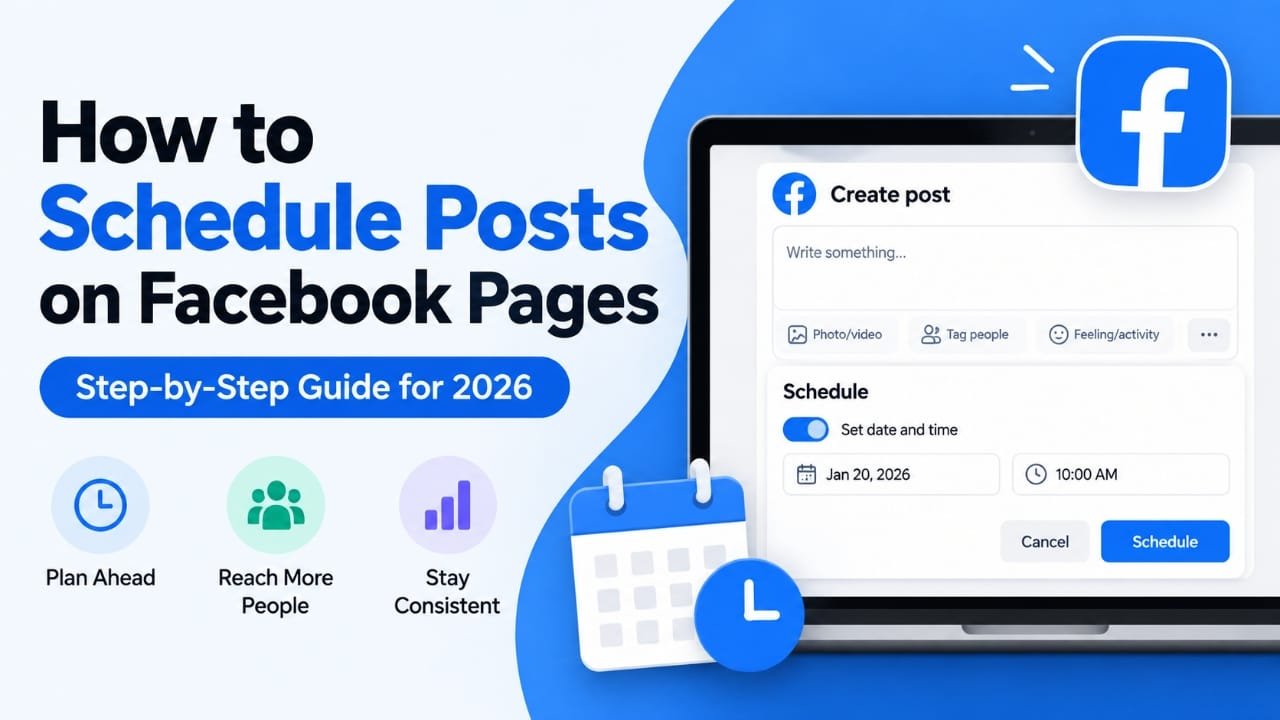
If you manage a Facebook Page, scheduling posts can save you from having to publish content manually every day. Instead of waiting for the right time to post, you can prepare your content in advance and choose when it should be published.
Facebook’s Meta Business Suite is the main built-in option for scheduling Page content. Third-party platforms can also be useful if you manage multiple social networks or need features such as team approvals and bulk scheduling.
This guide explains how to schedule Facebook Page posts, edit scheduled content, and choose a workflow that fits your needs.
Also read: How to Clear Facebook Cache on Android, iPhone, and PC
Why Schedule Facebook Page Posts?
Scheduling is useful when you already know what you want to publish but may not be available when it is time to post.
Some practical benefits include:
- Save time: Prepare several posts in one session instead of publishing them individually.
- Stay consistent: Keep your Page active even when you are busy.
- Plan content ahead: Organize posts around product updates, announcements, campaigns, or regular content.
- Manage different publishing times: Schedule posts for dates and times that suit your content plan.
- Reduce manual work: Once a post is scheduled, you don’t need to be online at the publishing time.
For people managing several social accounts, scheduling can also make content planning much easier.
How to Schedule a Facebook Page Post With Meta Business Suite
Meta Business Suite is Facebook’s own management platform for Pages and connected Instagram accounts. The exact buttons or layout can change as Meta updates its interface, but the basic process is similar.
1. Open Meta Business Suite
Log in to the Facebook account that has access to the Page you want to manage.
Open Meta Business Suite and select the appropriate Facebook Page if you manage more than one.
2. Start Creating a Post
Look for the option to Create Post.
Depending on the current interface, you may be able to select Facebook as the publishing destination and then add:
- Text
- Photos
- Videos
- Links
- Other available post elements
Check the preview before scheduling the post.
3. Select a Date and Time
Instead of publishing immediately, choose the scheduling option, such as Set date and time.
Select the date and time when you want the post to be published.
Make sure you check the selected Page and publishing time before continuing.
4. Schedule the Post
Once everything looks correct, select Schedule.
The post should then appear in your scheduled content area.
You can use the planner or content management section to review upcoming posts.
How to Edit a Scheduled Facebook Post
Plans can change, so you may need to modify something after scheduling.
A typical workflow is:
- Open Meta Business Suite.
- Go to your content or planner area.
- Find the scheduled post.
- Open the post options.
- Choose the available edit option.
- Make your changes.
- Save the updated post.
The exact menu names can vary depending on Meta’s current interface and the type of content you’re editing.
Before making changes, check that you’re editing the correct Page and scheduled post.
Can You Schedule Facebook Posts From a Phone?
Yes, Meta provides mobile tools for managing Facebook and Instagram content, including Meta Business Suite.
This can be useful if you normally create content from your phone. The available options can differ between the mobile app and desktop version, so some advanced management features may be easier to access from a computer.
If you regularly schedule content, using the planner on a larger screen can also make it easier to review multiple upcoming posts.
Using Third-Party Tools to Schedule Facebook Posts
Meta Business Suite is useful if your main requirement is managing Facebook and Instagram. However, you may want a third-party social media management platform if you work with several networks or a team.
Popular platforms include Hootsuite and Planable.
Scheduling Facebook Posts With Hootsuite
Hootsuite is designed for managing content across multiple social networks.
A typical scheduling process looks like this:
- Create or sign in to your Hootsuite account.
- Connect the Facebook Page you want to manage.
- Create a new post.
- Add your caption and media.
- Preview the content.
- Select the option to schedule it for later.
- Choose the date and time.
- Confirm the scheduled post.
Hootsuite also provides planning and analytics features, depending on the plan and connected networks.
For users managing a large amount of content, bulk scheduling can reduce the amount of manual work involved.
Scheduling Facebook Posts With Planable
Planable focuses heavily on content planning and collaboration.
After creating an account and workspace, you can connect your Facebook Page and create content within the platform.
The general process is:
- Create or open a Planable workspace.
- Connect your Facebook Page.
- Create a post.
- Add your text, images, videos, or links.
- Select a publishing date and time.
- Schedule the post.
One of the useful aspects of a collaboration-focused platform is that other team members can review content before it is published.
Depending on the plan and supported network, Planable can also provide content calendars, approval workflows, media management, and other planning features.
Meta Business Suite vs Third-Party Scheduling Tools
The right option depends on how you manage your content.
| Feature | Meta Business Suite | Third-Party Platform |
|---|---|---|
| Facebook Page scheduling | Yes | Usually |
| Instagram management | Yes | Usually |
| Multiple social networks | Limited | Often supported |
| Team collaboration | Available in business workflows | Often a major feature |
| Content planning | Yes | Yes |
| Advanced workflows | More limited | Often more extensive |
| Bulk content management | Available features may vary | Often available depending on platform |
| Best suited for | Facebook/Instagram management | Multi-platform teams and businesses |
For someone who mainly publishes to Facebook and Instagram, starting with Meta’s own tools may keep the workflow simpler. A third-party service becomes more useful when you need to manage several platforms or collaborate with other people.
Tips for Scheduling Facebook Posts
Scheduling posts is only part of an effective content workflow. The content itself still matters.
Create a Consistent Posting Routine
Choose a publishing schedule that you can realistically maintain.
You don’t need to fill every available time slot. A manageable schedule is generally easier to maintain than creating a large number of posts and then abandoning the routine.
Check When Your Audience Is Active
Don’t automatically assume that one particular time is best for every Facebook Page.
Use the audience and performance information available in your Page’s analytics to understand when your followers tend to interact with your content.
Your best publishing time can depend on your audience, location, topic, and type of post.
Review Posts Before They Go Live
Scheduling several posts at once can make mistakes easier to miss.
Before publishing, check:
- Spelling and grammar
- Links
- Images and videos
- Dates mentioned in the post
- Product or event information
- The selected Facebook Page
- The scheduled publishing time
This is especially important for time-sensitive content.
Keep an Eye on Scheduled Content
A scheduled post doesn’t necessarily mean you should forget about it.
If an important event changes, a promotion ends, or the information in a post becomes outdated, review your upcoming content and make the necessary changes.
Use Your Analytics
Look at which posts generate useful engagement and which formats receive less attention.
Over time, this can help you decide what type of content to create and when to publish it.
Avoid treating a single successful post as proof that the same time will always work. Audience behavior can change.
Common Mistakes to Avoid
Scheduling Without Checking the Time Zone
If you work with an audience in another country or manage Pages from different locations, verify the time zone being used by your scheduling tool.
Publishing Too Much Content at Once
Scheduling makes publishing easier, but that doesn’t mean every available time slot needs to be filled.
Focus on useful content rather than volume alone.
Forgetting About Current Events
A post that was appropriate when you created it may become unsuitable because circumstances changed.
Review scheduled posts when they relate to current events, promotions, prices, dates, or announcements.
Never Reviewing Performance
Scheduling can save time, but you should still examine your Page’s performance.
Use the available insights to understand which topics, formats, and publishing patterns are working for your particular audience.
Frequently Asked Questions
Can I schedule posts directly on a Facebook Page?
Yes. Facebook Pages can be managed through Meta’s publishing tools, including Meta Business Suite, where supported scheduling features allow you to prepare content for future publication.
Is Meta Business Suite free to use?
Meta Business Suite is Meta’s own business management platform. However, some related advertising, business, or third-party services may involve costs. Always check the current terms and features available to your account.
Can I edit a Facebook post after scheduling it?
Generally, scheduled content can be managed from the content or planner area, although the editing options can vary depending on the content type and Meta’s current interface.
Can I schedule multiple Facebook posts?
Yes. Scheduling tools are designed to let Page managers prepare multiple pieces of content in advance. The exact bulk scheduling capabilities depend on the tool you use.
Should I use Meta Business Suite or Hootsuite?
That depends on your workflow. Meta Business Suite is designed around Meta’s own platforms, while third-party tools can be useful when you need to manage several social networks or more advanced team workflows.
What is the best time to schedule a Facebook post?
There isn’t one universal posting time that works for every Page. Your audience data is more useful than a generic time recommendation. Check when your followers are active and compare that information with your post performance.
Also read: How to Transfer Facebook Photos to Google Drive Safely
Final Thoughts
Scheduling Facebook Page posts can make content management much easier. You can prepare posts ahead of time, organize your publishing calendar, and avoid manually publishing every piece of content.
For Facebook and Instagram-focused workflows, Meta Business Suite provides a straightforward starting point. If you need multi-platform publishing, collaboration, approval workflows, or other advanced features, a third-party scheduling platform may be more suitable.
The important thing is to combine scheduling with regular content reviews and performance analysis. Automation can handle the timing, but you still need to make sure the content is relevant and accurate before it goes live.

Abhi Rajput, founder of Earnabhi.com, is a tech lover with 6+ years of experience in SEO, digital tools, and smartphone troubleshooting. He writes simple, clear, and useful guides to help people solve real tech problems.