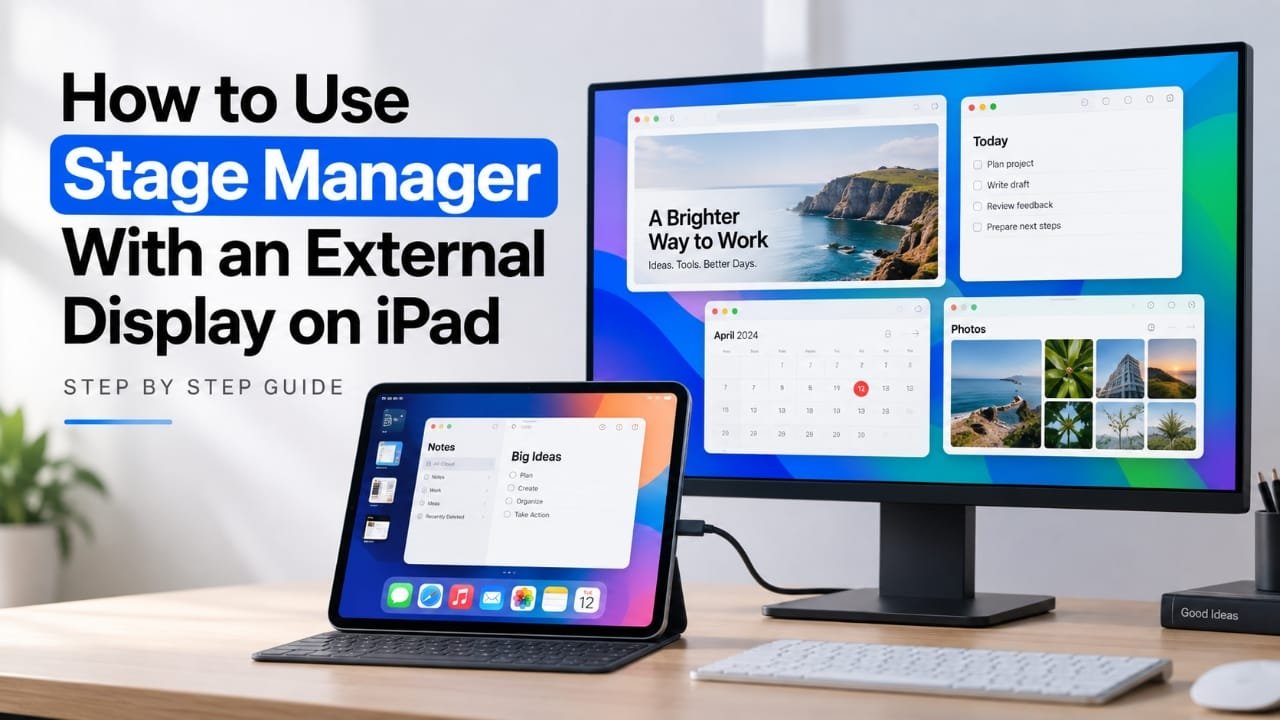
If you want to use your iPad with a monitor like a desktop computer, Stage Manager can make the setup much more useful. On supported iPad models, you can connect an external display, keep different apps on each screen, and arrange app windows to suit your workflow.
The exact experience depends on your iPad model, iPadOS version, cable or adapter, and the external display. In this guide, you’ll learn how to check compatibility, enable Stage Manager, connect a monitor, move and resize app windows, and troubleshoot common display problems.
Also read: How to Stop App Tracking on iPhone 16: Privacy Tips
What You Need Before Using Stage Manager With a Monitor
Before connecting anything, check these requirements:
- An iPad model that supports Stage Manager and external-display features
- A compatible version of iPadOS
- An external monitor or display
- A suitable USB-C cable, HDMI adapter, or compatible dock, depending on your iPad and monitor
- A display connection capable of carrying video, not just charging
Not every iPad supports the same Stage Manager features. If the Stage Manager option isn’t available on your iPad, check your model and installed version of iPadOS before troubleshooting the monitor.
How to Set Up Stage Manager With an External Display
1. Check your iPad model and iPadOS version
Start by confirming that your iPad supports Stage Manager.
Open Settings > General > About and check the software and model information. If you’re unsure whether your particular iPad supports the feature, verify the model against Apple’s current compatibility information.
This is important because Stage Manager and external-display capabilities aren’t identical across all iPad models.
2. Update iPadOS
If an update is available for your iPad, install it before setting up the monitor.
Go to:
Settings > General > Software Update
Install the available update and allow the iPad to restart if required.
Using a supported and up-to-date version of iPadOS can also help rule out software compatibility problems when you’re setting up the display.
3. Turn on Stage Manager
You can usually enable Stage Manager from Control Center.
- Swipe down from the top-right corner of the iPad screen.
- Find the Stage Manager control.
- Tap it to turn the feature on.
If the control isn’t visible, check the Stage Manager settings on your version of iPadOS.
Once enabled, supported apps can appear in resizable windows rather than occupying the entire screen all the time.
4. Connect the external display
Now connect your monitor to the iPad.
Depending on your setup, you may need:
- A direct USB-C connection
- A USB-C-to-HDMI adapter
- A USB-C hub or dock with video output
- A compatible display cable
Turn on the monitor and select the correct input source if necessary.
If the monitor remains blank, don’t immediately assume Stage Manager is the problem. The cable, adapter, dock, monitor input, or power connection can also prevent the display signal from appearing.
5. Check the external display mode
Once the monitor is connected, check how the iPad is using the display.
On supported configurations, the external monitor can provide additional workspace instead of simply showing a copy of the iPad screen.
If you only see a mirrored image, check:
- Whether your iPad supports extended external-display use
- Whether the current iPadOS version supports the feature
- Whether the adapter or dock supports video output
- Whether the display connection is configured correctly
The available display controls can vary depending on the iPad and iPadOS version.
How to Move Apps Between the iPad and External Display
After the monitor is working, open an app on the iPad.
With Stage Manager enabled, you can work with app windows and, on supported setups, move them between the iPad and external display.
To move a window, press and drag the window from its top area toward the other display. When the window reaches the external screen, position it where you want it and release it.
For example, you could keep a browser or reference material on one screen while working on a document on the other.
The exact window behavior can vary between apps, so an app that doesn’t resize or move as expected doesn’t necessarily mean the display connection is faulty.
How to Resize and Arrange App Windows
Stage Manager is most useful when you arrange windows around the way you actually work.
When an app supports window resizing, drag the edge or corner of its window to change its size.
You can also switch between different groups of apps using the Stage Manager interface.
A practical setup might include:
- One main app taking most of the monitor
- A smaller reference or communication window beside it
- Other apps kept in Stage Manager for quick access
You don’t need to keep every open app visible. Closing apps you aren’t using can make the workspace easier to manage.
What If the External Display Only Mirrors the iPad?
This is one of the most common points of confusion.
A mirrored display shows essentially the same content on the monitor as on the iPad. An extended display gives you additional workspace.
If you’re expecting a separate workspace but only get mirroring, check the following:
- Confirm that your iPad model supports the required external-display functionality.
- Make sure iPadOS is compatible and updated.
- Check the adapter or dock’s video capabilities.
- Try a different compatible cable if available.
- Check the monitor’s selected input.
- Disconnect and reconnect the display.
An adapter that can charge an iPad isn’t necessarily capable of sending a video signal.
Common Stage Manager Problems and Fixes
Stage Manager isn’t available
If you can’t find the Stage Manager control, first check your iPad model and iPadOS version.
If the device doesn’t support Stage Manager, changing display settings won’t add the feature.
The monitor shows nothing
Check that:
- The monitor is switched on.
- The correct monitor input is selected.
- The cable is properly connected.
- The adapter or dock supports video output.
- The iPad recognizes the connected display.
Disconnecting and reconnecting the cable can also help establish the connection again.
The display keeps disconnecting
An unstable cable, adapter, or dock can cause intermittent video problems.
Try another compatible cable or adapter if possible. If you’re using a dock, check whether the display works when connected through a different video connection.
Apps aren’t moving to the monitor
First make sure the external display is being used as an additional workspace rather than only mirroring the iPad.
If the display connection is working correctly but one particular app doesn’t behave as expected, the limitation may be related to that app’s windowing support.
The monitor looks blurry or incorrectly scaled
Check the monitor’s display settings and the available display options on the iPad.
A resolution or scaling mismatch can make text and interface elements appear softer than expected.
Tips for a Better iPad and Monitor Setup
A few simple changes can make Stage Manager easier to use:
- Keep the iPad connected to power during long sessions if practical. Running an external display can increase power consumption.
- Use a reliable video cable or adapter. Charging compatibility doesn’t automatically mean video compatibility.
- Don’t keep unnecessary apps open. A simpler workspace is easier to manage.
- Group apps you regularly use together. This can make switching between tasks faster.
- Check the monitor input if the screen suddenly appears blank.
- Start with one or two apps if you’re new to Stage Manager, then add more as you become comfortable with window management.
Can You Use Stage Manager Without an External Monitor?
Yes. Stage Manager can also be used directly on supported iPad models without connecting an external display.
In that setup, Stage Manager changes how supported apps and windows are arranged on the iPad itself. An external monitor isn’t required to use the feature.
Frequently Asked Questions
Does Stage Manager work on every iPad?
No. Stage Manager is available only on supported iPad models and compatible iPadOS versions. The available external-display functionality can also vary by model.
Can I use Stage Manager without an external display?
Yes. A supported iPad can use Stage Manager on its own screen.
Why does my monitor only mirror my iPad?
The cause could be the iPad model, iPadOS version, display configuration, or video adapter. Check whether your particular setup supports an extended external display rather than mirroring.
Can every app be moved to the external display?
App behavior can vary. Some apps may support flexible window resizing and movement better than others.
Does Stage Manager use more battery?
Using Stage Manager together with an external display can increase power consumption compared with lighter iPad use. Keeping the iPad connected to power can be useful during longer sessions.
How do I turn Stage Manager off?
Open Control Center and tap the Stage Manager control to disable it. You can also use the Stage Manager setting in the iPad’s Settings app, depending on your iPadOS version.
Also read: How to Stop App Tracking on iPhone 16: Privacy Tips
Final Thoughts
Using Stage Manager with an external display can give a supported iPad a more flexible multitasking setup. The most important steps are to confirm compatibility, update iPadOS, enable Stage Manager, use a proper video connection, and make sure the monitor is configured as intended.
If something doesn’t work, check the basics first: iPad compatibility, cable or adapter, monitor input, and display mode. Those checks can quickly narrow down whether the problem is with the iPad software or the physical connection.

Abhi Rajput, founder of Earnabhi.com, is a tech lover with 6+ years of experience in SEO, digital tools, and smartphone troubleshooting. He writes simple, clear, and useful guides to help people solve real tech problems.