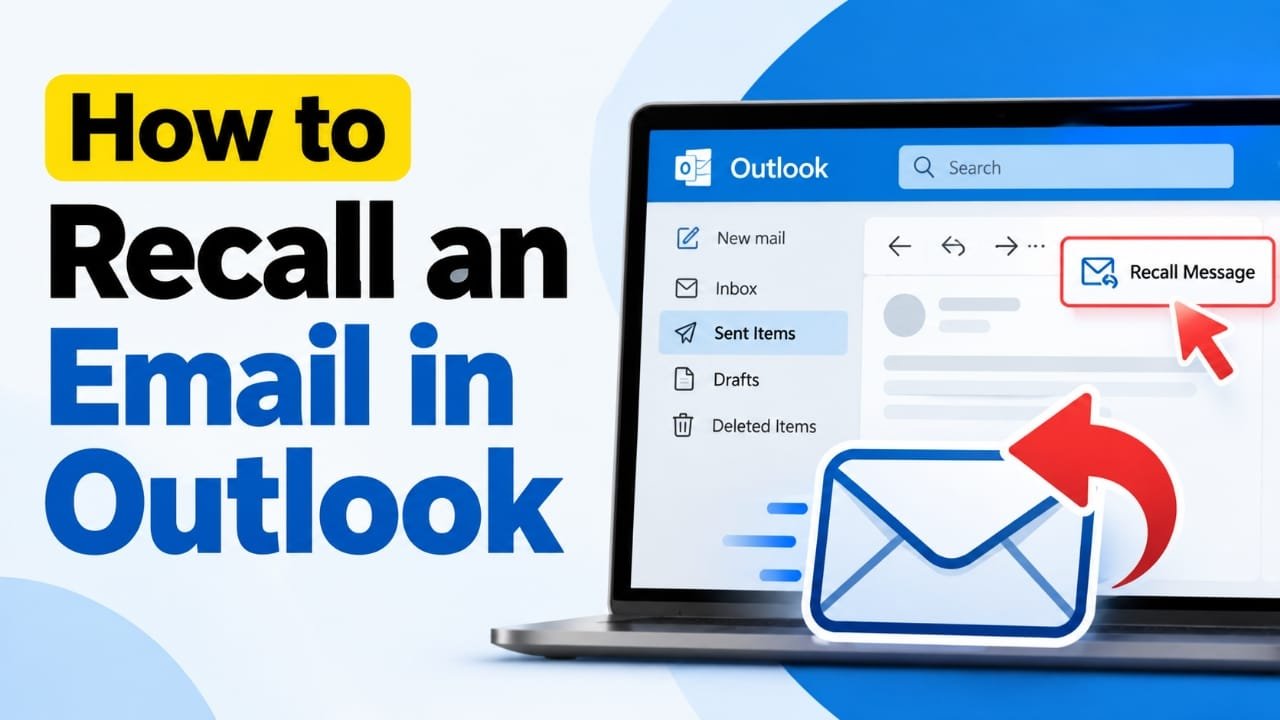
Sent an email too quickly and noticed a mistake afterward? Outlook has a Recall Message feature that can sometimes remove a sent email from the recipient’s mailbox. However, it does not work in every situation, so it is important to understand the requirements before relying on it.
This guide explains how to recall an email in new Outlook, Outlook on the web, classic Outlook for Windows, and Outlook mobile, along with what to do when recall fails.
Also read: How to Clear Cache on Android: A Simple Step-by-Step Guide
Can You Recall an Email in Outlook?
Yes, but Outlook email recall has limitations.
Recall generally works when the sender and recipient use eligible work or school mailboxes within the same organization and the organization allows the feature. A recall request may also be processed differently depending on the organization’s Microsoft 365 settings.
It generally does not work when you send an email to personal services such as Gmail, Yahoo, Outlook.com, or Hotmail, or to someone outside your organization.
Also, recalling an email does not erase information that the recipient has already seen, copied, photographed, or otherwise saved.
How to Recall an Email in New Outlook or Outlook on the Web
If your account supports email recall, follow these steps:
- Open Sent Items in Outlook.
- Find and open the email you want to recall.
- Select Recall Message from the ribbon.
- If you do not see the option, open the three-dot menu (…) and look for it there.
- Confirm the recall.
- Check your inbox for the Message Recall Report.
The report tells you what happened with the recall for each recipient.
- Succeeded: The message was recalled from that recipient’s mailbox.
- Pending: Outlook is still processing the request.
- Failed: The message could not be recalled.
A pending recall may take some time to finish, so check the report rather than assuming the recall worked for everyone.
How to Recall an Email in Classic Outlook for Windows
The process is slightly different in the traditional desktop version of Outlook.
- Open Sent Items.
- Double-click the email you want to recall.
- Open the Message tab.
- Select More Move Actions in the Move section.
- Choose Recall This Message.
If you use the Simplified Ribbon, you may need to select:
More commands (…) → Actions → Recall This Message
You can then choose between two options:
- Delete unread copies of this message
- Delete unread copies and replace with a new message
If you choose the second option, edit the replacement email and send it after making the necessary corrections.
When Does Outlook Email Recall Work?
Email recall depends on the accounts involved and your organization’s Microsoft 365 or Exchange configuration.
| Situation | Recall possibility |
|---|---|
| Work/school accounts in the same organization | May work |
| Organization permits recall | Required |
| Recipient is outside your organization | Generally not available |
| Recipient uses Gmail | Generally not available |
| Recipient uses Yahoo Mail | Generally not available |
| Recipient uses personal Outlook.com/Hotmail | Not supported for this type of recall |
| Recall option is missing | Account or organization may not support it |
The exact behavior can also depend on your organization’s configuration.
Can You Recall a Read Email?
In some Microsoft 365 environments, a cloud-based recall can work even when a message has already been read, provided the administrator has enabled the relevant functionality.
However, a successful recall cannot undo what someone has already seen or copied.
For that reason, if an email contains sensitive or incorrect information, do not assume that recalling it completely solves the problem.
How to Recall an Email in Outlook on iPhone or Android
Microsoft also provides recall functionality in its Outlook mobile apps for eligible organizational accounts.
The general process is:
- Open the Sent folder.
- Open the email.
- Tap the three-dot More options menu.
- Look for Recall.
- Follow the confirmation instructions.
- Check for the recall result afterward.
If you cannot find the Recall option, check which account you used to send the email. Your organization may also have the feature disabled.
What If the Outlook Recall Fails?
If the recall does not work, the simplest solution is usually to send a correction email.
For example, if you forgot an attachment, send the attachment with a short explanation rather than sending a long message.
If you accidentally sent confidential information to the wrong person, contact your organization’s IT or security team as soon as possible. Do not rely solely on the Outlook recall feature.
Also remember that deleting the message from your own Sent Items folder does not delete the recipient’s copy.
Use Outlook’s Undo Send to Avoid Mistakes
If you frequently realize that you need to change an email immediately after pressing Send, Undo Send can be more useful than Recall.
Undo Send gives you a short delay before the message is actually sent. During that period, you can cancel the message and make changes.
To configure it:
- Open Settings using the gear icon.
- Go to Mail.
- Open Compose or Compose and reply, depending on your Outlook version.
- Find Undo send.
- Select the available delay period.
- Save the setting.
After sending an email, an Undo option will appear for the configured number of seconds.
The available delay options can vary between Outlook versions. Undo Send also cannot retrieve an email that has already been delivered.
Recall vs. Undo Send
These two features work differently.
| Feature | Recall | Undo Send |
|---|---|---|
| Used after sending | Yes | Immediately after clicking Send |
| Can retrieve an already delivered message | Sometimes, under specific conditions | No |
| Works with external recipients | Generally no | Useful because it delays sending |
| Requires eligible organizational account | Usually | Depends on Outlook version/settings |
| Best use | Trying to remove an already-sent message | Preventing a mistake before delivery |
If you regularly send important emails, using a short Undo Send delay can give you an opportunity to catch an incorrect attachment, recipient, or sentence before the email leaves your mailbox.
Common Problems With Outlook Recall
The Recall Message option is missing
This can happen if your account does not support the feature or your organization has disabled it. Check the account you used to send the message and, if necessary, ask your IT administrator.
The recall works for one person but not another
Recall results can differ between recipients. Always check the Message Recall Report instead of assuming that one successful result means every copy was removed.
I deleted the email from Sent Items
That only removes your copy from your mailbox. It does not automatically remove the recipient’s copy.
I sent the email to Gmail
Outlook’s organizational recall feature is not designed to retrieve messages from Gmail recipients. In this situation, sending a correction is generally the practical next step.
Frequently Asked Questions
Can I recall an Outlook email after it has been read?
Sometimes, depending on your Microsoft 365 organization and its recall settings. However, recall cannot undo information that the recipient has already viewed or copied.
Can I recall an email sent to Gmail?
Generally, no. Outlook’s message recall feature is intended for eligible organizational mailboxes rather than external Gmail recipients.
Why don’t I see the Recall option in Outlook?
Your account may not support recall, your organization may have disabled it, or you may be using a personal account that is not eligible for the feature.
Does deleting an email from Sent Items recall it?
No. Removing your copy from Sent Items does not remove the message from the recipient’s mailbox.
Is Undo Send the same as Recall?
No. Undo Send provides a short delay before the email is delivered. Recall attempts to remove an email after it has already been sent, and it only works under specific conditions.
Also read: Best Android Live Wallpaper App With 3D Effects, Clock & Battery Widgets
Conclusion
Outlook’s Recall Message feature can help correct a mistakenly sent email, but it is not a guaranteed way to retrieve messages. It works mainly with eligible organizational mailboxes and depends on your organization’s configuration.
If the recall option is unavailable or the recall fails, send a clear correction instead. For future emails, enabling Undo Send can provide a useful short window to catch mistakes before the message is delivered.

Abhi Rajput, founder of Earnabhi.com, is a tech lover with 6+ years of experience in SEO, digital tools, and smartphone troubleshooting. He writes simple, clear, and useful guides to help people solve real tech problems.