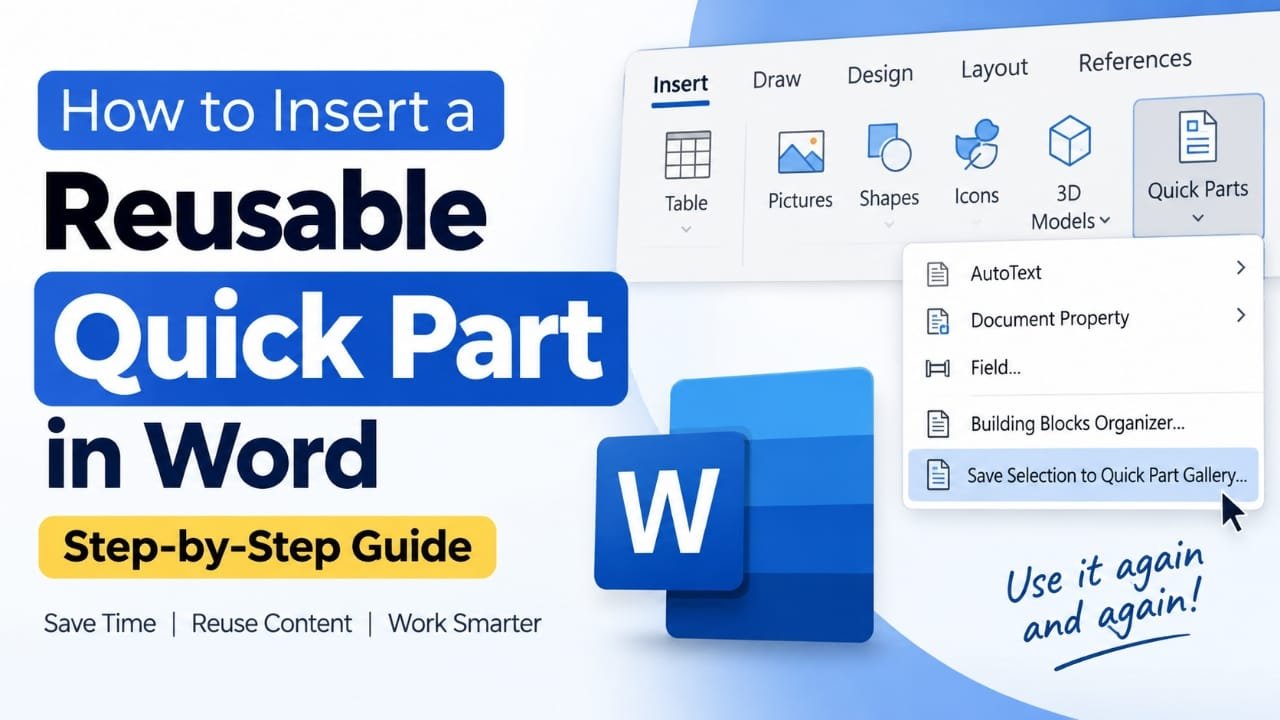
If you regularly type the same disclaimer, signature, table, formatted paragraph, or other content in Microsoft Word, you can save it as a Quick Part and reuse it whenever you need it. Instead of copying and formatting the same content repeatedly, you can insert the saved block in a few clicks.
This guide explains how to create, insert, edit, and manage reusable Quick Parts in Word. It also covers AutoText, formatting issues, missing Quick Parts, and some differences between Word desktop and Word for the web.
Also read: How to Format an External Drive on iPad: Step-by-Step Guide
What Is a Quick Part in Microsoft Word?
A Quick Part is a reusable piece of content saved inside Microsoft Word. Depending on what you select, it can contain text, formatting, tables, images, or other document elements.
For example, you could create Quick Parts for:
- A standard disclaimer
- A business signature
- Frequently used paragraphs
- Contact information
- Standardized report sections
- Formatted tables
- Repeated headings or notices
Once the content has been saved, you can insert it into another document without recreating the entire block.
How to Create a Reusable Quick Part in Word
The basic process is to select your content, save it to the Quick Parts gallery, and then insert it whenever required.
1. Select the content you want to reuse
Open your Word document and select the text or other content you want to save.
Your selection can include more than plain text. For example, you can select a formatted paragraph, table, image, or combination of elements.
Be careful to select everything you want included. Word saves the content you select, including its formatting.
2. Open the Quick Parts menu
With the content selected, open the Insert tab from the Word ribbon.
Look for Quick Parts and select it.
A menu will appear with options related to reusable document elements, including AutoText and other building blocks.
3. Choose “Save Selection to Quick Part Gallery”
From the Quick Parts menu, select Save Selection to Quick Part Gallery.
Word will open a dialog box where you can configure the reusable item.
This is the step that converts your selected content into a saved building block.
4. Give the Quick Part a recognizable name
Enter a short name that clearly identifies the content.
For example:
Client DisclaimerMeeting SignatureCompany AddressReport Introduction
Avoid vague names if you expect to create several Quick Parts. A descriptive name makes the correct item easier to find later.
5. Check the save settings
The dialog box may include fields such as Gallery, Category, Save in, and Options.
For a basic Quick Part, you can generally leave the default settings unchanged.
Make sure the gallery is set appropriately for the type of reusable content you are creating. If you are following the standard Quick Parts workflow, the default Quick Parts gallery is usually sufficient.
6. Click OK
Select OK to save the building block.
Your selected content is now stored as a reusable Quick Part.
How to Insert a Saved Quick Part
After creating the Quick Part, you can insert it into another location whenever you need it.
- Open the Word document where you want to use the saved content.
- Place the cursor at the location where the content should appear.
- Go to Insert.
- Select Quick Parts.
- Find your saved item in the gallery.
- Select it.
Word will insert the saved content at the cursor position.
If you cannot find it in the visible gallery, use the Building Blocks Organizer to locate the saved item.
How to Edit or Update a Quick Part
You may eventually need to change a reusable block. For example, a disclaimer might be updated or a signature might contain new contact information.
One approach is to create the updated version and save it again as a building block. You can also manage existing building blocks through the Building Blocks Organizer.
Be careful when updating frequently used content. If an old version remains saved, you may accidentally continue inserting outdated information.
This is particularly important for content containing:
- Contact details
- Policy wording
- Dates
- Business information
- Standard notices
How to Manage or Delete Quick Parts
Word provides the Building Blocks Organizer for managing reusable content.
To access it, go to:
Insert → Quick Parts → Building Blocks Organizer
From there, you can review available building blocks and manage the ones you no longer need.
If you have accumulated many Quick Parts, the organizer can also make it easier to identify the correct item by its name, gallery, category, or other information.
Quick Parts vs. AutoText
AutoText is another Word feature for storing reusable content.
The two features overlap, but AutoText is particularly useful when you frequently insert standard phrases or blocks of text.
For example, if you repeatedly use the same closing paragraph or response text, an AutoText entry can be a convenient option.
Quick Parts are broader and can be useful for reusable document elements that include formatting and other content.
What If You Want the Inserted Text to Match the Current Document?
A saved Quick Part can retain formatting from the original content. That’s useful when you want the inserted block to look exactly the same each time, but it can sometimes create unwanted formatting differences.
If you want the content to blend into different documents, consider saving simpler content without unnecessary fixed formatting.
You can also use Word’s styles consistently so that reusable content follows the formatting scheme of the document where it is inserted.
Does Quick Parts Work on Mac and Word for the Web?
The exact menus and available features can vary depending on your Word version and platform.
On Mac, the workflow can be similar, but the location or wording of some commands may differ.
Word for the web also has more limited support for some advanced building-block features compared with the desktop application. If you cannot find the Quick Parts functionality you’re expecting, check whether you are using the desktop version of Word.
Common Quick Parts Problems and Fixes
Quick Part is not showing
Check that you actually saved the selection and used the intended gallery. If the item isn’t visible in the Quick Parts menu, open the Building Blocks Organizer and search for it there.
The formatting looks different after insertion
The Quick Part may have been saved with formatting that does not fit the new document.
Try creating the reusable block again with the formatting you actually want to preserve.
Word won’t let you save the selection
The document or selected content may be protected or restricted. Check whether you’re working inside a read-only or otherwise restricted document.
Quick Parts is unavailable or grayed out
Try opening another document and checking the Insert menu again. If the problem is specific to one document, the document’s restrictions or settings may be responsible.
Restarting Word can also help with temporary application problems.
Quick Parts disappeared after moving to another computer
Saved building blocks may depend on files stored locally with Word. They do not necessarily appear automatically on a different computer.
If you rely on important Quick Parts for work, consider including the relevant building-block data in your backup or migration process.
Only part of the content is inserted
Check your original selection carefully. Tables, images, paragraph breaks, and other elements can be missed if they were outside the selected area.
Tips for Using Quick Parts Effectively
A few simple habits can make reusable content easier to manage:
- Use clear names: Choose names that tell you exactly what each Quick Part contains.
- Keep entries focused: Smaller, purpose-specific blocks are generally easier to maintain.
- Preserve formatting deliberately: Save formatting when consistency matters; avoid unnecessary formatting when the block needs to adapt to different documents.
- Review important content: Update reusable text when business information, policies, or other details change.
- Back up important building blocks: This can be useful when moving to another computer or reinstalling Word.
Frequently Asked Questions
What is a Quick Part in Word?
A Quick Part is a reusable building block that lets you save and insert frequently used content in Microsoft Word.
Can a Quick Part contain images and tables?
Yes. Quick Parts can contain more than plain text, so they can be useful for formatted content, tables, images, and other reusable document elements.
Does a Quick Part preserve formatting?
Generally, yes. The formatting included in the saved selection can be retained when the Quick Part is inserted.
Can I use a Quick Part in another Word document?
Yes, provided the building block is available to that Word installation and document environment. Availability can differ when moving to another computer or Word environment.
How do I delete a Quick Part?
Open Insert → Quick Parts → Building Blocks Organizer, locate the item you no longer need, and use the organizer’s deletion option.
Can I make a keyboard shortcut for a Quick Part?
Word does not provide a simple default keyboard shortcut for every Quick Part, but AutoText-style workflows or customized shortcuts can provide faster access depending on your Word setup.
Why doesn’t my Quick Part look right in a new document?
The saved item may contain formatting from the original document that conflicts with the formatting of the new one. Re-saving the content with more suitable formatting or using styles can help.
Also read: How to Use Focus Mode in Microsoft Word
Conclusion
Quick Parts can save time whenever you repeatedly use the same content in Microsoft Word. The basic workflow is simple: select the content, save it to the Quick Parts gallery, and insert it whenever you need it.
For frequently used disclaimers, signatures, tables, and formatted sections, reusable building blocks can also help keep documents consistent. Just remember to review important Quick Parts occasionally so that outdated information does not keep appearing in new documents.

Abhi Rajput, founder of Earnabhi.com, is a tech lover with 6+ years of experience in SEO, digital tools, and smartphone troubleshooting. He writes simple, clear, and useful guides to help people solve real tech problems.