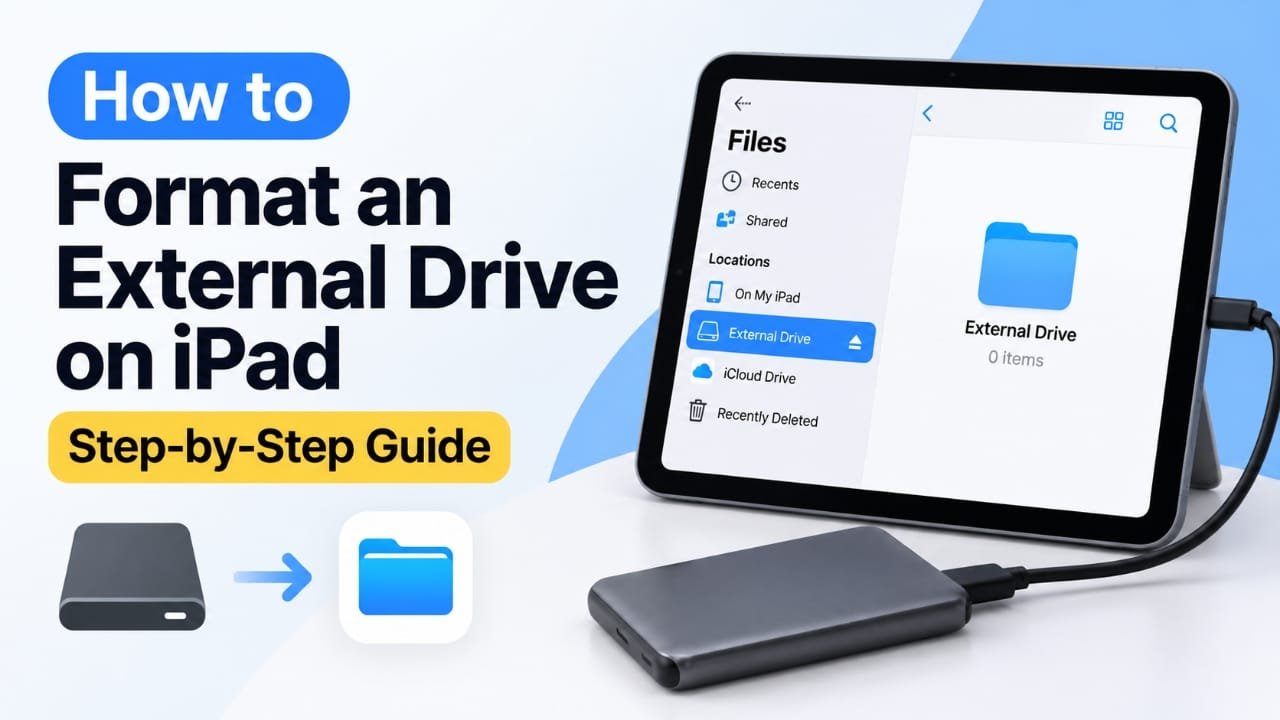
If you want to reuse a USB drive, external SSD, hard drive, or SD card with your iPad, you may be able to erase or format it without using a computer. The exact options depend on your iPad, iPadOS version, storage device, connection, and the file system being used.
The easiest place to start is the Files app. If iPadOS provides an erase or format option for your connected drive, you can complete the process directly from the iPad. If that option is unavailable, a Mac, Windows PC, or the drive manufacturer’s app may be required.
This guide explains how to check your drive, erase or format it when supported, choose a suitable file system, and troubleshoot common connection problems.
Also read: How to Pause Activity Rings on Apple Watch: Simple Ways to Stop Ring Progress
Before You Format the Drive
Formatting or erasing a drive can remove the data stored on it. Before proceeding, copy anything you want to keep to another location, such as another drive, a computer, or cloud storage.
You should also check that:
- Your iPad has the appropriate USB-C or Lightning connection.
- Your cable or adapter supports data transfer, not just charging.
- The drive is receiving enough power.
- The drive is recognized by iPadOS.
- You have backed up important files.
If the drive is not appearing in the Files app at all, formatting may not be the first problem to solve.
How to Format an External Drive on iPad
If your iPad and connected storage device support the necessary controls, you can check for an erase or format option through Files.
1. Connect the external drive
Connect your USB drive, SSD, hard drive, or card reader to the iPad.
Depending on your setup, you may need:
- A USB-C cable
- A USB-C hub
- A Lightning-to-USB adapter
- A compatible SD card reader
Give the iPad a moment to recognize the device.
For drives that require more power than the iPad can provide, a powered USB hub or externally powered drive may be necessary.
2. Open the Files app
Open Files on your iPad.
Look for the Locations section in the sidebar. A properly recognized external drive should normally appear there using its drive name or another identifying name.
If the drive does not appear, jump to the troubleshooting section below rather than repeatedly reconnecting it.
3. Select the external drive
Tap the drive under Locations.
If iPadOS can read the drive, you should see its folders and files. An empty drive may simply show an empty folder view.
If you receive an unsupported-drive or similar error, the problem may involve the drive’s file system, connection, power, or compatibility.
4. Check for an erase or format option
Press and hold the drive name or use the available More menu.
Look for an option such as Erase or Format, depending on what your iPadOS version and storage device support.
This is an important point: not every external drive can be fully formatted from the Files app on every iPad. Some setups allow you to browse, copy, move, and delete files but do not provide a complete formatting option.
If you don’t see an erase or format command, don’t assume the drive is defective.
5. Confirm the action
If an erase or format option is available, select it and carefully read the confirmation message.
Because the operation can remove the drive’s existing data, make sure your important files have already been backed up.
Once you confirm, leave the drive connected.
6. Wait for the process to finish
Do not disconnect the drive while it is being erased or formatted.
The time required can vary depending on the storage device, connection, drive capacity, and type of erase operation being performed.
When the process finishes, the drive should be available for use again if the operation completed successfully.
7. Test the drive
Open the drive again in Files.
A simple test is to create a folder or copy a small file to it. If the operation works, the storage is ready for normal use.
If the drive still produces errors or repeatedly disconnects, the issue may be related to compatibility, power, the cable, or the drive itself.
What If the iPad Doesn’t Show a Format Option?
This is one of the most common limitations when working with external storage on an iPad.
If Files only lets you browse or delete files, you may need another method.
Use the drive manufacturer’s app
Some storage devices have their own management applications. Depending on the device, the app may provide tools for managing or erasing the storage.
Check the manufacturer’s documentation or app for options related to:
- Drive management
- Storage tools
- Erasing
- Formatting
- Device settings
The exact features vary between manufacturers and products.
Format the drive using a Mac or Windows PC
A computer is usually the more flexible option when you need to select a specific file system or when iPadOS does not provide formatting controls.
After formatting the drive on a computer, reconnect it to your iPad and check whether it appears in Files.
This approach is particularly useful when the iPad reports that the drive is unsupported.
Try a powered USB hub
Some external hard drives and other storage devices need more power than the iPad can provide through the connection.
If the drive repeatedly connects and disconnects, fails to appear, or behaves inconsistently, power may be part of the problem.
A compatible powered hub can provide additional power to the connected device.
Which File System Should You Use for an iPad?
The right file system depends on where you plan to use the drive.
exFAT is often a practical choice when the same external drive needs to move between an iPad, Mac, and Windows PC.
If the drive will be used primarily with Apple devices, another Apple-oriented file system may make sense. However, compatibility can depend on the particular iPad, iPadOS version, and storage setup.
If you are formatting the drive on a computer specifically for use with an iPad, check the current compatibility information for your iPadOS version before selecting a file system.
You Don’t Need to Format the Drive Just to Delete Files
If your only goal is to free up storage, formatting is unnecessary.
Open the external drive in Files, select the files or folders you no longer need, and delete them.
This removes the selected content while leaving the drive’s existing file-system structure in place.
Formatting makes more sense when you want to completely erase the drive, change its file system, or prepare it for a different use.
How to Format an SD Card on iPad
An SD card can sometimes be handled in a similar way when connected through a compatible card reader.
Connect the card reader to the iPad and open Files. If the SD card appears under Locations, you can check the available storage-management options.
If iPadOS does not provide an erase or format option, use a computer or an appropriate card-management tool instead.
Remember that formatting the SD card will remove the files stored on it, so back up photographs, videos, or other important data first.
Common Problems When Formatting an External Drive on iPad
The drive doesn’t appear in Files
Check the physical connection first.
Try:
- Disconnecting and reconnecting the drive.
- Using a different data-capable cable or adapter.
- Trying another compatible port or hub.
- Using a powered hub if the drive requires additional power.
- Testing the drive with a computer.
A cable that can charge a device does not necessarily provide the data connection needed for external storage.
iPad says the drive is unsupported
An unsupported file system or incompatible storage setup can prevent the iPad from using the drive normally.
If the drive works on a computer but not on the iPad, check its file system and consider formatting it on a computer using a file system appropriate for your intended devices.
The drive keeps disconnecting
Repeated disconnections can indicate a power or connection problem.
For larger external drives, try a powered hub or a drive with its own power source. Also check the cable and adapter.
There is no format or erase option
The absence of a formatting control can simply mean that your particular iPadOS and storage setup does not support formatting that drive directly.
In that situation, use the drive manufacturer’s supported software or format the drive using a Mac or Windows PC.
The drive is very slow
Don’t disconnect a drive simply because an erase or file operation is taking longer than expected.
The drive’s capacity, connection type, storage technology, and adapter can all affect performance. If the problem continues after formatting, test the drive on a computer to determine whether the storage device itself has an issue.
Important Tips Before Using External Storage With iPad
- Back up important files before formatting. An erase operation can remove everything on the drive.
- Use a proper data cable or adapter. Some accessories support charging but not data transfer.
- Consider a powered hub for demanding drives. This can help when the iPad cannot provide enough power.
- Choose a file system based on your devices. exFAT can be useful for drives shared across iPad, Mac, and Windows, subject to compatibility.
- Avoid disconnecting the drive during transfers or erase operations.
- Keep iPadOS updated. Software updates can include improvements and fixes related to external storage.
- Test a newly formatted drive. Creating a folder or copying a small file is a quick way to confirm that it is working.
Frequently Asked Questions
Can I format any external drive on an iPad?
No. The ability to format a drive directly from an iPad depends on the iPadOS version, iPad model, storage device, connection, and available software controls. Some drives can be managed through Files, while others need a computer or manufacturer’s application.
Does formatting delete everything on an external drive?
Formatting or erasing a drive can remove the data stored on it. Always back up important files before confirming the operation.
What is the best file system for an iPad?
There isn’t one universal choice for every situation. exFAT is often useful when a drive needs to be shared between iPad, Mac, and Windows, but the appropriate choice depends on the devices and software you plan to use.
Why isn’t my external drive showing up in Files?
Possible causes include a faulty or charge-only cable, an incompatible adapter, insufficient power, an unsupported file system, or a problem with the drive itself.
Can I format a drive without an internet connection?
A local formatting operation does not inherently require an internet connection. You need a compatible iPad, storage device, and working physical connection.
Can I format an SD card using an iPad?
Sometimes. If the card and reader are recognized by iPadOS and the required storage controls are available, you may be able to manage it from the iPad. Otherwise, use a computer or supported storage-management software.
Should I format a drive if I only want to remove some files?
No. If you only need to remove selected files, delete those files through Files instead. Formatting is unnecessary and can erase much more data than intended.
Also read: How to Use the Vitals App on Apple Watch: A Quick Guide
Final Thoughts
Formatting an external drive on an iPad can be convenient when iPadOS provides the necessary erase or format controls. Start by connecting the drive, opening Files, and checking what options are available under Locations.
If no formatting option appears, the solution may be as simple as using a compatible storage-management app or formatting the drive on a Mac or Windows PC. If the drive isn’t recognized at all, investigate the cable, adapter, power supply, and file-system compatibility first.
The most important step is to back up anything you need before erasing or formatting the drive.

Abhi Rajput, founder of Earnabhi.com, is a tech lover with 6+ years of experience in SEO, digital tools, and smartphone troubleshooting. He writes simple, clear, and useful guides to help people solve real tech problems.