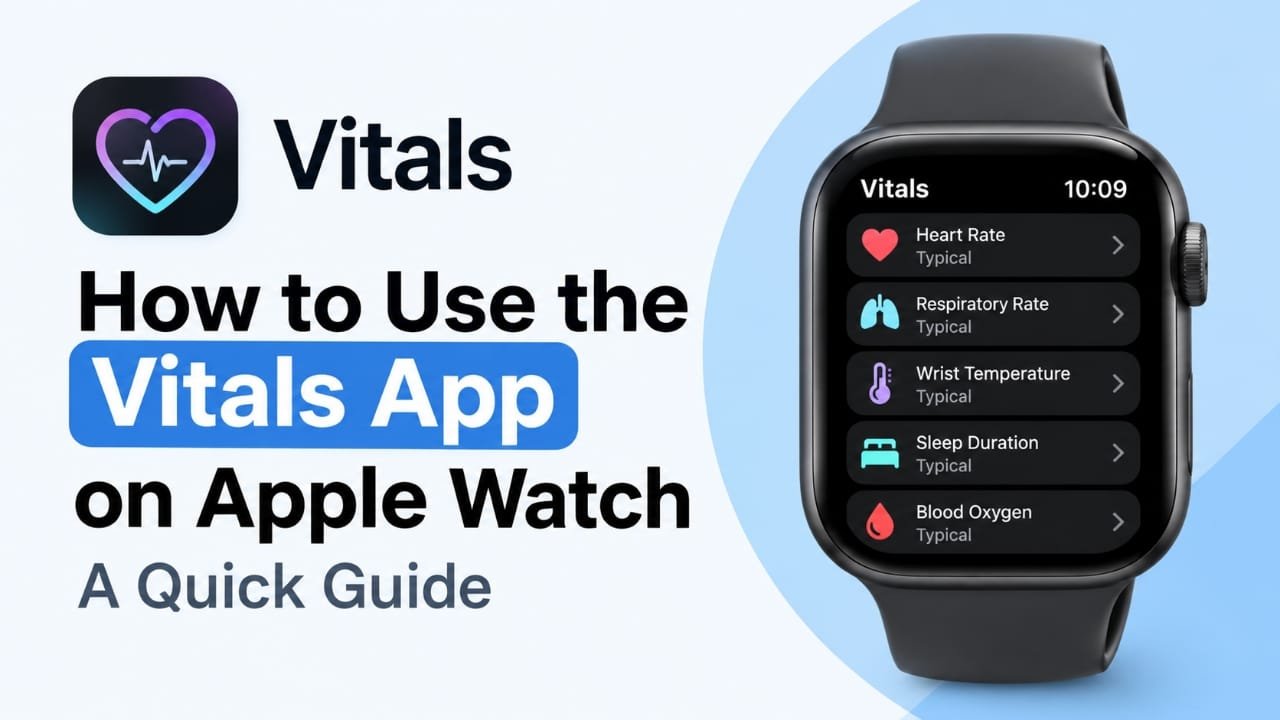
If you have an Apple Watch and keep seeing the Vitals app, you may be wondering what it actually does and how to read the information it shows.
The Vitals app brings several overnight health measurements together in one place. Depending on your Apple Watch model and region, these can include heart rate, respiratory rate, wrist temperature, sleep duration, and blood oxygen. Instead of checking individual sections of the Health app, you can use Vitals for a quick morning overview of your recent overnight data. (Apple Support)
This guide explains how to use Vitals on Apple Watch, how its typical ranges work, why some measurements may be missing, and what you can do if the app is not showing useful data.
Also read: How to Check Training Load on Apple Watch: Step-by-Step Guide
What Is the Vitals App on Apple Watch?
Vitals is an Apple Watch app designed to summarize your overnight health measurements.
When you wear your Apple Watch while sleeping, the watch collects supported health data. Vitals then compares your measurements with your typical range rather than simply showing an isolated number.
The supported measurements include:
- Heart rate
- Respiratory rate
- Wrist temperature
- Sleep duration
- Blood oxygen, where supported
Apple says the app can also notify you when multiple overnight metrics are outside your typical range and provide possible factors that may be relevant, such as illness, medication or changes in elevation. (Apple Support)
Vitals is therefore best thought of as a quick overview, not a replacement for the detailed information available in Apple’s Health app.
How to Open Vitals on Apple Watch
You can access Vitals directly from your Apple Watch.
- Press the Digital Crown to open the app list.
- Find and tap Vitals.
- Review the overnight summary shown on the screen.
- Turn the Digital Crown to move through the available measurements.
- Tap an individual metric if you want more information.
Apple also provides a seven-day view of your overnight vitals. In the Vitals app, tap the calendar button in the upper-left corner to review previous days. (Apple Support)
If you cannot find Vitals, check that your Apple Watch is running a supported version of watchOS and that the app is available on your device.
What Does Vitals Show?
The exact information you see depends on your Apple Watch hardware, software and region.
Heart Rate
Vitals can show your overnight heart-rate data. Rather than focusing only on whether one number is high or low, look at how the measurement compares with your usual pattern.
Respiratory Rate
Respiratory rate refers to the number of breaths taken per minute. Apple Watch can measure this during sleep, and Vitals can show the resulting overnight information.
Wrist Temperature
Supported Apple Watch models can measure wrist temperature during sleep. Wrist temperature availability requires compatible hardware, including Apple Watch Series 8 or later and Apple Watch Ultra models. (Apple Support)
Sleep Duration
Vitals also includes how long you slept, giving you a quick way to see whether your overnight sleep duration has changed.
Blood Oxygen
Blood oxygen information can appear in Vitals on supported devices and in supported regions. However, availability has some important hardware and regional limitations.
For example, Apple says blood oxygen is not available in the Vitals app on certain Apple Watch models purchased in the United States from January 18, 2024 onward. (Apple Support)
So, seeing fewer measurements than someone else does not necessarily mean something is wrong with your watch.
How Does the Typical Range Work?
One of the most useful parts of Vitals is its typical range.
Apple Watch learns your usual overnight measurements and uses them as a reference point. Apple says you should wear the watch to sleep for seven days to establish your typical range. (Apple Support)
This is important because there is no single overnight measurement that is automatically “normal” for everyone.
For example, a number that is typical for one person may be different for another. Vitals is designed to help you notice changes relative to your own recent pattern.
If multiple measurements move outside your typical range, Vitals may notify you the next morning. Apple says the notification can include context about factors that may be associated with changes in your measurements. (Apple Support)
How to Get More Useful Data From Vitals
Vitals depends heavily on the data your Apple Watch collects while you sleep. A few simple habits can make the information more useful.
Wear Your Apple Watch While Sleeping
The most important requirement is to actually wear the watch overnight.
If the watch is sitting on a charger instead of your wrist, it obviously cannot collect your overnight measurements.
Keep the Watch at a Comfortable Fit
The back of the Apple Watch needs skin contact for its sensors to work properly.
Apple recommends wearing it with a comfortable fit—not excessively tight or loose. A loose watch can interfere with sensor readings. (Apple Support)
Charge It Before Bed
If your Apple Watch battery is too low to last through the night, you may end up with incomplete overnight data.
A simple routine is to charge the watch before going to bed and put it back on once it has enough battery.
Give the Watch Time to Establish Your Pattern
If you have just started wearing your Apple Watch to sleep, Vitals may not be particularly useful immediately.
Apple says seven days of overnight wear are needed to establish your typical ranges. (Apple Support)
A new Apple Watch may therefore need some time before its comparisons become meaningful.
How to View Vitals Data on iPhone
The Apple Watch gives you a convenient summary, but the iPhone’s Health app provides more room to explore your data.
To view your Vitals information:
- Open the Health app on your iPhone.
- Tap Search.
- Select Vitals.
- Tap the health metric you want to examine.
Apple’s Health app lets you view longer-term information and explore individual measurements in more detail. (Apple Support)
This is particularly useful when you want to look beyond last night’s results and identify changes over several weeks or months.
What Should You Do If Vitals Shows an Outlier?
Don’t automatically assume that one unusual measurement means something is wrong.
Vitals is designed to highlight changes from your typical range. There can be many reasons for temporary changes in overnight measurements.
Apple specifically mentions factors such as:
- Illness
- Medication
- Changes in elevation
- Alcohol consumption
as factors that can affect some measurements. (Apple Support)
If multiple measurements are outside your typical range, use the information as a reason to pay attention to how you are feeling and what has changed recently.
Also remember that Apple states that Vitals measurements are not intended for medical use. If you have health concerns or symptoms, speak with an appropriate healthcare professional rather than relying on the watch alone. (Apple Support)
How to Turn Vitals Notifications On or Off
If you want notifications when multiple overnight measurements are outside your typical range, you can manage Vitals notifications from the Apple Watch.
On the watch:
- Open Settings.
- Tap Vitals.
- Turn Notifications on or off.
Apple says Vitals notifications are enabled by default when at least two overnight metrics are outside your typical range. (Apple Support)
Why Is Vitals Not Showing All My Data?
There are several possible reasons.
Your Watch Has Not Collected Enough Overnight Data
If you have only recently started wearing the watch at night, it may not yet have enough information to establish your typical ranges.
Your Apple Watch Does Not Support a Particular Measurement
Not every Apple Watch model has the same sensors or capabilities. For example, wrist temperature requires supported hardware, while blood oxygen has additional device and regional restrictions. (Apple Support)
Sleep Tracking Is Not Set Up Correctly
Apple’s requirements for overnight Vitals include setting up Sleep with Track Sleep with Apple Watch and having Sleep Focus enabled. (Apple Support)
Check your sleep settings if your overnight information is consistently incomplete.
The Watch Was Too Loose
If the watch does not maintain proper contact with your skin, some sensor measurements may not be captured properly.
Try adjusting the band so that the watch sits securely and comfortably on your wrist.
The Watch Did Not Have Enough Battery
If the battery ran out during the night, you may have incomplete data for that sleep session.
Vitals App vs. Health App
The two apps serve different purposes.
| Feature | Vitals | Health |
|---|---|---|
| Quick overnight summary | Yes | Yes |
| Typical-range comparison | Yes | More detailed history |
| Individual health metrics | Yes | Yes |
| Long-term data | Limited on watch | Yes |
| Detailed charts | Basic | More detailed |
| Best for quick morning check | Yes | Not primarily |
| Best for deeper analysis | No | Yes |
In simple terms, Vitals is the quick dashboard, while Health is the detailed record.
Common Vitals Problems and Quick Fixes
Vitals has no data
Make sure you wore the Apple Watch to bed, Sleep tracking is configured, and the watch had enough battery.
Vitals is missing from the app list
Check whether your Apple Watch is running a supported version of watchOS. You can also check the Watch app on your iPhone and install available updates.
Some measurements are missing
Check your Apple Watch model and region. Not every measurement is available on every device. (Apple Support)
The readings look unusual
First, compare them with your usual pattern instead of focusing on one isolated result. Also check whether the watch was fitted correctly and whether anything changed that night.
Your new watch does not have much history
Give it time. Apple says seven days of overnight data are needed to establish typical ranges. (Apple Support)
Tips for Using Vitals Effectively
A few simple habits can make Vitals more useful:
- Check it in the morning after a full night of data collection.
- Wear your Apple Watch consistently while sleeping.
- Keep the watch comfortably fitted against your skin.
- Charge the watch before bed when necessary.
- Look at trends instead of reacting to one unusual night.
- Use the Health app on iPhone when you need longer-term information.
- Keep your Apple Watch and iPhone updated.
- Remember that Vitals is an informational health feature, not a medical diagnostic tool.
Frequently Asked Questions
What is the Vitals app on Apple Watch?
Vitals is an Apple Watch app that brings supported overnight health measurements together in one place. It can show heart rate, respiratory rate, wrist temperature, sleep duration and blood oxygen where supported. (Apple Support)
How long does Apple Watch need to establish a Vitals baseline?
Apple says you should wear your Apple Watch to sleep for seven days to establish your typical range. (Apple Support)
Does Vitals work if I don’t wear my Apple Watch while sleeping?
Vitals relies on overnight measurements collected while you wear the watch. Without overnight data, there may be little or no information available to analyze.
Why is blood oxygen missing from Vitals?
Blood oxygen availability depends on the Apple Watch model and region. Certain Apple Watch units sold in the United States also have specific blood oxygen restrictions. (Apple Support)
Can I see Vitals data on my iPhone?
Yes. Open the Health app, tap Search, select Vitals, and choose the measurement you want to review. (Apple Support)
Does Vitals replace Apple’s Health app?
No. Vitals provides a convenient summary of overnight information, while the Health app offers more detailed and longer-term health data.
Can Vitals diagnose a health problem?
No. Apple states that Vitals measurements are not intended for medical use. If you have a health concern, consult a healthcare professional. (Apple Support)
Also read: How to Pause Activity Rings on Apple Watch: Simple Ways to Stop Ring Progress
Conclusion
The Vitals app makes it easier to check what your Apple Watch recorded during the night without digging through multiple Health app screens. Open Vitals in the morning, review the available measurements, and pay attention to changes from your usual pattern.
For the best results, wear the watch consistently while sleeping, keep it comfortably fitted, and give it enough time to establish your typical range. If you need more detailed history, switch to the Health app on your iPhone.
The important thing is not to treat one unusual number as a diagnosis. Vitals is most useful as a simple way to notice changes and understand your overnight data.

Abhi Rajput, founder of Earnabhi.com, is a tech lover with 6+ years of experience in SEO, digital tools, and smartphone troubleshooting. He writes simple, clear, and useful guides to help people solve real tech problems.