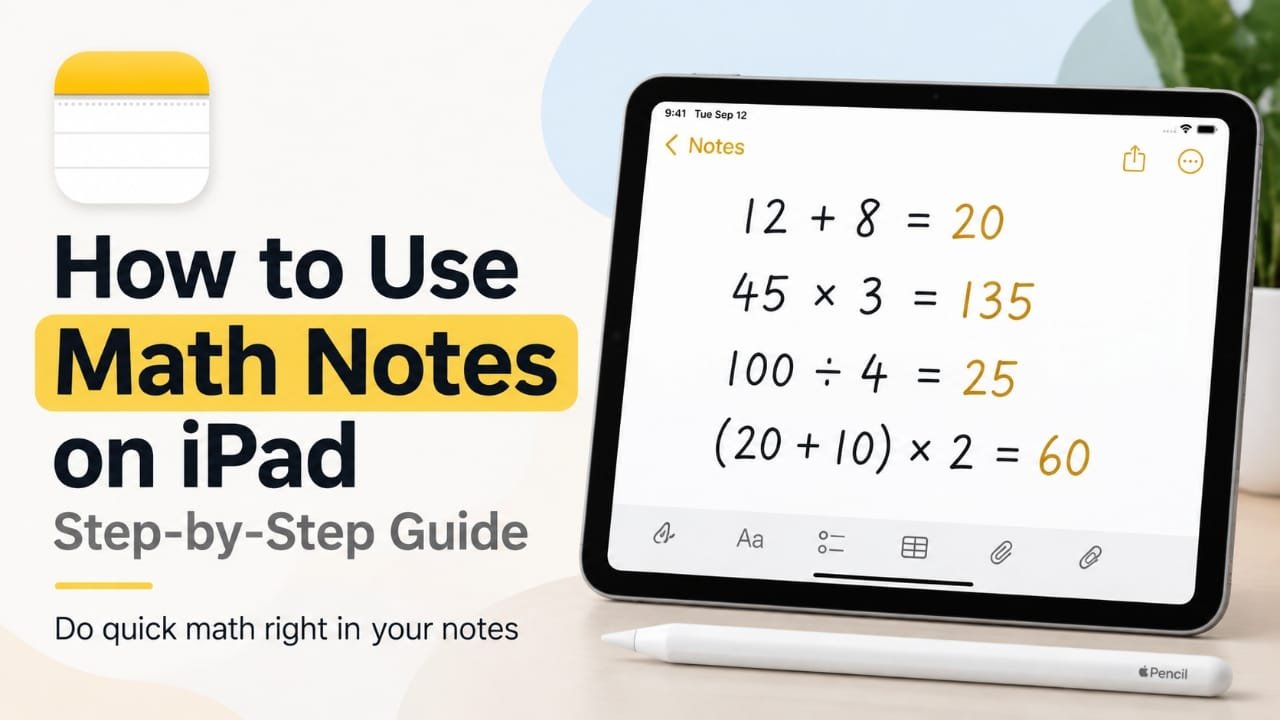
Need to solve a calculation while taking notes on your iPad? Math Notes lets you enter equations directly in a note and have the result calculated without switching to a separate calculator.
You can use it for everyday calculations, budgets, homework, measurements, and other situations where you want the equation and its answer to stay together.
Here’s how to use Math Notes on iPad, along with what to do if the feature isn’t appearing or your equations aren’t being recognized.
Also read: How to Create a Drop-Down List in Microsoft Word
What Is Math Notes on iPad?
Math Notes is a math-focused feature built into Apple’s iPad experience. It allows you to enter mathematical expressions using typed text or handwriting and see calculated results within your work.
For example, you can enter:
12 + 845 × 3100 ÷ 4(20 + 10) × 2
The exact features and interface can vary depending on your iPad model and iPadOS version.
The useful part is that your calculations can remain alongside the rest of your notes instead of being separated in another app.
How to Use Math Notes on iPad
1. Open the Notes app
Start by opening Notes on your iPad.
You can open it from the Home Screen, Dock, or App Library. If you already have a note containing the information you need to calculate, open that note.
2. Create a new note or open an existing one
Tap the option to create a new note, or select an existing note.
You can use a separate note specifically for calculations, or add equations to a regular note containing other information.
For example, a shopping or budgeting note could contain both your written information and the calculations you need.
3. Enter a mathematical expression
Place the cursor where you want the calculation and enter an equation.
If you’re using the keyboard, type a straightforward expression such as:
25 + 15
You can also use Apple Pencil for handwritten math where supported.
The available Math Notes tools and how they appear can depend on your iPadOS version, so don’t worry if your screen looks slightly different from another iPad.
4. Let iPad calculate the equation
Once the expression is recognized, iPad can provide the calculated result.
For example:
25 + 15 = 40
This keeps the calculation connected to the note instead of requiring you to open a separate calculator and manually copy the answer.
5. Check the result
Before using the answer, quickly check that the equation was entered correctly.
This is particularly important with handwritten expressions because unclear numbers or mathematical symbols may not be interpreted the way you intended.
For more complicated calculations, using clear notation and parentheses can make the expression easier to understand.
6. Add more calculations
You can continue adding equations to the same note.
This can be useful when you’re:
- Adding up expenses
- Working through homework
- Comparing prices
- Calculating measurements
- Planning a budget
- Keeping a running list of numbers
Keeping related calculations together also makes it easier to return to them later.
7. Edit the equation when something changes
One of the useful aspects of Math Notes is that you can change the numbers instead of starting the calculation again from scratch.
For example, if you originally calculated:
50 × 3
and then change it to:
50 × 4
the resulting calculation can update accordingly.
This is handy for estimates and calculations where the numbers change frequently.
Can You Use Apple Pencil With Math Notes?
Yes, Apple Pencil can be useful for handwritten calculations on supported iPads.
Instead of typing every number, you can write an equation by hand. iPadOS can recognize the mathematical expression and work with it.
For the best recognition:
- Write numbers clearly.
- Leave enough space between symbols.
- Make multiplication and division symbols easy to distinguish.
- Avoid crossing out or overwriting numbers.
- Break complicated calculations into smaller expressions when necessary.
You don’t necessarily need an Apple Pencil just to use Math Notes. Keyboard input can also be used where supported.
What Can You Calculate With Math Notes?
Math Notes isn’t limited to one type of calculation. Depending on the iPadOS version and supported functionality, it can handle common mathematical expressions beyond basic addition.
Simple examples include:
- Addition
- Subtraction
- Multiplication
- Division
- Expressions using parentheses
For everyday use, keeping equations reasonably clear and straightforward is a good approach.
If you’re working with a complicated expression, splitting it into smaller calculations can make it easier to check the result.
Math Notes vs. a Regular Calculator
Math Notes and a traditional calculator serve slightly different purposes.
| Math Notes | Regular Calculator |
|---|---|
| Keeps calculations with your notes | Focuses primarily on calculations |
| Useful for showing equations and results together | Useful for quick standalone calculations |
| Can work with typed or handwritten input where supported | Usually uses a dedicated calculator interface |
| Helpful for ongoing calculations | Convenient for one-off calculations |
| Lets you keep surrounding notes and context | Keeps the calculation separate |
If you only need to calculate 75 + 25, a regular calculator may be all you need. But if you’re making a budget and want the calculations to remain alongside your notes, Math Notes can be more convenient.
What to Do If Math Notes Isn’t Working
If you don’t see Math Notes or your equation isn’t producing a result, try these steps.
Check your iPadOS version
Math Notes depends on supported software and hardware. If your iPad is running an older version of iPadOS, the feature may not be available.
Go to:
Settings → General → Software Update
Check whether an update is available for your iPad.
Make sure your iPad supports the feature
Software version alone isn’t always enough. Some features require compatible iPad hardware.
If Math Notes is missing after updating, check whether your particular iPad model supports the feature.
Try a new note
If the feature isn’t behaving correctly in an existing note, create a new note and enter a simple equation such as:
10 + 5
This can help determine whether the problem is related to the particular note or to the feature itself.
Use a simple equation first
Don’t start troubleshooting with a complicated expression.
Try something basic, such as:
20 + 10
If that works, gradually test more complicated expressions.
Check your handwriting
If you’re using Apple Pencil and the equation isn’t recognized correctly, write the expression again more clearly.
Numbers and operators that are too close together or difficult to distinguish can cause recognition problems.
Restart the iPad
If everything appears to be set up correctly but the feature isn’t responding, restart the iPad and try again.
A restart can sometimes resolve temporary software problems.
Close and reopen Notes
If Notes is slow or appears stuck, close the app and open it again. Then test the calculation in a new or existing note.
Common Mistakes to Avoid
A few simple habits can make Math Notes easier to use.
Don’t rely blindly on a result. Check that the expression was entered correctly, especially when handwriting is involved.
Watch the order of operations. An expression containing multiplication or division alongside addition or subtraction may not be calculated in the order you expect. Use parentheses when you want to make the intended order clear.
Avoid unnecessarily complicated expressions. If a calculation becomes difficult to read or verify, divide it into smaller steps.
Keep related calculations together. A dedicated note can make it easier to find and review calculations later.
Frequently Asked Questions
Do I need an Apple Pencil to use Math Notes?
No. You can use typed mathematical expressions where supported. Apple Pencil is useful when you prefer handwriting, but it isn’t necessarily required.
Can Math Notes solve equations with multiplication and division?
Yes, supported mathematical expressions can include common operations such as multiplication and division. The exact capabilities depend on the iPadOS version and device.
Why doesn’t Math Notes appear on my iPad?
The feature may depend on your iPad model and iPadOS version. Check for software updates first and confirm that your device supports the feature.
Can I use Math Notes in an existing note?
Math calculations can be used within supported note workflows, but the exact behavior may vary with the iPadOS version and type of content in the note. If you’re having trouble, try testing the feature in a new note.
Can I edit a calculation after entering it?
Yes. You can change the equation and recalculate it rather than manually entering an entirely new calculation.
Does Math Notes work with handwriting?
On supported iPads, Apple Pencil handwriting can be used for mathematical input. Clear handwriting generally makes recognition easier.
Are Math Notes calculations saved?
When the equation and result are part of your note, they remain there with the note until you change or remove them. This makes the feature useful for calculations you may need to revisit.
Tips for Getting Better Results
For a smoother experience, keep these tips in mind:
- Start with simple equations when testing the feature.
- Use parentheses when the order of operations matters.
- Write handwritten equations clearly.
- Keep related calculations in the same note.
- Double-check important results before relying on them.
- Keep iPadOS updated so you have the latest supported improvements.
Also read: How to Use an External Webcam with an iPad: Step-by-Step Guide
Conclusion
Math Notes makes it easier to combine calculations with the information you’re already writing down on your iPad. Instead of switching between Notes and a separate calculator, you can work with equations alongside your notes.
For quick arithmetic, budgeting, schoolwork, measurements, and similar tasks, the feature can save a few steps and keep your calculations easier to review. If Math Notes isn’t appearing, start by checking your iPadOS version and device compatibility, then test a simple equation in a new note.

Abhi Rajput, founder of Earnabhi.com, is a tech lover with 6+ years of experience in SEO, digital tools, and smartphone troubleshooting. He writes simple, clear, and useful guides to help people solve real tech problems.