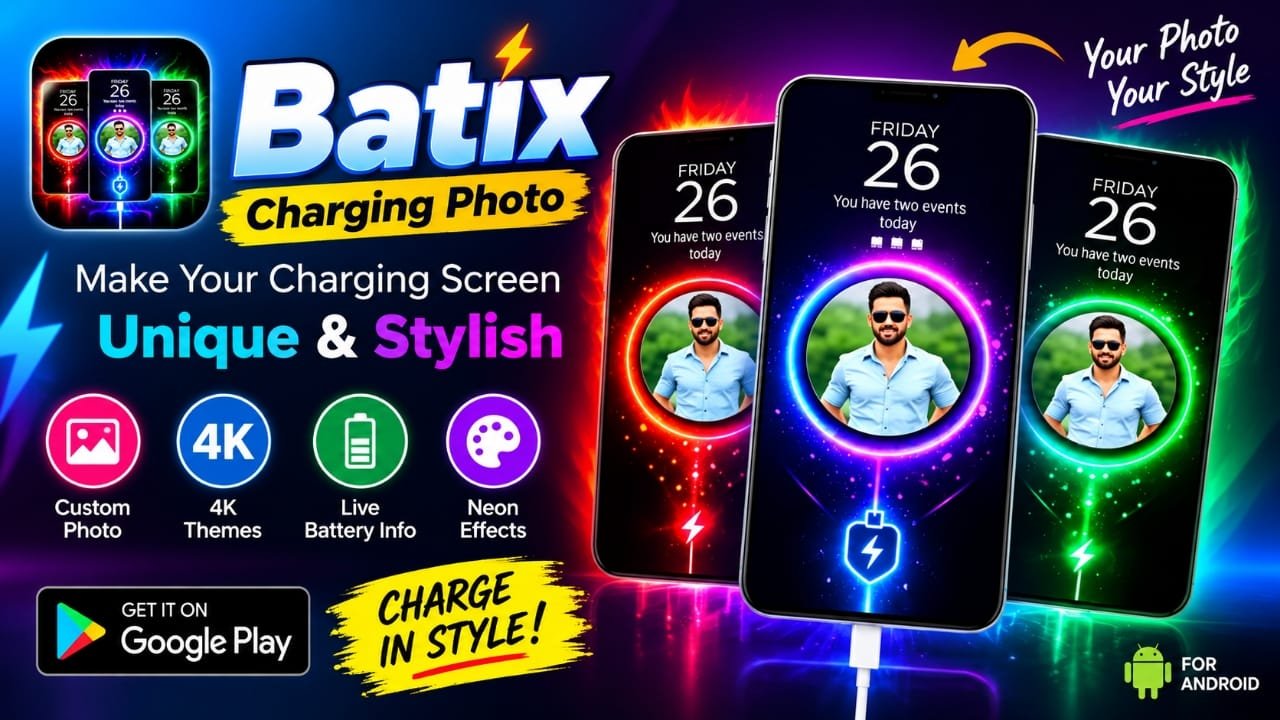
If the default charging screen on your Android phone feels too basic, Batix – Charging Photo offers a way to give it a more personalized appearance. The app focuses on charging animations and lets users customize the screen with their own photos, animated effects, and different charging themes.
Along with personal photos, the app includes options such as neon-style effects, battery animations, and visually focused charging themes. This makes it useful for Android users who enjoy customizing the look of their phones.
In this article, we’ll look at what Batix – Charging Photo offers, how its main features work, and what you should check before installing it.
Also read: How to Use Double Tap on Apple Watch: Step-by-Step Guide
What Is Batix – Charging Photo?
Batix – Charging Photo is an Android personalization app designed to display a customized animation when the phone is connected to a charger.
Instead of showing only the standard charging information, the app can add visual effects and customized designs to the charging screen. One of its key features is the ability to use an image from your phone’s gallery as part of the charging display.
The app also provides different charging animation styles, including neon and technology-inspired designs.
Key Features of Batix – Charging Photo
1. Use Your Own Photo on the Charging Screen
One of the main attractions of Batix is photo-based customization. You can select an image from your gallery and use it with the charging screen.
Depending on the available customization options, this could include:
- Personal photos
- Family pictures
- Pictures of pets
- Favorite images
- Other photos saved on your phone
This gives the charging screen a more personal appearance than a standard system animation.
2. Different Charging Animation Themes
Batix includes a selection of charging animation designs for users who prefer something more graphical.
The source material describes themes and effects such as:
- Neon
- RGB
- Cyber-style designs
- Technology-inspired animations
- Luxury-style designs
- Abstract animations
The exact selection can vary depending on the app version and available content.
3. Neon Charging Effects
Neon-style animations are another part of the app’s customization options. These effects are aimed at users who prefer colorful, futuristic-looking charging screens.
They can be particularly appealing if you already use a gaming or RGB-inspired phone setup.
4. Battery Information
The charging display can also show battery-related information. The provided app information lists details such as:
- Battery percentage
- Charging status
- Charging speed
- Estimated charging time
- Battery health information
However, battery information can depend on what Android and the app are able to access on a particular device. Users should therefore check which details are actually available on their phone.
5. Simple Customization
Setting up a charging animation does not require complicated configuration.
A typical setup process is:
- Open Batix – Charging Photo.
- Choose a charging animation or theme.
- Select a photo if you want to use a custom image.
- Adjust the available animation options.
- Enable the charging-screen feature.
- Connect the phone to a charger to check the result.
The exact menu names may differ between app versions.
6. Different Visual Styles
If you don’t want to use a personal photo, the app’s built-in animation styles provide another option. This lets you change the charging screen without creating a design yourself.
Users who regularly change wallpapers, icons, widgets, or other parts of their Android interface may find this type of customization useful.
Why Use a Charging Animation App?
Android phones already provide charging indicators, but they are generally designed to be functional rather than highly customizable.
A dedicated charging animation app can add another layer of personalization. Instead of treating charging as something that happens in the background, you can use the charging screen as another part of your phone’s visual setup.
Batix is mainly aimed at people who enjoy this type of customization rather than users looking for a new battery-management tool.
How to Install Batix – Charging Photo
If the app is available for your device, you can look for it through the Google Play Store.
Installation steps
- Open the Google Play Store.
- Search for Batix – Charging Photo.
- Check the developer information and app details.
- Review the available permissions and recent user reviews.
- Tap Install if you decide to use it.
- Open the app after installation.
- Follow its setup instructions to configure the charging screen.
For security, it’s better to install Android apps through the Play Store or another source you trust rather than downloading APK files from unknown websites.
How to Set Up a Custom Photo Charging Screen
If your goal is specifically to display a personal image while the phone is charging, the general setup can be done in a few steps.
First, open Batix and look for the photo or charging-screen customization option. Select an image from your gallery, then choose an animation or visual effect if those options are available.
After applying the settings, connect your phone to its charger and check whether the customized charging screen appears.
If it doesn’t work as expected, check whether the app has the required permissions and whether your phone’s Android version allows the feature to operate in the background or over the lock screen.
Who Is Batix – Charging Photo For?
The app is primarily suited to Android users who enjoy visual customization.
It may be useful for:
- Android customization enthusiasts who like changing the appearance of their devices.
- Photo lovers who want to incorporate personal pictures into their phone’s charging screen.
- Gaming and RGB fans who prefer neon or futuristic visual effects.
- Users who enjoy sharing phone setups on social media or with friends.
If you prefer a simple charging indicator and don’t care about visual customization, an additional charging animation app may not provide much practical benefit.
Things to Check Before Installing
Before installing any third-party personalization app, it’s a good idea to review its Play Store listing carefully.
Pay attention to:
- Developer information
- Recent user reviews
- App permissions
- Privacy information
- Last update details
- Compatibility with your Android device
You should also remember that charging-animation apps may need certain permissions to display content while the phone is charging. The permissions requested can vary by app version and Android device.
Avoid assuming that every listed feature will work identically on every smartphone. Android manufacturers sometimes apply their own restrictions to background apps, lock-screen features, and battery-related functions.
Is Batix – Charging Photo Worth Trying?
Batix – Charging Photo is focused on one specific type of Android customization: changing the appearance of the charging screen.
Its main appeal comes from the combination of custom photos, charging animations, neon effects, and themed designs. Users who enjoy personalizing their phones may find these features more interesting than the standard charging interface.
At the same time, it is primarily a visual customization app. It should not be treated as a replacement for Android’s built-in battery settings or as a guarantee of improved battery performance.
Frequently Asked Questions
What is Batix – Charging Photo?
Batix – Charging Photo is an Android personalization app that provides customized charging-screen animations and visual effects.
Can I use my own photo with Batix?
The provided app information says that users can select an image from their gallery and use it as part of the customized charging screen.
Does Batix include neon charging animations?
Yes. Neon-style charging effects are among the visual customization options described for the app.
Does Batix show battery information?
The provided information lists battery percentage, charging status, charging speed, estimated charging time, and battery health among the available information. The exact details displayed may vary by device and app version.
Where can I install Batix – Charging Photo?
The provided information identifies the Google Play Store as the installation source. Before installing, check the current Play Store listing for the latest availability and app details.
Will the charging animation work on every Android phone?
Not necessarily. Android versions and manufacturers can impose different restrictions on background activity, lock screens, and overlay-style features. Compatibility should be checked on your particular device.
Official Play Store Link
Also read: How to Reorder Headings in Word Using the Navigation Pane
Conclusion
Batix – Charging Photo is designed for Android users who want more customization when their phone is connected to a charger. Its main features include custom photo charging screens, animated themes, neon effects, and battery-related information.
If you enjoy customizing your Android phone, the app provides another way to change its appearance beyond wallpapers and icons. Before installing it, however, check the current Google Play Store listing, permissions, reviews, and compatibility with your device.

Abhi Rajput, founder of Earnabhi.com, is a tech lover with 6+ years of experience in SEO, digital tools, and smartphone troubleshooting. He writes simple, clear, and useful guides to help people solve real tech problems.