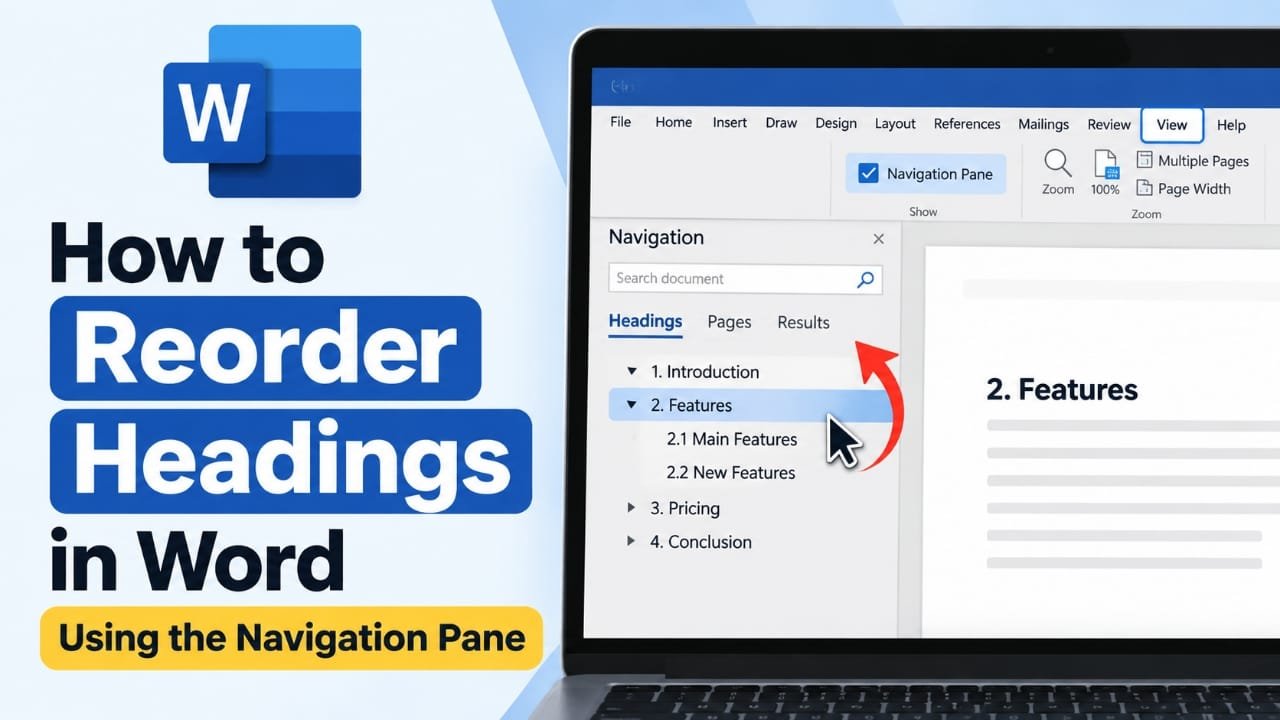
Rearranging sections in a long Microsoft Word document can be frustrating if you try to cut and paste large blocks of text manually. A much easier option is to use Word’s Navigation Pane, which lets you reorganize a document by moving its headings.
When your headings use Word’s built-in heading styles, you can open the Navigation Pane, view the document structure, and drag sections into a different order. Word moves the heading along with the content belonging to that section, making it useful for reports, assignments, manuals, proposals, and other long documents.
Also read: How to Change Apple Watch Activity Ring Goals by Day
How to Open the Navigation Pane in Word
Before rearranging anything, you need to open the Navigation Pane.
- Open your document in Microsoft Word.
- Click the View tab on the ribbon.
- Look for the Navigation Pane option.
- Turn it on.
A panel should appear on the left side of the Word window. Depending on your version of Word, you may see options such as Headings, Pages, and Results.
Select Headings to view the document’s outline.
Make Sure Your Titles Use Heading Styles
The Navigation Pane does not simply recognize text because it is bold, large, or underlined. Word needs to identify it as a heading.
For example, a document might use:
- Heading 1 for major sections
- Heading 2 for subsections
- Heading 3 for smaller sections
To apply a heading style:
- Select the section title in your document.
- Go to the Home tab.
- Find the Styles section.
- Choose the appropriate heading style.
Once applied, the heading should appear in the Navigation Pane.
This step is important. If a title is only formatted manually, such as making the text bold and increasing its font size, it may not appear in the document outline.
How to Reorder Headings in Word
After your headings are correctly formatted, you can start moving sections.
1. Open the Headings tab
With the Navigation Pane open, click Headings.
Word will display the recognized headings in a hierarchical outline. Main sections will generally appear at the top level, while their subsections are shown underneath them.
2. Find the section you want to move
Look through the heading list and locate the section that needs to be moved.
For a long document, this can be much faster than searching through dozens of pages manually.
3. Drag the heading to a new position
Click and hold the heading, then drag it upward or downward in the Navigation Pane.
As you move it, Word indicates where the heading will be placed. Release the mouse when you reach the desired position.
Word then rearranges the corresponding section in the document.
4. Check the moved section
After moving a heading, look at the document itself and make sure the section is where you intended it to be.
Check the surrounding headings and any subheadings as well. If the result is incorrect, you can use Ctrl + Z on Windows to undo the change.
5. Repeat as needed
Continue moving headings until the document has the structure you want.
For a large document, it is usually better to move one section at a time and check the result rather than making many structural changes at once.
What Happens to the Text Under a Heading?
When you move a heading through the Navigation Pane, Word does more than move the heading itself.
The content belonging to that heading moves with it until Word reaches the next heading at the same level.
For example, suppose your document has this structure:
- Heading 1: Introduction
- Heading 1: Features
- Heading 2: Main Features
- Heading 2: New Features
- Heading 1: Pricing
If you move Features above Introduction, its associated subsections and content move with it.
This is one reason the Navigation Pane is useful for restructuring long documents.
How to Move Only a Subsection
You do not always need to move an entire main section.
If you want to move a subsection, select and drag its own heading rather than the parent heading.
For example, if a Heading 1 contains several Heading 2 sections, dragging one Heading 2 section allows you to reposition that subsection without moving the entire parent section.
However, pay attention to the heading hierarchy. Moving the wrong heading can cause more content to move than you intended.
Why Are My Headings Not Showing in the Navigation Pane?
The most common reason is that the text has not been assigned a proper heading style.
A title that looks like a heading may still be ordinary paragraph text. For example, simply changing a title to bold and increasing its font size does not necessarily make it a Word heading.
To fix it:
- Select the missing heading.
- Open Home > Styles.
- Apply Heading 1, Heading 2, or the appropriate heading level.
- Return to the Navigation Pane.
The heading should then appear in the outline.
What If Dragging Does Not Work?
If dragging a heading does not produce the expected result, first check the document structure.
Make sure:
- The text uses a Word heading style.
- You are dragging the correct heading.
- The heading levels are consistent.
- The document is not protected in a way that prevents editing.
- You are working in the standard Word editing interface.
If necessary, use Ctrl + Z to reverse the previous change and try again.
For documents with unusual formatting, manually cutting and pasting a section can also be used as a fallback. However, this requires more care because you need to select the correct content yourself.
How to Reorder Headings in Word on Mac
The Navigation Pane is also available in Word for Mac, although the interface can differ slightly depending on the Word version.
Look under the View menu for the Navigation Pane and then use the Headings section to view your document structure.
The basic idea remains the same: your document needs properly formatted heading styles before Word can use those headings for navigation and organization.
Can You Reorder Headings in Word Online?
Word for the web provides navigation features, but its editing capabilities are not identical to the desktop version.
If you need to make significant structural changes to a long document, the desktop version of Microsoft Word is generally the more suitable environment.
If a particular feature is missing in Word Online, opening the document in the desktop application may provide additional editing options.
Tips for Managing Large Word Documents
A few simple habits can make document restructuring easier.
Use a consistent heading hierarchy
Try to keep your structure logical. For example:
Heading 1 → Heading 2 → Heading 3
Avoid randomly switching between heading levels because it can make the Navigation Pane difficult to understand.
Save before making major changes
Create a copy or save the document before performing significant restructuring. This gives you a fallback if the document does not end up as expected.
Collapse sections in the Navigation Pane
Long documents can produce a very large heading list. Use the arrows beside headings to collapse sections you are not currently working on.
This gives you a cleaner overview of the document.
Use the Navigation Pane while drafting
You do not have to wait until the document is finished.
Using proper heading styles from the beginning makes it easier to change the order of sections as your document develops.
Common Problems and Quick Fixes
| Problem | What to check |
|---|---|
| Heading is missing | Apply a built-in heading style |
| Navigation Pane is empty | Check whether the document has recognized headings |
| Wrong section moved | Undo the change and select the correct heading |
| Subsections did not move as expected | Check the heading hierarchy |
| Sections jump to unexpected positions | Check heading levels and paragraph/section breaks |
| Word becomes slow | Save the document and restart Word |
| Dragging does not work | Check editing restrictions and heading styles |
If sections continue behaving unexpectedly, turning on formatting marks using Home > ¶ can help reveal paragraph breaks and section breaks that may be affecting the document structure.
Frequently Asked Questions
Can I move a heading without moving its content?
Normally, moving a heading through the Navigation Pane also moves the content associated with that heading. The exact amount of content moved depends on the document’s heading hierarchy.
Why doesn’t my heading appear in the Navigation Pane?
The heading is probably formatted as ordinary text rather than a recognized Word heading style. Apply Heading 1, Heading 2, or another appropriate heading style from the Home tab.
Will rearranging headings delete my text?
Moving a section through the Navigation Pane is intended to rearrange the existing document structure rather than delete its content. However, you should still review the document after making major changes.
Can I move Heading 2 sections?
Yes. Subheadings can also be moved through the Navigation Pane. Their position depends on the surrounding heading hierarchy.
What should I do if I move the wrong section?
Use Ctrl + Z to undo the change, then select the correct heading and try again.
Is the Navigation Pane available on Mac?
Yes. Word for Mac includes navigation features, although the location and appearance of commands can vary between versions.
Also read: How to Translate a Conversation on Apple Watch: Step-by-Step Guide
Conclusion
The Navigation Pane provides a simple way to reorganize a long Word document without manually searching for and cutting large sections of text. Once your section titles are formatted with Word’s heading styles, you can use the Headings view to see the document structure and move sections into a better order.
For reports, manuals, proposals, academic documents, and other structured files, setting up heading styles early can make future editing much easier.

Abhi Rajput, founder of Earnabhi.com, is a tech lover with 6+ years of experience in SEO, digital tools, and smartphone troubleshooting. He writes simple, clear, and useful guides to help people solve real tech problems.