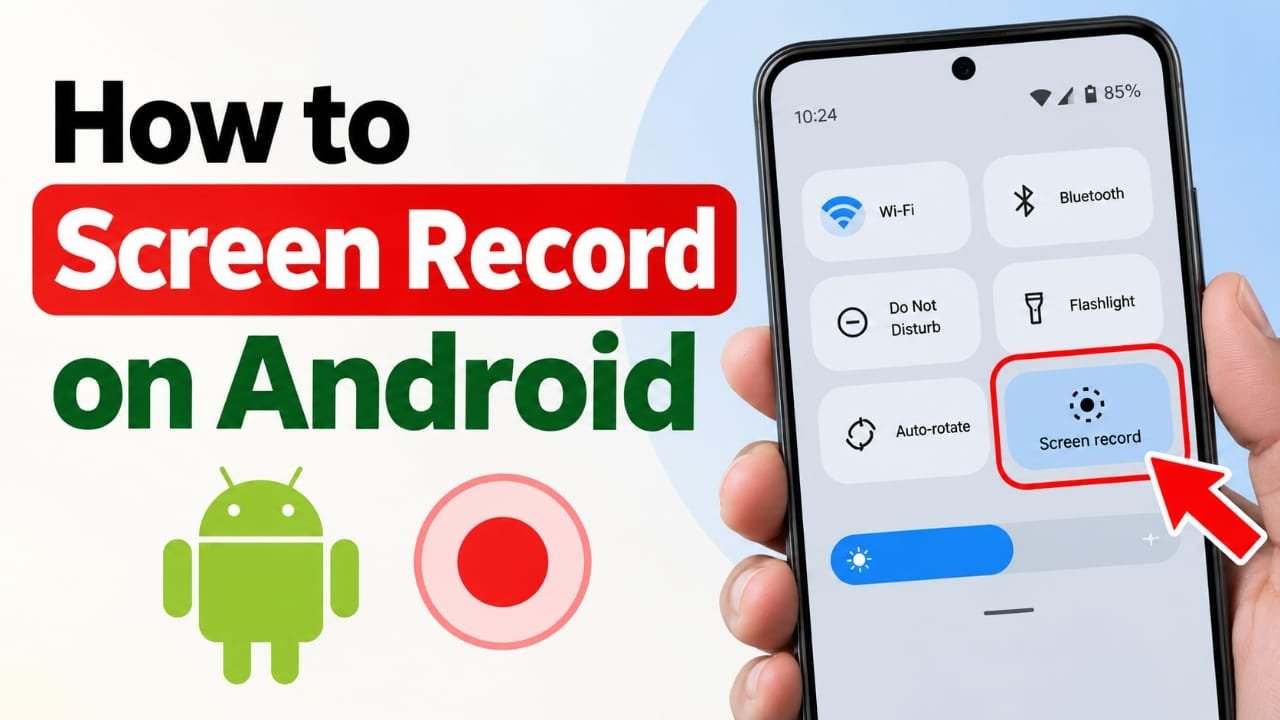
If you want to record something happening on your Android phone, you usually don’t need to install a separate screen recorder app. Android 11 and later include a built-in screen recording feature on supported devices.
You can use it to record an app, game, tutorial, or other activity on your screen. Depending on your phone, you can also record device audio, your microphone, and touches on the screen.
Also read: How to Clear Cache on Android: A Simple Step-by-Step Guide
How to Screen Record on Android
The exact menu names can vary between Android phones, but the basic process is similar.
- Swipe down twice from the top of the screen to open the full Quick Settings panel.
- Find and tap Screen record or Screen recorder.
- Select your recording preferences, such as whether to record audio or show touches.
- If your phone provides the option, choose whether to record the entire screen or a single app.
- Tap Start.
- Wait for the short countdown. Your phone will then begin recording.
- When you’re finished, swipe down from the top of the screen.
- Tap the screen recording notification to stop recording.
The recorded video is then saved on your phone and can usually be opened through the Photos or Gallery app.
How to Add Screen Record to Quick Settings
Don’t see a Screen record option? It may simply not be included in your active Quick Settings tiles.
Try these steps:
- Swipe down twice from the top of the screen.
- Tap the pencil icon or Edit option.
- Look for Screen record.
- Drag it into the active Quick Settings area.
- Tap Done or use the back arrow to save the changes.
On Samsung Galaxy phones, the editing option may appear under the three-dot menu > Edit buttons.
After adding the tile, you can access the screen recorder directly from Quick Settings.
How to Record Your Android Screen With Sound
Before starting the recording, Android may give you different audio options. The names can vary depending on the phone.
Common options include:
- Device audio: Records sounds produced by apps, videos, or games.
- Microphone: Records your voice through the phone’s microphone.
- Device audio and microphone: Records both the phone’s audio and your voice.
If you’re making a tutorial, recording both device audio and your microphone can be useful when that option is available.
Can You Show Touches While Recording?
Some Android phones provide an option to show touches on the screen while recording.
When enabled, visual indicators appear where you tap the display. This can make a recording easier to follow, especially when you’re creating a tutorial or explaining how to use an app.
The option may appear before you start recording, depending on your Android version and phone manufacturer.
Where Are Android Screen Recordings Saved?
The location can vary by manufacturer.
Google Pixel
On Pixel phones, you can generally find recordings through Google Photos, under the device’s locally stored media.
Samsung Galaxy
On Samsung phones, screen recordings are generally available in the Gallery app, often under a Screen recordings album.
Other Android Phones
On other devices, check:
- Google Photos
- Your phone’s Gallery app
- The Movies folder
- Your device’s file manager
If you cannot find the recording immediately, search your Photos or Gallery app for videos created around the time you made the recording.
Why Is My Android Screen Recording Black?
A black screen does not necessarily mean that the screen recorder is broken.
Some apps can prevent their content from being captured. This is particularly common with certain streaming services and banking or other security-sensitive apps.
In these situations, the recording may show a black screen instead of the protected content. There generally isn’t a normal screen-recorder setting that can override an app’s capture restrictions.
Is There a Time Limit for Android Screen Recording?
Android does not impose a single short recording limit that applies to every phone.
However, longer recordings require more storage space. High-resolution video can use storage relatively quickly, so check your available space before starting a long recording.
For an important recording, it’s also a good idea to make sure your phone has enough free storage beforehand.
Do You Need an App to Screen Record on Android?
If your phone supports the built-in screen recorder, you usually don’t need a separate screen recording app.
Android 11 introduced built-in screen recording, although the exact feature and available options can differ between manufacturers and Android versions.
If you are using an older Android version or your phone does not provide the feature, the available options may be different.
How to Screen Record on a Samsung Galaxy Phone?
Samsung uses the name Screen recorder for its built-in feature on supported Galaxy devices.
Open the Quick Settings panel, find Screen recorder, select the available sound and recording options, and start the recording. When finished, use the recording notification to stop it.
The exact options can vary depending on the Galaxy model and software version.
How to Show an Android Screen on a TV
If your goal is to watch your phone’s screen on a larger display rather than save a video, you may want to use screen mirroring or casting instead of screen recording.
The available method depends on your Android phone and TV. Look for options such as Cast, Screen Cast, or Smart View in your phone’s Quick Settings or display settings.
Frequently Asked Questions
Can I screen record without installing an app?
Yes, on supported Android phones, screen recording is built into the operating system. Android 11 and later include the feature, although its availability and controls can vary by device.
Why can’t I find Screen record on my phone?
It may not be in your active Quick Settings tiles. Open Quick Settings, select Edit, and check whether Screen record is available to add.
Can I record my voice while screen recording?
On phones that provide microphone recording, yes. Select the microphone option before starting the recording.
Can I record Netflix or other streaming apps?
Some apps restrict screen capture. When that happens, the recording may show a black screen or otherwise exclude the protected content.
Where does Android save screen recordings?
The exact location depends on the phone. Check Google Photos, Gallery, or your phone’s Movies folder. Samsung phones commonly place them in a Screen recordings album.
Also read: How to Freeze Panes in Excel: Keep Rows and Columns Visible While Scrolling
Conclusion
Screen recording on Android is generally straightforward when your phone supports the built-in feature. Open Quick Settings, select Screen record, choose your audio and other preferences, and start recording.
If the option isn’t visible, add it through the Quick Settings editor. Keep in mind that some apps restrict screen capture and that long recordings can consume significant storage space.

Abhi Rajput, founder of Earnabhi.com, is a tech lover with 6+ years of experience in SEO, digital tools, and smartphone troubleshooting. He writes simple, clear, and useful guides to help people solve real tech problems.