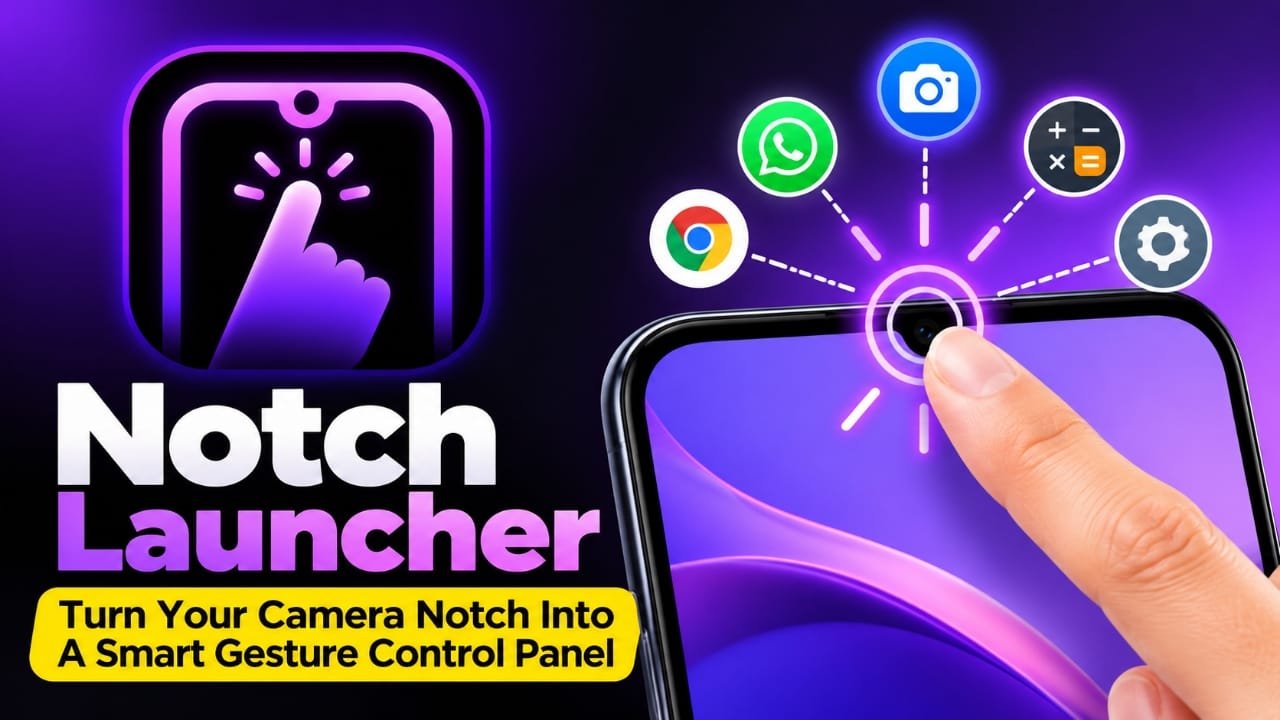
The camera notch or punch-hole on an Android phone usually has one simple purpose: housing the front camera. Notch Launcher takes a different approach by turning that small area into a gesture-based shortcut zone.
With supported configurations, users can assign actions to gestures such as tapping, swiping, or long-pressing around the notch or punch-hole. This can provide quick access to frequently used apps and supported shortcuts without repeatedly opening the app drawer.
If you enjoy Android customization and want faster access to your everyday apps, Notch Launcher is an interesting utility to explore. However, compatibility and required permissions can vary between phones, so there are a few things to check before using it.
Also read: Best Android Live Wallpaper App With 3D Effects, Clock & Battery Widgets
What Is Notch Launcher?
Notch Launcher is an Android customization utility designed to use the area around a phone’s camera notch or punch-hole as a gesture-sensitive shortcut area.
Instead of going to the home screen or searching through the app drawer, you can configure gestures to perform different actions. Depending on the app’s available features and your device, these could include launching an app or activating a supported shortcut.
For example, a setup could look like this:
- Tap: Open Camera
- Swipe: Open WhatsApp
- Long press: Open Calculator
The exact actions available can depend on the version of Notch Launcher, Android version, device manufacturer and permissions provided to the app.
How Does Notch Launcher Work?
The basic idea is simple. Notch Launcher monitors a configured area around the phone’s camera cutout and responds when you perform an assigned gesture.
Instead of treating the punch-hole as only a display cutout, the app attempts to make the surrounding area useful for quick actions.
A typical configuration might include:
- Choose a gesture.
- Select an app or supported action.
- Save the configuration.
- Test the gesture around the configured notch area.
You can then use the gesture whenever you need the assigned shortcut.
Notch Launcher Features
1. Notch and Punch-Hole Gestures
The main feature is using the camera cutout area as a gesture control zone.
Depending on the available options, you may be able to configure different gestures for different actions. This can provide another way to access frequently used features.
2. Tap Gestures
A tap can be assigned to an action supported by the app.
For example, you could configure a tap to launch:
- Camera
- Calculator
- A frequently used Android app
- A supported shortcut
- Another available quick action
This can be useful if there are certain apps you open several times throughout the day.
3. Swipe Gestures
Swipe gestures provide another way to assign shortcuts.
For example, you might configure a particular swipe to launch an app you frequently use. This can reduce the need to search for that app manually.
The available swipe options and their behavior may differ depending on the app and device.
4. Long Press
A long press can potentially be assigned to another action, allowing multiple shortcuts to share the same gesture area.
For example:
Tap → Camera
Swipe → WhatsApp
Long press → Calculator
This gives the small gesture area several possible functions instead of limiting it to one shortcut.
5. Quick App Launch
One practical use is creating shortcuts for apps you use frequently.
Instead of opening the app drawer every time, you can try using the configured notch gesture to launch the app directly.
This is particularly useful for people who regularly switch between a small number of apps.
6. Android Shortcuts
Notch Launcher may also support actions beyond simply opening applications.
However, shortcut availability can depend on the Android version, phone manufacturer and the features supported by the current version of the app. Therefore, it is better to check the actual options available on your device rather than assuming every Android shortcut will work.
How to Set Up Notch Launcher
The exact setup can change between versions, but the general process is straightforward.
Step 1: Install Notch Launcher
Get the current version from a trusted source. If you are considering an APK from outside an official app store, pay particular attention to the source and the file’s authenticity.
Avoid downloading APK files from unknown websites simply because they offer an older or modified version.
Step 2: Open the App
Launch Notch Launcher after installation and review the initial setup options.
The app may explain which features require additional Android permissions.
Step 3: Review Required Permissions
Depending on how the app detects gestures and performs actions, it may request special permissions.
Before allowing access, check:
- What permission is being requested
- Why the app needs it
- Whether the permission is necessary for the feature you want to use
Be particularly careful with Accessibility or overlay-related permissions because these can provide an app with broader system access.
Step 4: Choose a Gesture
Select the gesture you want to configure.
Common examples include:
- Tap
- Swipe
- Long press
The available gesture types can depend on the version of the app.
Step 5: Assign an Action
Choose an app or supported action for the selected gesture.
For example:
Tap → Camera
Swipe → Chrome
Long press → Calculator
Save the configuration and test each gesture.
If a gesture does not respond correctly, check the app’s configuration and Android permissions before assuming the feature is incompatible with your phone.
Who Should Use Notch Launcher?
Notch Launcher may appeal to Android users who enjoy experimenting with customization and alternative ways of accessing apps.
It can be particularly interesting for people who:
- Frequently use a few specific apps
- Prefer gesture-based controls
- Want additional shortcuts
- Like experimenting with Android customization
- Prefer keeping fewer icons on their home screen
- Want another way to access commonly used apps
It is not necessarily something every Android user needs. Its usefulness largely depends on whether you find the gesture system convenient in everyday use.
Benefits of Notch Launcher
The main attraction is the idea of making an otherwise mostly unused area of the display part of the phone’s shortcut system.
Potential benefits include:
Quick access
A configured gesture can provide a faster route to a frequently used app or action.
Fewer home-screen shortcuts
If you move some frequently used apps to gesture controls, you may not need as many shortcut icons on your home screen.
Customization
You can configure gestures around your own usage habits instead of relying entirely on the default Android interface.
Alternative navigation
For users who enjoy gesture controls, the notch can become another shortcut location.
Different smartphone experience
The concept is unusual compared with traditional launchers and shortcut widgets, which may appeal to users who like trying new Android utilities.
Limitations You Should Know
Notch Launcher may not behave identically on every Android phone.
One important reason is that smartphones have different camera and display designs. A phone might have a centered punch-hole, a different cutout position, or another type of front-camera arrangement.
Android software also varies between manufacturers. Samsung, Xiaomi, OnePlus, OPPO, Vivo and other brands can have different system interfaces and permission systems.
Other factors can include:
- Android version
- Display layout
- Camera cutout position
- Manufacturer’s software
- App version
- Required permissions
- Background activity
Because of these differences, compatibility should be checked for your particular phone rather than assumed.
Does Notch Launcher Use More Battery?
Potentially, but the amount can vary.
If the app needs to maintain a background service to detect gestures, it could use additional system resources. The actual effect will depend on how the app works, your phone and its configuration.
If you notice unusual battery consumption after installing it, check Android’s battery settings to see whether Notch Launcher is using a significant amount of power.
You can then decide whether the convenience of the feature is worth the additional resource usage on your particular device.
Privacy and Permission Considerations
Permissions are particularly important for gesture and customization applications.
Before enabling special access, check exactly what Notch Launcher requests. Depending on the implementation, an app may require permissions such as Accessibility access or permission to display over other apps.
These permissions should not automatically be considered unsafe, but they should be understood before being enabled.
A sensible approach is to:
- Read the permission description.
- Check why the app needs the permission.
- Review the developer’s privacy information where available.
- Avoid granting permissions that are unrelated to the feature you want.
- Review Android’s settings later if you no longer use the app.
If you install an APK from outside a trusted app store, also consider the additional security risks associated with third-party software sources.
Will Notch Launcher Work on Every Android Phone?
Not necessarily.
There is no reason to assume that an app designed around a notch or punch-hole will behave identically across every Android device.
Compatibility can depend on:
- Phone model
- Android version
- Punch-hole or notch position
- Screen configuration
- Manufacturer’s Android interface
- Permissions available to the application
- Current Notch Launcher version
Before relying on the feature, test it on your particular device and check the application’s current compatibility information.
Example of Using Notch Launcher
Imagine that you regularly use Camera, WhatsApp and Calculator.
You could potentially configure the gesture area like this:
| Gesture | Example action |
|---|---|
| Tap | Camera |
| Swipe | |
| Long press | Calculator |
After configuration, you can use the corresponding gesture instead of opening the app drawer and searching for each application.
The exact gestures and actions available will depend on the version of Notch Launcher and your Android phone.
Is Notch Launcher Safe?
An app should not be considered safe or unsafe simply because of its name or what it does.
Before installing Notch Launcher, look at the available information about:
- Developer
- App source
- Requested permissions
- Privacy policy
- User reviews
- Current app version
If you are installing an APK, be especially cautious about unfamiliar download sites and modified APK files. A trusted source is preferable to an unknown website.
Also, do not grant sensitive permissions without understanding what they allow.
Frequently Asked Questions
What is Notch Launcher?
Notch Launcher is an Android customization utility that can use the area around a phone’s camera notch or punch-hole for gesture-based shortcuts, depending on the device and app support.
What can you do with Notch Launcher?
You can configure supported gestures to launch apps or perform available shortcuts and actions. The exact options depend on the app version and Android device.
Can I use tap, swipe and long press?
The provided information describes tap, swipe and long-press gestures as possible controls. The exact gesture options available can vary by the current version of the app and device.
Does Notch Launcher work on all Android phones?
No universal compatibility should be assumed. Different notch designs, Android versions, manufacturer interfaces and permission systems can affect how the app works.
Can Notch Launcher require Accessibility permission?
It may require special permissions depending on the functionality being used. Always check why a permission is requested before enabling it.
Can Notch Launcher affect battery life?
It can potentially have some battery impact if background gesture detection or related services remain active. Actual consumption can vary between devices and configurations.
Should I install a Notch Launcher APK from an unknown website?
It is better to avoid unknown APK sources. If an APK is necessary, verify the source and developer information carefully rather than installing a file from an unfamiliar website.
Official Play Store Link
Also read: Zipper Lock Screen & Wallpaper: Stylish Themes and 4D Live Wallpapers
Final Thoughts
Notch Launcher offers an unusual approach to Android customization by attempting to turn the area around the camera notch or punch-hole into a shortcut control zone.
The ability to assign gestures such as taps, swipes and long presses could make frequently used apps easier to access while reducing the need for additional home-screen icons.
However, the experience can vary considerably between Android phones. Before using it, check device compatibility and understand any Accessibility, overlay or other special permissions it requests.
For users who enjoy experimenting with Android shortcuts and gesture controls, the concept is worth exploring, provided the app is obtained from a trustworthy source and its permissions are reviewed carefully.

Abhi Rajput, founder of Earnabhi.com, is a tech lover with 6+ years of experience in SEO, digital tools, and smartphone troubleshooting. He writes simple, clear, and useful guides to help people solve real tech problems.