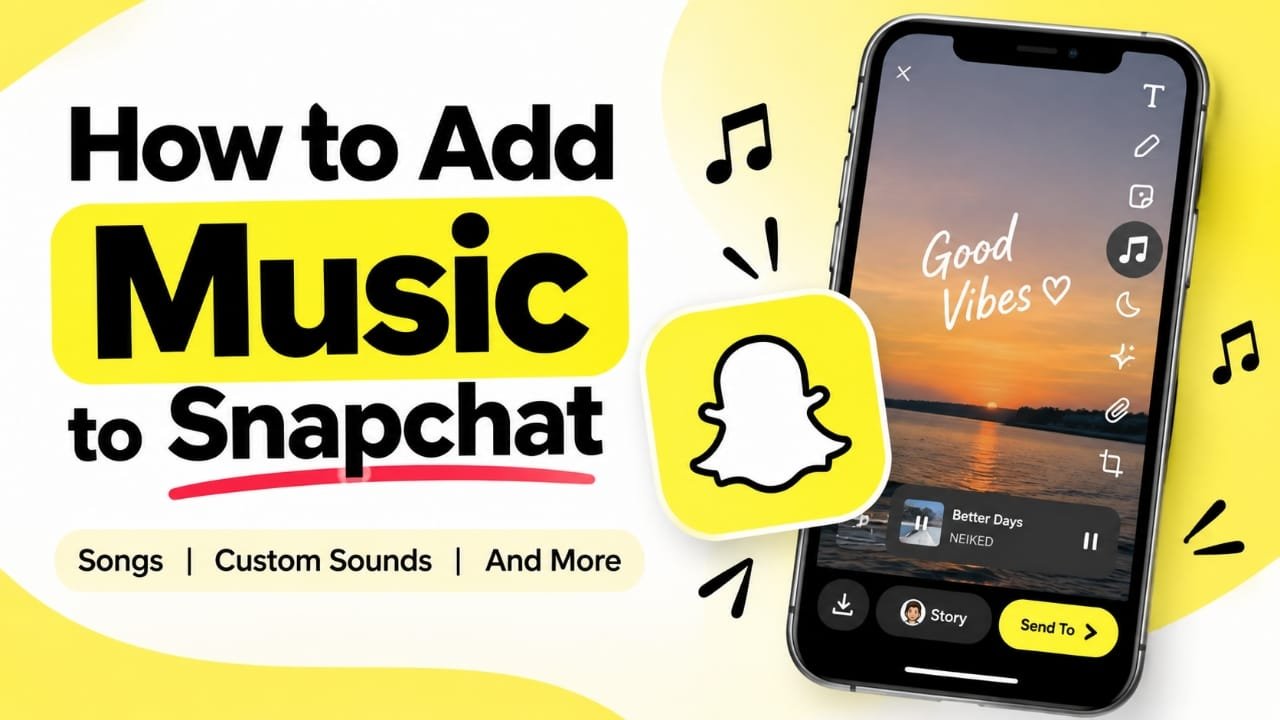
Adding music to a Snapchat Story can make a photo or video feel more personal and interesting. Snapchat includes a built-in sound library, and it also gives you options to record your own audio or reuse sounds from other Snaps and Spotlight videos.
If you are wondering how to add music to Snapchat, there are several ways to do it. You can pick a song directly inside Snapchat, create a custom sound, use audio from another Snap, or edit your video with another editor before uploading it.
Here is how each method works.
Also read: How to Schedule Posts on Facebook Pages in 2026
How to Add Music to a Snapchat Story
The easiest option is to use Snapchat’s built-in music library. You can choose a track while creating your Snap and select the part of the song you want to hear.
Add a song from Snapchat’s music library
- Open Snapchat on your phone.
- Take a photo or record a video.
- Look for the Music/Sounds option on the editing screen.
- Browse the available songs or search for a specific track or artist.
- Tap a song to preview it.
- Select the track you want to add.
- Use the audio controls to choose the section of the song you want to play.
- Tap Done to apply the sound.
- Add any other effects, text, stickers, or filters you want.
- Post the Snap to your Story or send it to friends.
The exact names or placement of sound controls can vary depending on your Snapchat version and device.
How to Choose a Specific Part of a Song
You do not always have to use the beginning of a song. Snapchat’s music controls can let you select a different section of the track.
After choosing a song, use the music timeline or slider to move to the part you want. Preview the Snap to make sure the audio matches the video before sharing it.
This is particularly useful when the most suitable part of a song appears later in the track.
How to Save a Song for Later
If you find a song that you want to use again, you can save it to your favorites when the option is available.
While browsing sounds, look for the heart/favorite option associated with the track. Your saved sounds can then be easier to find when creating another Snap.
How to Create a Custom Sound on Snapchat
Snapchat also lets you create your own sounds. This can be useful when you want to add original audio rather than using a song from Snapchat’s library.
Record your own sound
- Open Snapchat and start creating a Snap.
- Open the Sounds section.
- Go to My Sounds or select the option to create a sound.
- Tap the microphone or recording button.
- Record the audio you want to use.
- Stop the recording when you are finished.
- Give the sound a name.
- Trim the recording if Snapchat provides the option.
- Choose the available privacy setting for the sound.
- Save it to your sounds.
The available recording length and controls can change with Snapchat updates, so check the options shown in your current version of the app.
How to Use a Sound From Another Snapchat Snap
Sometimes you may hear a sound in another person’s Snap and want to create your own content with it.
If Snapchat makes that audio available for reuse:
- Open the Snap containing the sound.
- Tap the sound information or sound label.
- Look for an option to use that sound.
- Select it to start creating a new Snap with the same audio.
Not every sound will necessarily be available for reuse. Availability can depend on the audio and Snapchat’s current features or rights.
How to Use Music From Snapchat Spotlight
You can also discover reusable sounds while watching Spotlight videos.
Use a Spotlight sound
- Open Snapchat and go to Spotlight.
- Find a video using a sound you like.
- Tap the sound name displayed with the video.
- If available, select Use Sound.
- Create your own Snap using that audio.
This can be a convenient way to discover sounds that are currently being used in Snapchat content.
Can You Add Your Own Music to a Snapchat Video?
Yes, another option is to add audio while editing the video before uploading it to Snapchat.
A video editor can give you more control over things such as:
- Background music
- Multiple video clips
- Audio timing
- Text and captions
- Transitions
- Volume levels
- Visual effects
Once the video is edited, save the finished file and upload it to Snapchat.
However, make sure you have the appropriate rights to use any music you add. Having a song on your phone does not automatically mean you have permission to publish it in your content.
Why Can’t I Find a Particular Song on Snapchat?
If a song does not appear in Snapchat’s music library, there can be several reasons. The available catalog can vary by region, account, licensing arrangements, and changes made by Snapchat.
You can try:
- Searching for the artist and song again.
- Checking whether Snapchat has a different version of the track.
- Updating Snapchat to the latest available version.
- Checking whether the song is available in your region.
- Using your own original audio when appropriate.
Avoid assuming that a missing song is a technical problem with your phone.
Tips for Adding Music to Snapchat
A few simple choices can make your music work better with your video:
- Match the mood: Choose audio that fits what is happening in the Snap.
- Check the timing: Select a part of the song that works with the important moment in your video.
- Keep dialogue clear: If people are speaking, avoid making background music unnecessarily loud.
- Preview before posting: Listen to the finished Snap before sharing it.
- Use original sounds when possible: Your own recordings can make a Story feel more personal.
- Respect music rights: Use Snapchat’s available licensed sounds or music you have permission to use.
Frequently Asked Questions
Can I add music to a Snapchat photo?
Yes. You can create a photo Snap and add an available sound using Snapchat’s music controls before sharing it.
Can I add music to a Snapchat video?
Yes. You can add a song from Snapchat’s sound library, use an available sound from another Snap or Spotlight video, or prepare the video with an external editor.
Can I create my own sound on Snapchat?
Yes. Snapchat provides a custom sound recording feature in the Sounds section, subject to the features available in your current app version.
Can I use a sound from another person’s Snap?
If the sound is available for reuse, you can tap its sound information and use the available option to create your own Snap.
Why is a song unavailable on Snapchat?
Music availability can vary because of licensing, region, account, and changes to Snapchat’s music catalog. A particular song may therefore not be available to every user.
Also read: How to Transfer Facebook Photos to Google Drive Safely
Conclusion
There are several ways to add music to Snapchat. The built-in music library is the simplest choice for adding a song while creating a Snap. You can also make custom sounds, reuse eligible audio from Snaps and Spotlight, or edit a video before uploading it when you need more control.
The best method depends on the type of content you are creating. Before publishing, check the audio timing and make sure you have the necessary rights to use any music that you add.

Abhi Rajput, founder of Earnabhi.com, is a tech lover with 6+ years of experience in SEO, digital tools, and smartphone troubleshooting. He writes simple, clear, and useful guides to help people solve real tech problems.