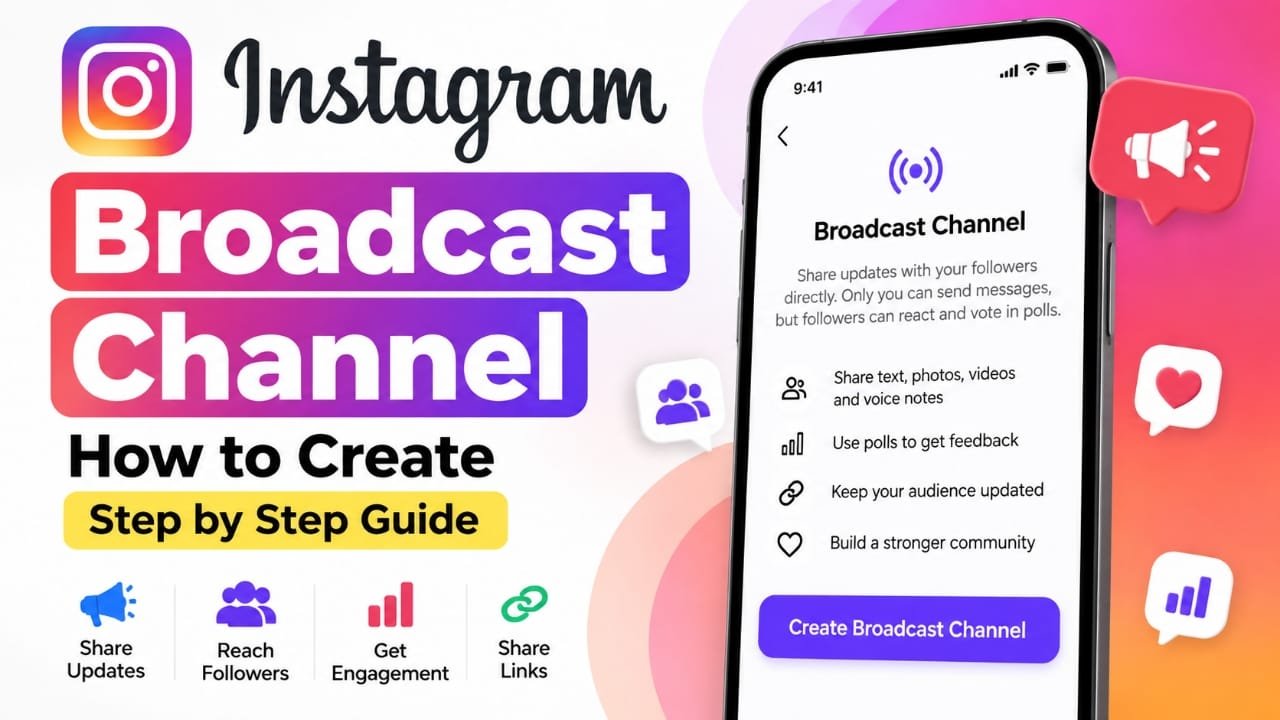
If you want to send updates directly to your Instagram audience, a Broadcast Channel can be a useful option. It lets creators share messages, photos, videos, polls, voice notes, links, and other updates with followers who choose to join the channel.
Unlike a regular Instagram group chat, a Broadcast Channel is mainly designed for one-way communication. The creator sends the updates, while subscribers can react to messages and take part in polls.
In this guide, you’ll learn what Instagram Broadcast Channels are, who can create one, how to set one up, how to invite followers, and how to leave a channel you no longer want to follow.
Also read: How to Put Two Apps Side by Side on iPad
What Is an Instagram Broadcast Channel?
An Instagram Broadcast Channel is a messaging feature that allows creators to communicate with their audience through a dedicated channel in Instagram.
Once someone joins a channel, updates from the creator can appear in their Instagram inbox. This gives creators another way to share important information without relying only on feed posts or Stories.
The channel is not the same as a normal group conversation. Subscribers generally cannot send regular messages to the channel, but they can interact through features such as emoji reactions and polls when those options are available.
Creators can use Broadcast Channels for things like:
- Announcing new content
- Sharing behind-the-scenes updates
- Posting product or project news
- Reminding followers about events
- Asking questions through polls
- Sharing photos and videos
- Sending voice notes
- Sharing useful links
What Can You Share in a Broadcast Channel?
Instagram Broadcast Channels support several types of content, although the exact options available can depend on Instagram’s current feature set and account eligibility.
Common content types include:
- Text updates
- Photos
- Videos
- Voice notes
- GIFs
- Links
- Polls
This variety allows creators to use the channel for both quick announcements and more engaging updates.
For example, a creator could use a text message to announce a new post, a poll to ask followers what they want to see next, or a voice note to provide a more personal update.
Who Can Create an Instagram Broadcast Channel?
Access to Broadcast Channels depends on Instagram’s eligibility and feature availability.
The provided information indicates that creators generally need a public Creator account and must follow Instagram’s Community Guidelines. Availability can also vary by region and account because Instagram may roll out features gradually.
If you don’t see the Broadcast Channel option, it does not necessarily mean that you are doing something incorrectly. The feature may not yet be available for your account.
How to Create an Instagram Broadcast Channel
If the feature is available on your account, you can create a channel from Instagram’s messaging area.
Step 1: Open Instagram
Launch the Instagram app and sign in to the account you want to use for the Broadcast Channel.
Step 2: Open Your Inbox
Tap the Inbox or messaging icon to open your Instagram messages.
Step 3: Start a New Message
Look for the Compose or new-message button, usually represented by a pencil or similar icon.
Step 4: Choose Broadcast Channel
Select Create Broadcast Channel from the available options.
Step 5: Name Your Channel
Enter a name that clearly tells followers what the channel is about.
For example, you could choose a name based on your creator name, content category, community, or a specific type of update.
Step 6: Select Your Audience Settings
Choose the available audience options for your channel and review who can discover or join it.
Step 7: Check Duration and Visibility Options
If Instagram shows an option for channel duration or visibility, review those settings before continuing.
The options displayed can vary depending on the account and the current version of Instagram.
Step 8: Create the Channel
Review the settings and tap Create Broadcast Channel.
Your Broadcast Channel should then be ready for you to start sharing updates, provided your account has access to the feature.
How to Invite People to Your Instagram Broadcast Channel
Creating the channel is only the first step. You also need to give your followers a way to find and join it.
You can promote the channel through several Instagram features, depending on the options available to your account.
Share the Channel Invite Link
If Instagram provides an invite link for your channel, you can share it with your audience.
You can place the link in locations where your followers are likely to see it.
Promote It in Your Story
Create an Instagram Story telling followers about your Broadcast Channel and direct them to the channel.
Stories can be particularly useful for reminding existing followers that the channel is available.
Share Channel Updates to Stories
Depending on the available Instagram options, you can share channel content through Stories to introduce the channel to people who have not joined yet.
Add the Link to Your Bio
If you have an appropriate channel link available, you can use your profile bio to help followers find the channel.
You can also mention the channel in relevant Reels or Direct Messages when it makes sense for your audience.
Why Use an Instagram Broadcast Channel?
Broadcast Channels give creators another direct communication method on Instagram.
Some potential uses include:
Quick announcements: Share important updates with people who have joined your channel.
Audience feedback: Use polls to ask followers questions and collect their responses.
Regular updates: Keep subscribers informed about upcoming content, events, launches, or other activities.
More personal communication: Voice notes can make updates feel more conversational than a standard text post.
Community building: Regular, useful communication can give followers another reason to stay connected with a creator.
One important point is that joining a Broadcast Channel is generally an intentional action by the follower. This means the people in the channel have specifically chosen to receive its updates.
Broadcast Channel vs. Instagram Group Chat
A Broadcast Channel and a group chat serve different purposes.
| Feature | Broadcast Channel | Group Chat |
|---|---|---|
| Main purpose | Creator-to-audience updates | Conversation between participants |
| Regular messages from followers | Generally not | Yes |
| Creator announcements | Yes | Yes |
| Emoji reactions | Available | Available |
| Polls | Available where supported | May be available depending on chat features |
| Best suited for | Announcements and community updates | Two-way conversations |
The main difference is the communication model. A Broadcast Channel is primarily controlled by the creator, while a group chat is designed for participants to communicate with one another.
How to Leave an Instagram Broadcast Channel
If you joined a Broadcast Channel and no longer want to receive its updates, you can leave it.
Follow these steps:
- Open the Broadcast Channel in Instagram.
- Tap the channel name at the top.
- Tap the three-dot menu.
- Select Leave.
- Confirm that you want to leave.
After leaving the channel, you should no longer receive updates from that channel.
What to Do If You Can’t Find “Create Broadcast Channel”
If the option isn’t appearing in Instagram, check a few basic things first:
- Make sure you’re using the latest available version of the Instagram app.
- Check whether your account meets Instagram’s requirements for the feature.
- Confirm that your account type is eligible.
- Check whether Broadcast Channels are available in your region.
- Look again later if Instagram is still rolling the feature out to your account.
Instagram can change the location of settings and eligibility requirements as features are updated, so the exact menu names may differ from the steps above.
Tips for Using a Broadcast Channel Effectively
A Broadcast Channel works best when the updates provide a clear reason for followers to stay subscribed.
Consider these simple practices:
- Share information that is actually useful to subscribers.
- Avoid sending unnecessary updates too frequently.
- Use polls when you genuinely want audience feedback.
- Mix text with photos, videos, or voice notes when appropriate.
- Tell followers what they can expect from the channel.
- Use Stories and other Instagram content to let your audience know the channel exists.
The goal should be useful communication rather than simply increasing the number of messages your followers receive.
Frequently Asked Questions
Can followers message a Broadcast Channel?
A Broadcast Channel is primarily designed for one-way communication. Followers generally cannot send normal messages to the channel, although they may be able to react to posts and participate in polls.
What can creators post in a Broadcast Channel?
Depending on the features available to the account, creators can share text, photos, videos, voice notes, GIFs, links, and polls.
Do I need a Creator account to create a Broadcast Channel?
The provided information indicates that a public Creator account is generally required. However, Instagram’s eligibility rules and feature availability can change.
Why don’t I have the Broadcast Channel option?
The feature may not be available for your account or region yet. Instagram can also roll out features gradually, so eligible users may not all receive access at the same time.
Can I leave a Broadcast Channel?
Yes. Open the channel, tap its name, open the three-dot menu, choose Leave, and confirm your choice.
Can I use a Broadcast Channel to share links?
Yes, links are among the content types supported by Broadcast Channels according to the provided information.
Also read: How to Use Stage Manager With an External Display on iPad
Conclusion
Instagram Broadcast Channels give creators another way to communicate directly with followers who choose to subscribe. They can be used for announcements, polls, media updates, voice notes, links, and other community-focused content.
If the Create Broadcast Channel option is available on your account, setting one up only takes a few steps through Instagram’s messaging section. After creating it, you can promote the channel through Stories, your profile, and other Instagram content to help interested followers find it.

Abhi Rajput, founder of Earnabhi.com, is a tech lover with 6+ years of experience in SEO, digital tools, and smartphone troubleshooting. He writes simple, clear, and useful guides to help people solve real tech problems.