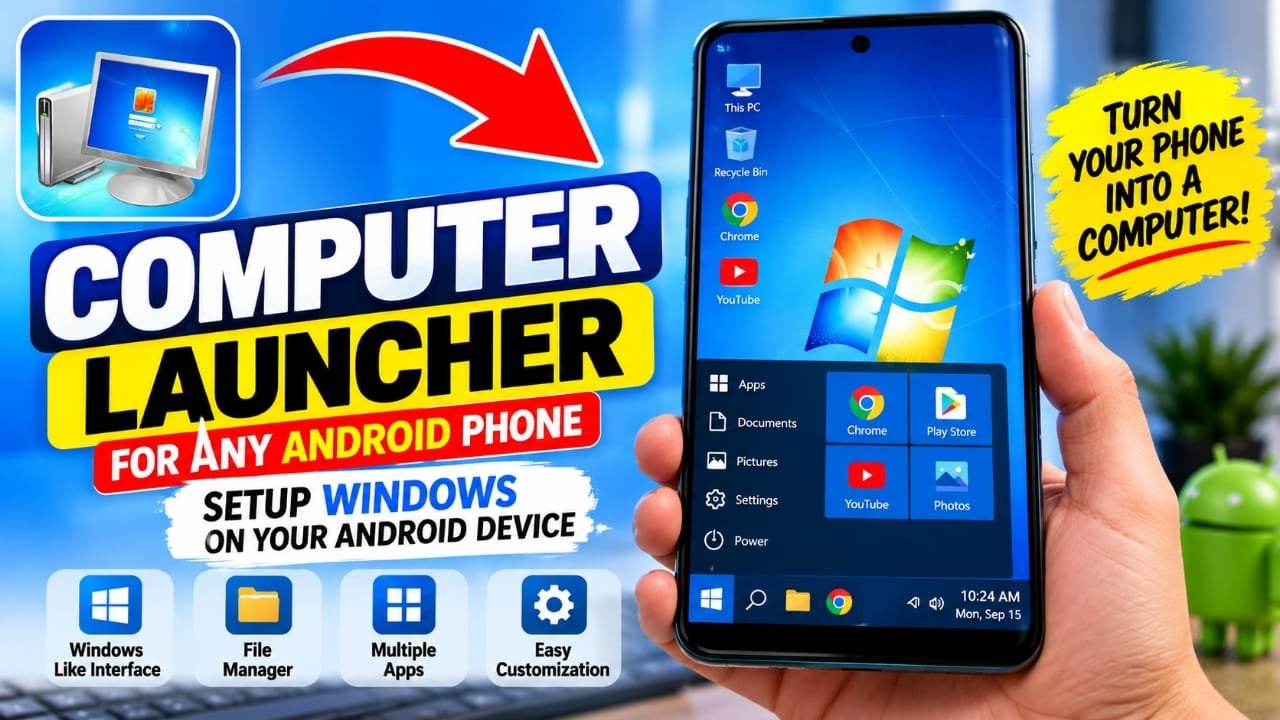
If you like the look of a Windows desktop but only have an Android phone, a computer launcher can give your phone a familiar PC-style interface. Instead of changing Android itself, the launcher changes the way your home screen, app menu, icons, and files are presented.
One example is the Computer Launcher app listed on Google Play. It is designed to give Android phones a Windows-inspired desktop experience, including a Start-menu-style app menu, desktop shortcuts, and PC-like file browsing.
Also read: Gesture Lock Screen: Draw a Custom Password to Unlock Your Android Phone
What Is Computer Launcher on Android?
Computer Launcher is an Android launcher that changes the appearance and navigation of your phone to resemble a desktop computer.
It does not turn Android into the Windows operating system. Your phone continues to run Android, while the launcher provides a Windows-style interface on top of it.
Depending on the launcher version and device, you may get features such as:
- A Windows-inspired Start menu
- Desktop-style app shortcuts
- PC-like icons and folders
- File browsing
- Wallpaper and icon customization
- Widgets and shortcuts
- Long-press options for desktop customization
This can be useful if you prefer a desktop-style layout over the standard Android home screen.
Why Use a Computer Launcher?
A computer-style launcher can be useful for people who want a different way to organize and use their Android phone.
Windows-Style Interface
The launcher is designed around a Windows-inspired interface. You can access installed apps through a Start-menu-style interface and place shortcuts on the desktop.
The exact appearance and available features can vary depending on the app version and Android device.
Desktop-Like Home Screen
Instead of using a conventional Android home screen, you get a desktop-style layout with icons and shortcuts.
This can make the phone feel more familiar if you regularly use Windows PCs.
Easier Access to Files
Some computer launcher apps include a built-in file browsing interface. This can provide a more desktop-like way to navigate folders and files stored on your phone.
However, file-management capabilities depend on the particular launcher and the storage permissions available on your Android version.
Customization Options
You can generally customize parts of the interface, such as:
- Wallpaper
- App icons
- Folder appearance
- Desktop shortcuts
- Start-menu arrangement
These options let you create a layout that suits the way you use your phone.
Widgets and Shortcuts
Android widgets can also be useful on a desktop-style launcher. You can keep frequently used information or app shortcuts on the home screen for quicker access.
Does Computer Launcher Actually Install Windows on Android?
No.
This is an important distinction.
A computer launcher does not install Windows 10 or Windows 11 on your Android phone. It changes the Android user interface to make it resemble a Windows desktop.
Your Android apps, Android settings, Android operating system, and phone hardware remain unchanged.
So, if you are looking for a Windows-like appearance, a launcher can help. But if you want to run actual Windows desktop applications, a launcher alone will not do that.
How to Install Computer Launcher on Android
If you want to try the Computer Launcher app mentioned above, you can find it through Google Play.
Computer Launcher on Google Play
Before installing any app, check its current Play Store listing, developer information, permissions, ratings, reviews, and recent update information.
Step 1: Open Google Play Store
Open the Google Play Store on your Android phone.
Step 2: Search for the App
Search for Computer Launcher.
Make sure you select the intended app rather than an unrelated launcher with a similar name.
Step 3: Install the App
Tap Install and wait for Android to complete the installation.
The exact installation time depends on your internet connection and device.
Step 4: Open Computer Launcher
Once installation is complete, tap Open.
The app may ask you to select it as your default home app. If you want to use the launcher as your main home screen, follow the Android prompts to set it as the default launcher.
How to Use Computer Launcher
Once the launcher is active, you can explore its desktop-style interface.
Open Your Apps
Use the Start-menu-style button or app menu to find applications installed on your Android phone.
The apps are still Android apps; the launcher simply presents them through a different interface.
Customize the Desktop
Try long-pressing an empty area of the launcher desktop. Depending on the version, this may open options for changing the wallpaper, shortcuts, widgets, or other appearance settings.
Add Widgets
If the launcher supports Android widgets, long-press an empty area and look for the Widget option.
You can then choose from the widgets available on your phone.
Browse Files
If the launcher includes a file manager, you can use it to browse supported folders and files on your device.
The exact file-access options can vary between Android versions because newer versions of Android place additional restrictions on storage access.
Things to Keep in Mind
A Windows-style launcher is mainly an interface customization tool. It should not be confused with software that replaces Android with Windows.
There are also a few possible drawbacks.
It May Use Additional Resources
A launcher with animated elements, widgets, custom icons, and extra interface features can use additional RAM and processing resources.
On some lower-powered phones, this could affect responsiveness or battery usage.
The Experience Is Not Identical to Windows
Android and Windows work differently. A launcher can reproduce the general look and some familiar navigation concepts, but it cannot make every Android function behave exactly like a Windows PC.
Features Can Change
Launcher features can change when the developer releases updates. Some options may also behave differently depending on your Android version or phone manufacturer.
For that reason, check the current app listing before publishing claims about specific features.
Computer Launcher vs a Real Windows PC
| Feature | Computer Launcher | Windows PC |
|---|---|---|
| Windows-style appearance | Yes | Yes |
| Runs Android apps | Yes | No, not natively |
| Runs Windows desktop software | No | Yes |
| Uses Android OS | Yes | No |
| PC-style desktop interface | Yes, simulated | Native |
| Requires separate PC hardware | No | Yes |
The key point is simple: Computer Launcher can make an Android phone look and feel more like a computer, but it does not turn the phone into a Windows PC.
Is Computer Launcher Worth Trying?
If your main goal is to give your Android phone a Windows-inspired desktop appearance, a computer launcher can be an easy way to experiment with that style.
It can be particularly interesting if you like desktop icons, Start-menu navigation, PC-style file browsing, and a different home-screen layout.
However, don’t expect it to provide the full capabilities of a Windows computer. For demanding desktop applications or genuine Windows software, you would need a different solution.
Frequently Asked Questions
Can I install Windows on my Android phone using Computer Launcher?
No. Computer Launcher changes the Android interface. It does not install the Windows operating system.
Does Computer Launcher delete my Android apps?
Normally, changing the launcher does not mean replacing your installed Android applications. Your apps remain on the phone.
Can I use Android apps with Computer Launcher?
Yes. The launcher provides access to apps already installed on your Android device.
Can I make my Android phone look like a Windows computer?
Yes. A Windows-style launcher can change the home-screen experience, icons, menus, and other interface elements to resemble a desktop computer.
Can Computer Launcher run Windows PC software?
No. A launcher only changes the interface. It does not provide compatibility with Windows desktop programs.
Can I switch back to my normal Android launcher?
Yes. You can switch your default home/launcher app through Android’s launcher or default-app settings. The exact menu names can differ between phone manufacturers and Android versions.
Official Play Store Link
Also read: LED Keyboard – Colorful Lighting Edge RGB Keyboard: Features, Themes and How to Use It
Conclusion
Computer Launcher offers a simple way to give an Android phone a desktop-inspired appearance without replacing Android. You can get a Windows-like layout, desktop shortcuts, app access, and other PC-inspired interface elements depending on the version of the launcher.
Just remember that the experience is primarily visual and organizational. It makes Android look more like a computer; it does not actually install Windows on your phone.

Abhi Rajput, founder of Earnabhi.com, is a tech lover with 6+ years of experience in SEO, digital tools, and smartphone troubleshooting. He writes simple, clear, and useful guides to help people solve real tech problems.