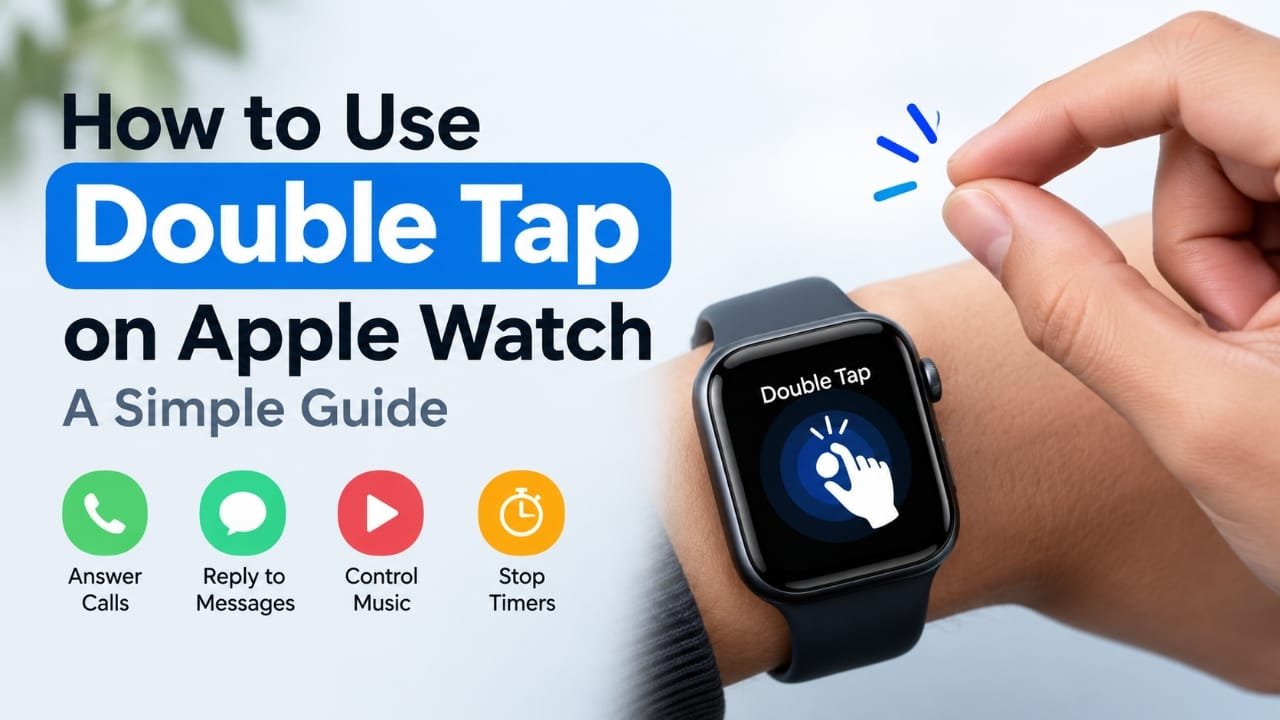
If you want to control your Apple Watch without touching its screen, the Double Tap gesture can make everyday actions much easier. You can tap your index finger and thumb together twice to answer calls, stop timers, interact with messages, scroll through supported apps, control media and more.
The feature is available on supported Apple Watch models, including Series 9 and later, Apple Watch SE 3, and Ultra 2 and later. (Apple Support)
This guide explains how Double Tap works, how to turn it on, what you can do with it, and what to check if the gesture isn’t responding.
Also read: How to Reorder Headings in Word Using the Navigation Pane
What Is Double Tap on Apple Watch?
Double Tap is a hand gesture that lets you interact with your Apple Watch without touching the display.
To use it, simply tap your index finger and thumb together twice on the hand wearing the watch. Apple Watch detects the movement using its sensors and performs an available action based on what is currently displayed. (Apple Support)
For example, Double Tap can be useful when:
- Your other hand is occupied
- You don’t want to touch the display
- You are holding something in your free hand
- You want to quickly control a timer or call
- You want to scroll through supported content
The action isn’t always the same. Double Tap is context-aware, so what it does depends on the screen or app you’re currently using.
Which Apple Watch Models Support Double Tap?
The original Double Tap feature launched with the Apple Watch Series 9 and Apple Watch Ultra 2. Apple’s current support documentation lists support on Apple Watch Series 9 and later, Apple Watch SE 3, and Apple Watch Ultra 2 and later. (Apple Support)
That means the feature is not available on every older Apple Watch.
If you aren’t sure which model you have, check:
On Apple Watch:
Settings → General → About
On iPhone:
Watch app → My Watch → General → About
If Double Tap isn’t available even though you have a supported model, check the software version and the troubleshooting steps below.
How to Turn On Double Tap on Apple Watch
On supported models, Double Tap can be managed directly from the watch or through the Apple Watch app on your iPhone. (Apple Support)
Step 1: Open Settings
On your Apple Watch, open the Settings app.
Step 2: Open Gestures
Scroll down and tap Gestures.
Step 3: Select Double Tap
Tap Double Tap and make sure the feature is enabled.
You can also manage it from your iPhone:
Watch app → My Watch → Settings → Gestures → Double Tap
The exact options available can depend on your watchOS version.
How to Use Double Tap
Once Double Tap is enabled, using it is simple.
1. Raise your wrist
Wake the Apple Watch and make sure the display is active.
2. Keep the watch unlocked
Double Tap won’t work in some situations, including when the watch is locked. (Apple Support)
3. Bring your thumb and index finger together
Use the hand wearing the Apple Watch.
4. Tap them together twice
Make two quick taps, similar to the timing of a double-click with a mouse.
You don’t need to squeeze your fingers together forcefully. Apple recommends a quick, natural double tap. (Apple Support)
5. Check the result
Apple Watch will perform the Double Tap action available for the current screen.
What Can Double Tap Do?
The available action depends on what you’re doing. Apple currently lists several uses for the gesture. (Apple Support)
| Situation | What Double Tap can do |
|---|---|
| Phone call | Answer or end the call |
| Timer | Stop the timer |
| Alarm | Snooze the alarm |
| Messages | Reply to a message |
| Smart Stack | Open or scroll through widgets |
| Media | Play or pause supported media |
| Stopwatch | Pause or resume |
| Camera Remote | Take a photo |
| Voice Memos | Start or stop recording |
| Supported apps | Scroll through content |
| Torch | Switch torch modes |
Apple has expanded Double Tap support over time. For example, newer watchOS versions allow the gesture to scroll through supported apps such as Messages, Mail and Weather. (Apple Support)
Can You Customize Double Tap?
Yes, but the customization is limited.
Apple currently lets you choose certain Double Tap behaviors. On supported watchOS versions, go to:
Settings → Gestures → Double Tap
For media playback, you can choose between actions such as Play/Pause and Skip. For Smart Stack, Apple provides options such as Advance or Select. (Apple Support)
You cannot assign a completely different custom action to every app in the same way you might configure a shortcut.
Double Tap Isn’t Working? Try These Fixes
If the gesture isn’t responding, don’t immediately assume there is a hardware problem. Apple recommends checking several settings first. (Apple Support)
Make sure Double Tap is enabled
Go to:
Settings → Gestures → Double Tap
Check that it is switched on.
Wake the display first
Raise your wrist and make sure the screen is active before performing the gesture.
Make sure Wrist Detection is enabled
Go to:
Settings → Passcode → Wrist Detection
Wrist Detection needs to be enabled for Double Tap to work properly. (Apple Support)
Check how tightly the watch is fitted
The watch should fit securely on your wrist. A loose fit can make gesture recognition less reliable.
Turn off Low Power Mode
Double Tap isn’t available while Low Power Mode is enabled. Apple also lists Sleep Focus, Cinema Mode and Water Lock as situations that can prevent the gesture from working. (Apple Support)
Check Accessibility gesture settings
Some accessibility features that use hand gestures can disable the standard Double Tap gesture. These include AssistiveTouch, Quick Actions, Zoom with Hand Gestures and VoiceOver with Hand Gestures. (Apple Support)
Try the gesture while standing or sitting still
Movement can make gesture recognition more difficult. Try raising your wrist, keeping it relatively still and performing two quick taps.
Check the wrist selected in settings
If your watch is configured for one wrist but you’re wearing it on the other, gesture detection may not work as expected. Apple recommends checking:
Settings → General → Orientation (Apple Support)
Why Does Double Tap Sometimes Not Work in an App?
Double Tap isn’t available on every screen or in every third-party app.
If the Double Tap indicator appears and shakes from side to side, Apple says the gesture isn’t available for that particular screen or app. (Apple Support)
There are also specific situations where the gesture isn’t supported. For example, Apple says Double Tap isn’t available while using the Depth app or taking an ECG. (Apple Support)
What If Double Tap Appears but Triggers Accidentally?
You can temporarily disable it.
Go to:
Settings → Gestures → Double Tap → Off
This can be useful during activities where your hand movements accidentally trigger the gesture. You can turn it back on later from the same menu. (Apple Support)
Does Double Tap Work When the Watch Is Locked?
No. Double Tap requires the Apple Watch to be in an appropriate active state, and Apple specifically lists a locked watch as a situation where the gesture isn’t supported. (Apple Support)
If you’re trying to use Double Tap and nothing happens, unlock the watch and wake the display before trying again.
Does Double Tap Work in Low Power Mode?
No. Apple states that the Double Tap gesture isn’t supported when Low Power Mode is turned on. (Apple Support)
If the feature suddenly stops responding after enabling a power-saving mode, check this setting first.
Tips for Better Double Tap Detection
A few simple habits can make the gesture easier to use:
- Keep the Apple Watch fitted securely on your wrist.
- Wake the display before performing the gesture.
- Use two quick, natural taps rather than pressing hard.
- Keep your wrist relatively still while performing the gesture.
- Try the feature in a simple situation, such as stopping a timer.
- Check whether Low Power Mode, Sleep Focus, Cinema Mode or Water Lock is enabled.
- If you have an accessibility feature using hand gestures enabled, check whether it is conflicting with Double Tap. (Apple Support)
Frequently Asked Questions
Does Double Tap work on every Apple Watch?
No. Apple currently supports the gesture on Apple Watch Series 9 and later, Apple Watch SE 3, and Apple Watch Ultra 2 and later. (Apple Support)
Do I need to update my Apple Watch?
Double Tap was introduced with watchOS 10.1, but current Apple documentation covers newer supported Apple Watch models and watchOS versions. If you have a compatible watch and the feature is missing, installing the latest compatible watchOS update is a sensible first step.
Can I change what Double Tap does?
You can customize some of its behavior, including playback and Smart Stack actions, but you cannot freely assign any action you want to every app. (Apple Support)
Why isn’t Double Tap working?
Check that Double Tap and Wrist Detection are enabled, the watch is unlocked and awake, the watch fits securely, and Low Power Mode or other incompatible modes aren’t active. (Apple Support)
Can I turn Double Tap off?
Yes. Open Settings → Gestures → Double Tap and turn it off. You can also manage the setting through the Watch app on your iPhone. (Apple Support)
Can Double Tap scroll through apps?
Yes. On supported software and apps, Double Tap can be used to scroll through content. Apple added broader scrolling support in watchOS 11. (Apple Support)
Also read: How to Change Apple Watch Activity Ring Goals by Day
Conclusion
Double Tap gives supported Apple Watch models a convenient way to perform common actions without touching the display. After enabling it, you can use a quick thumb-and-index-finger gesture to handle calls, timers, messages, media and other supported actions.
If Double Tap isn’t responding, start with the basics: wake and unlock the watch, check Wrist Detection, make sure the watch fits securely, and turn off settings such as Low Power Mode that prevent the gesture from working.

Abhi Rajput, founder of Earnabhi.com, is a tech lover with 6+ years of experience in SEO, digital tools, and smartphone troubleshooting. He writes simple, clear, and useful guides to help people solve real tech problems.