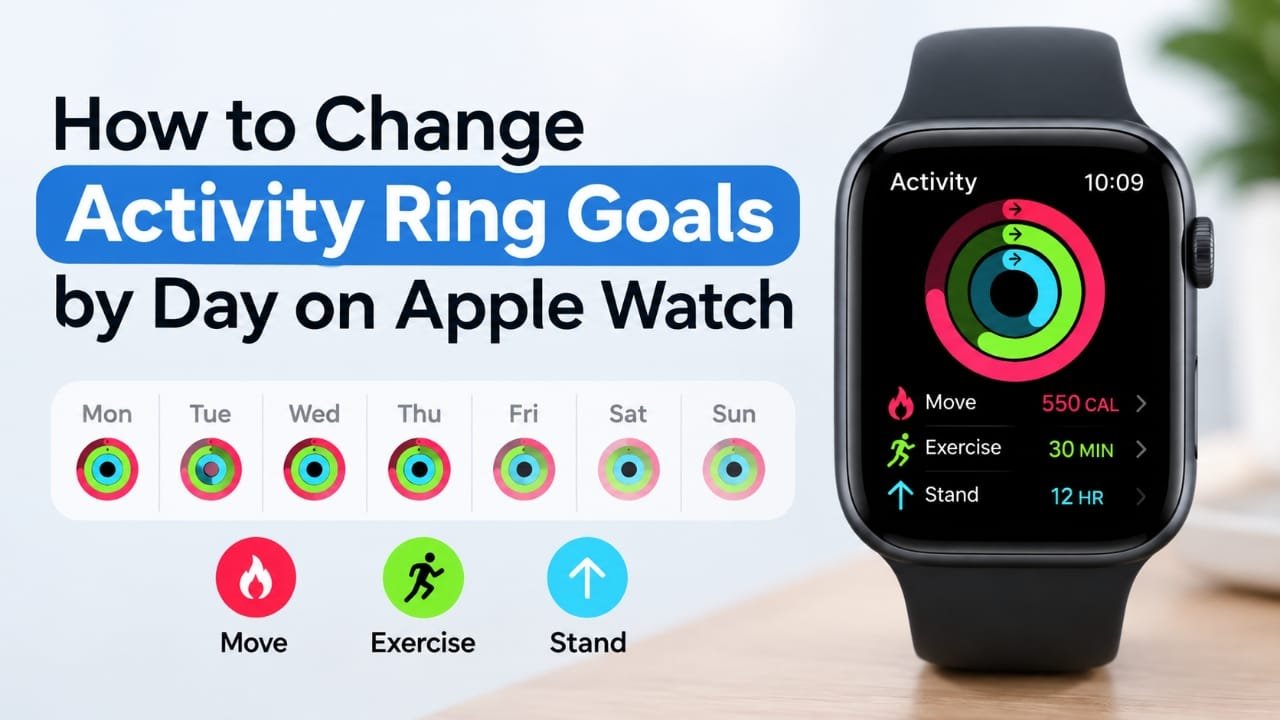
If you want different Activity Ring targets for different days, you no longer have to change them manually every morning. With the current Apple Watch and iPhone software, Apple lets you create a goal schedule based on the day of the week.
For example, you can set a higher Move goal for workout days and a lower target for weekends or recovery days. You can also make a temporary change for just one day without changing your regular schedule.
Here’s how it works and how to set it up.
Also read: How to Use Math Notes on iPad: Step-by-Step Guide
What You Can Change on Apple Watch
Apple Watch has three Activity Rings:
- Move — active calories
- Exercise — minutes of exercise
- Stand — hours in which you stood and moved around
Apple allows you to change the goals for these rings and, importantly, customize them according to the day of the week. (Apple Support)
So, for example, you could have:
| Day | Example approach |
|---|---|
| Monday | Higher goal |
| Tuesday | Higher goal |
| Wednesday | Moderate goal |
| Thursday | Higher goal |
| Friday | Moderate goal |
| Saturday | Lower goal |
| Sunday | Lower goal |
The actual numbers are up to you and should match your normal activity level.
How to Set Different Activity Goals for Each Day
You can set the schedule directly from your Apple Watch.
Step 1: Open the Activity app
On your Apple Watch, open the Activity app.
You should see your three Activity Rings.
Step 2: Go to Change Goals
Turn the Digital Crown until you reach an Activity Ring.
Tap Change Goals.
Apple currently provides two relevant options:
- Change for Today — temporarily changes the goal for the current day.
- Change Daily Goal — lets you customize the goal according to the day of the week. (Apple Support)
For a recurring weekday/weekend setup, choose Change Daily Goal.
Step 3: Open the schedule
After selecting Change Daily Goal, tap the Goal Type button in the top-right corner.
Then select Schedule.
This is the option that lets you create different targets for different days. (Apple Support)
Step 4: Set the goal
Use the minus (-) and plus (+) buttons to adjust the target.
Set the value you want for that particular day.
Once you’re finished, tap Set or Set Schedule, depending on what appears on your Apple Watch. (Apple Support)
Step 5: Repeat for the other days
You can customize the schedule so different days have different targets.
For example, if you normally exercise more during the week, you could make your weekday Move target higher and your weekend target lower.
The important part is that the schedule is based on the day of the week, rather than requiring you to manually change the goal every morning.
How to Change Activity Ring Goals From iPhone
You can also manage your Activity goals through the Fitness app on your iPhone.
Step 1: Open Fitness
Open the Fitness app on the iPhone connected to your Apple Watch.
Go to the Summary tab.
Step 2: Open your Activity Rings
Tap your Activity Rings.
Scroll down until you find the option to edit a goal.
Apple’s current instructions describe this as tapping Edit Goal next to the relevant Activity Ring. (Apple Support)
Step 3: Choose the type of change
You’ll see options for changing the goal for today or changing the daily goal.
Choose Change Daily Goal if you want different targets for different days.
Step 4: Open the schedule
Tap the Schedule button in the top-right corner.
You can then customize the Activity Ring goal by day of the week. (Apple Support)
Step 5: Save your schedule
Adjust the goal for the days you want to change.
When you’re finished, select the option to set the Activity Ring goal schedule.
Your Apple Watch can then use the scheduled target for the corresponding day. (Apple Support)
What If You Only Want to Change Today’s Goal?
You don’t need to create a weekly schedule for a one-off change.
For example, suppose your normal Move goal is unchanged, but you’re having a particularly busy day and want a different target just for today.
On Apple Watch:
Activity → Change Goals → Change for Today
Then adjust the relevant goal and save it.
Apple describes this as a temporary goal for the current day. (Apple Support)
This is useful for unusual days such as travel, a busy workday, or when your normal routine changes.
Can You Set Different Move, Exercise and Stand Goals?
Yes. Apple lets you change the daily goals for each Activity Ring. (Apple Support)
That means your schedule does not have to treat every ring the same way.
For example, you might want to change your Move target while leaving your Stand goal unchanged.
You can adjust the relevant Activity Ring rather than changing everything together.
What Happens to Your Existing Activity Data?
Changing an Activity Ring goal changes the target you are trying to reach. It doesn’t mean you need to start your Activity history from scratch.
Your previous activity records remain available, while the new target is used for your Activity goal.
So there is generally no reason to reset your Activity data simply because you want to change your goals.
Different Goals for Workout and Rest Days
A weekly schedule can be useful if your activity level naturally changes throughout the week.
For example, someone who exercises more on weekdays could use a higher Move target on those days and a lower target on less-active days.
The important thing is not to choose targets simply because they look impressive. A goal should make sense for your normal routine and activity level.
Apple Watch also provides goal suggestions based on previous performance, and Apple says you can review and adjust your goals for the upcoming week. (Apple Support)
What If You Need a Longer Break?
Changing your goals isn’t the only option.
If you need a break from trying to close your Activity Rings, Apple also provides a Pause Rings option. Apple says Activity Rings can be paused for up to 90 days without breaking the award streak, and they can be resumed later. (Apple Support)
This can be more appropriate than repeatedly lowering your targets when you simply need a temporary break.
Activity Goal Schedule vs. Changing Today’s Goal
The two options serve different purposes:
| Option | Best for |
|---|---|
| Change for Today | A one-day change |
| Change Daily Goal / Schedule | Different recurring goals by weekday |
| Pause Rings | Taking a longer break from Activity Rings |
If your routine changes every week, the schedule is the more convenient option because you don’t have to remember to change the goal each morning.
Common Problems
I can’t find the Schedule option
Apple has changed the Activity and Fitness interfaces across software versions.
If you’re using a current version of watchOS, open Activity, select an Activity Ring, and look for Change Goals. The current Apple instructions place the weekday customization under Change Daily Goal → Goal Type → Schedule. (Apple Support)
On iPhone, look under the Activity Rings in the Fitness app and choose the goal-editing option. (Apple Support)
I only see an option to change today’s goal
Make sure you’re selecting Change Daily Goal, rather than Change for Today.
The first option is temporary, while the second is where Apple provides the schedule for different days of the week. (Apple Support)
My Apple Watch looks different from these instructions
The exact interface can vary depending on your watchOS and iOS versions.
If a button has moved, start from the Activity app on Apple Watch or the Fitness app on iPhone, then look for Activity Rings, Change Goals, or Edit Goal.
Apple’s current documentation confirms that both Apple Watch and iPhone support changing Activity goals by day of the week. (Apple Support)
Do I have to change my goal manually every day?
No, not if you use the weekday schedule.
Apple now provides a built-in way to customize Activity Ring goals by the day of the week. (Apple Support)
Tips for Setting Better Activity Goals
- Set higher targets on days when you normally have more time to exercise.
- Use realistic targets instead of choosing a number simply because it’s higher.
- Consider a lower target for less-active days if that better reflects your routine.
- Use Change for Today when you only need a temporary adjustment.
- Use the weekly schedule when your routine follows a predictable pattern.
- If you need a proper break, consider using Pause Rings instead of continually changing your goals.
Frequently Asked Questions
Can Apple Watch automatically use different Activity goals on different days?
Yes. Current Apple Watch software supports customizing Activity Ring goals by the day of the week through a schedule. (Apple Support)
Can I change my Activity goal for only one day?
Yes. Choose Change for Today on Apple Watch, or the corresponding today-only goal option in the Fitness app on iPhone. (Apple Support)
Can I change Move, Exercise and Stand goals?
Yes. Apple allows you to change the daily goals for your Activity Rings. (Apple Support)
Can I set different goals for weekdays and weekends?
Yes. The Activity Ring schedule allows goals to be customized according to the day of the week. (Apple Support)
Will changing my Activity goal delete my previous activity data?
No. Changing the goal changes the target you’re working toward; it does not require you to erase your Activity history.
Can I change Activity goals from my iPhone?
Yes. Open Fitness, tap your Activity Rings, and use the goal-editing controls. Apple also supports weekday scheduling from the iPhone Fitness app. (Apple Support)
Also read: How to Translate a Conversation on Apple Watch: Step-by-Step Guide
Conclusion
Changing Apple Watch Activity Ring goals by day is easier than it used to be. Instead of manually adjusting the target every morning, you can create a schedule with different goals for different days of the week.
For a one-time change, use Change for Today. If your normal routine varies between weekdays and weekends, use Change Daily Goal and set up a schedule.
The exact buttons can vary slightly with software versions, but the key controls are available through the Activity app on Apple Watch and the Fitness app on iPhone. (Apple Support)

Abhi Rajput, founder of Earnabhi.com, is a tech lover with 6+ years of experience in SEO, digital tools, and smartphone troubleshooting. He writes simple, clear, and useful guides to help people solve real tech problems.