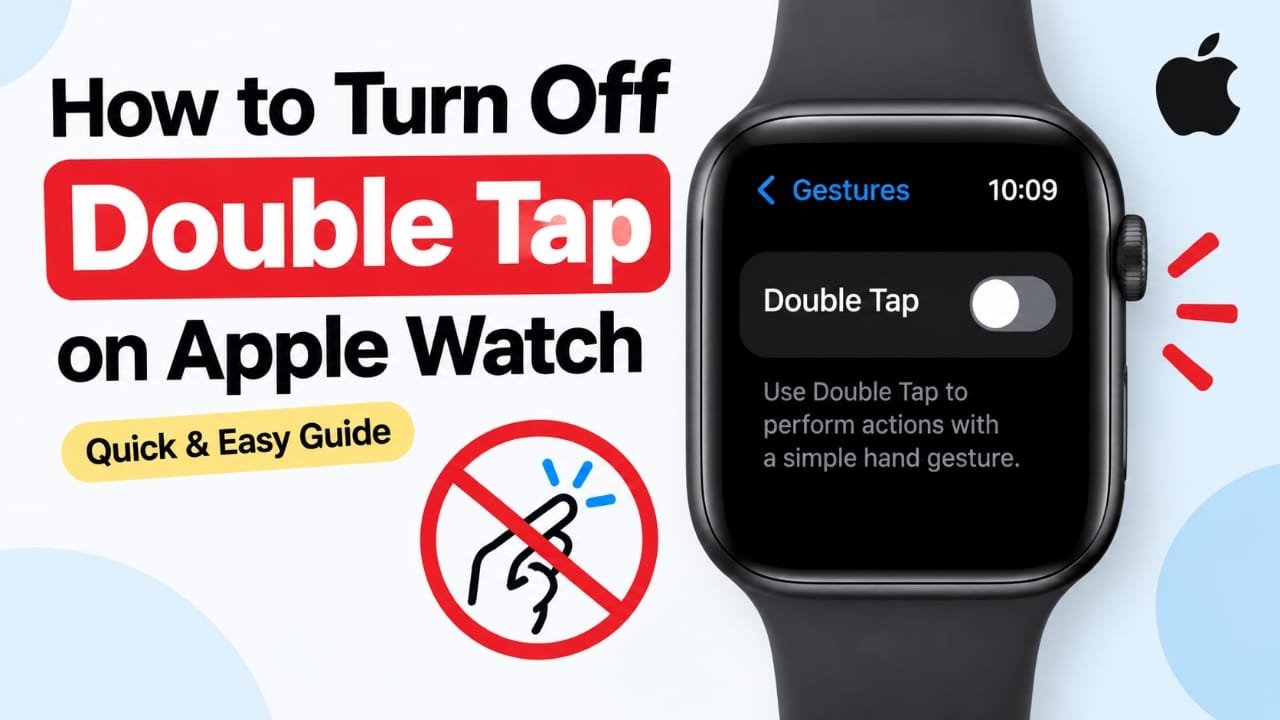
If Double Tap keeps activating when you do not want it to, you can disable the gesture from your Apple Watch or the paired iPhone. The setting only takes a few steps to change.
In this guide, you’ll learn how to turn off Double Tap on Apple Watch, where to find the option on iPhone, and what to check if the setting is missing or the gesture still appears to work.
Also read: How to Use Math Notes on iPad: Step-by-Step Guide
How to Turn Off Double Tap on Apple Watch
You can disable the feature directly from the watch. Here’s what to do:
- Press the Digital Crown to open the Home Screen.
- Open Settings.
- Scroll down and tap Gestures.
- Tap Double Tap.
- Turn Double Tap off.
After disabling the option, try the gesture once to make sure it no longer triggers the Double Tap action.
Note: The exact menu layout can vary depending on your Apple Watch model and watchOS version. If you cannot find the option, check the paired iPhone or make sure your watch is running supported software.
Turn Off Double Tap From Your iPhone
If navigating settings on the smaller Apple Watch display is inconvenient, you can use the Watch app on your iPhone.
- Open the Watch app on your iPhone.
- Tap My Watch if it is not already selected.
- Open the relevant Gestures or Double Tap setting.
- Turn Double Tap off.
The change should apply to the Apple Watch paired with your iPhone.
What Happens When You Turn Off Double Tap?
Disabling Double Tap does not remove anything from your Apple Watch. It simply prevents the supported Double Tap gesture from being used for its assigned actions.
Your:
- Apps
- Messages
- Health information
- Watch faces
- Other normal controls
remain unaffected.
You can also enable Double Tap again later if you change your mind.
Why Can’t I Find the Double Tap Setting?
If the option is not visible, there are a few possible reasons.
Check your Apple Watch model
Double Tap is not available in exactly the same way on every Apple Watch model. The available settings depend on the watch and software version.
Check for a watchOS update
Open the Watch app on your iPhone and look for the software update section. If an update is available for your watch, installing it may change the available settings or menu layout.
Look through the gesture settings
Depending on the software version, Apple may place gesture-related controls in a different part of Settings. Searching the Settings app can also help you locate the relevant option.
What If Double Tap Still Seems to Work?
If you turned the feature off but the watch continues responding to a hand movement, check the following:
- Go back to the Double Tap setting and confirm it is actually disabled.
- Restart the Apple Watch.
- Restart the paired iPhone if necessary.
- Check whether watchOS has an available update.
- Make sure the action you are seeing is not being triggered by another gesture or accessibility feature.
A restart can help if the watch has not immediately applied a settings change correctly.
Can You Turn Double Tap Off Temporarily?
Yes. You can disable the feature when you do not need it and enable it again later.
This can be useful if you prefer using the gesture for certain situations but find it inconvenient at other times. Since the setting can be changed again, you do not have to permanently choose one option.
Common Questions
Does turning off Double Tap delete anything?
No. Disabling Double Tap does not delete apps, messages, health information, or other Apple Watch data. It only changes the behavior of the gesture.
Can I turn Double Tap back on?
Yes. Return to the same Double Tap setting and enable it again.
Does disabling Double Tap turn off other Apple Watch gestures?
No. Turning off Double Tap specifically affects that gesture. Other Apple Watch controls and gestures continue to work according to their own settings.
Why is Double Tap not available on my Apple Watch?
The feature and its settings depend on your Apple Watch model and watchOS version. If you do not see the option, check your model and software version and look for available watchOS updates.
What should I do if the setting keeps changing back?
Confirm that you are changing the correct Double Tap setting, then restart the Apple Watch and paired iPhone. If the problem continues, check for a watchOS update.
Also read: How to Use an External Webcam with an iPad: Step-by-Step Guide
Final Thoughts
Turning off Double Tap is a simple way to stop the gesture from triggering actions when you do not want it. You can change the setting directly on the Apple Watch or use the Watch app on your iPhone.
If you cannot find the option, first check your watch model and watchOS version. A software update may also change where the setting appears.

Abhi Rajput, founder of Earnabhi.com, is a tech lover with 6+ years of experience in SEO, digital tools, and smartphone troubleshooting. He writes simple, clear, and useful guides to help people solve real tech problems.