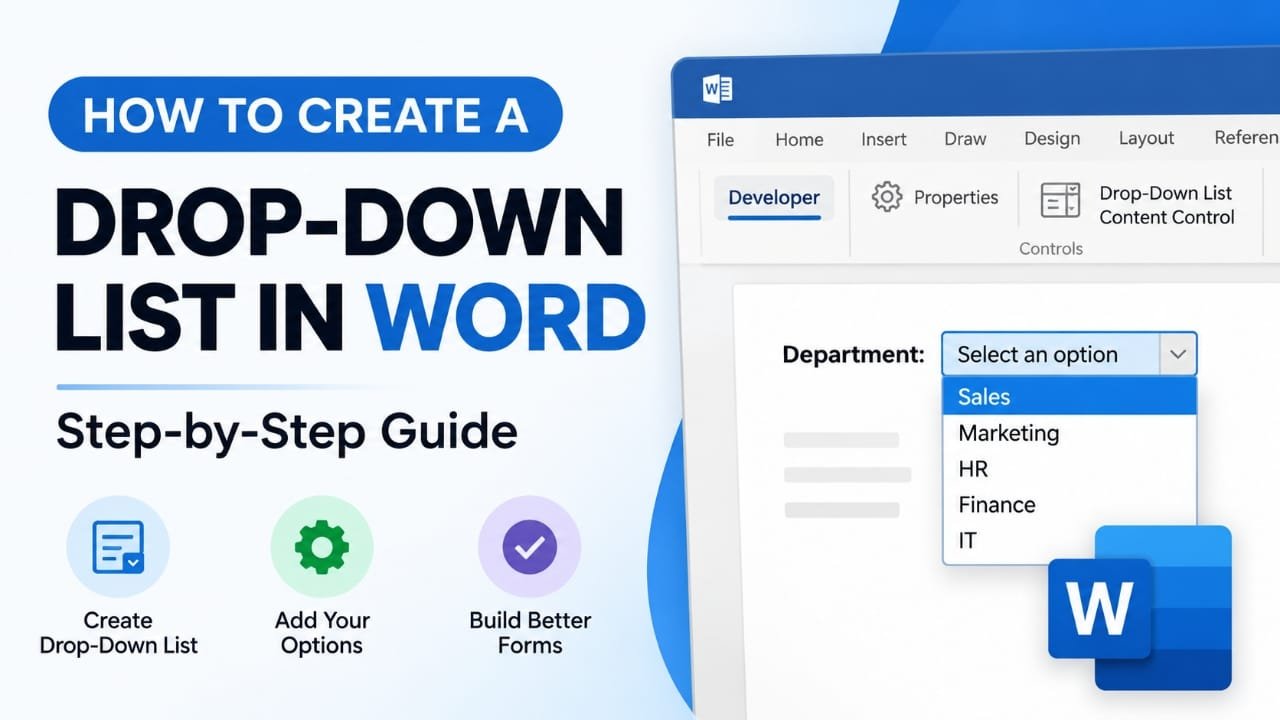
Creating a drop-down list in Microsoft Word is useful when you want people to choose from a fixed set of answers instead of typing their own responses. It can make forms, templates, checklists, surveys, and internal documents more consistent and easier to complete.
Word includes a built-in Drop-Down List Content Control, but it is located under the Developer tab, which may be hidden by default.
This guide explains how to enable the Developer tab, insert a drop-down list, add choices, test it, and troubleshoot common problems.
Also read: How to Use Focus Mode in Microsoft Word
How to Create a Drop-Down List in Word
The easiest method is to use Word’s built-in content controls. You can create the list in a few steps.
1. Enable the Developer tab
First, make sure the Developer tab is visible in the Word ribbon.
On Windows:
- Open Microsoft Word.
- Click File.
- Select Options.
- Choose Customize Ribbon.
- Find Developer in the list of main tabs.
- Check the box beside it.
- Click OK.
The Developer tab should now appear in the ribbon.
If you are using Word on a Mac, the exact menu names can differ depending on the version, but you need to enable the Developer tab through Word’s ribbon or customization settings.
2. Choose where the drop-down should appear
Open the document and click where you want the list to be placed.
For a form, it is usually helpful to add a label first. For example:
Priority: [Drop-down list]
Department: [Drop-down list]
Status: [Drop-down list]
Word will insert the control at the location of your cursor.
3. Insert a Drop-Down List Content Control
With the cursor in the correct position:
- Open the Developer tab.
- Look for the Controls section.
- Select Drop-Down List Content Control.
Word will insert a small field into the document. It may initially display placeholder text such as Choose an item.
At this point, the control exists, but you still need to add the choices.
4. Add choices to the drop-down
Click the drop-down control you just inserted.
Then:
- Go to the Developer tab.
- Click Properties.
- In the Drop-Down List Properties window, select Add.
- Enter the first choice.
- Add the remaining choices one at a time.
- Click OK when you have finished.
For example, a priority field could contain:
- Low
- Medium
- High
You can return to the Properties window later if you need to change the available choices.
5. Test the list
Click the drop-down field in your document.
The choices you added should appear when you open the list. Select an option and make sure it displays correctly.
Testing is especially important if you are creating a document that will be sent to other people.
6. Save the document
Save the document in a Word format that supports the features you are using, such as .docx.
It is also a good idea to keep an editable backup before applying document protection or making major changes to a form.
Drop-Down List vs. Combo Box in Word
Word provides more than one type of selection control, and they are not identical.
A Drop-Down List Content Control lets the user select from the choices you provide.
A Combo Box Content Control also provides a list of choices but can be configured to allow users to enter their own text.
Choose a drop-down list when you want responses to remain limited to predefined options. A combo box is more appropriate when users may need an answer that is not included in your list.
How to Edit a Drop-Down List in Word
You do not need to recreate the field if you later want to change its choices.
Select the drop-down control and open:
Developer → Properties
From there, you can modify the available items.
You can add new choices, remove existing ones, or change the text displayed to users.
This is useful when a form changes over time. For example, a status list might initially contain:
- Pending
- In Progress
- Completed
You could later add another status without rebuilding the entire form.
How to Create a Drop-Down List in an Older Version of Word
Older versions of Word may provide different form-control options.
If you cannot find the modern Drop-Down List Content Control, check the Developer tab for the Legacy Tools section.
The available controls depend on the Word version you are using, so the interface may not look exactly the same as newer editions.
If you are working with an older document, avoid changing its form controls unnecessarily until you have confirmed which type of controls it uses.
How to Protect a Word Form
If you are creating a form for other people, you may want to prevent them from accidentally changing headings, instructions, or formatting.
Word provides editing-restriction features that can help protect a form.
Before restricting editing:
- Finish creating and testing the fields.
- Save a backup copy.
- Check that the drop-down lists work correctly.
- Apply the appropriate editing restrictions.
The exact location and available options can vary between Word versions.
If you later need to modify a protected drop-down, you may first need to remove or change the document’s editing restrictions.
Can You Create a Drop-Down List in Word for the Web?
The desktop and web versions of Word do not necessarily provide identical features.
If you cannot find the required content-control options in Word for the web, open the document in the desktop version of Word and check the Developer tools there.
For a form that will be used by multiple people, test the finished document in the environment your intended users will actually use.
Common Problems With Word Drop-Down Lists
The Developer tab is missing
The Developer tab may simply be hidden.
On Windows, go to:
File → Options → Customize Ribbon → Developer
Enable the checkbox and select OK.
The drop-down is empty
Open the control’s Properties and check whether list items have actually been added.
Adding the control itself does not automatically create your choices.
The drop-down does not open
Make sure you inserted a Drop-Down List Content Control rather than a different type of field.
If the document is protected, editing restrictions may also affect what you can do with the control.
The list changes or behaves differently on another computer
Different Word versions and applications can handle document features differently.
If a form is important, test it on the same type of Word installation that your recipients will use.
You cannot change the choices
The document may have editing protection enabled.
Check whether the form is restricted before trying to modify the drop-down properties.
The list contains too many choices
A drop-down with dozens of options can become inconvenient.
Consider shortening the list, grouping information into separate fields, or using a different form design when there are many possible answers.
Tips for Better Word Forms
A drop-down list works best when the available choices are clear and reasonably short.
Keep these points in mind:
- Use simple labels: Make each choice easy to understand.
- Keep options consistent: Avoid mixing different styles of wording.
- Add clear field labels: Users should immediately understand what they are selecting.
- Test before sharing: Check every field before distributing the document.
- Keep an editable backup: This is particularly useful before restricting editing.
- Avoid unnecessarily long lists: Large lists can make forms harder to use.
- Check compatibility: Test the document in the Word version or application your audience will use.
Frequently Asked Questions
Can I create a drop-down list in Word without the Developer tab?
The built-in drop-down content control is accessed through the Developer tab. If the tab is hidden, you generally need to enable it before using this feature.
Can I add more choices after creating the drop-down?
Yes. Select the drop-down control, open Developer → Properties, and modify its list items.
Can I let users type their own answer?
If users need to select from predefined options while also having the ability to enter custom text, consider using a Combo Box Content Control instead.
Can I use multiple drop-down lists in one Word document?
Yes. You can insert multiple content controls throughout the same document. Each one can be configured for the information required in that particular field.
Will a Word drop-down list work when I email the document?
It can work when the recipient opens the file in a compatible version of Word. However, behavior may differ when the document is opened in another word-processing application or environment, so testing is recommended.
Can I lock the rest of the Word document?
Word provides editing restrictions that can be used to limit changes to a document. The available protection options depend on the Word version and the way the form is designed.
Why are my drop-down options not appearing?
Open the control’s Properties and check the list items. Also make sure you inserted a drop-down content control rather than a different type of field.
Also read: How to Insert a Reusable Quick Part in Word: Step-by-Step Guide
Conclusion
A drop-down list is a simple way to make a Word form more consistent and easier to complete. The basic process is to enable the Developer tab, insert a Drop-Down List Content Control, add your choices through Properties, and test the finished field.
For more advanced forms, Word also provides options such as combo boxes and editing restrictions. Whichever approach you use, test the document before sharing it, especially if other people will open it using different versions or applications.

Abhi Rajput, founder of Earnabhi.com, is a tech lover with 6+ years of experience in SEO, digital tools, and smartphone troubleshooting. He writes simple, clear, and useful guides to help people solve real tech problems.