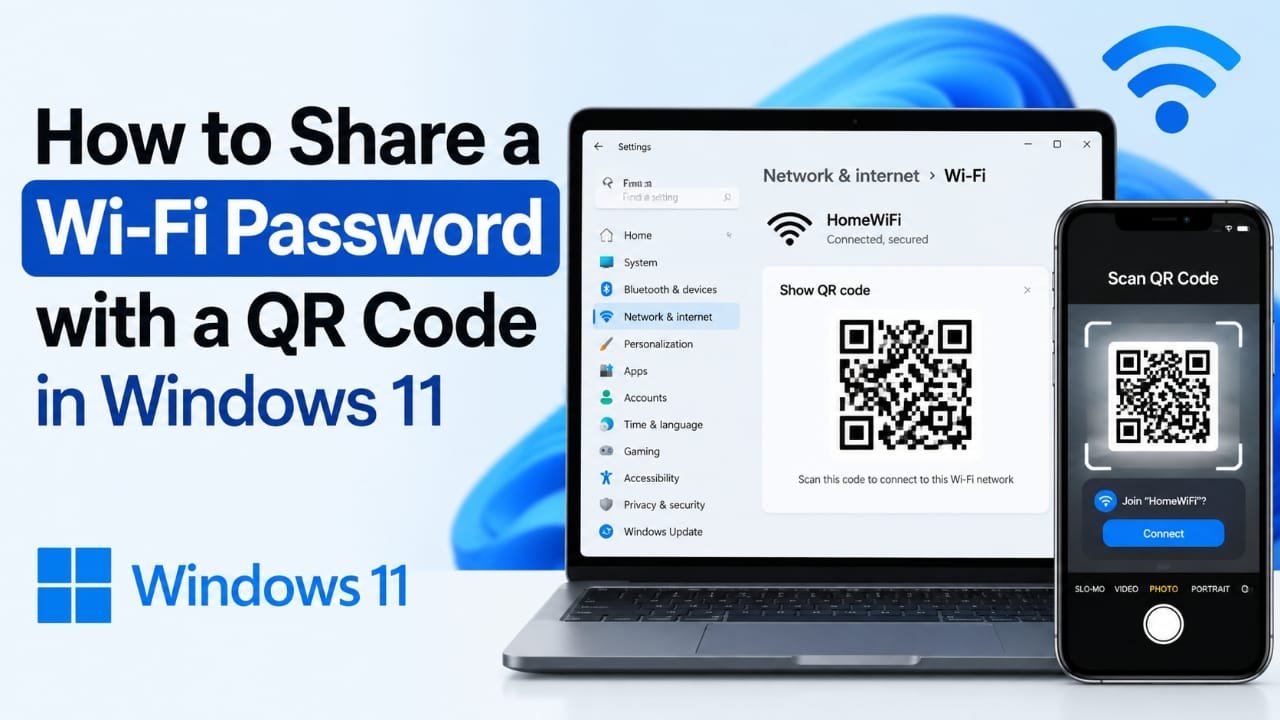
Sharing a long Wi-Fi password with a guest can be annoying, especially when it contains a mix of letters, numbers, and symbols. Instead of typing or reading the password aloud, Windows 11 can let you display your Wi-Fi connection as a QR code that another device can scan.
The exact option can vary depending on your Windows 11 version and network configuration. Here’s how to find it, use it, and troubleshoot the most common problems.
Also read: How to Turn Off Voice Access in Windows 11: Quick and Easy Guide
How to Share a Wi-Fi Password With a QR Code in Windows 11
If your Windows 11 installation supports the QR sharing option, you can usually display the code from the Wi-Fi settings.
1. Open Windows 11 Settings
Press Windows + I on your keyboard to open Settings.
You can also open the Start menu and select Settings.
2. Open Network & internet
Select Network & internet from the left side of the Settings window.
This section contains your Wi-Fi, Ethernet, VPN, and other network-related settings.
3. Open your Wi-Fi connection
Click Wi-Fi, then open the details for the Wi-Fi network your PC is currently connected to.
Look through the available network information for an option related to sharing the Wi-Fi connection.
4. Display the Wi-Fi QR code
If your Windows 11 version provides the feature, select Show QR code or a similarly named option.
Windows will display a QR code containing the information needed to connect to that Wi-Fi network. The network name and password may also be shown on the screen.
At this point, your PC is ready for the other device to scan the code.
5. Scan the QR code
On the phone or tablet you want to connect, open its camera and point it at the QR code displayed on your Windows 11 PC.
If the device recognizes the code, it should offer an option to join the Wi-Fi network. Follow the prompt to connect.
Most recent smartphones can recognize Wi-Fi QR codes through their built-in camera or Wi-Fi interface.
6. Check the connection
After joining, verify that the phone or other device is actually connected to the correct Wi-Fi network.
If the device connects to Wi-Fi but cannot access the internet, the problem may be with the network or internet connection rather than the QR code.
What If Windows 11 Doesn’t Show a QR Code Option?
The QR-code option isn’t necessarily available on every Windows 11 PC. The feature can depend on the Windows version/build and the type of network configuration.
First, check whether Windows has any pending updates:
Settings → Windows Update → Check for updates
Install available updates and check the Wi-Fi settings again afterward.
If the option still isn’t present, your particular Windows 11 configuration may not provide QR-based Wi-Fi sharing.
Can You Share a Wi-Fi Password From a Windows 11 Work or School PC?
Possibly, but organizational settings can restrict access to network credentials or related sharing features.
If you’re using a PC managed by an employer, school, or other organization, some network settings may be controlled by an administrator. In that situation, you may need to ask your IT administrator about the available sharing options.
What About Hidden or Managed Wi-Fi Networks?
QR sharing may not work in the same way for every type of Wi-Fi connection.
For example, networks using enterprise authentication, unusual configurations, or certain manually configured settings may not provide the same QR-code option as a typical home Wi-Fi network.
If the QR option isn’t available, use another supported method for connecting the device rather than assuming something is wrong with Windows.
How to Share Wi-Fi From an Android Phone Instead
If your Windows 11 PC doesn’t provide the QR-code option, the phone that’s already connected to the network may be able to generate one.
Many Android devices include a Share or QR code option in the details for the currently connected Wi-Fi network.
The exact menu names vary between Android versions and manufacturers, so look for the sharing option in the Wi-Fi network details.
What If the QR Code Won’t Scan?
If the other device doesn’t recognize the code, try these fixes:
- Increase the brightness of your Windows 11 display.
- Make sure the entire QR code is visible.
- Hold the phone a little farther away from the screen.
- Keep the camera steady for a moment.
- Make sure the camera can focus on the QR code.
- Try opening the camera again if no notification appears.
- Avoid displaying the code at an extreme angle.
If the phone still can’t read it, you can connect manually through its Wi-Fi settings using the network name and password.
What If the Guest Connects but Has No Internet?
A QR code only helps the device obtain the Wi-Fi connection information. It doesn’t repair an internet connection that is already having problems.
If the guest successfully joins the Wi-Fi but can’t browse the web:
- Check whether your Windows 11 PC has internet access.
- Check whether other devices on the same network can access the internet.
- Check the router’s connection.
- If other devices also have problems, investigate the router or internet service rather than the QR code.
Does a Wi-Fi QR Code Reveal the Password?
Yes. A Wi-Fi QR code isn’t a secure replacement for the password. Its purpose is to package the network credentials in a format that a compatible device can read automatically.
That means you should treat the QR code like the Wi-Fi password itself.
Don’t display it publicly or send a screenshot of it to people you don’t want connecting to your network.
What Happens If You Change the Wi-Fi Password?
Changing the Wi-Fi password invalidates the credentials stored in an older QR code.
After changing the password, generate or display a new QR code using the updated network information before sharing it with someone else.
Can You Save the Wi-Fi QR Code?
Whether Windows provides an option to save or export the QR code depends on the Windows version and the interface available on the PC.
If you need to keep a copy, you may be able to capture the screen, but remember that the image contains information that can allow someone to access your Wi-Fi network.
Store it somewhere private and avoid sharing it publicly.
Tips for Sharing Wi-Fi With a QR Code
A few simple precautions can make the process easier:
- Increase screen brightness: A bright, clear QR code is easier for a phone camera to recognize.
- Show the entire code: Make sure none of its edges are hidden or cropped.
- Use it for trusted guests: Anyone who can successfully use the QR code may be able to join the network.
- Avoid public sharing: Don’t post the QR code where unknown people can scan it.
- Keep the code visible during scanning: Don’t close the Wi-Fi details page before the guest’s device has read it.
Frequently Asked Questions
Can I share every Wi-Fi network with a QR code in Windows 11?
No. Availability depends on the Windows 11 version/build and the network configuration. Some PCs or networks may not provide the QR sharing option.
Do I need a separate QR code app?
Not necessarily. If your Windows 11 installation provides the built-in QR-code option, you don’t need a separate app on the PC to display it. The device receiving the connection also needs a way to recognize and process the Wi-Fi QR code.
Is sharing Wi-Fi through a QR code safer than giving someone the password?
It’s mainly a convenience feature, not a security feature. The QR code contains information that can be used to connect to the network, so it should be shared only with people you trust.
Will an old QR code work after changing my Wi-Fi password?
No. A QR code containing the old credentials won’t provide the new password. You need to generate or display the updated network information.
What should I do if Windows 11 doesn’t have the QR option?
Start by checking for Windows updates. If the option remains unavailable, use another supported way to share the Wi-Fi credentials, such as displaying the password or using a connected Android device that supports Wi-Fi QR sharing.
Can an iPhone scan a Wi-Fi QR code?
Compatible iPhones can recognize many QR codes using the built-in camera. The exact behavior can vary depending on the iOS version and the type of QR code being scanned.
Also read: How to Add a Speaker Spotlight in Google Slides
Conclusion
A Wi-Fi QR code can make connecting guests to your network much easier because they don’t have to manually type a complicated password. On supported Windows 11 systems, you can find the option through the Wi-Fi settings and display the code directly on your screen.
If Show QR code isn’t available, check Windows Update first. If it still doesn’t appear, the feature may not be supported by your particular Windows build or network configuration. In that case, manually sharing the credentials or using another device’s Wi-Fi sharing feature can be a practical alternative.

Abhi Rajput, founder of Earnabhi.com, is a tech lover with 6+ years of experience in SEO, digital tools, and smartphone troubleshooting. He writes simple, clear, and useful guides to help people solve real tech problems.