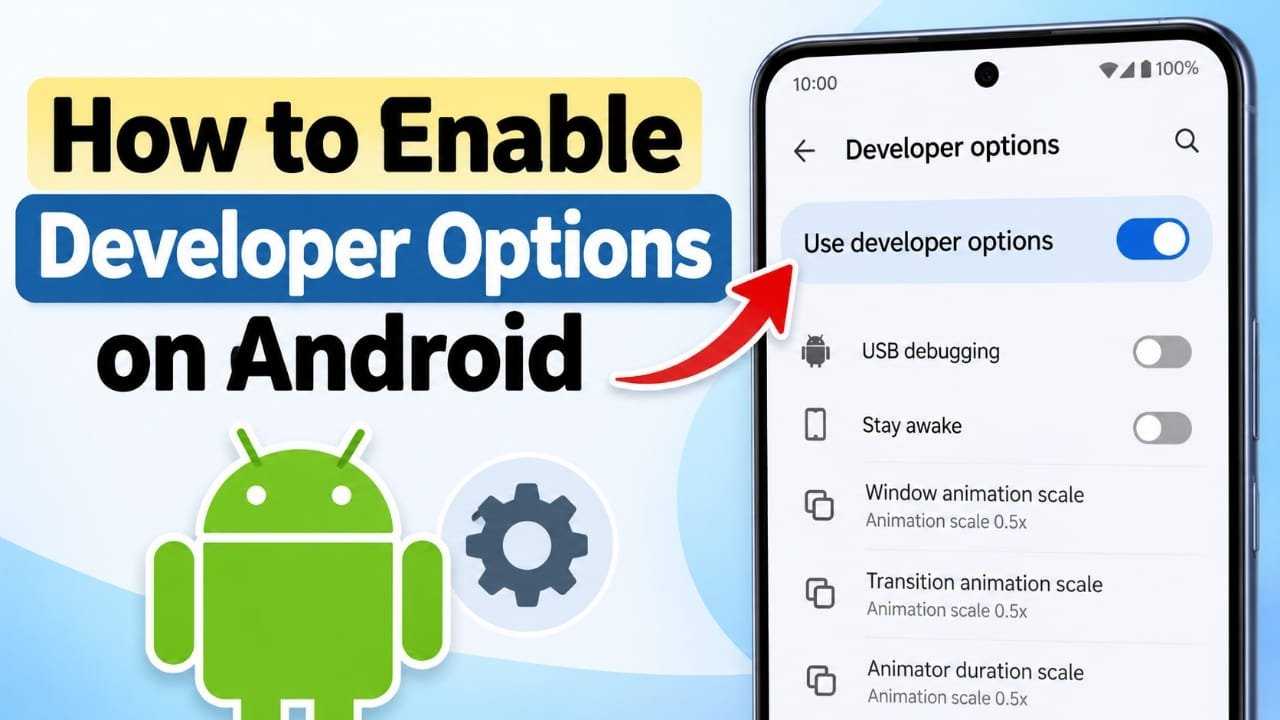
Android Developer Options is a hidden settings menu designed mainly for app testing, debugging, and advanced device controls. You may need it for features such as USB debugging, changing animation speeds, or keeping the screen awake while charging.
The exact location can vary by phone brand, but the basic process is similar across most Android devices.
Also read: How to Screen Record on Android: Step-by-Step Guide
How to Enable Developer Options on Android
Follow these steps:
- Open the Settings app on your Android phone.
- Scroll down and tap About phone.
- Find Build number.
- Tap Build number seven times continuously.
- Your phone may ask you to enter your PIN, pattern, or password.
- After completing the steps, you should see a message such as “You are now a developer!”
Developer Options is now enabled.
How to Find Build Number on Samsung Phones
On many Samsung Galaxy phones, Build number is not shown directly under About phone.
Go to:
Settings → About phone → Software information → Build number
Then tap Build number seven times.
Where Is Developer Options on Android?
Once enabled, the menu can be found in different places depending on your phone.
Google Pixel and Many Other Android Phones
Try:
Settings → System → Developer options
If you cannot find it, use the search box inside Settings and search for Developer options.
Samsung Galaxy Phones
On many Samsung devices, Developer options appears near the bottom of the main Settings screen after you enable it.
Other Android Brands
The menu location can differ between manufacturers and Android versions. Searching for Developer options inside Settings is usually the quickest way to find it.
Useful Settings Inside Developer Options
Developer Options contains many advanced controls. Most users do not need to change them, but a few are commonly used.
USB Debugging
USB debugging allows a computer to communicate with your Android phone using developer tools such as Android Debug Bridge (ADB).
It may be useful for:
- Android development and testing
- Running commands from a computer
- Certain computer-based device management tasks
Because it allows additional communication between your phone and a computer, avoid leaving USB debugging enabled when you do not need it.
Animation Scale Settings
You may see these three options:
- Window animation scale
- Transition animation scale
- Animator duration scale
Reducing these settings can make animations appear faster. For example, some users choose 0.5x instead of the default value.
This changes the animation duration; it does not actually increase the phone’s hardware performance.
Stay Awake
The Stay awake option can keep the screen on while the phone is charging.
This can be useful when testing an app or when you need the display to remain visible for an extended period.
Should You Change Other Developer Options?
It’s better not to change settings simply because they are available.
Developer Options contains controls intended for development and testing. Changing certain options without understanding their purpose can affect how apps or the phone behave, and some settings may increase battery usage.
If you only enabled Developer Options for one specific task, change only the setting you need.
How to Turn Off Developer Options
You can disable Developer Options when you are finished.
- Open Settings.
- Go to Developer options.
- Turn off the main switch at the top, often labeled Use developer options.
Depending on the phone, the Developer Options menu may disappear from Settings after you disable it.
Is It Safe to Enable Developer Options?
Simply enabling Developer Options is generally not a problem. The important thing is to be careful with the settings inside the menu.
For example, if you used USB debugging for a particular task, consider turning it off afterward if you no longer need it.
You should also avoid changing unfamiliar options just to experiment, especially if you rely on your phone for everyday use.
Does Developer Options Void Your Warranty?
Enabling the built-in Developer Options menu does not by itself mean that you have modified the phone’s operating system.
However, Developer Options and bootloader unlocking are different things. Unlocking a bootloader can have additional consequences depending on the device manufacturer and warranty terms.
If you are considering unlocking the bootloader, check the manufacturer’s current documentation for your specific phone.
Why Do You Need USB Debugging?
USB debugging is mainly intended to allow communication between an Android device and a computer using development tools.
It can be useful when developing or testing Android apps and for certain ADB-based tasks.
If a guide asks you to enable USB debugging, make sure you understand what the computer or tool will do before allowing the connection.
Frequently Asked Questions
How many times do I need to tap Build number?
You normally need to tap Build number seven times to enable Developer Options.
Why can’t I find Build number?
Its location depends on the phone manufacturer and Android version. On Samsung Galaxy devices, for example, it is generally under About phone → Software information.
Can I turn off Developer Options later?
Yes. Open Developer Options and turn off the main switch at the top.
Does Developer Options make my phone faster?
Not directly. Some settings, such as reducing animation duration, can make the interface feel faster because animations finish sooner. They do not increase the phone’s underlying processing power.
Should I leave USB debugging enabled?
If you do not need it, turning USB debugging off is a sensible precaution. Enable it again when you need it for a specific task.
Also read: How to Freeze Panes in Excel: Keep Rows and Columns Visible While Scrolling
Conclusion
Enabling Developer Options on Android is straightforward: open Settings → About phone, find Build number, and tap it seven times. Samsung phones usually place Build number under Software information.
After enabling the menu, use only the options you understand. For most people, Developer Options is useful only when a specific task—such as USB debugging or adjusting animation settings—requires it.

Abhi Rajput, founder of Earnabhi.com, is a tech lover with 6+ years of experience in SEO, digital tools, and smartphone troubleshooting. He writes simple, clear, and useful guides to help people solve real tech problems.