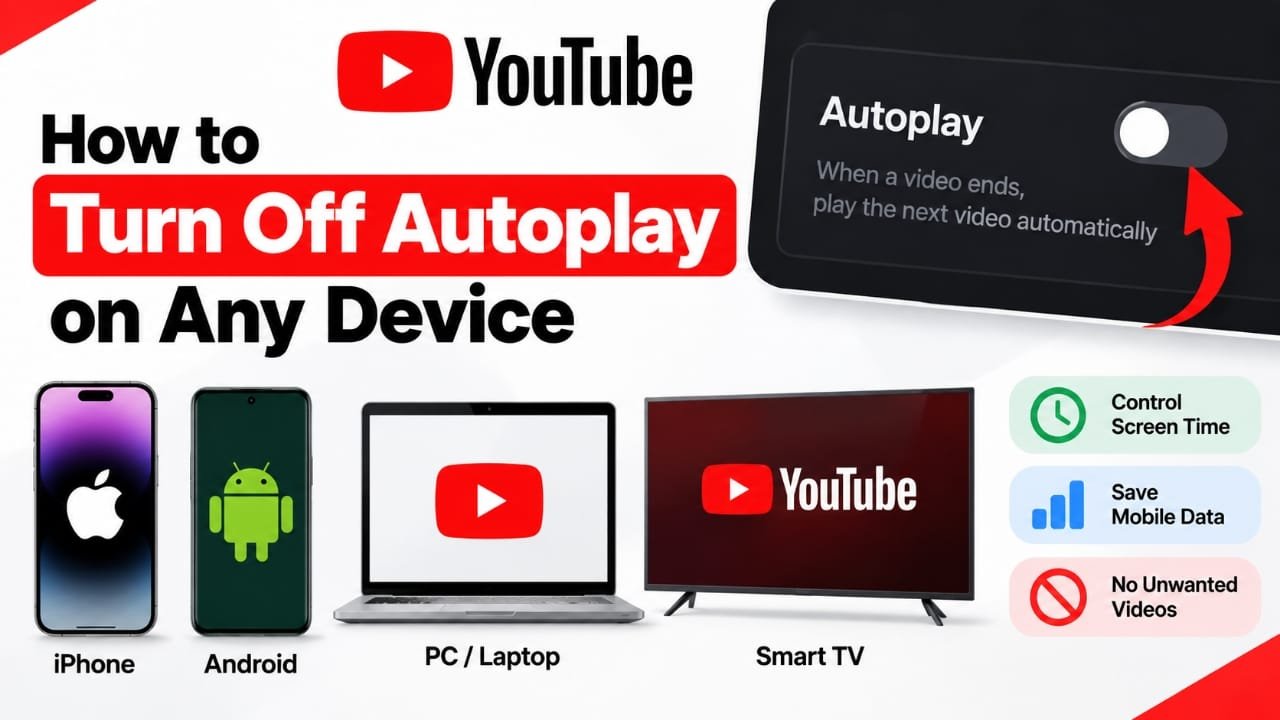
YouTube Autoplay can be useful when you want another video to start without touching the screen. But if you prefer choosing every video yourself, automatic playback can quickly become annoying.
Fortunately, you can turn off YouTube Autoplay on your phone, computer, or TV. You can also disable video previews that automatically play while browsing through recommendations.
This guide explains how to stop YouTube from automatically playing the next video and how to troubleshoot the setting if it doesn’t work as expected.
Also read: How to Create a Close Friends List on Instagram
What Is YouTube Autoplay?
YouTube Autoplay is a feature that automatically starts another video after the current video finishes.
When Autoplay is enabled, YouTube selects what it thinks you may want to watch next. The choice is based on factors such as your viewing activity and the content you are currently watching.
Autoplay is different from video previews. Autoplay starts another video after the current one ends, while previews can play short portions of videos while you browse through YouTube.
Why Turn Off YouTube Autoplay?
There are several reasons why someone might want to disable the feature.
Have More Control Over What You Watch
With Autoplay disabled, a new video won’t automatically begin after the current one finishes. You can decide whether you want to continue watching.
Avoid Unwanted Videos
YouTube’s next recommendation may not be something you actually want to watch. Turning off Autoplay prevents the recommendation from starting automatically.
Reduce Unnecessary Mobile Data Usage
If you are watching YouTube over mobile data, automatically starting another video can use additional data. Disabling Autoplay gives you more control over when another video begins.
Reduce Distractions
Automatic playback can be distracting when you are using YouTube for studying, work, or a specific task. Stopping playback after each video can make browsing more intentional.
How to Turn Off YouTube Autoplay on iPhone and Android
You can disable Autoplay from the YouTube app. The exact location or wording of the option may vary slightly depending on the YouTube app version.
Method 1: Turn Off Autoplay From the Video Player
- Open the YouTube app on your iPhone or Android phone.
- Start playing a video.
- Look for the Autoplay switch in or around the video player.
- Tap the switch to turn it Off.
Once disabled, YouTube should no longer automatically start the next recommended video after the current one ends.
Method 2: Change the Setting From YouTube Settings
You can also look for the Autoplay setting through the app’s settings.
- Open the YouTube app.
- Tap your profile picture.
- Open Settings.
- Look for Autoplay or the playback-related settings.
- Turn off the option for automatically playing the next video.
If your version of the app uses a slightly different menu structure, search the Settings screen for “Autoplay.”
How to Turn Off YouTube Autoplay on a Computer
If you normally watch YouTube using Chrome, Edge, Firefox, Safari, or another desktop browser, you can change Autoplay directly from the video page.
- Open YouTube in your web browser.
- Play any video.
- Find the Autoplay switch around the video player or next-video area.
- Click the switch to turn it Off.
After you disable the feature, YouTube should stop automatically starting the next video when the current one ends.
How to Turn Off YouTube Autoplay on a Smart TV
YouTube’s TV interface can look different depending on the television or streaming device you use.
Generally, you can change the setting from the YouTube app itself.
- Open the YouTube app on your smart TV or streaming device.
- Open Settings.
- Look for Autoplay or a similar playback option.
- Change the setting to Off.
If you cannot find the option, check the video player controls as well. YouTube’s TV interface can change between devices and app versions.
Autoplay vs. Video Previews: What’s the Difference?
Turning off Autoplay does not necessarily stop every type of automatic video playback on YouTube.
There are two features to understand:
- Autoplay: Starts another video after the current video finishes.
- Video previews: Plays a short preview while you browse or interact with video thumbnails.
So, if you have disabled Autoplay but still see videos playing while browsing, you may need to change the preview setting separately.
How to Turn Off YouTube Video Previews on iPhone and Android
YouTube provides settings that control whether video previews play while browsing through feeds.
To change this setting:
- Open the YouTube app.
- Tap your profile picture.
- Open Settings.
- Look for the Playback or feed-related settings.
- Find Playback in feeds.
- Select Off.
The menu name and location can vary between iPhone and Android versions of the app.
Once disabled, YouTube should stop automatically playing video previews while you browse through supported feeds.
How to Turn Off Video Previews on Desktop
You can also control previews when using YouTube on a computer.
- Open YouTube in your browser.
- Click your profile picture.
- Open Settings.
- Go to the playback-related settings.
- Look for the option related to video previews.
- Turn it Off if the option is available.
YouTube can change its desktop interface over time, so the exact name or location of the setting may differ.
How to Stop YouTube Autoplay if It Keeps Turning Back On
If YouTube continues playing another video even after you turned Autoplay off, the problem may be temporary or related to the app, browser, or account settings.
Try these solutions one at a time.
Turn Autoplay Off Again
Open a video and check the Autoplay switch. If it is already off, turn it on and then off again. This can help refresh the setting.
Restart the YouTube App
Completely close YouTube and open it again. Then play a video and check whether Autoplay remains disabled.
Refresh YouTube on Your Computer
If you are using YouTube in a browser, refresh the page and check the Autoplay setting again.
Update the YouTube App
Check your device’s app store for an available YouTube update. Older app versions can sometimes behave differently from the current version.
Check Browser Extensions
On a computer, browser extensions can sometimes affect how websites behave. If YouTube behaves differently with extensions disabled, one of them may be affecting playback.
Clear Browser Data if Necessary
If the setting repeatedly fails to stay saved in your browser, clearing relevant cached or stored site data can sometimes resolve browser-related problems. Keep in mind that doing this may sign you out of websites or remove other saved site preferences.
Try Another Browser or Device
If the problem continues, open YouTube on another browser or device. This can help determine whether the issue is limited to one device or browser.
Does Turning Off Autoplay Stop YouTube Recommendations?
No. Disabling Autoplay does not mean YouTube will stop recommending videos.
You can still see recommended videos throughout the YouTube app and website. The difference is that YouTube should not automatically start the next video after your current video finishes when Autoplay is disabled.
You remain free to select a recommended video whenever you want.
Frequently Asked Questions
Can I turn off YouTube Autoplay permanently?
You can disable the Autoplay setting, but YouTube’s interface and settings can change with app or platform updates. If Autoplay becomes enabled again, check the setting on the device where you are watching.
Does turning off Autoplay delete my YouTube recommendations?
No. Autoplay and recommendations are separate features. Turning off Autoplay does not remove your recommendation feed.
Does Autoplay use mobile data?
If another video starts automatically while you are using mobile data, it can consume additional data. Turning off Autoplay gives you more control over whether another video begins.
Why do YouTube videos still preview automatically after I turn off Autoplay?
You may be seeing video previews rather than Autoplay. Check YouTube’s playback-in-feeds or video-preview settings separately.
Can I turn off Autoplay on a smart TV?
Yes, where the YouTube TV app provides the relevant setting. Open YouTube’s settings or check the video player controls for an Autoplay option.
What should I do if the Autoplay setting is missing?
YouTube changes its interface from time to time, and the available options can vary by device and app version. Update the app first, then check the video player and YouTube Settings for the Autoplay option.
Also read: How to Tag Someone on Instagram Posts: Step-by-Step Guide
Final Thoughts
Turning off YouTube Autoplay is useful if you want to decide when another video starts instead of letting YouTube continue playback automatically.
On phones and computers, the setting can usually be changed directly from the video player or YouTube’s settings. Smart TV users can check the YouTube app’s settings and playback controls.
If videos still appear to play automatically while browsing, remember that Autoplay and video previews are different features. Disabling both can give you more control over how YouTube behaves while watching and browsing.

Abhi Rajput, founder of Earnabhi.com, is a tech lover with 6+ years of experience in SEO, digital tools, and smartphone troubleshooting. He writes simple, clear, and useful guides to help people solve real tech problems.