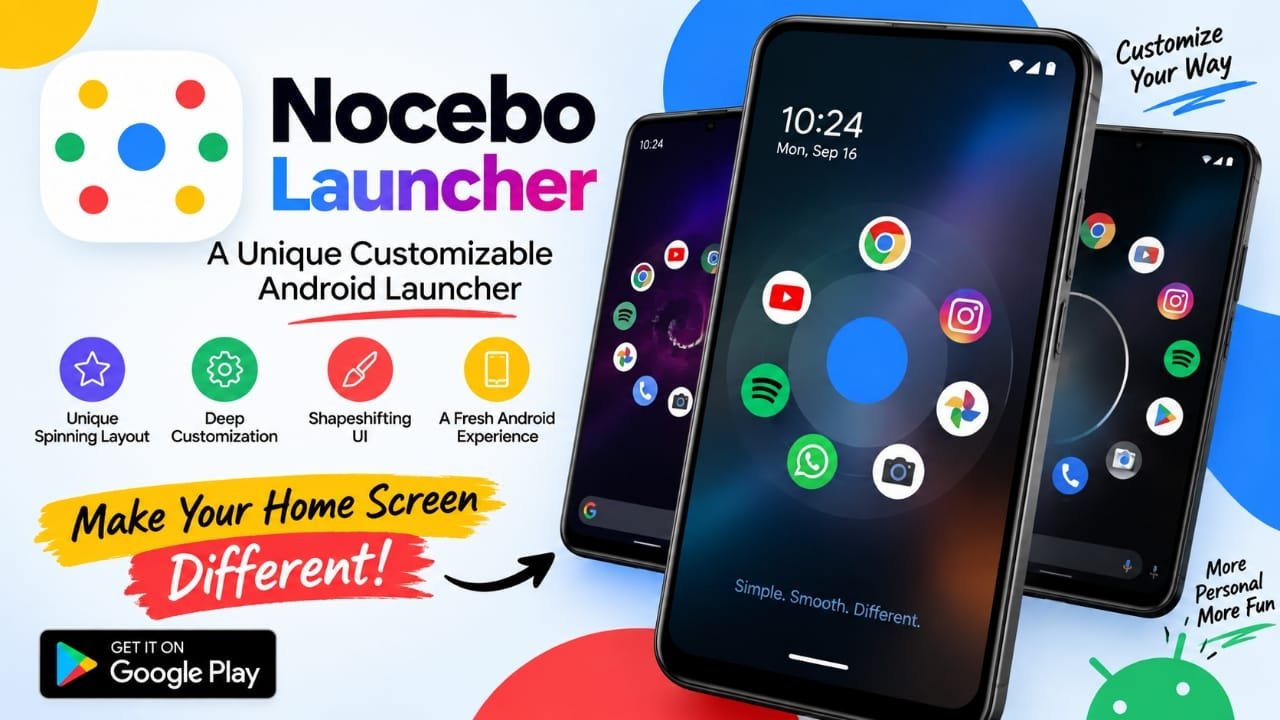
If you have been using the same Android home screen for a long time, changing the wallpaper or icon pack may not be enough to make your phone feel new. The basic grid of app icons and familiar navigation can still remain the same.
Nocebo Launcher takes a different approach. Instead of simply changing the look of the Android home screen, it focuses on changing how the interface is arranged and experienced. Its spinning layout and shapeshifting design give the home screen a more dynamic appearance than a conventional launcher.
For Android users who enjoy customization and want to experiment with a less traditional interface, Nocebo Launcher can be an interesting option. However, design is only one part of choosing a launcher. Compatibility, performance, battery usage, permissions and privacy should also be considered.
Also read: Batix – Charging Photo: Customize Your Android Charging Screen With Photos and Animations
What Is Nocebo Launcher?
Nocebo Launcher is a third-party Android launcher designed to replace the phone’s usual home-screen interface with a more unconventional layout.
Most Android launchers organize applications in familiar grids, folders or lists. Nocebo Launcher moves away from that traditional approach by using a spinning and variable interface.
The idea is to make the home screen feel less static. Instead of seeing the same fixed arrangement of icons every time, users get a different style of interaction and visual organization.
This makes the launcher particularly relevant for people who enjoy experimenting with Android customization rather than simply changing wallpapers or icon styles.
Key Features of Nocebo Launcher
1. Spinning Home Screen Layout
The spinning layout is the most distinctive part of Nocebo Launcher.
Traditional Android home screens generally keep app icons in fixed rows and columns. Nocebo Launcher uses movement and positioning to create a more dynamic navigation experience.
This can make the phone feel visually different from a standard launcher and may appeal to users who want to try something outside the usual grid-based design.
2. Customizable Interface
Customization is an important part of the launcher experience. Nocebo Launcher is designed around the idea that users should be able to change the appearance and arrangement of their home screen.
Depending on the available customization options, users can create an interface that better matches their preferred style.
Someone who prefers a cleaner appearance can aim for a minimal setup, while users who enjoy unconventional designs can experiment with a more distinctive home screen.
3. Shapeshifting Design
Another notable idea behind Nocebo Launcher is its shapeshifting home-screen concept.
Rather than keeping the interface visually identical at all times, the launcher focuses on a more dynamic presentation. This makes the home screen itself part of the customization experience.
For users who consider their smartphone interface a form of personal expression, this approach can be more interesting than a conventional launcher.
4. A Different Way to Interact With Android
Nocebo Launcher is not simply about changing colors, wallpapers or icons.
Its main difference is the way it approaches navigation and interaction. The launcher attempts to rethink how applications are presented on the Android home screen.
That means its appeal is likely to come from the overall interface experience rather than from a single customization feature.
Who Should Try Nocebo Launcher?
Nocebo Launcher may be worth exploring if you enjoy changing the way your Android phone looks and works.
It can be particularly interesting for:
- Android customization enthusiasts
- Users who are bored with traditional grid-based launchers
- People who want an unconventional home screen
- Users interested in minimalist or futuristic-looking interfaces
- Android users who enjoy experimenting with new navigation styles
- People who want their phone’s interface to look different from the default launcher
On the other hand, if you are completely comfortable with your phone’s existing launcher and prefer familiar navigation, there may be little reason to change it.
Why Is Nocebo Launcher Different From a Traditional Launcher?
A normal launcher usually focuses on organizing apps efficiently. You get a familiar home screen, app drawer, folders and a predictable grid layout.
Nocebo Launcher takes a more experimental route.
Its spinning and shapeshifting concepts make the interaction itself part of the visual experience. Instead of treating customization as something limited to wallpapers and icons, it changes the way the home screen is presented.
That difference is what makes the launcher stand out as a concept. Whether that approach feels better depends largely on the user’s personal preference.
Benefits of Using a Custom Android Launcher
A custom launcher can give Android users more control over their home-screen experience.
Some common benefits include:
- Rearranging applications based on personal usage
- Creating a different visual appearance
- Making frequently used apps easier to access
- Moving away from the manufacturer’s default interface
- Experimenting with different navigation styles
- Creating a more minimal or personalized home screen
However, a launcher should not be selected purely because it looks interesting. It also becomes part of the daily smartphone experience, so practical factors matter.
Check Performance Before Using It Regularly
A visually impressive launcher can still be frustrating if it does not run smoothly on your phone.
After installing Nocebo Launcher, pay attention to everyday actions such as:
- Moving around the home screen
- Opening applications
- Switching between screens
- Using launcher animations
- Returning to the home screen
- General responsiveness
The experience can vary depending on the Android version and hardware of the phone.
If you have an older or less powerful device, pay particular attention to whether animations and navigation remain smooth during normal use.
Check Battery Usage
Animations and continuously changing visual elements can potentially affect how a launcher behaves on different devices.
This does not mean that Nocebo Launcher will necessarily cause unusual battery drain on every phone. Instead, it is sensible to observe battery behavior after installing any third-party launcher.
Use the phone normally for some time and check whether battery consumption remains reasonable compared with your usual setup.
Privacy and Permissions Matter
A launcher interacts closely with the Android home-screen environment, so checking its requested permissions and privacy information is important before installation.
Before using Nocebo Launcher, review:
- The permissions requested by the app
- The developer information
- Available privacy information
- Update history
- User feedback and reviews
If an application requests a permission that does not appear necessary for what you expect the launcher to do, take a moment to understand why it is being requested before granting access.
For third-party apps in general, it is also better to use trusted distribution sources and verify the developer information rather than installing unknown copies from random websites.
Can Nocebo Launcher Replace Your Default Launcher?
Whether Nocebo Launcher works well as your everyday launcher depends on what you want from your phone.
Users who enjoy unconventional interfaces may appreciate its spinning and shapeshifting approach. It offers a clear departure from the standard Android home-screen experience.
However, users who are accustomed to a conventional grid and straightforward navigation may need some time to become comfortable with the new interface.
A practical approach is to try the launcher for normal daily tasks and see whether you can access your apps comfortably without sacrificing responsiveness.
Things to Check Before Installing Nocebo Launcher
Before making a third-party launcher your regular home screen, consider these points:
Android Compatibility
Check whether the launcher supports the Android version running on your device.
Customization Options
Look at which parts of the interface can actually be changed. A launcher may look interesting but still not provide the specific customization you want.
Performance
Test animations, navigation and app access on your own phone rather than assuming the experience will be identical across devices.
Battery Consumption
Observe battery usage during normal daily use, particularly if the launcher relies heavily on animations or dynamic visual effects.
Privacy
Review the application’s permissions and available privacy information before giving it access.
Developer Updates
Check whether the application is receiving updates. Regular maintenance can be an important consideration when choosing a third-party launcher.
Nocebo Launcher: Pros and Limitations
| Pros | Things to Consider |
|---|---|
| Unconventional home-screen design | May take time to learn |
| Spinning interface | Different from familiar Android navigation |
| Focus on customization | Available options should be checked before installation |
| Shapeshifting visual concept | Performance can vary between devices |
| Interesting for Android enthusiasts | Privacy and permissions should be reviewed |
Is Nocebo Launcher Worth Trying?
Nocebo Launcher is aimed at Android users who want something different from the standard home-screen experience.
Its main appeal comes from its unusual approach to navigation, particularly the spinning layout and shapeshifting visual concept. Rather than only modifying the appearance of a conventional launcher, it attempts to change the way the home screen itself works and looks.
That makes it more relevant to customization enthusiasts than users who simply want a basic replacement for their existing launcher.
Before using it as your permanent launcher, however, check compatibility, performance, battery behavior, permissions and privacy information on your particular device.
Frequently Asked Questions
What is Nocebo Launcher?
Nocebo Launcher is a third-party Android launcher that provides an alternative home-screen interface with a focus on unconventional layouts, customization and dynamic visual presentation.
What makes Nocebo Launcher different?
Its spinning layout and shapeshifting approach make it different from the fixed grid-based design commonly found in traditional Android launchers.
Is Nocebo Launcher suitable for everyone?
Not necessarily. Users who prefer familiar Android navigation may prefer their existing launcher, while people who enjoy customization and experimental interfaces may find Nocebo Launcher more appealing.
Can I use Nocebo Launcher as my default launcher?
It can be considered as a replacement for the default launcher if your device and Android version support it. The practical experience depends on the phone and your preferred navigation style.
Should I check permissions before installing a launcher?
Yes. Reviewing permissions, developer information and privacy details is a useful precaution when installing any third-party Android application.
Will Nocebo Launcher affect phone performance?
The effect can vary depending on the device and Android version. After installation, check whether animations, navigation and general home-screen performance remain smooth.
Official Play Store Link
Also read: LED Keyboard – Colorful Lighting Edge RGB Keyboard: Features, Themes and How to Use It
Final Thoughts
Nocebo Launcher offers a different take on Android customization. Its spinning layout, dynamic presentation and shapeshifting concept move beyond the familiar app-grid approach used by many traditional launchers.
It may be worth exploring if you enjoy experimenting with your smartphone’s interface and want something visually different. At the same time, appearance should not be the only consideration. Compatibility, responsiveness, battery behavior, permissions and privacy are all important before making a third-party launcher part of your daily setup.
Ultimately, the right launcher is the one that gives you the combination of customization and usability you want from your Android phone.

Abhi Rajput, founder of Earnabhi.com, is a tech lover with 6+ years of experience in SEO, digital tools, and smartphone troubleshooting. He writes simple, clear, and useful guides to help people solve real tech problems.