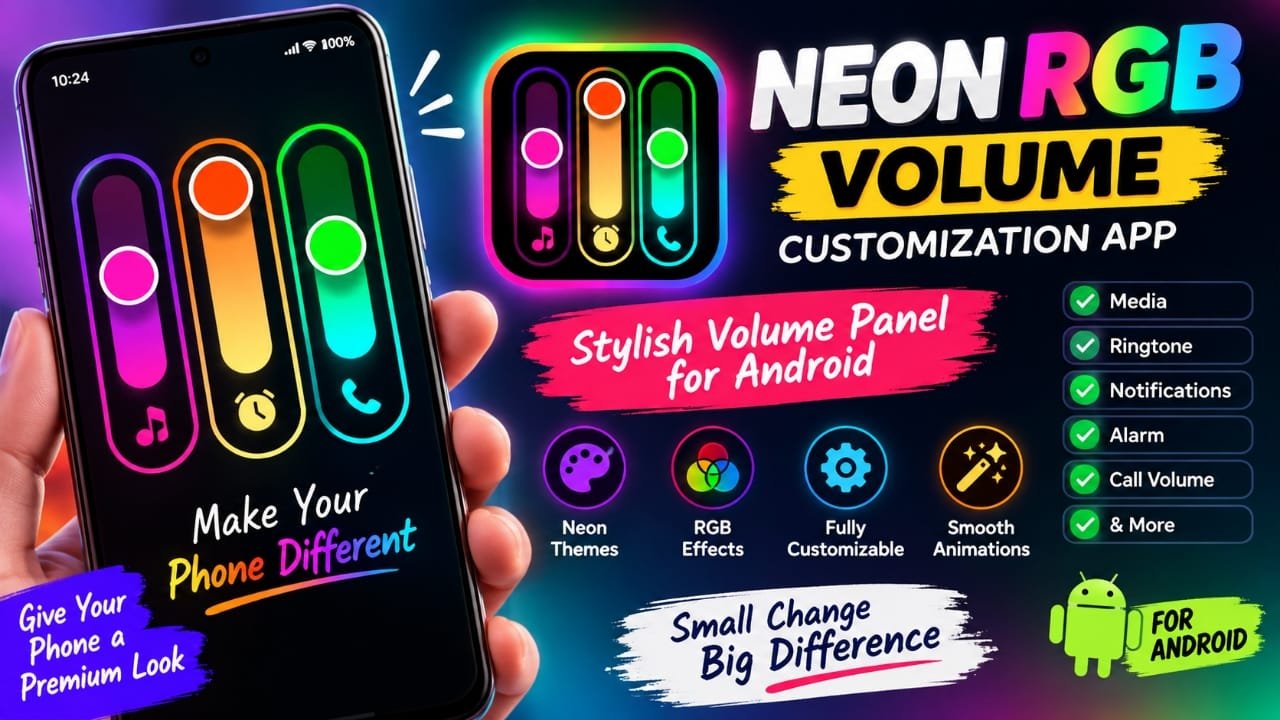
The default Android volume panel can look quite plain, especially if you enjoy customizing your phone’s interface. If you want something more colorful, animated, and different from the standard volume slider, the Neon LED Volume – Volume Style app offers several customization options.
The app replaces the standard-looking volume panel with custom designs featuring neon, LED, RGB, simple, and dark-style themes. It also lets users adjust several visual elements of the volume panel and apply different effects.
According to its current Google Play listing, the app has more than 500,000 downloads and is rated around 4.6 stars from thousands of reviews. It contains ads and offers in-app purchases. (Google Play)
Also read: Batix – Charging Photo: Customize Your Android Charging Screen With Photos and Animations
What Is the Neon RGB Volume Customization App?
Neon LED Volume – Volume Style is an Android customization app designed to change the appearance of the phone’s volume panel.
Instead of using only the volume interface provided by your phone’s manufacturer, the app can display a customized panel with neon lighting, RGB effects, animations, and different slider designs.
The app’s Google Play description says it offers more than 999 themes across categories such as Neon, LED, RGB, Simple, and Dark. Users can also customize elements such as slider thickness, length, border radius, and background transparency. (Google Play)
Key Features of Neon LED Volume
The main attraction of the app is its range of visual customization options. Here are some of the features currently described on Google Play.
Neon and LED Volume Styles
The app provides different volume-panel designs with neon and LED-inspired visual effects.
These styles can give the volume control a more colorful appearance, particularly when used with dark wallpapers or dark-themed phone interfaces.
RGB Effects
RGB effects are aimed at users who like colorful or gaming-style interfaces.
The app says users can customize LED motion and adjust color-transition settings. This allows the volume panel to have changing colors instead of displaying a single static shade. (Google Play)
Custom Slider Appearance
The customization isn’t limited to choosing a theme.
According to the Play Store listing, users can adjust options including:
- Slider thickness
- Slider length
- Border radius
- Background transparency
- Color and visual effects
This makes it possible to create a more subtle volume panel or a brighter RGB-style design. (Google Play)
Multiple Volume Controls
The app’s listing says its custom panel can provide controls for several types of volume and related settings, including:
- Media
- Brightness
- Ring
- Notifications
- Alarm
- Bluetooth
- Voice calls
The exact controls available may depend on the Android device and the way the app works with the phone’s system. (Google Play)
Animated Volume Panel
The app also includes real-time animations and LED-style visual effects.
When the volume panel appears, these animations can make the interface look more dynamic than the standard Android volume control. (Google Play)
One-Tap Theme Applying
After selecting a preferred design, the app provides a one-tap option to apply the selected style.
This can be useful if you want to experiment with different designs without manually configuring every setting each time.
App Blacklist
Another useful option is the app blacklist.
According to the Play Store description, users can hide the custom volume panel in selected applications, including situations such as games or video players. This can help prevent the customized panel from appearing where it may become distracting. (Google Play)
How to Customize Your Android Volume Panel
Setting up a custom volume panel generally involves enabling the app and selecting a design. The exact screens can vary depending on your Android phone.
A typical setup process is:
- Install Neon LED Volume – Volume Style from Google Play.
- Open the application.
- Follow the setup instructions shown by the app.
- Enable the required service or permission when Android asks for it.
- Choose a neon, RGB, LED, simple, or dark-style theme.
- Adjust the available slider and appearance settings.
- Apply the selected design.
- Press your phone’s volume buttons to check the new panel.
The app specifically states that it uses Android’s Accessibility Service to detect volume-key presses and display its custom panel. (Google Play)
Does the App Require Accessibility Permission?
Yes. The current Play Store description says the app uses the Accessibility Service to detect volume key presses and display the customized volume panel. (Google Play)
This is an important permission to understand before enabling the app.
Android accessibility access can provide an app with significant capabilities, so users should review the permission information shown by their device before enabling it. The developer currently declares on Google Play that the app does not collect or share personal data, although Google notes that data-safety information is developer-provided and can change. (Google Play)
Is Neon LED Volume Safe to Install?
The app is currently available through Google Play, which is preferable to downloading an APK from an unknown third-party website.
Its Google Play data-safety section currently says no data is shared with third parties and no data is collected, according to information provided by the developer. The listing also says data is encrypted in transit. (Google Play)
However, users should still review the permissions requested by the current version before enabling the app. App permissions and developer-provided privacy information can change over time.
For that reason, avoid downloading modified APK files from random websites when the Play Store version is available.
Will It Work on Every Android Phone?
Not necessarily in exactly the same way.
The app is designed for Android, but the appearance and behavior of system-level interfaces can differ between manufacturers and Android versions. Phone makers such as Samsung, Xiaomi, OnePlus, Vivo, Oppo, and others may use their own system interfaces and permission management.
The current listing says the app has been updated with support for Android 16, but the actual experience can still vary between devices. (Google Play)
If the custom panel does not appear correctly, check whether the required service is enabled and whether your phone’s battery or background-app settings are restricting the application.
Does It Change the Actual Volume?
The main purpose of the app is to change the appearance and controls of the volume panel, not to increase the physical loudness of your phone’s speaker.
In other words, installing a neon volume-panel app should not be confused with installing an audio amplifier or speaker-boosting application.
The main benefit is interface customization.
Who Might Like This App?
This type of volume customization app can be useful for people who enjoy changing the appearance of their Android phone.
It may particularly appeal to:
- Android customization enthusiasts
- Users who like RGB or neon themes
- Gamers who prefer gaming-style interfaces
- People making smartphone customization videos
- Users who want an alternative to the default volume panel
- Anyone interested in animated UI effects
It may be less useful if you prefer a simple stock Android interface or don’t want an additional service running for volume controls.
Tips for a Better-Looking Volume Panel
A few simple choices can make the customized interface look cleaner.
Use Dark Wallpapers With Neon Effects
Bright neon effects usually stand out more clearly against a darker background. A dark wallpaper can also help the RGB colors appear more prominent.
Avoid Too Many Colors
A constantly changing RGB effect can look busy. If you prefer a cleaner interface, try using a single color or a less animated theme.
Try Different Slider Sizes
A very large volume slider can cover more of the screen than necessary. Experiment with the available size and position settings to find a layout that doesn’t interfere with normal phone use.
Hide the Panel in Distracting Apps
If the volume panel becomes distracting while gaming or watching videos, the app’s blacklist feature can be useful where supported. (Google Play)
Things to Keep in Mind Before Installing
There are a few points worth considering before replacing your phone’s default volume panel.
It contains ads and in-app purchases. The current Google Play listing identifies both. (Google Play)
Accessibility access is required for its main function. Make sure you understand the permission before enabling it. (Google Play)
The experience can vary by device. Android manufacturers customize their system software, so a feature that works smoothly on one phone may behave differently on another.
Don’t assume every feature is free. The Play Store listing shows that the app contains in-app purchases.
Avoid unofficial APK downloads. If you decide to try the app, using its Google Play listing is a safer approach than downloading an unknown modified version.
Is Neon LED Volume Worth Trying for Android Customization?
If your main goal is to replace the standard Android volume panel with something more colorful, the app provides a broad set of customization options.
The current Play Store listing includes neon and RGB themes, animated effects, slider customization, multiple control options, and an app blacklist. It was also updated on August 27, 2026, with the listing mentioning a new design UI, bug fixes, and Android 16 support. (Google Play)
Whether it suits you will largely depend on how much you value interface customization and whether you are comfortable granting the required Accessibility Service access.
Where to Get Neon LED Volume
The app is currently listed on Google Play as Neon LED Volume – Volume Style by nedkaboo. You can check the latest version, permissions, ratings, and data-safety information on its Google Play listing before installing it.
Neon LED Volume – Volume Style on Google Play
Frequently Asked Questions
What is the Neon RGB Volume app?
It is an Android customization app that replaces or overlays the standard-looking volume panel with custom neon, LED, RGB, simple, and dark-style designs.
Is Neon LED Volume free?
The app is available on Google Play, but the current listing shows that it contains ads and in-app purchases. (Google Play)
Does Neon LED Volume need Accessibility permission?
Yes. According to its Google Play description, the app uses Android’s Accessibility Service to detect volume-key presses and display its custom volume panel. (Google Play)
Can I customize the RGB colors?
The app’s listing says users can customize RGB effects, LED motion, color-transition speed, and color range. (Google Play)
Does it increase speaker volume?
No. Its primary purpose is to customize the appearance and controls of the volume panel. It should not be treated as a speaker-volume booster.
Does it support Android 16?
The current Play Store listing’s “What’s new” section says the app supports Android 16. (Google Play)
Is the app available on Google Play?
Yes. The app is currently listed on Google Play under the name Neon LED Volume – Volume Style. (Google Play)
Official Play Store Link
Also read: How to Use Double Tap on Apple Watch: Step-by-Step Guide
Final Thoughts
Neon LED Volume – Volume Style is aimed at Android users who want more control over the appearance of their volume panel. Instead of keeping the standard interface, you can experiment with neon, RGB, LED, dark, and other visual styles.
Its current feature set includes theme customization, animated effects, slider adjustments, multiple volume controls, and an app blacklist. At the same time, it requires Accessibility Service access and contains ads and in-app purchases, so those points should be considered before installation.
If your priority is simply making the Android interface look more colorful and personalized, this is an app worth exploring through its official Google Play listing.

Abhi Rajput, founder of Earnabhi.com, is a tech lover with 6+ years of experience in SEO, digital tools, and smartphone troubleshooting. He writes simple, clear, and useful guides to help people solve real tech problems.