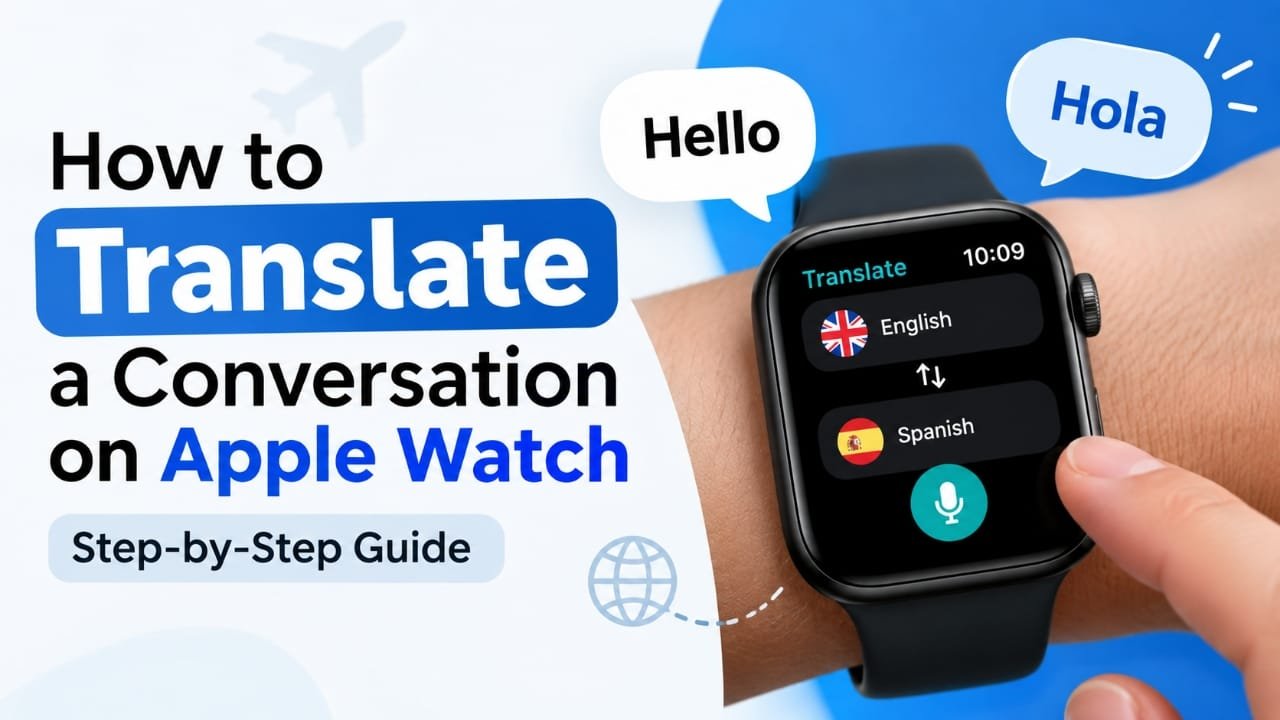
If you need to communicate with someone who speaks another language, your Apple Watch can make quick translations much easier. Instead of taking out your iPhone for every short question or reply, you can use the Translate app directly from your wrist.
In this guide, you’ll learn how to translate spoken phrases on Apple Watch, switch between languages during a conversation, and troubleshoot common problems such as missing languages, connection issues, or inaccurate translations.
Also read: How to Turn Off Double Tap on Apple Watch
How to Translate a Conversation on Apple Watch
The easiest method is to use the Translate app on your Apple Watch. The basic process is simple: select the two languages, speak into the watch, and view the translated result.
1. Open the Translate app
Press the Digital Crown on your Apple Watch to open the app screen.
Find and open Translate.
If you cannot find the app, check whether your Apple Watch is running a compatible version of watchOS and whether the Translate app is available for your setup.
2. Choose the two languages
After opening Translate, select the languages you want to use.
Set one language as the language you are speaking and the other as the language you want to translate into.
For example, if you are speaking English to someone who speaks Hindi, select English as the input language and Hindi as the translation language.
3. Tap the microphone and speak
Tap the microphone button and say your phrase clearly.
Try to use short, straightforward sentences rather than long or complicated ones. Speaking clearly and reducing background noise can also help the watch recognize your words.
Once the watch processes your speech, the translated phrase should appear on the display.
4. Let the other person read the translation
You can turn your wrist toward the other person so they can read the translated text on the Apple Watch.
For short questions, directions, greetings, or similar exchanges, this can be more convenient than opening your phone.
5. Translate the other person’s reply
For a two-way conversation, change the translation direction when it is the other person’s turn.
They can speak the reply, and the watch can display the translation in the other language.
This works best for short exchanges rather than long conversations.
6. Reuse recent phrases when available
If a phrase appears in your recent translations or is available as a quick option, using it again can save time.
This can be useful when you repeatedly need the same type of information, such as asking for directions or communicating a basic request.
What to Do If Translate Is Missing on Apple Watch
If you cannot find the Translate app, first check whether your Apple Watch has the required software version.
You can also check the Watch app on your iPhone to see which apps are available for installation on your watch.
If an update is available, updating watchOS may also resolve app availability or compatibility problems.
Can You Use Siri for Translation?
Siri can be useful when you only need to translate a single phrase quickly.
For example, you may want a translation while walking or when you do not want to navigate through the Translate app.
However, for repeated back-and-forth communication, the Translate app is generally more suitable because it is designed around selecting languages and processing spoken phrases.
Does Apple Watch Need an Internet Connection?
This depends on the Apple Watch model, software, and translation feature being used.
A reliable connection through a paired iPhone, Wi-Fi, or cellular service can be important for translation features. If a translation takes too long or fails, check the watch’s connection first.
If your Apple Watch has limited connectivity, using the paired iPhone may provide a more dependable option.
What If Your Language Isn’t Available?
Apple does not support every language or language combination in every translation feature.
If the language you need does not appear in the Translate app, check Apple’s current language and feature support information. Availability can also depend on the software version and device.
For unsupported languages or more advanced conversations, another translation app or your iPhone may be a better option.
Apple Watch vs. iPhone for Conversations
Apple Watch is convenient when you only need quick translations. Its biggest advantage is that you can access it without pulling your phone out.
The iPhone becomes more practical when the conversation gets longer.
| Apple Watch | iPhone |
|---|---|
| Convenient for quick phrases | Better for longer conversations |
| Easy to use while travelling | Larger display |
| Translation available from your wrist | More comfortable for extended interaction |
| Useful for short back-and-forth exchanges | Easier to show text to another person |
For a short interaction, the Apple Watch can be enough. For a detailed conversation, moving to the iPhone is usually more comfortable.
Tips for Better Apple Watch Translations
A few simple habits can improve the experience:
- Use short phrases: Break long sentences into smaller parts.
- Speak clearly: Avoid rushing through your sentence.
- Reduce background noise: Busy streets and crowded places can make speech recognition harder.
- Avoid excessive slang: Simple wording is generally easier for translation systems to interpret.
- Keep the watch steady: This makes it easier for another person to read the translated text.
- Keep your watch charged: Frequent microphone and screen use can increase battery consumption.
- Practice important phrases beforehand: This can make travel or meetings less stressful.
Common Apple Watch Translation Problems
The Translate app isn’t showing
Check your Apple Watch’s watchOS version and look through the available apps in the Watch app on your iPhone.
The microphone isn’t recognizing my voice
Check that the microphone isn’t obstructed. Then try speaking more slowly and moving away from loud background noise.
If the problem continues, restarting the Apple Watch may help with a temporary software issue.
Translation is taking too long
Check the connection between your Apple Watch and your iPhone, Wi-Fi, or cellular network, depending on your setup.
If connectivity is poor, try again after moving somewhere with a stronger connection.
The translation isn’t accurate
Speech recognition can be affected by background noise, unclear speech, accents, and complicated sentences.
Try using shorter sentences and speaking at a normal, clear pace.
The translated text is difficult to read
The Apple Watch has a much smaller display than an iPhone. Keep the watch steady and position it so the other person can see the screen clearly.
For longer text, switch to your iPhone.
A language is missing
The language or language combination may not be supported by the version of Translate available on your device. Check for software updates and Apple’s current language support before assuming there is a problem with the watch.
Frequently Asked Questions
Can Apple Watch translate conversations?
Yes, Apple Watch can be used for short back-and-forth translations through the Translate app, where supported. You can speak a phrase, view the translation, and then repeat the process for the other person’s response.
Can Apple Watch translate speech?
Yes. The Translate app is designed to accept spoken input and display the translated result on the watch.
Do I need an iPhone to translate on Apple Watch?
Not necessarily in every situation. Connectivity and independence depend on the Apple Watch model, connection type, and feature being used. A paired iPhone can provide connectivity for watches that rely on it.
Can Apple Watch translate without the internet?
Offline capabilities vary by feature, language, and device. If translation isn’t working without a connection, connect the watch through a supported network or use the paired iPhone.
Why does Apple Watch translate my words incorrectly?
Background noise, fast speech, unclear pronunciation, accents, and complex wording can affect speech recognition. Speaking clearly and using shorter phrases may improve the result.
Is Apple Watch good for long conversations?
It is more suitable for short exchanges. For a long conversation, the iPhone’s larger screen is generally more practical and easier for both people to use.
Can I translate text on Apple Watch?
The Translate experience on Apple Watch is primarily intended for quick spoken translations. If you need to type, edit, copy, or work with longer text, the iPhone is generally more convenient.
Also read: How to Use an External Webcam with an iPad: Step-by-Step Guide
Final Thoughts
Apple Watch can be a handy translation tool when you only need to communicate a few sentences in another language. Open Translate, select the appropriate languages, speak clearly, and show the result to the other person.
For quick travel questions and everyday interactions, using the watch can save you from repeatedly reaching for your iPhone. When the conversation becomes longer or you need more control over the translated text, switching to the iPhone is the more practical choice.

Abhi Rajput, founder of Earnabhi.com, is a tech lover with 6+ years of experience in SEO, digital tools, and smartphone troubleshooting. He writes simple, clear, and useful guides to help people solve real tech problems.