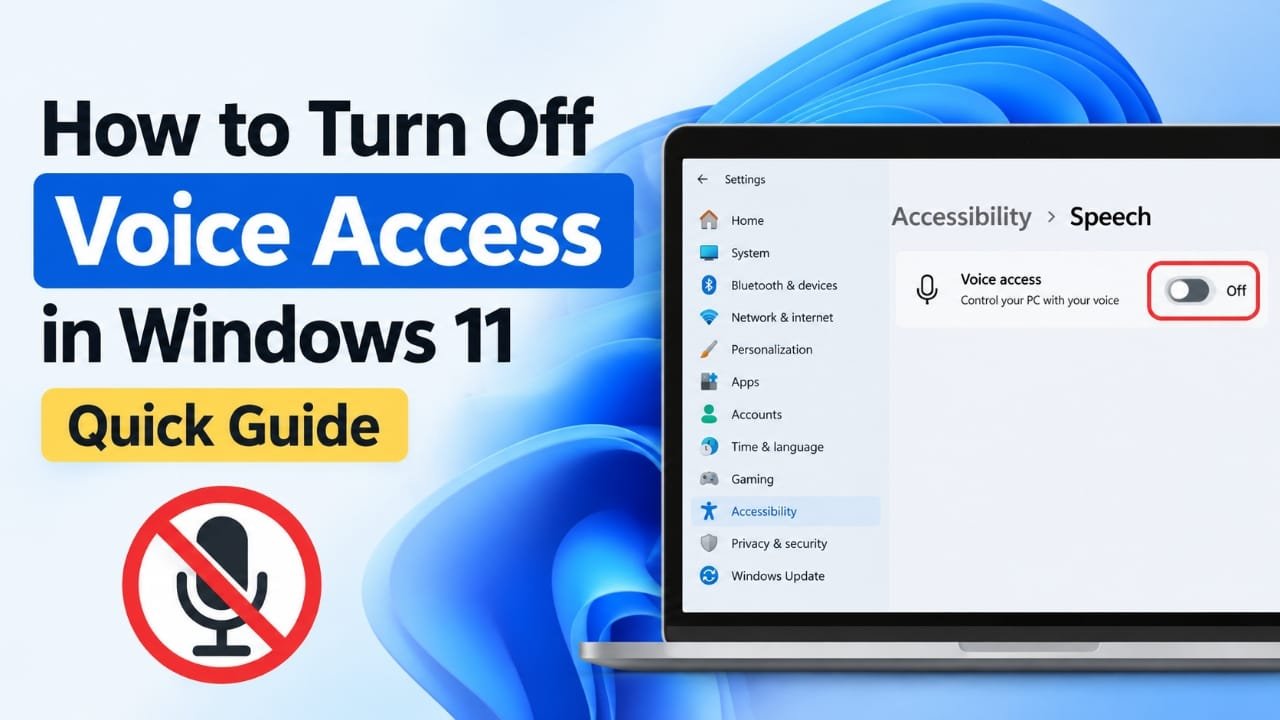
If Voice Access is active on your Windows 11 PC and you no longer want it listening for voice commands, you can turn it off from Settings in just a few steps.
Voice Access is a Windows accessibility feature that lets you control your computer using spoken commands. It can be useful when you need hands-free control, but it can also be frustrating if it starts unexpectedly or gets in the way while you are working.
The quickest solution is to open Settings > Accessibility > Speech and switch Voice access off. If it keeps starting after you disable it, you may also need to check its startup setting.
Also read: How to Turn Off Head Gestures on AirPods
How to Turn Off Voice Access in Windows 11
You can disable Voice Access directly from the Windows 11 Settings app. Here’s how.
1. Open Settings
Press Windows + I on your keyboard to open Windows Settings.
You can also open the Start menu and select Settings.
2. Select Accessibility
In the Settings window, look at the menu on the left and select Accessibility.
Windows places features such as speech, captions, keyboard assistance, and other accessibility tools in this section.
3. Open Speech settings
Scroll through the Accessibility options and select Speech.
This is where Windows provides settings related to voice and speech features.
4. Switch Voice access off
Find Voice access and turn the toggle Off.
Once disabled, Voice Access should stop listening for voice commands.
If the Voice Access interface was visible before you changed the setting, it should also stop being active. If something remains on screen, give Windows a few seconds to close the active session.
5. Check that Voice Access has stopped
Look at the top of the screen for the Voice Access control interface or any indication that it is listening.
If it is still visible after turning the setting off, close the remaining Voice Access window. You can also restart Windows if the session does not close normally.
How to Stop Voice Access From Starting Automatically
Simply turning Voice Access off may not be enough if Windows is configured to start the feature automatically.
To check:
- Open Settings with Windows + I.
- Select Accessibility.
- Open Speech.
- Review the available Voice access options.
- If an option for starting Voice Access automatically is enabled, turn it off.
The exact wording or location of some settings can vary between Windows 11 versions. If you cannot find the option, use the search box in Settings and search for Voice access.
What If Voice Access Keeps Turning On?
If Voice Access continues to appear after you have disabled it, check the setting again and look for anything related to automatic startup.
An accessibility shortcut or another speech-related feature may also be responsible for what you are seeing.
Try these checks:
- Confirm that the Voice access toggle is off.
- Check whether Voice Access is configured to start automatically.
- Close the Voice Access interface if it is still open.
- Restart the computer.
- Search Windows Settings for Voice access if the menus look different.
- Check other speech and input features if the microphone continues responding.
Windows 11 receives regular updates, and the Settings interface can change over time. If the instructions do not exactly match your screen, the built-in Settings search is often the quickest way to locate the relevant option.
Voice Access Is Off, but the Microphone Still Responds
Turning off Voice Access does not necessarily disable every voice-related feature in Windows.
For example, you may still have another speech or input feature enabled. If the microphone continues reacting to your voice, check your Windows speech and input settings to determine which feature is active.
This distinction is important because disabling Voice Access will not automatically disable unrelated voice features.
What to Do If You Cannot Find Voice Access
If you do not see Voice access under Accessibility, use the search field in Windows Settings.
Search for:
Voice access
Windows should show relevant settings if the feature is available on your system.
If the option still does not appear, check that you are running Windows 11 and consider installing available Windows updates. Menu names and locations can vary between Windows releases.
Does Turning Off Voice Access Delete Anything?
No. Turning off Voice Access simply disables the feature.
It does not remove your personal files, installed applications, or other normal Windows settings.
You can enable Voice Access again later if you need it.
Voice Access vs. Windows Speech Recognition
Voice Access and Windows Speech Recognition are related to voice input, but they are not the same feature.
Voice Access is designed to let you control Windows using spoken commands, including interacting with different parts of the interface.
Older Windows speech features may appear separately depending on the Windows version and configuration.
So, if you turn Voice Access off but another voice-related feature continues to respond, check the other speech or input settings rather than assuming Voice Access is still running.
Can You Turn Voice Access Back On?
Yes. Disabling the feature is reversible.
To enable it again, return to:
Settings > Accessibility > Speech > Voice access
Then switch Voice access back on.
If the layout on your PC is different, search for Voice access directly from Windows Settings.
Common Problems and Fixes
I turned Voice Access off, but it still appears on screen
Close the Voice Access interface if it remains open. If it does not disappear, restart your PC and check the setting again.
Voice Access starts whenever I restart Windows
Return to Accessibility > Speech and check whether Voice Access has an automatic startup option enabled. Disable it if you do not want the feature to launch automatically.
My Windows 11 Settings look different
Windows 11’s Settings interface can change between releases. Instead of following the menu structure exactly, open Settings and search for Voice access.
I disabled Voice Access, but voice commands still work
Another speech or voice-input feature may be active. Check your other speech and input settings to identify what is responding.
Do I need administrator access to disable Voice Access?
For normal Windows settings, disabling Voice Access generally does not require administrator privileges. If your computer is managed by an organization, however, some settings may be controlled by its administrator.
Quick Way to Turn Off Voice Access
If you just need the short version:
- Press Windows + I.
- Select Accessibility.
- Open Speech.
- Find Voice access.
- Switch it Off.
- If it keeps returning, check its automatic startup setting.
If your Windows 11 build uses a different menu layout, search for Voice access in Settings.
Frequently Asked Questions
How do I quickly turn off Voice Access in Windows 11?
Open Settings > Accessibility > Speech, find Voice access, and switch it off.
Why does Voice Access keep turning on?
An automatic startup setting or an accessibility shortcut may be causing it to launch. Check the Voice Access settings and make sure automatic startup is disabled if that option is available.
Will disabling Voice Access affect my files?
No. Turning off Voice Access does not delete your files or uninstall applications.
Can I enable Voice Access again later?
Yes. You can return to Settings > Accessibility > Speech and switch Voice access back on.
What if I cannot find the Speech option?
Use the search box in Windows Settings and search for Voice access. This can be easier when your Windows 11 version has a different Settings layout.
Why is my microphone still responding after I disable Voice Access?
Another speech, dictation, or voice-input feature may be active. Check Windows’ other speech and input settings to determine which feature is using the microphone.
Also read: How to Share a Wi-Fi Password With a QR Code in Windows 11
Final Thoughts
Turning off Voice Access in Windows 11 is usually straightforward. Open Settings, go to Accessibility > Speech, and switch Voice access off.
If the feature continues to start by itself, check its automatic startup settings and restart the computer if necessary. And if your Settings menu does not match these steps, searching for Voice access directly in Windows Settings should help you find the relevant controls.

Abhi Rajput, founder of Earnabhi.com, is a tech lover with 6+ years of experience in SEO, digital tools, and smartphone troubleshooting. He writes simple, clear, and useful guides to help people solve real tech problems.