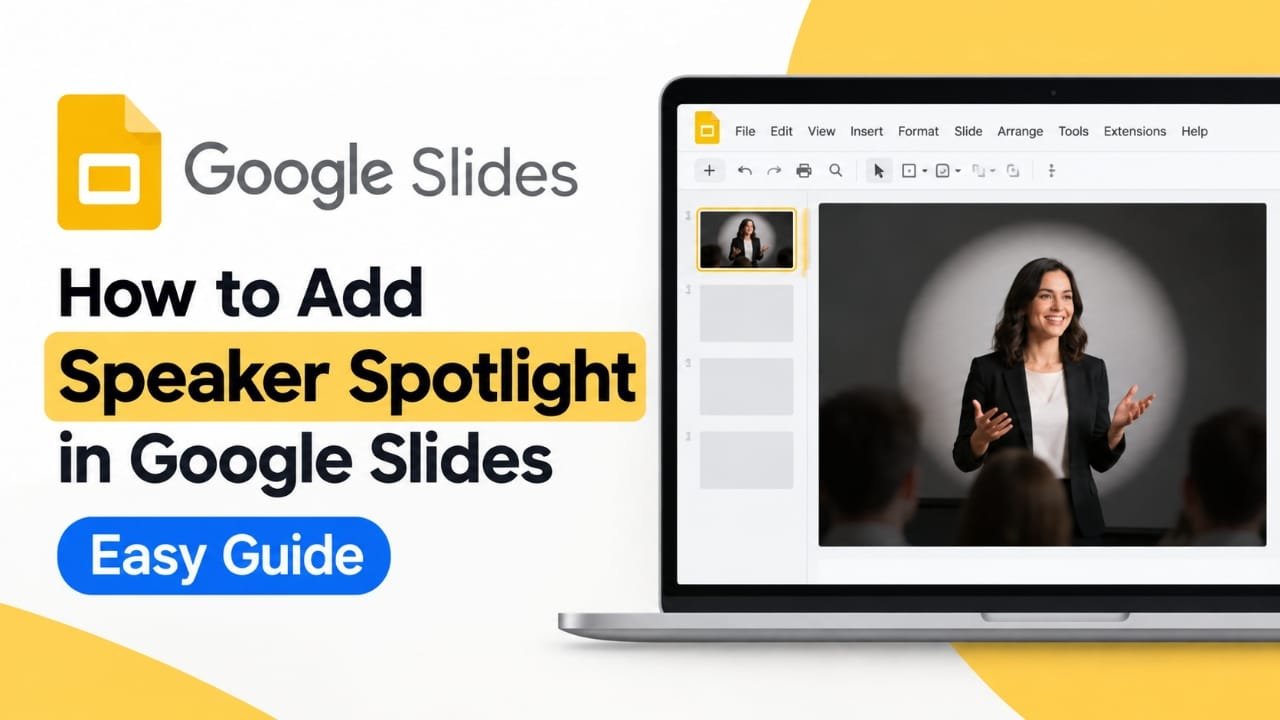
Want to make one person or image stand out on a Google Slides presentation? You can create a speaker spotlight effect by combining an image with a darker background, transparent shapes, and simple layering.
Google Slides does not generally provide a dedicated one-click “Speaker Spotlight” button. Instead, you can build the effect yourself using the tools already available in Slides. This approach works well for presentation slides featuring a speaker, presenter, guest, instructor, or another important person.
In this guide, you’ll learn how to create the effect step by step, how to make a circular speaker image, and what to do if the standard approach does not give you the look you want.
Also read: How to Share a Wi-Fi Password With a QR Code in Windows 11
What Is a Speaker Spotlight in Google Slides?
A speaker spotlight is a visual design technique that makes one person or object more noticeable than the surrounding content.
The basic idea is simple:
- Keep the main speaker or subject clear and visible.
- Reduce the visual emphasis of the background.
- Use contrast to guide the audience’s attention.
- Add a border, shadow, or shape when necessary.
You can create this effect with ordinary Google Slides elements rather than relying on a special spotlight feature.
How to Add a Speaker Spotlight in Google Slides
The easiest method is to place the speaker image on the slide and use a semi-transparent dark shape to create contrast.
Step 1: Open Your Google Slides Presentation
Open Google Slides and select the presentation where you want to create the spotlight effect.
You can use an existing slide or create a new one. If you’re designing the effect from scratch, starting with a blank layout can make positioning the elements easier.
Step 2: Add the Speaker Image
Insert the image of the person you want to highlight.
On a computer, use:
Insert → Image
Google Slides allows images to be added from several sources, including your computer, Google Drive, Google Photos, and other available options. (Google Help)
Once the image appears, resize it and place it where you want the audience to focus.
Try to preserve the original proportions when resizing. Stretching a portrait horizontally or vertically can make the speaker look distorted.
Step 3: Position the Speaker
Move the speaker image to the desired location.
The center of the slide is an obvious choice, but it isn’t always necessary. You can place the speaker slightly to one side if you also need room for a title, quote, statistics, or other presentation content.
Leave some visual space around the image. A spotlight effect usually works better when the main subject is not crowded by other objects.
Step 4: Create a Dark Overlay
Now create the part of the design that makes the speaker stand out.
Go to:
Insert → Shape → Shapes → Rectangle
Draw the rectangle so that it covers the area of the slide you want to dim.
A dark gray or black fill is usually a simple starting point. You can use another color if it matches your presentation theme.
Step 5: Make the Overlay Partially Transparent
A completely opaque rectangle will hide everything underneath it. Instead, reduce its opacity so the original slide remains visible.
Select the rectangle and adjust its fill color to include transparency.
The exact controls can vary slightly depending on the version and device you’re using, but Google Slides supports transparency adjustments for images and other formatting options. (Google Help)
The goal is not to make the background disappear. You simply want to make it less visually dominant.
Step 6: Arrange the Layers
Layer order is important for this effect.
If your dark rectangle covers the speaker image, select the speaker image and use the ordering controls to bring it above the overlay.
The final arrangement should look roughly like this:
- Slide background
- Dark transparent overlay
- Speaker image
- Optional text, border, or decorative elements
If the speaker disappears behind the dark layer, adjust the object’s order until the image is visible again.
Step 7: Add a Border or Shadow
You can make the speaker stand out even more by adding a border or shadow.
A thin border can separate the image from the darkened background. A subtle shadow can also create additional depth.
Google Slides supports image borders and drop-shadow adjustments. (Google Help)
Keep these effects subtle. Too many visual effects can make the slide look busy instead of making the speaker more noticeable.
Step 8: Create a Circular Speaker Image
A circular portrait can give the spotlight design a cleaner appearance.
Select the speaker image and use the image crop or mask controls. Google Slides supports masking an image into shapes such as an oval. (Google Help)
A simple circular portrait works particularly well for:
- Speaker introduction slides
- Webinar presentations
- Team presentations
- Training decks
- Classroom presentations
- Conference slides
- Profile or biography slides
After masking the image, adjust its size and position until the face is clearly visible.
Step 9: Add a Highlight Around the Speaker
If you want a stronger spotlight appearance, add a larger shape behind or around the speaker.
For example, you can place a large circle behind the portrait and use a contrasting color. Keep the shape subtle enough that the speaker remains the main focus.
Another option is to use a soft visual contrast rather than a literal spotlight graphic. A brighter area behind the speaker against a darker surrounding background can produce a similar effect without adding too many objects.
Step 10: Preview the Slide
Once the design is complete, preview the presentation in presentation mode.
Look at the slide from the audience’s perspective and check:
- Is the speaker immediately noticeable?
- Is the image large enough?
- Is the background too dark?
- Can the text still be read?
- Does the image look sharp?
- Are any objects accidentally covering the speaker?
- Does the composition look balanced?
Make adjustments before presenting or sharing the deck.
A Simpler Alternative: Use Contrast Instead of an Overlay
You don’t always need a dark rectangle.
For a cleaner presentation, you can use:
- A darker slide background
- A bright speaker image
- A circular image mask
- A simple border
- A subtle shadow
- Strong spacing around the speaker
This approach is often better for professional presentations where a dramatic spotlight effect would feel out of place.
The main design principle is contrast: make the important element visually different from everything around it.
How to Put a Speaker Photo Inside a Circle
If your goal is simply to make the speaker’s photograph circular, you don’t need to build an entire spotlight effect.
In Google Slides:
- Insert the speaker’s image.
- Select the image.
- Open the crop or mask options.
- Choose an oval or circular mask.
- Adjust the image position inside the shape.
- Resize the finished portrait.
- Add a border if needed.
Google’s current help documentation confirms that Slides supports both cropping and masking images into shapes. (Google Help)
Can You Add a Spotlight Effect to a Video?
You can place a video on a Google Slides slide and design surrounding elements to draw attention to it.
For example, you could:
- Put the video in a prominent position.
- Darken the surrounding design.
- Add a border around the video.
- Use supporting shapes or text to guide attention toward it.
However, a video is different from a static image because playback behavior needs to be checked during the actual presentation.
Always test the finished slide in presentation mode before using it in a live session.
What If You Are Using Google Slides on a Phone?
Some image editing and formatting features are available in the Google Slides mobile apps. Google documents mobile support for cropping, masking, resizing, borders, and other image adjustments. (Google Help)
However, the interface and available controls can differ from the desktop version.
For a more detailed multi-layer design involving several shapes and precise positioning, using Google Slides on a computer is generally more convenient.
Common Problems and How to Fix Them
The dark overlay is hiding the speaker
The overlay is probably positioned above the speaker.
Select the speaker image and change its order so it appears above the dark shape.
The background is too dark
Increase the transparency of the overlay.
You want the background to become less prominent, not completely disappear.
The speaker image looks stretched
Resize the image using its corner handles and avoid changing only one dimension in a way that distorts the original proportions.
The spotlight looks too complicated
Remove unnecessary shapes, borders, and decorative elements.
A good spotlight effect should make the subject easier to notice, not become the main attraction itself.
The speaker still doesn’t stand out
Try increasing the contrast between the speaker and the surrounding area.
You can also make the speaker image slightly larger or give it more empty space.
The effect looks different on another screen
Presentation displays can reproduce brightness and colors differently. If you’re presenting in a classroom, meeting room, or conference venue, preview the slide on the actual display when possible.
Tips for a Better Speaker Spotlight
Keep the design consistent
If you use a circular portrait on one speaker slide, consider using the same shape and size for other speakers.
Consistency makes the presentation feel more organized.
Don’t overuse the effect
A spotlight is most effective when it has a clear purpose. If every element on every slide is highlighted, nothing feels especially important.
Give the speaker enough space
Avoid placing text directly against the portrait unless the layout requires it.
A little empty space can make the subject much easier to notice.
Use high-quality images
A low-resolution portrait can look blurry when enlarged.
Choose the clearest suitable image available, especially if the presentation will be shown on a large screen.
Check text contrast
Darkening the background can affect nearby text. Make sure titles, captions, and labels remain easy to read.
Frequently Asked Questions
Does Google Slides have a built-in Speaker Spotlight button?
Generally, no. Google Slides provides the individual design tools needed to create the effect, but the spotlight look is usually assembled manually with images, shapes, transparency, masking, and layering.
Can I make a circular speaker photo in Google Slides?
Yes. Google Slides supports image masking, which allows an image to be fitted into a shape such as an oval. (Google Help)
Can I make the background darker without removing it?
Yes. A semi-transparent dark shape placed over the background can reduce its visual prominence while allowing some of the original content to remain visible.
Can I add a border around the speaker image?
Yes. Google Slides supports image borders, including adjustments to border color, weight, and style. (Google Help)
Can I reuse the same spotlight design on other slides?
Yes. One practical approach is to duplicate the completed slide and replace the speaker image or update the text. This can help maintain consistent formatting throughout a presentation.
Does the spotlight effect work during presentation mode?
A spotlight created from ordinary slide elements such as shapes and images can be displayed as part of the slide. Still, preview the finished presentation before presenting to make sure the object order, text, and positioning look correct.
Also read: How to Check Training Load on Apple Watch: Step-by-Step Guide
Conclusion
Creating a speaker spotlight in Google Slides doesn’t require a dedicated spotlight feature. You can build the effect with a speaker image, a darker background or transparent overlay, careful layering, and a little contrast.
For a simple design, a circular speaker portrait with a border may be enough. For a stronger visual effect, use a transparent dark overlay and keep the speaker image above it.
The most important thing is to keep the design focused. The spotlight should help your audience immediately understand what matters on the slide rather than adding unnecessary decoration.

Abhi Rajput, founder of Earnabhi.com, is a tech lover with 6+ years of experience in SEO, digital tools, and smartphone troubleshooting. He writes simple, clear, and useful guides to help people solve real tech problems.