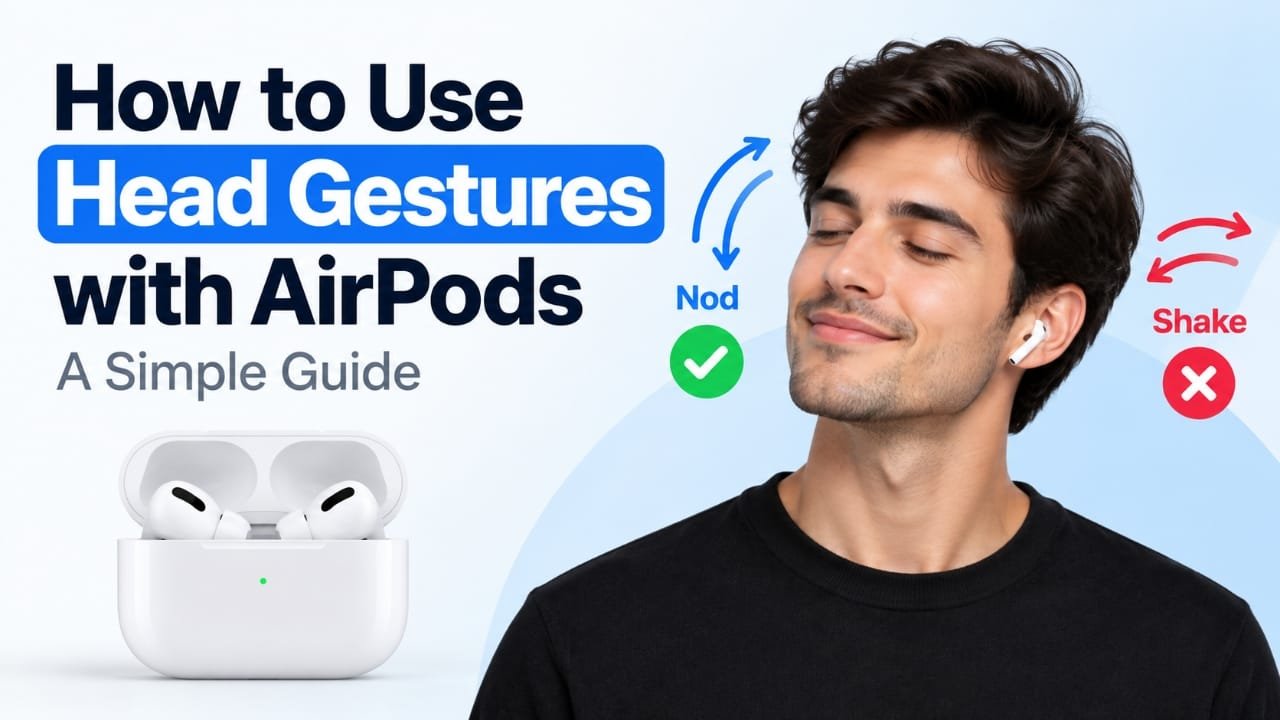
If you want to answer calls or respond to certain Siri prompts without touching your iPhone, AirPods head gestures can be useful. On supported AirPods and Apple devices, you can use a simple nod or head shake to interact with certain prompts.
The feature is especially handy when your hands are busy or you cannot easily reach your phone. This guide explains how AirPods head gestures work, how to enable them, which actions they can perform, and what to check if they are not working.
Also read: How to Share a Wi-Fi Password With a QR Code in Windows 11
What Are Head Gestures on AirPods?
Head gestures allow supported AirPods to detect certain movements of your head and use them as controls.
Typically, you can:
- Nod your head to accept or answer a supported prompt.
- Shake your head to decline or dismiss a supported prompt.
For example, when a compatible incoming call appears, you may be able to nod to answer it or shake your head to decline it.
The feature is designed for specific interactions rather than replacing all AirPods controls.
How to Turn On Head Gestures for AirPods
Before using the feature, make sure your AirPods and Apple device support it and are connected properly.
1. Check whether your AirPods support the feature
Head gestures are not available on every AirPods model. They require a supported AirPods model along with compatible Apple software.
If you cannot find the Head Gestures option in your settings, your AirPods model or current software may not support the feature.
2. Connect your AirPods
Put your AirPods in your ears and connect them to your iPhone or iPad.
You can check the connection through your device’s Bluetooth settings. Your AirPods should also appear as the connected audio device.
3. Open your AirPods settings
On your iPhone or iPad:
- Open Settings.
- Tap the name of your connected AirPods near the top of the screen.
- Look through the available AirPods controls and settings.
The exact options you see can vary depending on your AirPods model and software version.
4. Enable Head Gestures
Look for Head Gestures in your AirPods settings and turn the feature on.
Once enabled, your AirPods can recognize supported head movements when an appropriate prompt appears.
If you do not see this setting, do not assume that something is wrong with the AirPods. First check your model, connection, and software version.
How to Use AirPods Head Gestures
Once head gestures are enabled, using them is fairly straightforward.
Answer a call with a nod
When a supported incoming call appears, nod your head to accept it.
You do not need to reach for your iPhone or tap the AirPods.
Decline a call with a head shake
If you do not want to answer, shake your head when the supported call prompt appears.
The call should be declined when the gesture is correctly recognized.
Respond to supported Siri prompts
Head gestures can also be used with certain Siri interactions.
When a compatible prompt appears, use the indicated movement:
- Nod to accept.
- Shake your head to decline or dismiss.
The available actions depend on the specific prompt and your device configuration.
How to Test Head Gestures
It is a good idea to test the feature before relying on it during an important call.
You can ask someone to call you or use a supported Siri interaction. When the relevant prompt appears, make a clear but natural nod or head shake.
If the first movement is not detected, try again with a slightly more deliberate movement.
Avoid making extremely small or unusually fast movements while testing. The AirPods need to recognize the movement clearly.
Why Can’t I See Head Gestures on My AirPods?
If the Head Gestures option is missing, several things could be responsible.
Your AirPods may not support the feature
Head gestures are limited to supported AirPods models. Older or incompatible models may not show the setting.
Your iPhone or iPad may need an update
AirPods features can depend on the software running on your Apple device. Check for available iOS or iPadOS updates and install them when appropriate.
Your AirPods may not be connected
Make sure the AirPods are actively connected to the iPhone or iPad where you are checking the settings.
If you regularly switch between Apple devices, check the connection on the device you are currently using.
Your AirPods may be connected to another audio source
If a call is being handled through your iPhone’s speaker or another Bluetooth device, AirPods-specific controls may not behave as expected.
Check the selected audio output during the call.
Head Gestures Not Working? Try These Fixes
If you have enabled the feature but your AirPods are not recognizing your movements, work through these checks.
Reconnect the AirPods
Put the AirPods back into their charging case and close the lid. Wait briefly, then open the case and reconnect them to your device.
This can resolve temporary connection problems.
Check your software
Make sure your iPhone or iPad is running compatible, up-to-date software. Also check whether your AirPods have the latest available firmware.
Make sure the AirPods are the active audio device
During a call, check that the audio is being routed through your AirPods rather than the iPhone speaker or another connected Bluetooth device.
Check Siri settings
If head gestures are being used with a Siri-related prompt, make sure Siri is enabled and working normally on your device.
Restart your iPhone or iPad
A restart can sometimes clear temporary Bluetooth or software issues.
Re-pair the AirPods if necessary
If the problem continues, you can try resetting the AirPods and pairing them with your device again. Keep in mind that resetting removes the existing pairing configuration, so you will need to reconnect them afterward.
Tips for Getting More Reliable Head Gestures
A few simple habits can make the feature easier to use:
- Use a clear, natural movement rather than an extremely small one.
- Avoid exaggerated or unusually fast head movements.
- Test the feature before depending on it for an important call.
- Keep your iPhone or iPad updated.
- If you use several Apple devices, check which device your AirPods are currently connected to.
- Make sure the AirPods are properly positioned in your ears while testing.
- Turn the feature off if you find yourself triggering actions unintentionally.
Can You Turn Off AirPods Head Gestures?
Yes. If you decide that head gestures are not useful for you, return to your AirPods settings and switch Head Gestures off.
You can then continue using your usual AirPods controls, Siri commands, or your iPhone to manage calls and other actions.
Frequently Asked Questions
What are head gestures on AirPods?
Head gestures let compatible AirPods recognize certain head movements and use them for supported actions, such as responding to particular prompts.
Can every AirPods model use head gestures?
No. The feature requires a supported AirPods model and compatible Apple software. If the setting is unavailable, check your AirPods model and software version.
Can I answer calls by nodding with AirPods?
On supported AirPods and compatible setups, a nod can be used to answer a supported incoming call prompt.
Can I reject a call by shaking my head?
Yes, supported setups can use a head shake to decline an incoming call.
Do I need to speak to Siri to use head gestures?
Not necessarily. Head gestures can work with supported prompts without requiring you to verbally respond, although the exact behavior depends on the prompt and device settings.
Why aren’t head gestures showing in my settings?
Check whether your AirPods support the feature, whether they are connected to your device, and whether your iPhone or iPad has compatible software.
Can I disable head gestures later?
Yes. You can return to your AirPods settings and turn the feature off whenever you want.
Also read: How to Turn Off Head Gestures on AirPods
Final Thoughts
AirPods head gestures provide a convenient hands-free way to respond to certain calls and prompts. Once the feature is available and enabled, a simple nod or head shake can handle supported actions without requiring you to touch your iPhone.
If you cannot find the setting or the gestures are not responding, start with the basics: verify compatibility, check the connection, update your software, and make sure your AirPods are being used as the active audio device.

Abhi Rajput, founder of Earnabhi.com, is a tech lover with 6+ years of experience in SEO, digital tools, and smartphone troubleshooting. He writes simple, clear, and useful guides to help people solve real tech problems.