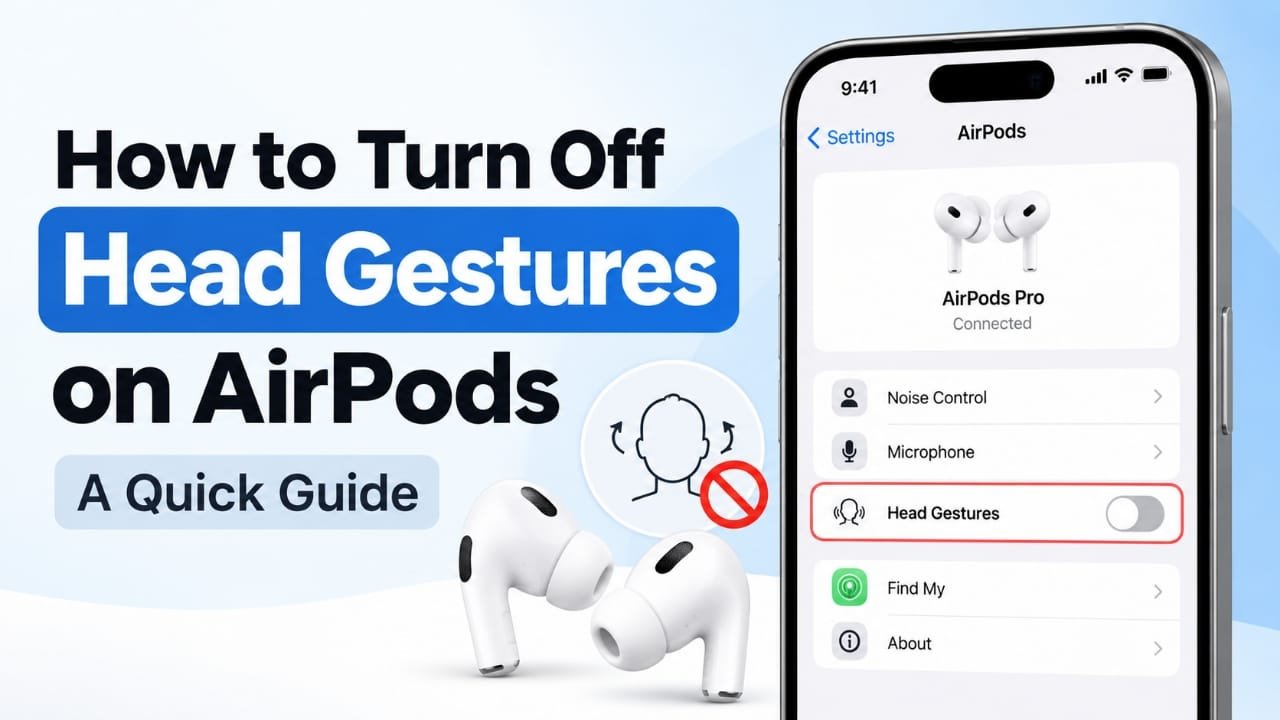
AirPods can recognize simple head movements and use them as controls for certain interactions, such as responding to notifications. While this can be convenient, accidental nods or head shakes can sometimes trigger an action when you do not want them to.
If you want your AirPods to stop responding to head movements, you can disable the feature from your connected iPhone or iPad. The setting is easy to change, provided your AirPods model and software support head gestures.
Also read: How to Check Training Load on Apple Watch: Step-by-Step Guide
How to Disable Head Gestures on AirPods
The quickest way to turn off the feature is through the AirPods settings on your iPhone or iPad.
1. Connect your AirPods
First, connect your AirPods to your iPhone or iPad.
You can put the AirPods in your ears or open their charging case near the device. Make sure the AirPods are connected before looking for their settings.
If the earbuds are not connected, the dedicated AirPods settings may not appear.
2. Open Settings
Open the Settings app on your iPhone or iPad.
The AirPods settings become available when the earbuds are connected to the device.
3. Select your AirPods
Look near the top of the Settings screen for your connected AirPods and tap their name.
This opens the settings page for the earbuds. Depending on your AirPods model and software, you may see controls for audio, microphone behavior, noise control, and other features.
4. Open Head Gestures
Look for the Head Gestures option.
This controls the feature that lets compatible AirPods recognize certain head movements and use them to perform supported actions.
If the option is available, tap it to view the control.
5. Turn Head Gestures off
Switch Head Gestures off.
Once disabled, your AirPods should no longer use supported nodding or head-shaking movements as gesture controls.
You can leave the rest of your AirPods settings unchanged.
6. Test the setting
After switching the feature off, use your AirPods normally and check whether the unwanted gesture responses have stopped.
For example, if head movements were causing unexpected responses to notifications, test the same situation again.
If the AirPods still respond to head movements, reconnect them and check the setting once more.
What to Do If Head Gestures Is Missing
Not seeing Head Gestures in your AirPods settings does not necessarily mean something is wrong.
The feature depends on the AirPods model and the software running on the connected Apple device. If the setting is missing, check the following:
- Make sure your AirPods are actually connected.
- Check for available iOS or iPadOS updates.
- Confirm that your particular AirPods model supports head gestures.
- Restart the iPhone or iPad and reconnect the AirPods.
- Check the AirPods settings again after reconnecting.
If the option remains unavailable, the model or current software configuration may not support the feature.
How to Turn Head Gestures Back On
You can reverse the change whenever you want.
Reconnect your AirPods, open Settings, select your AirPods, and look for Head Gestures. Turn the setting back on if you want to use motion-based controls again.
There is no need to reset your AirPods simply because you disabled the feature.
Does Turning Off Head Gestures Disable Other AirPods Features?
Turning off head gestures is intended to control the gesture feature itself. It does not mean that your AirPods stop functioning normally.
Features such as audio playback and other available AirPods controls can continue to work independently.
If your goal is specifically to prevent accidental responses caused by nodding or shaking your head, disabling the gesture feature is more targeted than changing unrelated AirPods settings.
What If the Setting Keeps Causing Problems?
If you have switched Head Gestures off but the AirPods continue behaving as though the feature is enabled, try these basic troubleshooting steps.
Reconnect the AirPods
Put the AirPods back in their case, close it, and reconnect them to your Apple device.
Then return to the AirPods settings and check whether Head Gestures is still disabled.
Restart your iPhone or iPad
A restart can help when a setting does not appear to have taken effect correctly.
After restarting, connect the AirPods again and check the setting.
Check for software updates
Open Settings > General > Software Update on your iPhone or iPad and check whether an update is available.
If you recently updated the device and an AirPods setting has changed or disappeared, reconnecting the earbuds after the update may also help.
Re-pair the AirPods if necessary
If the problem continues, you can remove the AirPods from Bluetooth settings and pair them again.
Go to Settings > Bluetooth, find your AirPods, tap the information button next to them, and use the available option to forget the device. You can then pair the AirPods with your iPhone or iPad again.
This is a more involved step, so it is generally better to try reconnecting and restarting first.
What If You Use AirPods With Multiple Apple Devices?
If you regularly switch your AirPods between an iPhone, iPad, and Mac, remember that the available settings can depend on the connected device and software.
If a behavior seems to return after switching devices, connect the AirPods to the device you are using and check its AirPods settings.
This is especially useful when the feature appears disabled on one device but behaves differently after connecting to another.
Can You Disable Head Gestures Without Turning Off Other Controls?
Yes, when the Head Gestures setting is available, you can disable it without needing to turn off unrelated AirPods features.
This makes it useful for people who like their AirPods’ other functions but do not want head movements to trigger supported actions.
Frequently Asked Questions
Do all AirPods have head gestures?
No. Head gestures are not available on every AirPods model. If the option does not appear when your AirPods are connected, compatibility or software support may be the reason.
Will turning off head gestures affect Active Noise Cancellation?
Disabling head gestures is a separate setting from noise-control features. It is not intended to disable Active Noise Cancellation or Transparency mode.
Can I enable head gestures again later?
Yes. If your AirPods support the feature, return to the AirPods settings and turn Head Gestures back on.
Why can’t I find my AirPods in Settings?
Your AirPods may not currently be connected. Check Bluetooth, put the AirPods in your ears or open the charging case near your device, and wait for the connection to establish.
Do I need the latest iOS or iPadOS version?
Software support can affect which AirPods settings are available. If Head Gestures is missing, checking for an available iOS or iPadOS update is a sensible first step.
Will disabling head gestures reset my AirPods?
No. Turning off the Head Gestures setting does not require an AirPods reset.
What should I do if head gestures still work after disabling them?
First, reconnect the AirPods and confirm that the setting remains off. If the problem continues, restart the connected Apple device and check for software updates. If you use multiple Apple devices, also check the AirPods settings on those devices.
Also read: How to Use Head Gestures with AirPods: A Simple Step-by-Step Guide
Final Thoughts
If head movements are causing unwanted AirPods responses, disabling Head Gestures is a straightforward way to remove that behavior. Connect your AirPods, open their settings on your iPhone or iPad, and switch the feature off.
If the option is unavailable or does not seem to work, start by checking AirPods compatibility, device software, and the connection. A restart or fresh pairing can also help with settings that are not behaving as expected.

Abhi Rajput, founder of Earnabhi.com, is a tech lover with 6+ years of experience in SEO, digital tools, and smartphone troubleshooting. He writes simple, clear, and useful guides to help people solve real tech problems.