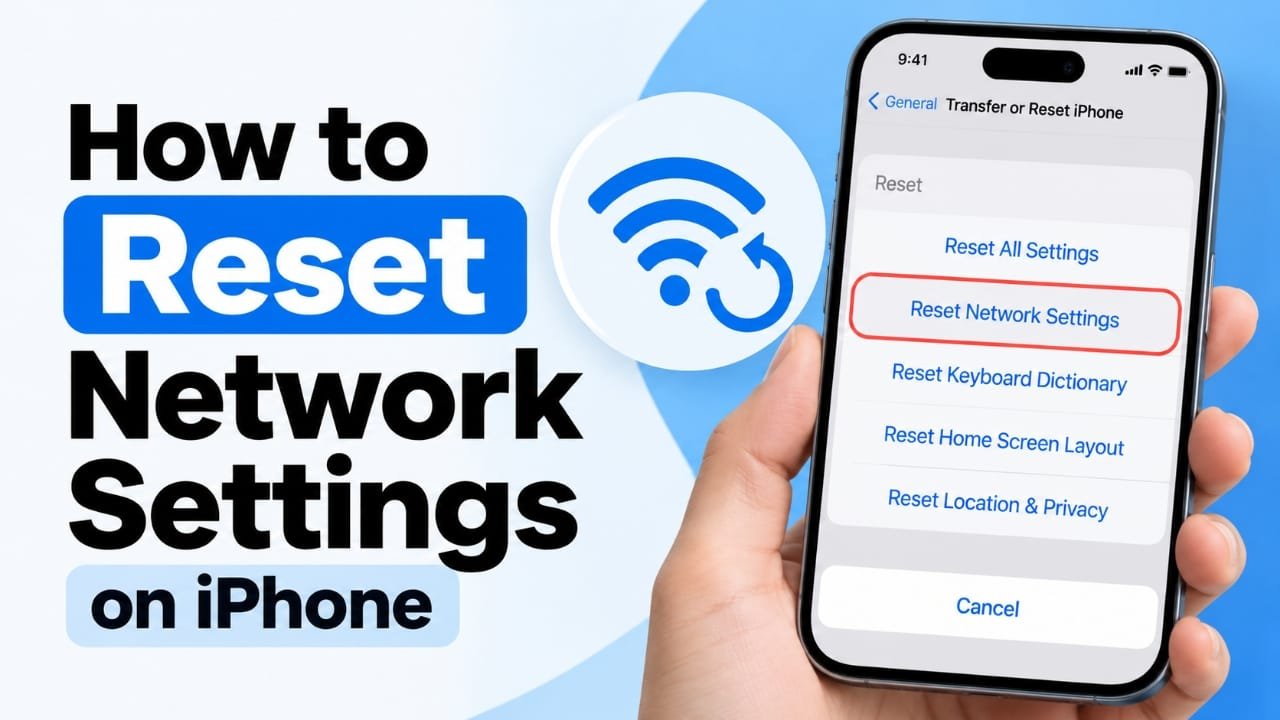
If your iPhone keeps disconnecting from Wi-Fi, refuses to join a network, or has cellular connectivity problems, resetting its network settings can help. The process is straightforward, but it removes saved network information, so you’ll need to reconnect to Wi-Fi afterward.
This guide explains how to reset network settings on an iPhone, what the reset removes, what stays untouched, and what you should try before using it.
Also read: How to Lock Cells in Excel: A Simple Step-by-Step Guide
What Does Resetting Network Settings Do on iPhone?
A network settings reset restores your iPhone’s network-related configuration to its default state. It does not erase your personal content.
After the reset, you may need to set up some connections again, including:
- Saved Wi-Fi networks and their passwords
- Cellular network settings, including manually configured APN settings
- VPN settings that you added yourself
- Manually trusted certificates
- Your iPhone’s device name, which returns to “iPhone”
- Cellular data roaming settings may also be turned off
Apple does not list Bluetooth pairings among the settings removed by the reset. However, if a Bluetooth accessory does not reconnect afterward, you may need to pair it again.
What Doesn’t Get Deleted?
A network reset does not erase your personal data. Your:
- Photos
- Videos
- Apps
- Messages
- Contacts
- Other personal content
remain on the iPhone.
Also, resetting network settings is different from Erase All Content and Settings, which is the option that wipes the device.
Before You Reset Network Settings
Because the reset cannot be undone, it is a good idea to have the information you’ll need afterward.
Find Your Saved Wi-Fi Password
On iOS 16 and later, you can view a saved Wi-Fi password before resetting:
- Open Settings.
- Tap Wi-Fi.
- Tap the Info button next to your network.
- Tap Password.
- Authenticate with your passcode, Face ID, or Touch ID.
- Copy or write down the password.
For other saved networks, you can use Edit on the Wi-Fi screen. On newer iOS versions, saved Wi-Fi passwords can also be accessed through the Passwords app.
If you use a manually configured VPN or custom cellular settings, save those details too.
Try These Fixes Before Resetting
A network reset is not always necessary. Try these simpler troubleshooting steps first:
- Turn Airplane Mode on for about 15 seconds, then turn it off.
- Restart your iPhone.
- Restart your router and modem.
- Forget the affected Wi-Fi network and reconnect to it.
- Check Settings > General > Software Update for an available iOS update.
If only one Wi-Fi network is causing trouble, forgetting that network may be enough.
To do this, open Settings > Wi-Fi, tap the Info button beside the network, and select Forget This Network.
How to Reset Network Settings on iPhone
The current reset path is:
Settings > General > Transfer or Reset iPhone > Reset > Reset Network Settings
Follow these steps:
- Open the Settings app.
- Tap General.
- Scroll down and select Transfer or Reset iPhone.
- Tap Reset.
- Select Reset Network Settings.
- Enter your iPhone passcode if requested.
- Confirm that you want to reset the network settings.
Your iPhone will disconnect from Wi-Fi and clear its network configuration. Depending on the device and software version, the iPhone may also restart.
Be careful when choosing the reset option. Do not select Erase All Content and Settings unless you intend to erase the iPhone.
How to Reset Network Settings on Older iOS Versions
On iOS 14 and earlier, the menu is different because there is no Transfer or Reset iPhone option.
Use this path instead:
Settings > General > Reset > Reset Network Settings
Then enter your passcode and confirm the reset.
What Happens After the Reset?
Once the network reset is complete, your iPhone will no longer automatically connect to your previously saved Wi-Fi networks.
To get back online:
- Open Settings > Wi-Fi.
- Select your Wi-Fi network.
- Enter its password.
- Wait for the iPhone to connect.
You may also need to:
- Reconfigure a VPN you installed manually.
- Re-pair Bluetooth accessories if they no longer connect.
- Restore custom APN settings if your carrier requires them.
- Turn cellular data roaming back on if you use it.
- Change your iPhone’s name again if you had previously customized it.
How to Check Whether the Reset Worked
Open Settings > Wi-Fi after the reset.
Your iPhone should no longer be connected to your previous Wi-Fi network, and networks you used before should require their passwords again.
You can also check Settings > General > About. The device name will be iPhone if you had previously changed it.
There is no undo button for the reset. The removed network settings have to be entered again manually.
When Should You Reset Network Settings?
A network reset can be worth trying when normal troubleshooting has not solved a connectivity problem, such as:
- Wi-Fi repeatedly disconnecting
- An iPhone refusing to connect to a particular network
- Cellular connectivity behaving unexpectedly
- Network problems appearing after an iOS update
- Persistent connection issues that are not caused by the router or carrier
However, a network reset cannot fix every connectivity problem.
For example, if your internet provider is experiencing an outage, resetting your iPhone will not restore the service. Likewise, a carrier account problem or faulty router may require a different solution.
What If Network Reset Doesn’t Fix the Problem?
If the problem continues, narrow down where the failure is happening.
Wi-Fi Doesn’t Work on Any Network
Try connecting the iPhone to another Wi-Fi network.
If it cannot connect to multiple networks, the problem may be with the iPhone rather than your home router. Apple Support may be the next place to seek help.
Only One Wi-Fi Network Fails
If other networks work normally, the problem is more likely related to that particular network, router, or internet service.
Restarting the router and checking its configuration may be more useful than repeatedly resetting the iPhone.
Cellular Service Still Doesn’t Work
Connect to Wi-Fi and open:
Settings > General > About
If a carrier settings update is available, iOS may display an option to install it.
If the cellular problem continues, contact your carrier, particularly if the phone shows SOS, No Service, or Searching.
A Work or School VPN Is Still Present
A VPN or network setting installed through a configuration profile or device-management system may remain after a network reset.
This is common on managed devices. If you cannot change or remove the setting yourself, contact the organization that manages the iPhone.
Network Reset vs. Reset All Settings
These two options are not the same.
| Reset option | What it does |
|---|---|
| Reset Network Settings | Removes network-related settings such as saved Wi-Fi information and certain manually configured network settings |
| Reset All Settings | Resets a much wider range of iPhone settings without deleting personal data |
| Erase All Content and Settings | Erases the iPhone’s content and settings |
If your problem is specifically related to Wi-Fi, cellular connectivity, or other network configuration, Reset Network Settings is the more targeted option.
Frequently Asked Questions
Will resetting network settings delete my photos and apps?
No. A network settings reset does not erase your photos, apps, messages, contacts, or other personal content.
Does resetting network settings delete an eSIM?
No. Removing eSIMs is a separate reset option. Do not select Delete All eSIMs unless you specifically intend to remove your cellular plans.
Does a network reset remove Bluetooth devices?
Apple’s description of the network reset does not list Bluetooth pairings as being removed. If an accessory stops connecting afterward, you can pair it again through Settings > Bluetooth.
Will I need my Wi-Fi password after the reset?
Yes. Saved Wi-Fi networks and their passwords are removed, so you will need to enter the password when reconnecting.
Can I undo a network settings reset?
No. There is no undo option. You must enter the removed network settings again.
Should I back up my iPhone before resetting network settings?
A backup is not required to preserve your personal content because the network reset does not erase it. However, keeping regular backups is still useful if you want to protect your iPhone data and settings.
Also read: How to Connect AirPods to an Android Phone: Step-by-Step Guide
Final Thoughts
Resetting network settings is a targeted troubleshooting step for persistent Wi-Fi or cellular connection problems. It does not erase your personal data, but it does remove saved network information, so make sure you have important Wi-Fi passwords and other configuration details available first.
If simpler fixes such as restarting the iPhone, restarting the router, forgetting the Wi-Fi network, or installing an iOS update have not helped, a network reset may be the next step.

Abhi Rajput, founder of Earnabhi.com, is a tech lover with 6+ years of experience in SEO, digital tools, and smartphone troubleshooting. He writes simple, clear, and useful guides to help people solve real tech problems.