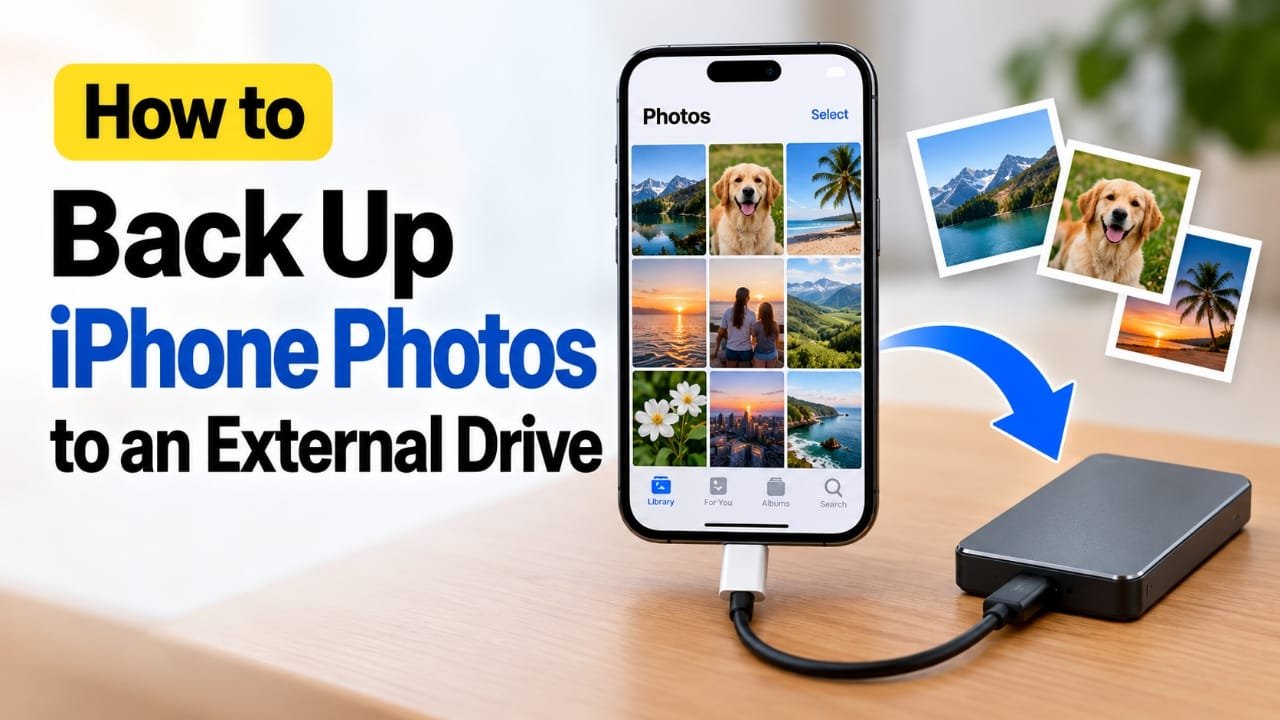
If your iPhone is running low on storage or you simply want another copy of your photos, saving them to an external drive is a practical option. You can transfer selected photos directly from the iPhone to a USB flash drive or portable SSD, or move them through a Mac or Windows PC first.
The method you should use depends mainly on your iPhone’s connector, the type of external drive you have, and whether your photos are stored locally or mainly in iCloud.
Also read: How to Block a Website on Chrome: 4 Easy Methods
What You Need Before Starting
Before transferring anything, make sure your external drive and iPhone are compatible.
A compatible external drive
Apple supports external storage devices using formats such as:
- APFS
- macOS Extended
- exFAT
- FAT32
- FAT
A drive with a single partition is required. exFAT is commonly used for external drives and is a practical choice when the drive needs to work with different computers and devices.
Keep in mind that an NTFS-formatted drive may not appear in the iPhone’s Files app.
The correct connection
The connector depends on your iPhone model.
- iPhone 15 and newer: These models use USB-C.
- Older Lightning iPhones: You may need a Lightning to USB Camera Adapter or Lightning to USB 3 Camera Adapter.
Some external hard drives also require more power than an iPhone can provide. A powered hub or an independently powered drive may be necessary in that situation.
For a smaller photo collection, a compatible USB flash drive can be convenient. For large collections containing lots of videos, a portable SSD provides more storage capacity.
Method 1: Transfer Photos Directly From Your iPhone
This is usually the simplest method when your external drive can connect directly to the iPhone.
Step 1: Connect the external drive
Plug the flash drive or SSD into your iPhone’s charging port using the appropriate connector or adapter.
Step 2: Open the Photos app
Open Photos and tap Select.
Choose the photos and videos you want to copy to the external drive.
Step 3: Save the photos to the drive
Tap the Share button and choose Save to Files.
Under Locations, select your connected external drive. Choose a folder if you want to organize the files, then tap Save.
The iPhone will create copies of the selected photos on the drive.
Step 4: Check the backup
After the transfer finishes, open the Files app and go to Browse.
Select the external drive and open the folder where you saved the photos. Check that the files are actually present before deleting anything from your iPhone.
Method 2: Back Up iPhone Photos Using a Mac
A Mac can be useful if you have a large number of photos or your external drive cannot be connected directly to the iPhone.
Steps
- Connect the iPhone to the Mac with a USB cable.
- Unlock the iPhone and select Trust if prompted.
- Connect your external drive to the Mac.
- Open Image Capture.
- Select your iPhone from the available devices.
- Choose a folder on the external drive as the import destination.
- Select the photos you want to transfer, or use Import All.
- Wait for the transfer to finish and check the external drive.
This method lets the Mac handle the photo transfer while the external drive is used as the storage destination.
Method 3: Back Up iPhone Photos Using a Windows PC
Windows users can transfer the photos to the computer first and then copy them to the external drive.
Step 1: Connect the iPhone
Install the Apple Devices app from the Microsoft Store if required.
Connect the iPhone to your PC, unlock it, and choose Trust or Allow when the iPhone asks for permission.
Step 2: Import the photos
Use the Windows Photos app to import the pictures from your iPhone.
Save the imported files to a location on your PC where you can easily find them.
Step 3: Copy them to the external drive
Connect the external drive to the PC.
Open File Explorer, find the folder containing your imported photos, and copy or move the files to the external drive.
If Windows has trouble opening photos from your iPhone, Apple recommends changing the camera format to Most Compatible under Settings > Camera > Formats.
What If You Use iCloud Photos?
This is an important point before transferring your pictures.
If iCloud Photos is enabled with Optimize iPhone Storage, your iPhone may keep smaller versions of some photos while the full-resolution originals remain in iCloud.
Before transferring photos to a computer or external drive, make sure the full-resolution originals have been downloaded to the iPhone when necessary.
Otherwise, you may not end up with the original-quality files you expected.
How to Check That Your Backup Worked
Don’t immediately delete photos after copying them.
First:
- Open the external drive.
- Find the folder containing your photos.
- Open several photos and videos.
- Check that they have transferred correctly.
- If possible, safely eject the drive and reconnect it to verify that the files remain accessible.
Once you’re confident that your important photos are safely copied, you can decide whether you still need the originals on your iPhone.
What If the External Drive Doesn’t Appear?
If the drive isn’t visible in the Files app, check these possibilities:
- Make sure the drive uses a supported file system.
- Check whether it is formatted as NTFS.
- Make sure the connector or adapter is compatible with your iPhone.
- If you’re using a power-hungry hard drive, try a powered hub or an independently powered drive.
- Disconnect and reconnect the drive and check the Files app again.
Be careful when reformatting a drive. Formatting normally erases the existing data on it, so copy anything important somewhere else first.
Can You Back Up the Entire iPhone to an External Drive?
Backing up photos is different from creating a complete iPhone backup.
The methods above create copies of your selected photos and videos. They do not create a complete copy of your iPhone’s apps, settings, messages and other device data.
For a full iPhone backup, Apple provides computer-based backup options through Finder on Mac and the Apple Devices app on Windows. If your goal is specifically to keep an extra copy of your photo library, however, transferring the photos to an external drive is a straightforward option.
Does Saving Photos to an External Drive Delete Them From the iPhone?
No. Using Save to Files creates a copy of the selected files.
Your photos remain on the iPhone unless you manually delete them.
This is why it’s better to verify the external-drive copy before removing photos from your iPhone.
Also read: Can You Call Google Support for Gmail? Current Help Options
Final Thoughts
An external drive can give you an additional copy of important iPhone photos without relying only on your phone’s internal storage.
For a small number of photos, connecting a compatible flash drive directly to the iPhone can be the easiest approach. If you have a large library, transferring the photos through a Mac or Windows PC may be more convenient.
Whichever method you choose, check the copied files before deleting the originals, and pay particular attention to iCloud’s Optimize iPhone Storage setting if you need full-resolution photos.
Frequently Asked Questions
Can I transfer iPhone photos directly to a USB drive?
Yes. If the USB drive is compatible with the iPhone and uses a supported format, you can connect it, select photos in the Photos app, choose Share > Save to Files, and select the external drive.
What format should an external drive use with an iPhone?
Apple supports formats including APFS, macOS Extended, exFAT, FAT32 and FAT, provided the drive has a single partition. An NTFS-formatted drive may not work with the iPhone’s Files app.
Do I need an adapter for an older iPhone?
If your iPhone uses a Lightning connector, you may need a Lightning to USB Camera Adapter or Lightning to USB 3 Camera Adapter to connect a USB storage device.
Can an iPhone power an external hard drive?
Some external hard drives require more power than the iPhone can provide. In that case, a powered hub or separate power source may be necessary.
Will my photos lose quality when I copy them to an external drive?
Copying a photo to an external drive does not by itself reduce its quality. However, if iCloud Photos is using Optimize iPhone Storage, make sure the full-resolution originals are available before transferring them.
Can I delete my iPhone photos after backing them up?
You can, but verify the backup first. Open several copied photos and videos from the external drive to make sure the files transferred successfully before deleting the originals.

Abhi Rajput, founder of Earnabhi.com, is a tech lover with 6+ years of experience in SEO, digital tools, and smartphone troubleshooting. He writes simple, clear, and useful guides to help people solve real tech problems.