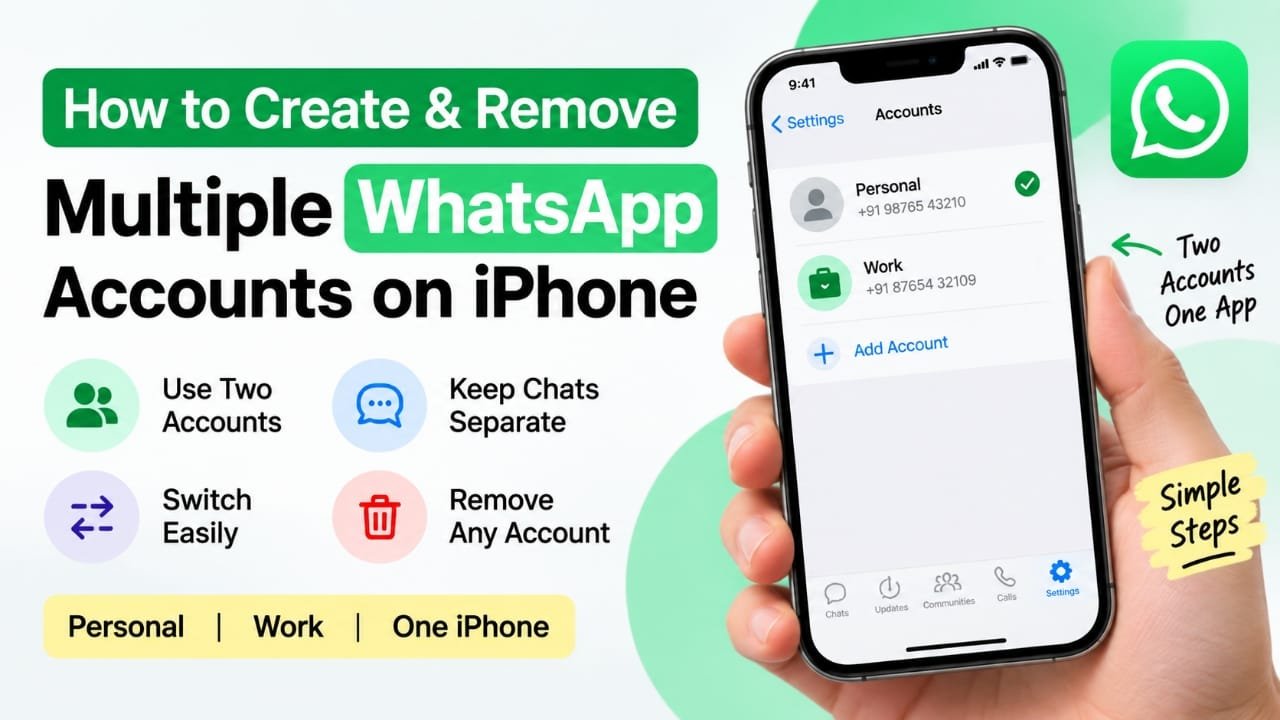
If you use separate phone numbers for personal and work conversations, you no longer need two iPhones just to keep your WhatsApp accounts separate. WhatsApp supports multiple accounts within the same app, allowing you to add a second account and switch between them when needed.
In this guide, you’ll learn how to add a second WhatsApp account on an iPhone, switch between accounts, and remove an account without uninstalling the app.
Also read: How to Schedule WhatsApp Messages on iPhone and Android
What Is WhatsApp Multiple Accounts on iPhone?
WhatsApp’s multiple-account feature lets you use two different WhatsApp accounts from the same iPhone app. Each account is connected to its own phone number and keeps its conversations and account settings separate.
For example, you can use one account for personal messages and another for work-related chats.
Each account can have its own:
- Chats and groups
- Profile photo
- About information
- Privacy settings
- Notification preferences
You can also receive messages and calls for both accounts without constantly logging out and back in.
What You Need Before Adding a Second WhatsApp Account
Before setting up another account, make sure you have:
- WhatsApp installed on your iPhone.
- The latest available version of WhatsApp.
- A second phone number that can receive an SMS or verification call.
- A physical SIM or eSIM associated with the second number.
- A supported iOS version.
The second number needs to be verified during setup, so you must have access to it.
If WhatsApp does not show the multiple-account option, updating the app and iOS is a sensible first step. Feature availability can also vary depending on the version of the app and rollout status.
How to Add a Second WhatsApp Account on iPhone
Once you have a second phone number ready, you can add another account directly from WhatsApp.
Step 1: Open WhatsApp
Launch WhatsApp on your iPhone and make sure you are using your existing account.
Step 2: Open Settings
Tap Settings from the bottom navigation bar.
Step 3: Open Your Account Profile
Tap the profile area at the top. Depending on the WhatsApp version installed on your iPhone, you may see a + icon or an account-switching arrow.
Step 4: Select Add Account
Tap Add Account to begin setting up the second WhatsApp account.
Step 5: Enter the Second Phone Number
Follow the on-screen instructions, select the appropriate country, and enter the second phone number.
Tap Continue.
Step 6: Verify the Number
WhatsApp will send a verification code to the second number. Enter the code when prompted.
If SMS verification isn’t available, WhatsApp may provide a phone-call verification option.
Step 7: Set Up Your Profile
Enter the name you want to use for the new account. You can also add a profile picture and About information.
Complete the remaining setup instructions to finish.
Your second WhatsApp account should now be available in the same app.
How to Switch Between WhatsApp Accounts on iPhone
After adding a second account, switching between them doesn’t require you to log out.
- Open WhatsApp.
- Go to Settings.
- Tap your profile/account section.
- Select the WhatsApp account you want to use.
WhatsApp will switch to the selected account. Check the profile information before sending an important message, especially if you regularly move between personal and work accounts.
What Happens to Notifications From Both Accounts?
Multiple accounts are designed to let you stay connected to both numbers. Messages and calls can arrive for the accounts even when you are currently viewing the other account.
This can be useful if you don’t want to repeatedly open WhatsApp and manually check each number.
However, notification behavior can depend on your iPhone’s notification settings and the WhatsApp version installed on your device.
Benefits of Using Two WhatsApp Accounts on One iPhone
Using multiple accounts can be useful if you have separate numbers for different parts of your life.
Keep Personal and Work Chats Separate
You can use one account for family and friends while keeping professional conversations on another account.
Manage Two Numbers From One Phone
You don’t need to carry a second smartphone just to access another WhatsApp account.
Use Different Account Settings
Each WhatsApp account can maintain its own profile and privacy-related settings.
Avoid Unofficial WhatsApp Apps
You don’t need to rely on modified or unofficial WhatsApp applications simply to use another account.
How to Remove a WhatsApp Account From Your iPhone
If you no longer want a particular WhatsApp account connected to your iPhone, you can remove that account without uninstalling the entire WhatsApp application.
Before removing it, make sure you understand what will happen to any chats or data you may need later.
Follow these steps:
- Open WhatsApp.
- Switch to the account you want to remove.
- Open Settings.
- Go to Account.
- Back up important chats if necessary.
- Look for the Remove Account option.
- Follow the on-screen instructions to confirm the removal.
The exact wording or location of account-management options can change with future WhatsApp updates.
Remove Account vs Delete WhatsApp Account
These two actions should not be confused.
Removing an account from the iPhone is intended to disconnect that account from the device. It is different from permanently deleting the WhatsApp account itself.
Deleting a WhatsApp account is a much more permanent action. It can remove the account and associated information according to WhatsApp’s account-deletion process.
If you only want to stop using a second account on your current iPhone, check that you are choosing the device/account removal option rather than the permanent account-deletion option.
If you have important conversations, make sure you understand the available backup and recovery options before removing or deleting anything.
WhatsApp Add Account Option Not Showing? Try These Fixes
If you cannot find the option to add another account, try the following:
Update WhatsApp
Open the App Store and check whether an update is available for WhatsApp.
Update iOS
Go to your iPhone’s software update settings and install an available iOS update if appropriate.
Check the Phone Number
Make sure the second number is active and can receive the verification code.
Check Your Internet Connection
A poor connection can interfere with account setup or verification.
Check Feature Availability
WhatsApp features can be introduced or changed through app updates and staged rollouts. If the option still doesn’t appear after updating, it may not yet be available on your particular setup.
Avoid Repeated Verification Attempts
If you don’t receive the verification code immediately, avoid repeatedly requesting new codes. Follow the verification instructions shown by WhatsApp and use the available alternative verification method when offered.
Frequently Asked Questions
Can I use two WhatsApp accounts on one iPhone?
Yes, WhatsApp supports multiple accounts in the same app, allowing compatible iPhone users to manage two accounts with separate phone numbers.
Do I need two phone numbers?
Yes. Each WhatsApp account requires its own phone number for registration and verification.
Can I use a physical SIM and an eSIM?
A second account can use a number associated with a physical SIM or eSIM, provided the number can complete WhatsApp’s verification process.
Do I need to install two WhatsApp apps?
No. The multiple-account feature is designed to let you manage the accounts from the same WhatsApp application.
Can I switch between WhatsApp accounts?
Yes. After adding the second account, you can switch between the available accounts through WhatsApp’s account/profile controls.
Can I remove the second account without uninstalling WhatsApp?
Yes. You can remove an individual account from the iPhone without removing the entire WhatsApp application.
What should I do if I don’t see Add Account?
First, update WhatsApp and iOS, check your internet connection, and make sure you’re using a valid second phone number. If the option is still unavailable, the feature may not yet be available for your particular app version or setup.
Final Thoughts
WhatsApp’s multiple-account feature provides a convenient way to keep two phone numbers in one iPhone app. It can be particularly useful when you want to separate personal and professional conversations without carrying another phone.
Before adding or removing an account, make sure the second number is accessible for verification and that you have protected any important chats you may need later. Keeping WhatsApp and iOS updated can also help ensure that the latest account-management options are available.

Abhi Rajput, founder of Earnabhi.com, is a tech lover with 6+ years of experience in SEO, digital tools, and smartphone troubleshooting. He writes simple, clear, and useful guides to help people solve real tech problems.