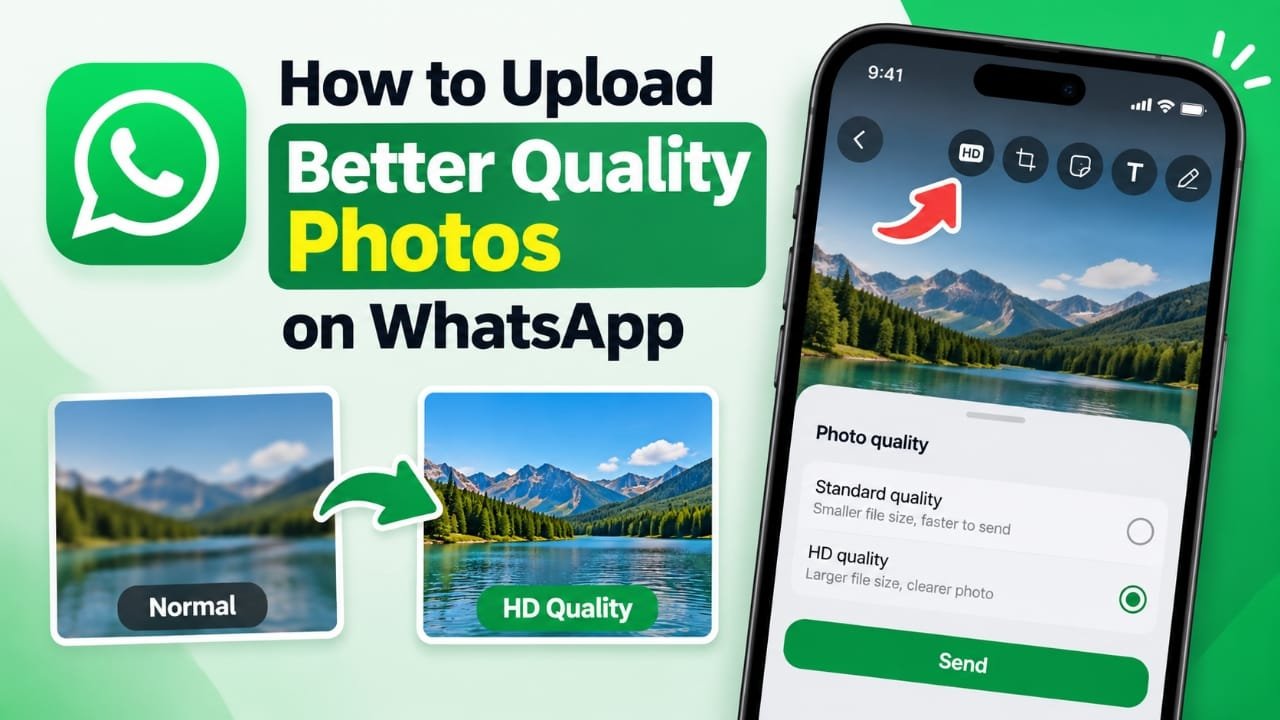
If photos look blurry or less detailed after you send them on WhatsApp, the problem is usually media compression. WhatsApp reduces the size of shared photos and videos so they use less data and can be sent more quickly.
For better quality, WhatsApp provides an HD quality option for photos and videos sent in chats. You can use HD for a single photo or make it the default setting for future media uploads. (WhatsApp Help Center)
If you need to preserve an image file without WhatsApp treating it as regular photo media, you can also send it as a document.
Also read: How to Block or Unblock Someone on WhatsApp
Why Do WhatsApp Photos Lose Quality?
When you send a photo as regular media, WhatsApp may compress the file. Compression reduces the amount of data in the image, which can make the shared version look different from the original.
This is useful when you want faster uploads and lower data usage. However, compression can become noticeable in photos with small text, fine details, or high resolution.
WhatsApp’s HD quality setting provides a clearer version than Standard quality, although HD media still isn’t the same as sending the untouched original file. HD uploads can also use more data and take longer to send. (WhatsApp Help Center)
How to Send Photos in HD Quality on WhatsApp
You can select HD quality whenever you send a photo or video in an individual or group chat.
Follow these steps
- Open WhatsApp and go to the individual or group chat.
- Tap the attachment button on Android or the + button on iPhone.
- Select Gallery/Photos and choose the photo or video you want to send.
- On the media preview screen, tap the HD icon.
- Select HD quality instead of Standard quality.
- Make any edits or add a caption if needed.
- Tap Send.
WhatsApp’s current Help Center confirms that the HD option can be selected before sending photos and videos in chats. (WhatsApp Help Center)
The exact buttons can look slightly different depending on your phone and WhatsApp version, but the HD option should be available on the media preview screen when the feature is supported.
How to Make HD Quality the Default on WhatsApp
If you regularly send photos in higher quality, you don’t have to select HD every time. WhatsApp lets you change the default media upload quality.
The setting is available under:
WhatsApp → Settings → Storage and data → Media upload quality → HD quality
After selecting HD quality, WhatsApp will use HD as the default for supported photo and video uploads. You can still switch an individual upload back to Standard quality when you want to save data or send it faster. (WhatsApp Help Center)
Should You Keep HD as the Default?
That depends on how you use WhatsApp.
HD is useful when:
- You regularly share photos where detail matters.
- You send work-related images or screenshots.
- You want better-looking photos in chats.
- You have a reliable Wi-Fi or mobile data connection.
Standard quality may be better when:
- You want to use less mobile data.
- You need the media to upload quickly.
- Image quality is not particularly important.
WhatsApp says HD media uses more data and can take longer to send than Standard quality. (WhatsApp Help Center)
How to Send a Photo Without Treating It as Regular Media
HD quality is useful when you want a clearer photo, but it should not be confused with sending an original file.
If preserving the actual file is important, you can send the image as a Document rather than selecting it as a normal photo.
This can be useful for:
- High-resolution photographs
- Images containing important text
- Work-related files
- Original image files that someone needs to download
- Files that you don’t want handled as normal chat media
On iPhone, WhatsApp’s Help Center currently lists Document as an attachment option and states that documents can be up to 2 GB. (WhatsApp Help Center)
The main difference is simple:
| Sharing method | Best for |
|---|---|
| Standard quality | Faster sharing and lower data usage |
| HD quality | Better-looking photos and videos in chats |
| Document | Sharing the image as a file when preserving the original file is important |
HD Quality Is Not Available Everywhere
One important limitation is that WhatsApp’s HD media option is currently intended for media shared in chats. WhatsApp says HD media isn’t currently available for Status updates or profile pictures. (WhatsApp Help Center)
So if your goal is to upload a high-quality WhatsApp Status, simply looking for the HD button may not work because the feature isn’t supported there in the same way.
What If Your HD Photo Still Looks Blurry?
Selecting HD doesn’t guarantee that every image will look exactly like the original.
Several factors can affect how media appears, including the quality of the source image and the internet connection used to send or receive it. WhatsApp also notes that media quality can be lower than the original because media files are generally compressed when shared. (WhatsApp Help Center)
If a photo looks blurry, try these checks:
- Make sure you’re sending it using HD quality.
- Check that the original photo itself is sharp.
- Avoid repeatedly saving and re-sharing an already compressed image.
- Try a stronger Wi-Fi or mobile data connection.
- Update WhatsApp if the HD option is missing or behaving unexpectedly.
WhatsApp specifically recommends checking the internet connection and updating the app when dealing with blurry photos. (WhatsApp Help Center)
Does HD Quality Use More Data?
Yes. HD media is larger than Standard-quality media, so it can use more data and may take longer to upload or download.
If you’re using mobile data or have a slow connection, Standard quality can be more practical. If image quality is more important, HD is the better setting for normal chat sharing. (WhatsApp Help Center)
Can You Change a Photo to HD After Sending It?
No. WhatsApp says you can’t upgrade the quality of an already-sent photo. If you originally sent it in Standard quality, you need to send the photo again and select HD quality before sending it. (WhatsApp Help Center)
Frequently Asked Questions
How do I send high-quality photos on WhatsApp?
Open a chat, select the photo, tap the HD button on the preview screen, choose HD quality, and then send it. (WhatsApp Help Center)
How do I make HD quality the default on WhatsApp?
Go to Settings → Storage and data → Media upload quality and select HD quality. (WhatsApp Help Center)
Does WhatsApp HD send the original photo?
Not necessarily. HD provides better quality than Standard media, but WhatsApp still handles HD media differently from an untouched original file. If preserving the original file matters, consider sending the image as a document.
Why is my WhatsApp photo still blurry after selecting HD?
The source image, internet connection, and WhatsApp’s media processing can all affect how the image appears. WhatsApp also states that shared media may be lower quality than the original. (WhatsApp Help Center)
Can I send HD photos on WhatsApp Status?
Currently, WhatsApp says HD media isn’t available for Status updates. (WhatsApp Help Center)
Is HD better than Standard quality?
HD produces clearer photos and videos, but it uses more data and may take longer to send. Standard quality is more suitable when saving data or sending media quickly is the priority. (WhatsApp Help Center)
Also read: How to Delete Your YouTube Account or Channel: Step-by-Step Guide
Final Takeaway
WhatsApp’s HD setting is the easiest way to improve photo and video quality when sharing media in chats. If you regularly send important images, you can make HD quality the default under Storage and data.
For situations where keeping the original image file is more important than displaying it as regular WhatsApp media, sending the image as a Document is another option.
The right choice depends on what matters more for each upload: image quality, original-file preservation, upload speed, or data usage.

Abhi Rajput, founder of Earnabhi.com, is a tech lover with 6+ years of experience in SEO, digital tools, and smartphone troubleshooting. He writes simple, clear, and useful guides to help people solve real tech problems.