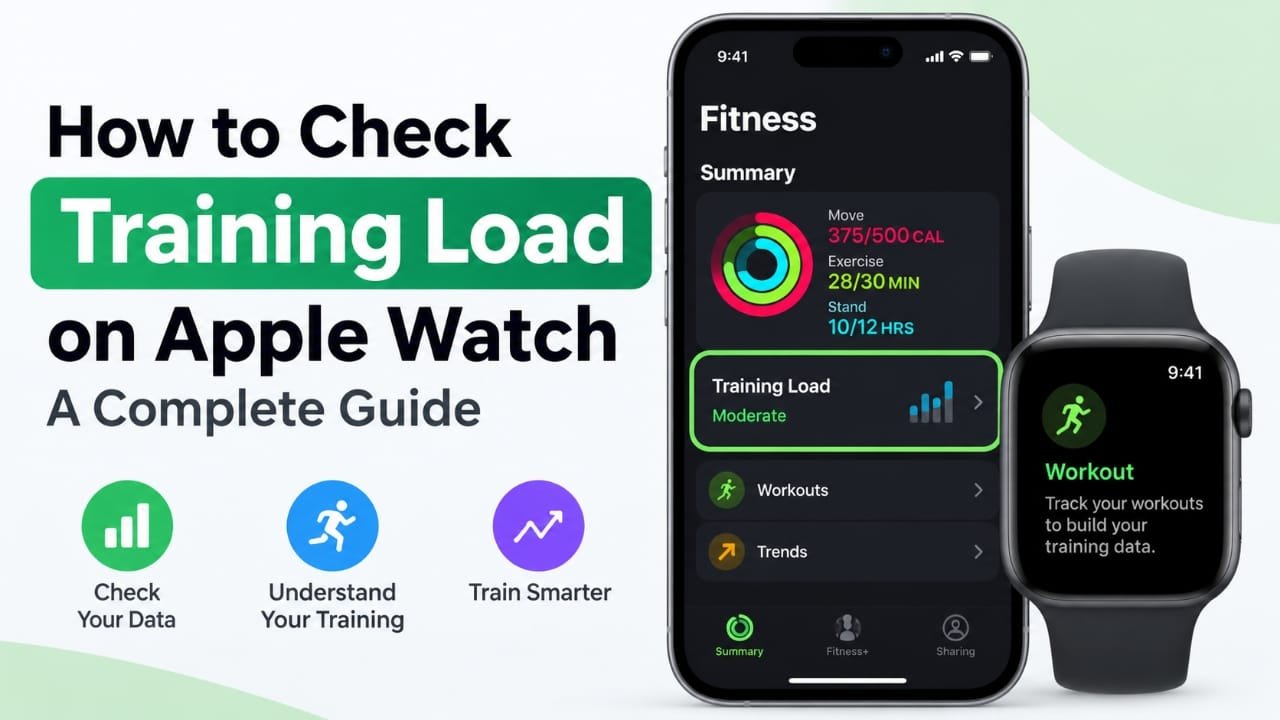
If you use your Apple Watch to track workouts, Training Load can help you understand how demanding your recent exercise has been. Instead of looking at a single workout, it gives you a broader view of your training and can help you decide when to push harder and when to focus on recovery.
You’ll generally find the detailed Training Load information in the Fitness app on your iPhone. Here’s how to check it, how to interpret the information, and what to try if the feature isn’t showing up.
Also read: How to Use Head Gestures with AirPods: A Simple Step-by-Step Guide
How to Check Training Load on Apple Watch
Follow these steps to find your Training Load information:
1. Open the Fitness app on your iPhone
Open the Fitness app on the iPhone paired with your Apple Watch.
Start from the Summary tab. This is where you can see your activity, workout information, and other fitness data.
If you can’t immediately find Fitness, use iPhone’s search feature and type Fitness.
2. Find Training Load
Scroll down through the Summary screen and look for the Training Load section.
Depending on the amount of workout information available on your devices, you may see a current training-load assessment along with a graph showing how your load has changed.
3. Tap Training Load for more information
Tap Training Load to open its detailed view.
This gives you a better look at your recent training activity and makes it easier to see whether your overall workload has been increasing, decreasing, or remaining relatively consistent.
4. Look at the longer-term trend
Don’t focus only on the latest reading.
Look at the trend across your recent workouts. A gradual change can provide more useful context than a single workout, particularly if you exercise regularly.
5. Consider the result when planning your next workout
Training Load can be one factor in deciding what to do next.
For example:
- A higher training load may make a lighter workout or recovery day worth considering.
- A lower load may indicate that your recent training has been less demanding.
- A sudden increase can be a reason to pay closer attention to recovery.
- A steady training pattern can help you understand your normal workload.
The metric shouldn’t be treated as a command. Your energy levels, soreness, sleep, and how you actually feel also matter when deciding how hard to train.
What Is Training Load on Apple Watch?
Training Load is designed to give you an idea of how demanding your recent workouts have been.
Rather than considering one exercise session in isolation, it helps put your recent activity into context. This makes it useful for people who want to understand changes in their training routine and balance harder sessions with easier ones.
The important point is that Training Load is a guide, not a direct measurement of how your body feels. Two people can complete similar workouts and recover differently.
Why You Might Not See Training Load
If Training Load isn’t appearing in Fitness, there are several things worth checking.
Your Apple Watch or iPhone may need an update
Fitness features can depend on the software version installed on your devices.
Check for available updates on your iPhone and Apple Watch. On the iPhone, you can check under:
Settings → General → Software Update
For the Apple Watch, you can check for watchOS updates through the Watch app on your paired iPhone.
Your Apple Watch may not support the feature
Not every Apple Watch model necessarily supports every newer fitness feature.
If you’ve confirmed that your software is up to date but still can’t find Training Load, check whether your particular Apple Watch model supports it.
You may not have enough workout history
Training-related metrics are more useful when your Apple Watch has workout information to work with.
If you’ve only recently started recording workouts with your Apple Watch, the Training Load section may not provide much information yet.
Your workouts may not have been recorded correctly
Training Load depends on workout data being recorded.
Make sure you’re starting your workouts through the Workout app on your Apple Watch, or using a compatible fitness app that properly records the relevant information.
How to Get Better Training Data
A few simple habits can make your Apple Watch workout tracking more useful.
Wear the watch properly during exercise
Keep your Apple Watch positioned securely on your wrist during workouts. A consistent fit can help its sensors collect workout information more reliably.
Record your workouts consistently
If you regularly exercise, try to record your sessions rather than relying on occasional tracking. A more complete workout history gives you better context when looking at training trends.
Allow your devices to sync
If you’ve just completed a workout and the information isn’t visible on your iPhone, give the Apple Watch some time to synchronize with the iPhone before checking Fitness again.
Look at trends instead of one number
Training Load becomes more useful when you compare it with your recent activity.
A single reading doesn’t necessarily tell you whether your overall training routine is appropriate.
What to Do If Training Load Looks Outdated
If your latest workout isn’t reflected in Training Load, try these steps:
- Make sure the Apple Watch is connected to your iPhone.
- Wait for the latest workout data to synchronize.
- Open the Fitness app again.
- Check that the workout appears in your fitness history.
- Restart the Apple Watch and iPhone if the information still doesn’t update.
- Check for available iOS and watchOS updates.
If the workout itself isn’t appearing, the issue may be with workout recording or synchronization rather than Training Load specifically.
Can Training Load Help With Recovery?
Yes. One practical use of Training Load is putting your recent exercise into context when deciding how to approach your next session.
If your recent workload has increased substantially, you might choose an easier workout or take additional recovery time. If your recent load has been relatively low and you’re feeling well recovered, you may decide that a more demanding session fits your plan.
However, don’t rely on Training Load alone. How you feel is important context. Muscle soreness, unusual fatigue, poor sleep, or other signs that you aren’t recovering well shouldn’t be ignored simply because a fitness metric looks normal.
Common Questions About Apple Watch Training Load
Where can I find Training Load on Apple Watch?
The detailed Training Load view is generally accessed through the Fitness app on the paired iPhone, rather than as a standard watch-face metric.
Why isn’t Training Load showing in Fitness?
Check your Apple Watch and iPhone software versions, confirm that your Apple Watch supports the feature, and make sure you have recorded enough workouts for the metric to provide useful information.
Does Training Load update after every workout?
Training information can change as new workout data is recorded and synchronized. If a recent workout isn’t reflected immediately, allow the Apple Watch and iPhone time to sync before troubleshooting.
Does every type of workout affect Training Load in the same way?
Not necessarily. The usefulness of the metric depends on the workout data Apple can collect and interpret. Properly recording your exercise is therefore important.
Can I use Training Load to decide whether to rest?
You can use it as one factor when planning recovery, particularly when you notice a substantial change in your recent workload. It shouldn’t replace your own assessment of fatigue and recovery.
Is Training Load the same as how tired I feel?
No. Training Load is a fitness metric based on recorded workout information. It doesn’t directly measure every factor that affects how recovered you feel.
Also read: How to Turn Off Head Gestures on AirPods
Final Thoughts
Checking Training Load on Apple Watch is relatively simple: open the Fitness app on your paired iPhone, find the Training Load section, and review your recent data and trends.
The most useful way to approach the feature is to treat it as one piece of information rather than a final verdict on your training. Look at your recent workout pattern alongside how you’re feeling and use that information to make sensible decisions about intensity and recovery.

Abhi Rajput, founder of Earnabhi.com, is a tech lover with 6+ years of experience in SEO, digital tools, and smartphone troubleshooting. He writes simple, clear, and useful guides to help people solve real tech problems.