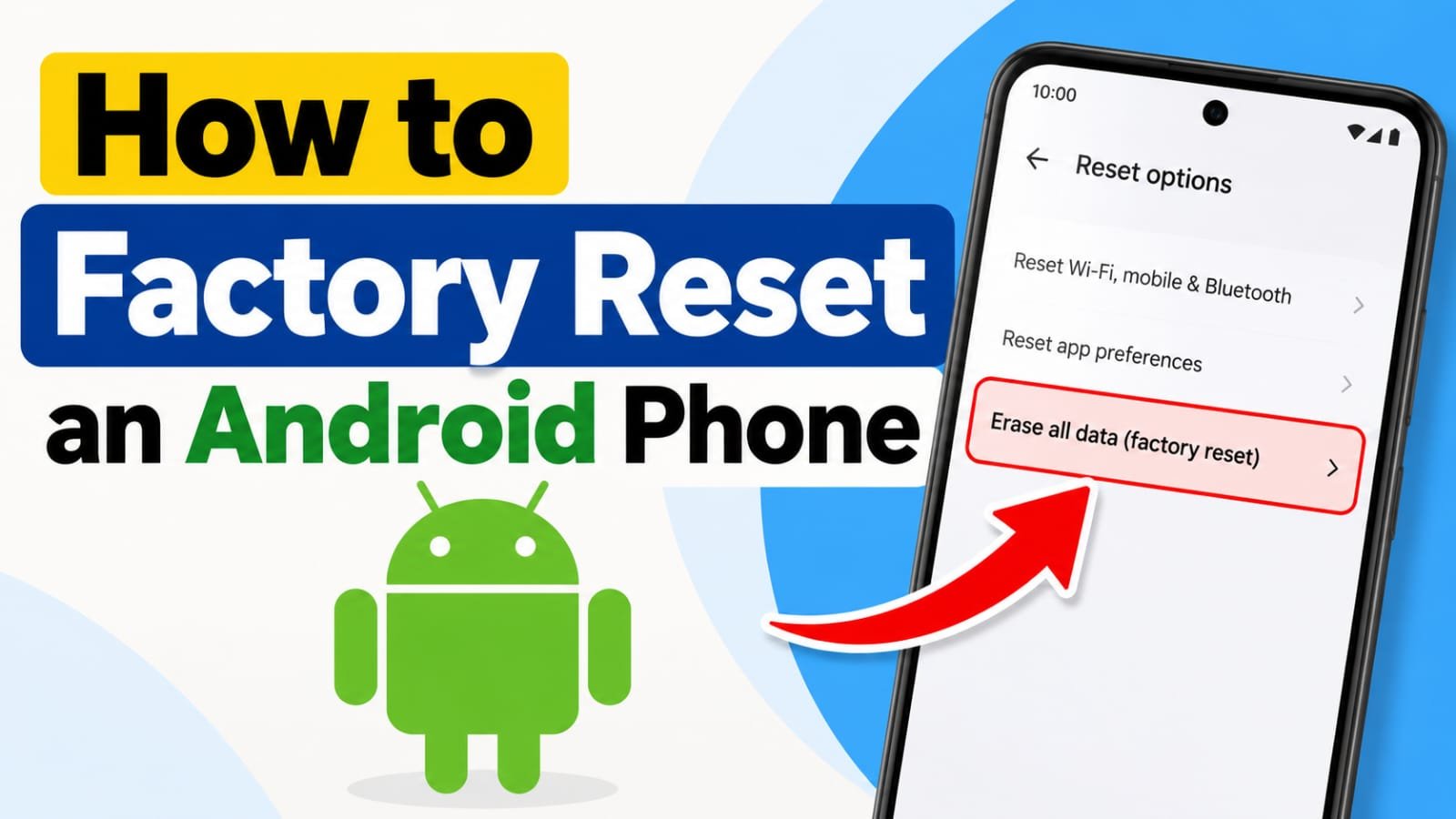
A factory reset can help when an Android phone has serious software problems, is being given to someone else, or needs to be wiped before selling. But it is an important step because a factory reset removes personal data and restores the phone to its factory state.
Before starting, make sure you have a backup of anything you want to keep and that you know the Google Account details used on the phone.
The exact reset menu can vary between Android brands. Google Pixel and Samsung Galaxy phones, for example, use slightly different menu paths.
Also read: How to Back Up iPhone Photos to an External Drive
What Happens When You Factory Reset an Android Phone?
A factory reset erases data stored on the phone and returns its software to a fresh setup state.
Depending on the phone and how it is configured, this can remove things such as:
- Installed apps
- Photos and videos stored on the device
- Downloaded files
- Personal settings
- Saved accounts on the device
- Other locally stored personal information
A reset does not mean that everything associated with your Google Account is permanently deleted from Google’s services. Data that was previously backed up can generally be restored when you set up the phone again.
Because the process is destructive, check your backup before confirming the reset.
What to Do Before Factory Resetting Your Phone
A few minutes of preparation can prevent losing important information.
1. Back Up Important Data
Back up photos, videos, contacts, documents, messages and other information you may need later.
If your phone supports cloud backup, check that the backup has completed before resetting the device.
2. Remember Your Google Account Details
Make sure you know the email address and password for the Google Account associated with the phone.
After a reset, Android may ask for previously used account credentials during setup. This is part of Google’s security protection and can prevent someone else from easily setting up a lost or stolen phone.
3. Charge the Phone
Keep the battery sufficiently charged before starting the reset. If possible, connect the phone to a charger during the process.
4. Connect to Wi-Fi
Having a reliable internet connection can make the setup and account verification process easier after the reset.
How to Factory Reset a Google Pixel Phone
On a Google Pixel, the reset option is available through the Settings app.
- Open Settings.
- Tap System.
- Select Reset options.
- Tap Erase all data (factory reset).
- Review the information shown on the screen.
- Tap Erase all data.
- Enter your PIN or other security information if requested.
- Confirm the reset.
The phone will erase its data and restart. Once the process is complete, you can go through the Android setup process again.
Menu names can change between Android versions, so the options on your Pixel may not look exactly the same.
How to Factory Reset a Samsung Galaxy Phone
Samsung Galaxy devices use a different Settings path.
- Open Settings.
- Tap General management.
- Select Reset.
- Tap Factory data reset.
- Review the information about the data that will be erased.
- Tap Reset.
- Enter your PIN, password or other security information if requested.
- Confirm that you want to erase the phone.
The Galaxy phone will then begin the reset process.
What If You Cannot Open Settings?
If your Android phone is frozen, stuck during startup or cannot open Settings, there may be another way to perform a factory reset.
Many Android phones support recovery or reset options using the Power and Volume buttons. However, the exact button combination and recovery menu can vary considerably between manufacturers and models.
For that reason, it is better to check the support instructions for your specific phone rather than trying a random button combination.
Some devices also offer remote management or reset options through Google’s device-finding services when the required conditions are met.
Google Pixel users may also have additional software-repair options available through Google’s official tools.
Should You Factory Reset an Android Phone to Fix a Problem?
Not always.
A factory reset is a major troubleshooting step because it removes locally stored data. If the problem is relatively minor, try simpler solutions first.
For example, you could:
- Restart the phone.
- Install available system updates.
- Check whether a particular app is causing the problem.
- Clear an app’s cache when appropriate.
- Free up storage space if the phone is running out of space.
If these steps do not solve a serious software problem, a factory reset may be worth considering.
How Long Does a Factory Reset Take?
The actual reset may take only a few minutes, although the time can vary by device and the amount of data being processed.
The longer part may come afterward. You may need to:
- Connect the phone to Wi-Fi.
- Sign in to your Google Account.
- Install apps again.
- Restore backed-up information.
- Reconfigure settings.
- Download system or app updates.
So, allow extra time if you need to make the phone fully usable again.
What Should You Do After the Reset?
When the reset finishes, the phone will normally show the initial setup process.
Follow the on-screen instructions and connect the device to the internet when required.
If you are keeping the phone, sign in with the appropriate account and restore your backup if available.
If you are giving the phone to another person, make sure you have completed the necessary account-removal and device-transfer steps before handing it over. Do not assume that simply pressing the reset button is the only preparation required.
Common Mistakes to Avoid
Resetting Without a Backup
The biggest mistake is starting a factory reset before checking whether important files have been backed up.
Forgetting Your Google Account Password
You may need your previous account credentials during setup, so verify that you can access the account before resetting.
Using Random Button Combinations
Recovery procedures differ between Android manufacturers and models. Follow instructions specifically intended for your device.
Resetting Too Quickly
If your phone has a small software issue, a factory reset may be unnecessary. Try basic troubleshooting first.
Frequently Asked Questions
Does a factory reset remove my Google Account?
The account is removed from the phone as part of the reset, but the phone may still request the previously used Google Account credentials during setup. This security feature helps prevent unauthorized reuse of reset devices.
Will a factory reset delete my photos?
Photos and other files stored locally on the phone can be erased. Make sure important photos are backed up before starting the reset.
Can I recover data after a factory reset?
Recovery depends on whether the information was backed up before the reset and where it was stored. Do not rely on recovering important data afterward; back it up first.
Should I factory reset my phone if it is running slowly?
Not necessarily. Restarting the phone, updating Android, removing unnecessary apps and freeing storage may solve some performance problems without deleting your data.
Does a factory reset remove everything from my Google Account?
No. A factory reset primarily removes data from the device. Information already stored in your Google Account or another backup service is not automatically the same as data stored locally on the phone.
Can I factory reset an Android phone without opening Settings?
On many devices, there are alternative recovery methods, often involving hardware buttons. The exact procedure depends on the manufacturer and model, so use the device maker’s official instructions.
Also read: Can You Call Google Support for Gmail? Current Help Options
Conclusion
Factory resetting an Android phone is straightforward, but it should not be treated as a routine troubleshooting step. First back up important data, confirm that you know the Google Account credentials associated with the device, and make sure the phone has enough battery.
For Google Pixel phones, the reset is available under System → Reset options, while Samsung Galaxy devices generally use General management → Reset → Factory data reset. If Settings cannot be opened, use the official recovery instructions for your particular model.
A little preparation before the reset can prevent the loss of important data and make the setup process much easier afterward.

Abhi Rajput, founder of Earnabhi.com, is a tech lover with 6+ years of experience in SEO, digital tools, and smartphone troubleshooting. He writes simple, clear, and useful guides to help people solve real tech problems.